
Proxy Authentication Guide: IP Whitelisting vs Username and Password
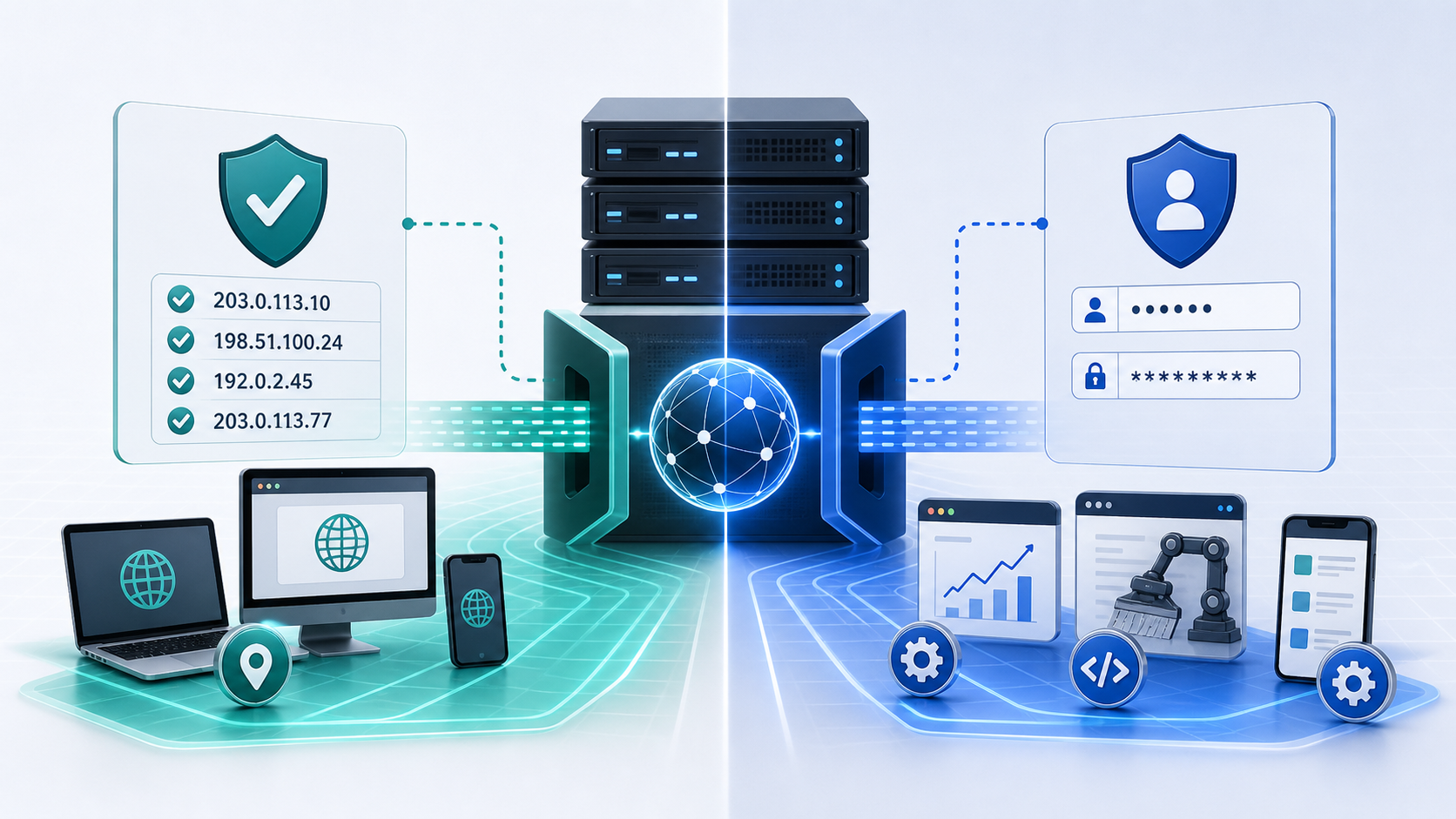
Proxy authentication is the access control step that proves you are allowed to use a proxy server.
If your proxy is not authenticated correctly, your browser, scraper, SEO tool, or app may fail before it even reaches the target website. That is why many proxy setup issues are not really “bad proxy” issues. They are authentication issues.
This guide explains how proxy authentication works, how to choose between IP whitelisting and username/password access, what a proxy format looks like, and how to fix the most common setup errors.
You will learn:
- What proxy authentication means
- How IP whitelisting works
- How username and password proxy authentication works
- Which method fits your workflow
- How to set up proxies in browsers, scripts, SEO tools, browser profiles, and cloud servers
- How to troubleshoot common proxy authentication errors
- How teams should manage proxy credentials safely
For the official technical reference behind this point, see MDN HTTP overview.
What is proxy authentication?
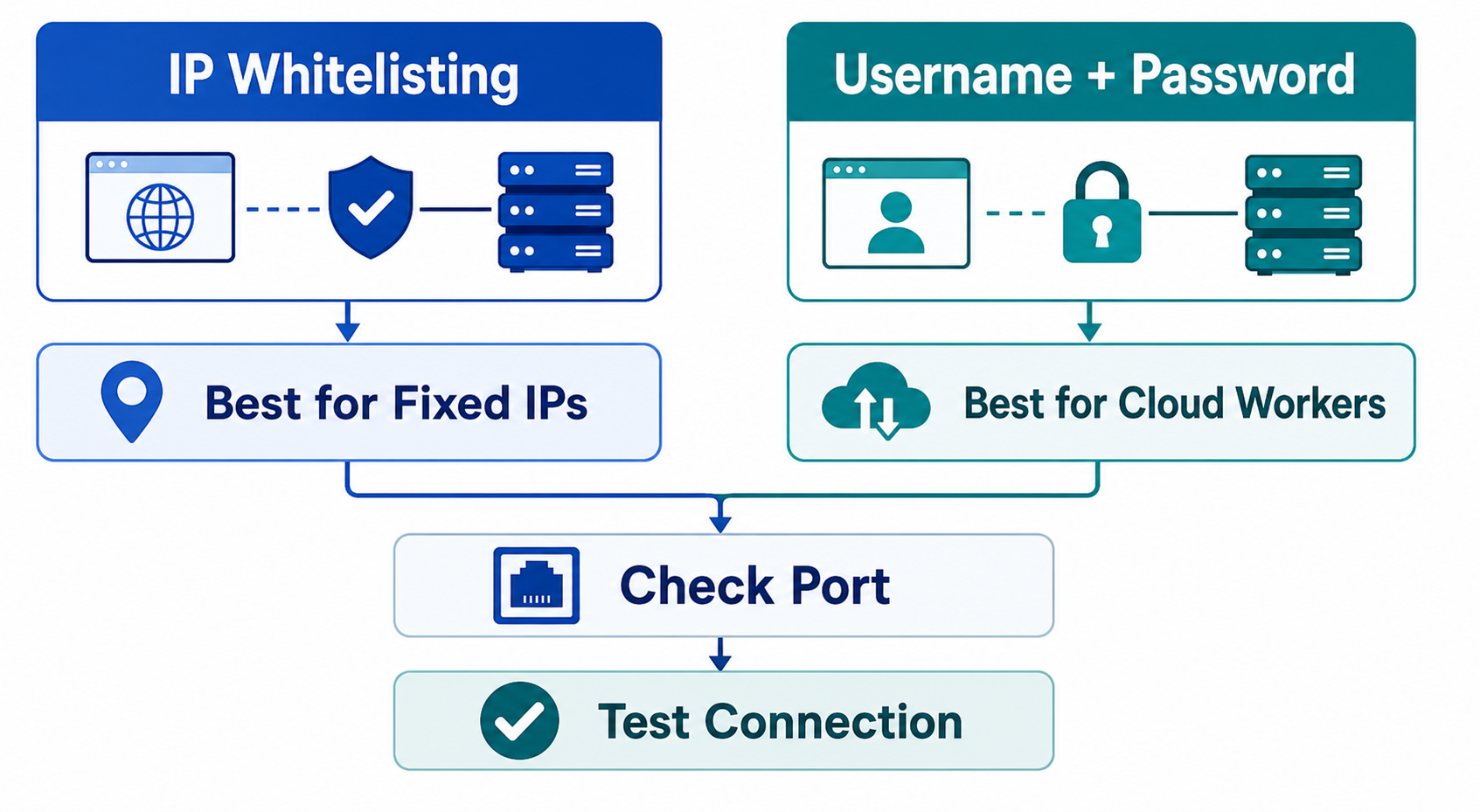
Proxy authentication is the process a proxy server uses to confirm that a user, device, server, or tool is allowed to use it.
A proxy server sits between your device or tool and the destination website. Before it forwards your request, the proxy needs to know that you are authorized. If you are not authorized, the proxy may reject the request before anything reaches the destination.
For the LycheeIP implementation details behind this step, review LycheeIP proxy infrastructure.
Most commercial proxy providers support two common authentication methods:
- IP whitelisting
- Username and password authentication
Some providers may support both. Some may require one method for specific proxy types, tools, or plans.
The important thing to understand is this: proxy authentication protects access to the proxy server. It does not log you into the target website. It only proves that your tool is allowed to route traffic through the proxy.
For example, if you are using a proxy for SEO rank tracking, the proxy authentication step gives your SEO tool permission to use the proxy IP. It does not authenticate you with the search engine or any website you visit.
How does IP whitelisting work?
IP whitelisting allows a proxy server to accept requests only from specific approved IP addresses.
With IP authentication, you add your current IP address to the proxy provider’s dashboard. Once that IP is allowed, the proxy server recognizes traffic from that address and lets it pass without requiring a username and password in the proxy string.
A basic IP whitelisting workflow looks like this:
- Find the public IP address of your device, office network, or cloud server.
- Add that IP address to your proxy provider dashboard.
- Save the whitelist settings.
- Configure the proxy host and port in your tool.
- Test the connection.
If the request comes from the approved IP, the proxy works. If the request comes from another IP, the proxy rejects it.
When IP whitelisting is best
IP whitelisting is best when your traffic comes from a stable, controlled environment.
For the LycheeIP implementation details behind this step, review AI-powered browser automation hub.
It works well for:
- One static office IP
- One cloud server
- A controlled scraping server
- A dedicated rank tracking machine
- Internal QA infrastructure
- A team environment with a fixed outbound IP
IP authentication is clean because you do not need to paste credentials into every tool. This reduces the chance of exposing proxy credentials in logs, spreadsheets, browser profiles, or shared screenshots.
It is especially useful for server-side workflows where all requests come from the same fixed machine.
When IP whitelisting becomes frustrating
IP whitelisting becomes frustrating when your network changes often.
It may be a poor fit for:
- Dynamic home internet
- Remote teams
- Mobile hotspots
- Team members in different locations
- Contractors using separate devices
- Cloud environments with changing outbound IPs
- Workflows that run from multiple machines
If your ISP changes your public IP address, the proxy may suddenly stop working until you update the whitelist. If a remote teammate is not on the allowed IP, the proxy may fail for them even if it works for you.
A common mistake is assuming the proxy is down when the real issue is that the request is coming from an unapproved IP address.
How does username and password proxy authentication work?
Username and password proxy authentication allows a proxy server to verify access through credentials instead of the user’s current IP address.
With this method, your provider gives you proxy credentials. You enter those details into your browser, scraper, rank tracker, app, or proxy manager.
A typical username password proxy setup includes:
- Proxy host
- Proxy port
- Username
- Password
- Protocol
- Optional country, city, session, or rotation parameters
This method is portable. It can work across multiple networks as long as the credentials are valid and the provider allows the connection.
When credentials are best
Username and password authentication is best when people, tools, or servers need to connect from different locations.
It works well for:
- Remote teams
- Multiple devices
- Cloud workers
- Browser profiles
- Anti-detect browser environments
- SEO tools
- Scraping scripts
- Freelancers and contractors
- Dynamic home networks
If you do not know what your public IP address will be from day to day, username and password authentication is usually easier than IP whitelisting.
It is also helpful when one team needs to separate access by project, client, or workflow. Some proxy dashboards allow sub-users or separate credentials for different use cases.
What to protect
Proxy credentials should be treated like sensitive access keys.
Protect:
- Username
- Password
- Proxy host
- Proxy port
- Session parameters
- Country or location parameters
- API tokens if the provider uses them
- Dashboard access
Do not paste proxy credentials in public documents, exposed code repositories, screenshots, chat groups, or shared spreadsheets without access control.
If a contractor, intern, or temporary team member no longer needs access, rotate the credentials or remove their sub-user access.
Which authentication method should you choose?
Choose IP whitelisting when traffic comes from a stable environment, and choose username/password authentication when access needs to work across changing networks or multiple users.
Use this simple rule:
If the traffic always comes from one known place, use IP whitelisting.
If the traffic comes from many people, tools, servers, or locations, use username and password authentication.
If the workflow is sensitive and your provider supports it, use both controls where possible.
What does a proxy format look like?
A proxy format tells your tool where the proxy server is and how to authenticate.
The exact format depends on the provider and the tool, but most proxy credentials include the same core parts.
Common fields include:
- Host: The proxy server address
- Port: The access port for the proxy
- Username: Your login name or generated proxy user
- Password: Your proxy password
- Protocol: HTTP, HTTPS, or SOCKS5
- Location parameters: Country, state, city, or region if supported
- Session parameters: Sticky session ID, rotation time, or profile ID if supported
Common formats include:
Always follow the exact format your provider gives you. Some tools expect host and port first. Others expect username and password first. A working proxy can fail simply because the details were pasted in the wrong order.
For SOCKS5 proxy setup, check that the tool supports SOCKS5 before using it. Some tools only support HTTP or HTTPS proxies. If the protocol is wrong, the connection may fail even when the host, port, username, and password are correct.
How do you set up proxies in common workflows?
Proxy server setup depends on the tool, but the logic is usually the same: choose the protocol, enter the host and port, add authentication, then test the connection.
Browser setup
For a browser setup, you normally need:
- Proxy host
- Proxy port
- Protocol
- Username and password if required
Some browsers rely on system proxy settings. Others need an extension or profile manager. After setup, test the connection by checking whether the visible IP address, location, and connection status match what you expect.
For the LycheeIP implementation details behind this step, review static residential proxies.
For the LycheeIP implementation details behind this step, review AI browser automation setup guide.
For the official technical reference behind this point, see Playwright documentation.
Browser setup is useful for:
- Manual testing
- Location checks
- Account QA
- Simple browsing workflows
- Debugging proxy access before adding automation
Scraping script setup
For a scraping script, you need to pass proxy details into the HTTP client, browser automation tool, or scraping framework.
Check:
- Does the library support proxies?
- Does it support your protocol?
- Does it expect one proxy string or separate fields?
- Does it support username/password authentication?
- Does it handle HTTPS targets correctly?
- Does it need separate proxy settings for browser launch and page requests?
For scraping, do not only confirm that the proxy connects. Also log response codes, redirects, timeouts, CAPTCHA pages, and rate-limit responses.
A proxy can authenticate correctly but still fail because the scraper behavior is too aggressive or inconsistent.
SEO rank tracker setup
For an SEO rank tracker, setup usually requires adding proxy credentials inside the tool’s proxy settings.
Check:
- Country or city targeting
- Proxy type supported by the tool
- Authentication method
- Search engine settings
- Request rate settings
- Rotation or sticky-session behavior
For rank tracking, location consistency matters. If the proxy location is wrong, the ranking data may be unreliable even if the proxy technically works.
Browser profile or anti-detect environment setup
For browser profiles, each profile should have its own consistent proxy setup when account stability matters.
Check:
- Host
- Port
- Username
- Password
- Protocol
- Profile-to-proxy mapping
- Time zone and language consistency
- Location consistency
- Session persistence
Avoid moving the same account across many unrelated proxy IPs unless there is a clear reason. Frequent IP changes can create login challenges on some platforms.
Cloud server setup
For a cloud server, IP whitelisting often works well because the server usually has a stable outbound IP.
Check:
- Server public IP
- Firewall settings
- Provider whitelist
- Proxy endpoint
- Port access
- Tool configuration
- Logs for connection errors
Cloud setups are common for scraping, monitoring, automation, and scheduled SEO workflows. They are easier to maintain when you document the exact proxy settings and where they are used.
Why do proxy authentication errors happen?
Proxy authentication errors usually happen because credentials, whitelist settings, proxy format, protocol, or network access are wrong.
Do not assume every error means the proxy is bad.
A good troubleshooting order is:
- Confirm the proxy subscription or plan is active.
- Confirm host and port.
- Confirm protocol.
- Confirm username and password.
- Confirm IP whitelist if used.
- Test from a simple browser or proxy checker.
- Test inside the actual tool.
- Review response codes and logs.
- Try a fresh session or replacement IP if available.
- Contact support with logs, not guesses.
The more specific your error report is, the faster the issue can be fixed.
How should teams manage proxy credentials safely?
Teams should manage proxy credentials like production infrastructure access.
Use these practices:
- Store credentials in a password manager or secure vault.
- Do not paste proxy credentials in public documents.
- Do not hardcode credentials in exposed repositories.
- Separate projects or clients with different proxy users where possible.
- Rotate credentials after contractor access ends.
- Limit dashboard access to people who need it.
- Use sub-users for teams, interns, vendors, or departments.
- Keep a record of which proxy is used by which workflow.
- Remove unused credentials.
- Review usage logs if the provider supports them.
For agencies, this is especially important. One shared proxy credential across many clients creates confusion, security risk, and troubleshooting problems.
For data teams, separating credentials by project makes it easier to diagnose blocks, overuse, and unexpected bandwidth consumption.
##
Why LycheeIP fits this setup stage
LycheeIP is useful for teams that need proxy infrastructure they can configure, test, and manage across real workflows.
Whether you are setting up proxies for scraping, SEO rank tracking, browser profiles, QA testing, or cloud automation, the key is not just buying access. The key is connecting the proxy correctly, protecting credentials, and matching the authentication method to the team’s operating environment.
Use IP whitelisting when you have stable server or office traffic. Use username and password authentication when your team needs portability. Use clear documentation so every proxy connection can be traced back to the correct workflow.
Set Up LycheeIP Proxy Authentication Faster
##
Frequently Asked Questions
What is proxy authentication?
Proxy authentication is the process of proving that you are allowed to use a proxy server. It usually happens through IP whitelisting or username/password credentials.
What is the difference between IP whitelisting and username/password authentication?
IP whitelisting allows traffic only from approved IP addresses. Username/password authentication allows access through login credentials, which makes it easier to connect from different networks, devices, or tools.
Which proxy authentication method is better?
The better method depends on your workflow. IP whitelisting is better for stable servers and fixed office networks, while username/password authentication is better for remote teams, browser profiles, and dynamic networks.
Why am I getting a 407 Proxy Authentication Required error?
A 407 error usually means the proxy server did not receive valid authentication credentials. Check the username, password, host, port, protocol, and IP whitelist settings.
Can I use IP whitelisting and username/password together?
Some providers allow both, while others require one method. If both are available, combining them can give more control for sensitive internal workflows.
Why does my proxy work on one device but not another?
This often happens when IP whitelisting is enabled and only one device or network is approved. Add the second device’s public IP address to the whitelist or use username/password authentication instead.
What should I do if my proxy credentials stop working?
First, confirm the plan is active. Then check the proxy format, username, password, host, port, protocol, and whitelist settings. If the issue continues, test a fresh session or contact support with error details.
Is SOCKS5 proxy setup different from HTTP proxy setup?
Yes, the setup can be different because the tool must support SOCKS5. If the tool only supports HTTP or HTTPS proxies, a SOCKS5 proxy may fail even when the credentials are correct.
Should teams share one proxy username and password?
It is better to avoid one shared credential across the whole team. Use separate sub-users or project-specific credentials where possible so access can be tracked, limited, and revoked.
Is proxy authentication the same as logging into a website?
No. Proxy authentication only gives your tool permission to use the proxy server. It does not log you into the destination website or replace account-level authentication.
Related LycheeIP Guides and Resources

Recommended Articles
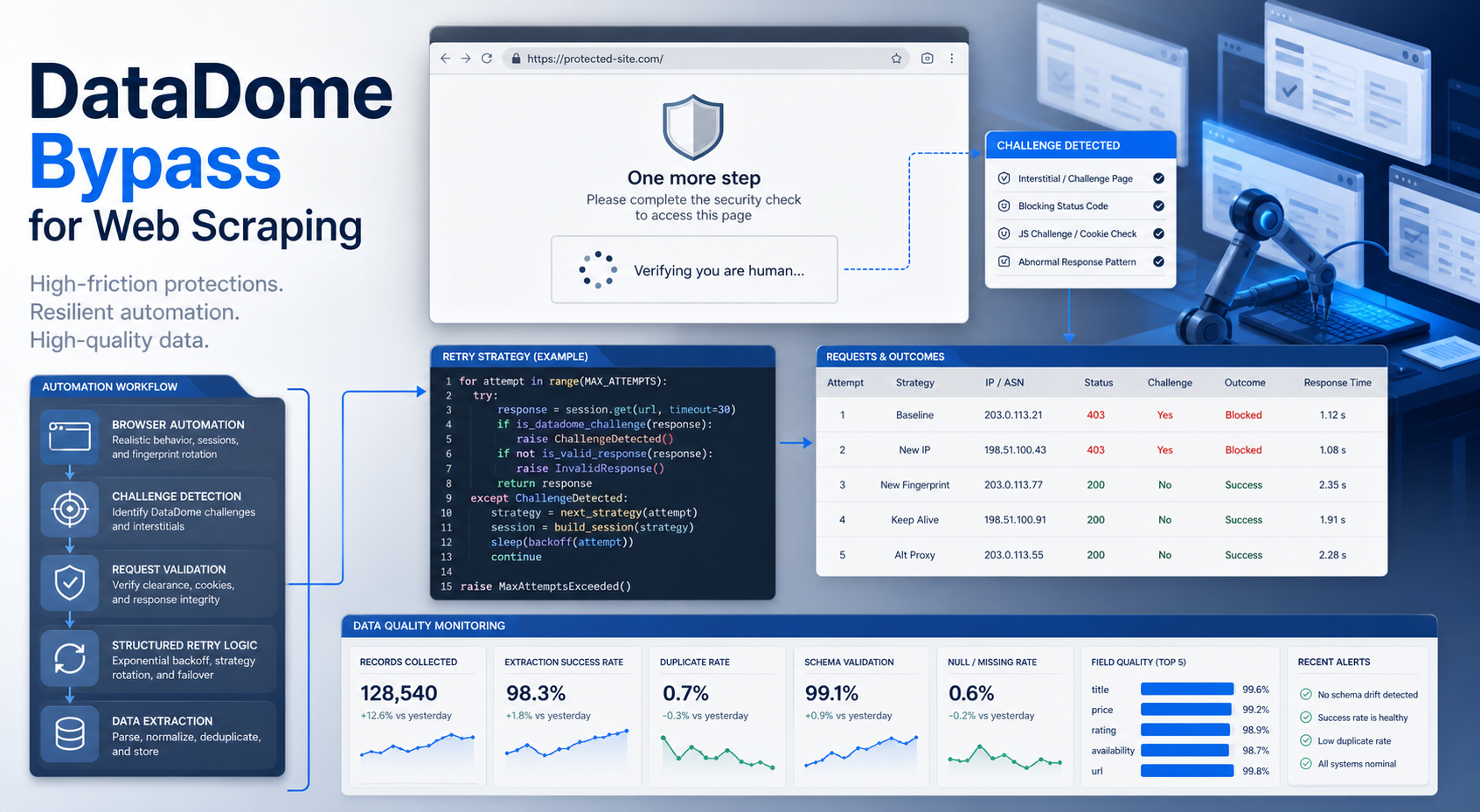
DataDome Bypass for Web Scraping
DataDome Bypass for Web Scraping
View Details
Web Scraping Rate Limiting: How to Handle 429s, Backoff, and Concurrency
Web scraping rate limiting is the engineering discipline of keeping an authorized collection workload inside a target service's acceptable request envelope. When that envelope is exceeded, a server may respond with HTTP 429 Too Many Requests, delay responses, or apply other controls.
View Details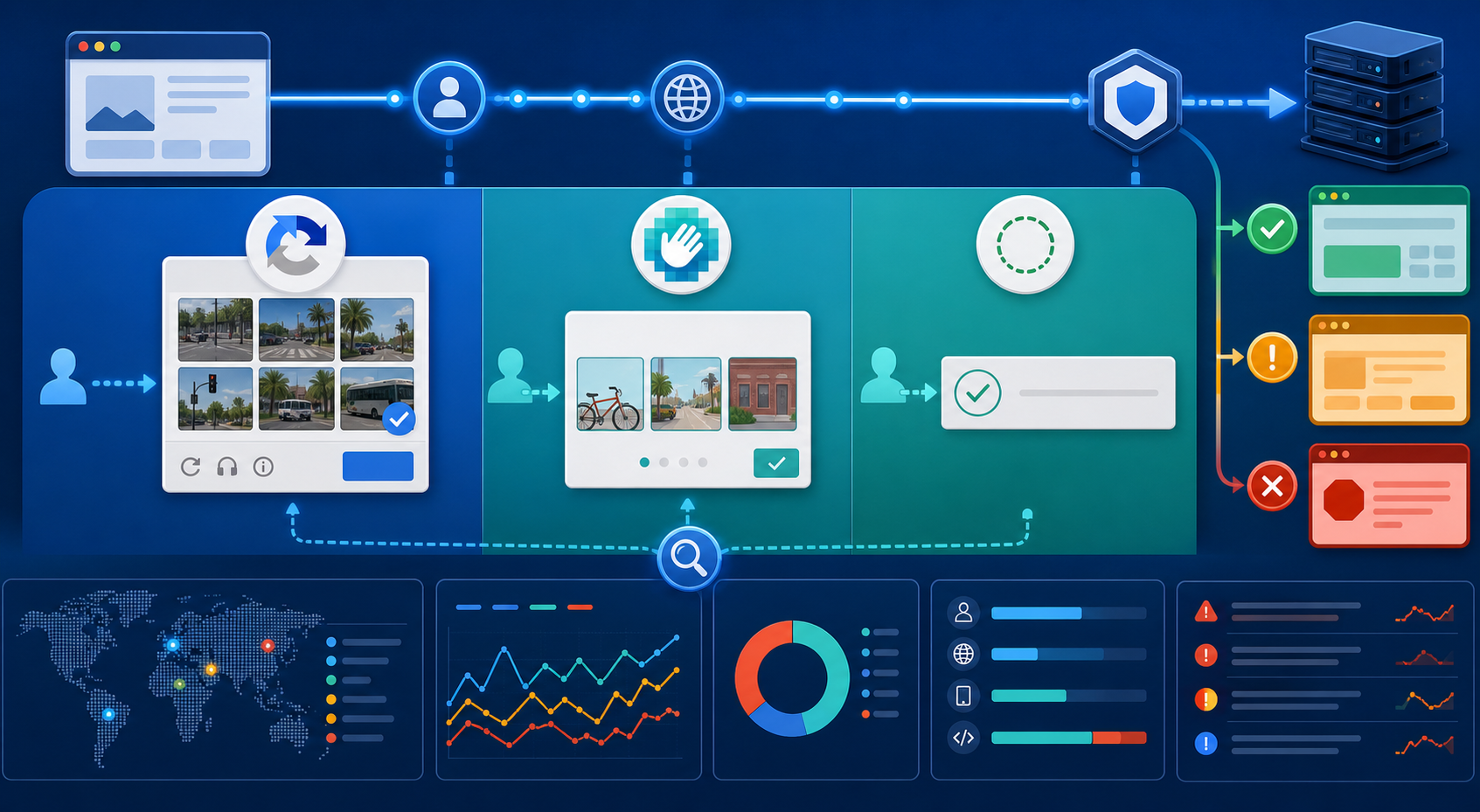
reCAPTCHA vs hCaptcha vs Cloudflare Turnstile: What Scraping Teams Need to Know
If an authorized data-collection workflow suddenly stops at a verification screen, identifying the protection system matters before you change code, browser settings, or proxy infrastructure. reCAPTCHA vs hCaptcha vs Turnstile is not simply a branding comparison. The three systems can expose different browser flows, token models, risk decisions, and failure symptoms.
View Details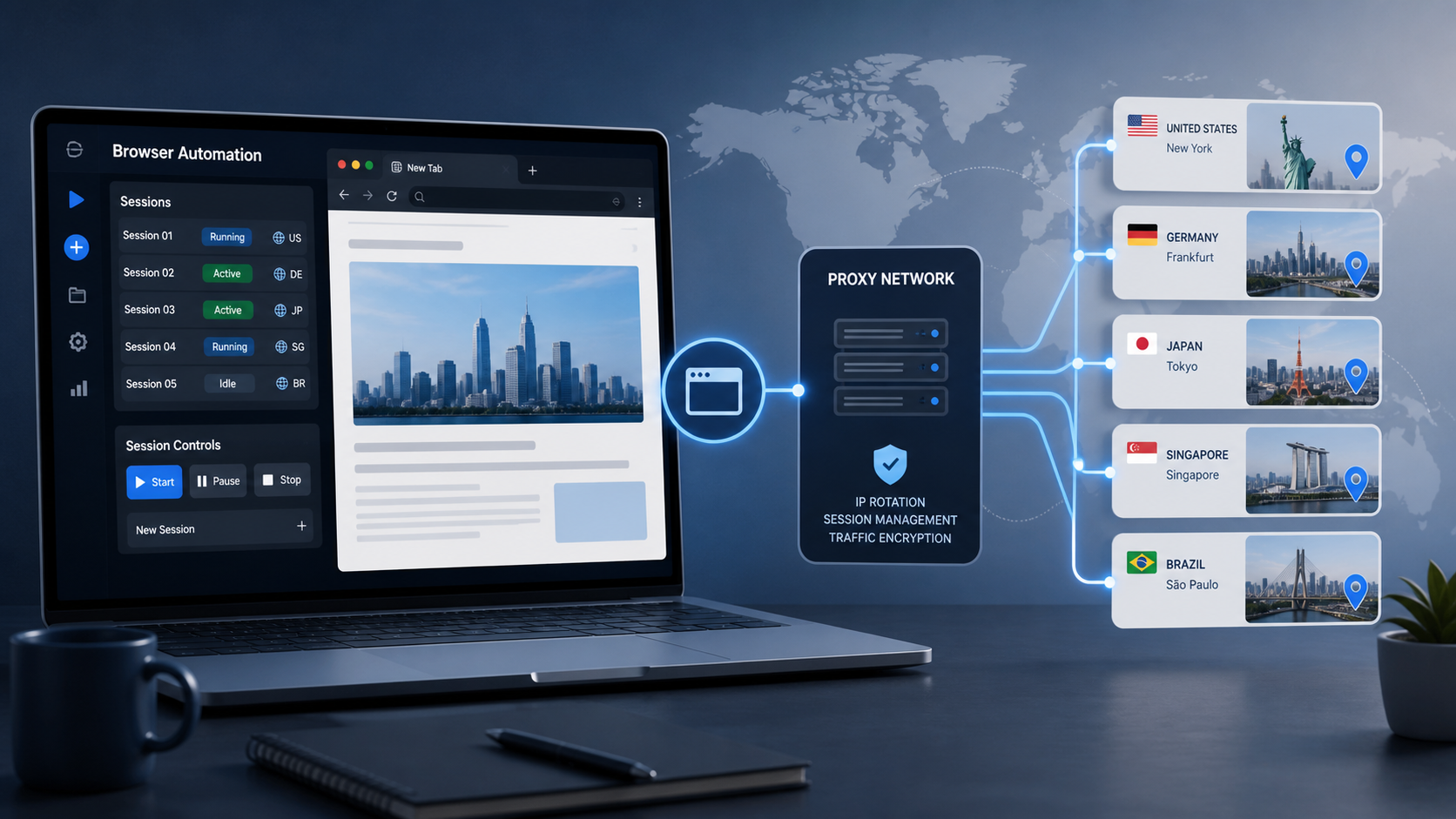
Browser Automation Proxies: IPs, Geo-Targeting, Sessions, and AI Agents
A browser automation proxy belongs to the network layer of Playwright, Selenium, cloud-browser, and AI-agent workflows. It changes how browser traffic is routed and can affect the source IP address, geographic egress, and session continuity seen by a destination site. It does not improve an AI model's reasoning, repair browser logic, or guarantee that a website will accept the session.
View Details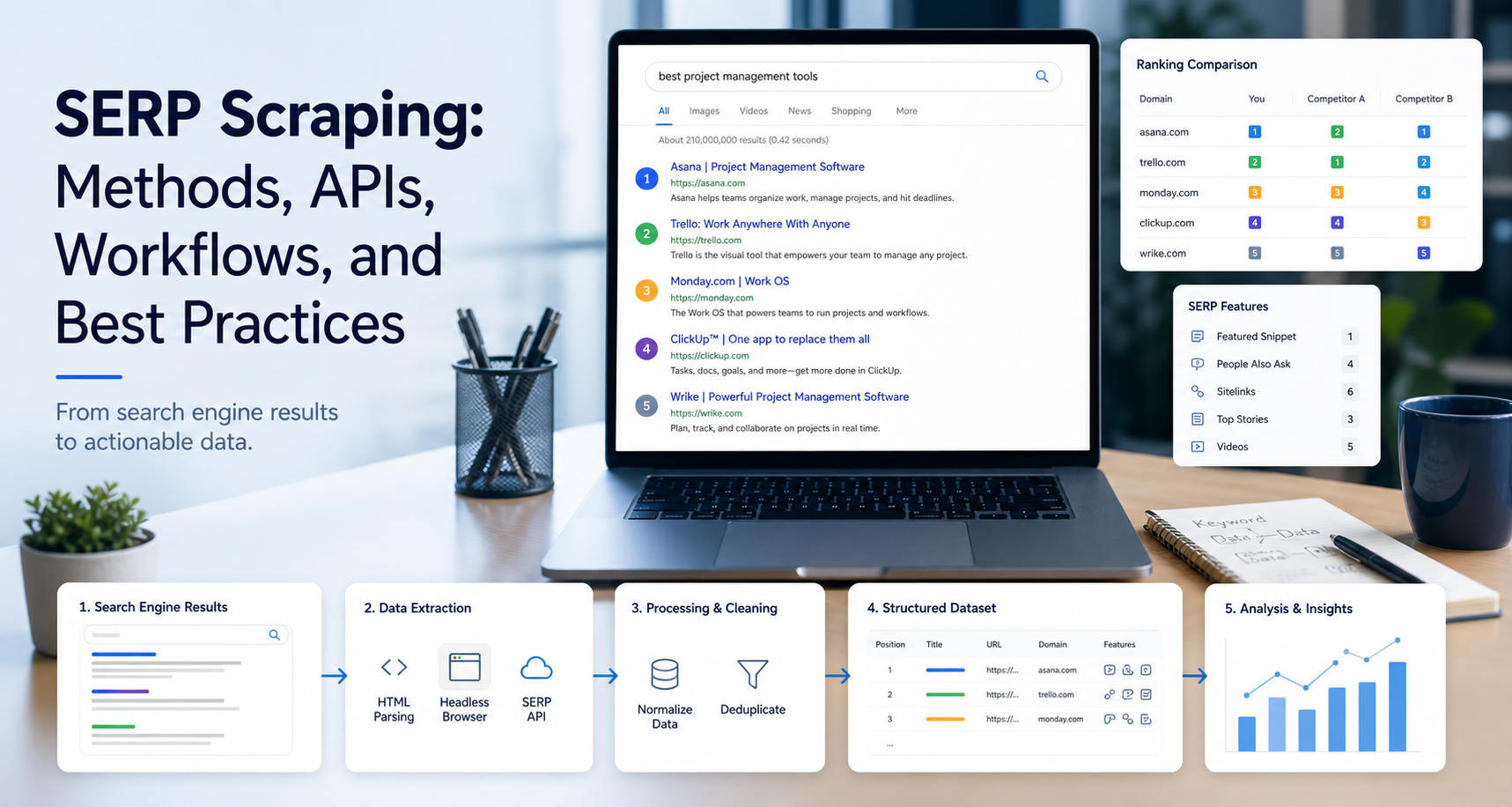
SERP Scraping: Methods, APIs, Workflows, and Best Practices
SERP scraping is the automated collection of information from search engine results pages. A SERP scraper can capture organic rankings, advertisements, featured snippets, People Also Ask questions, local results, shopping listings, images, and other search features, then convert them into structured data for analysis.
View Details