
How to Unblock YouTube: Find the Right Fix
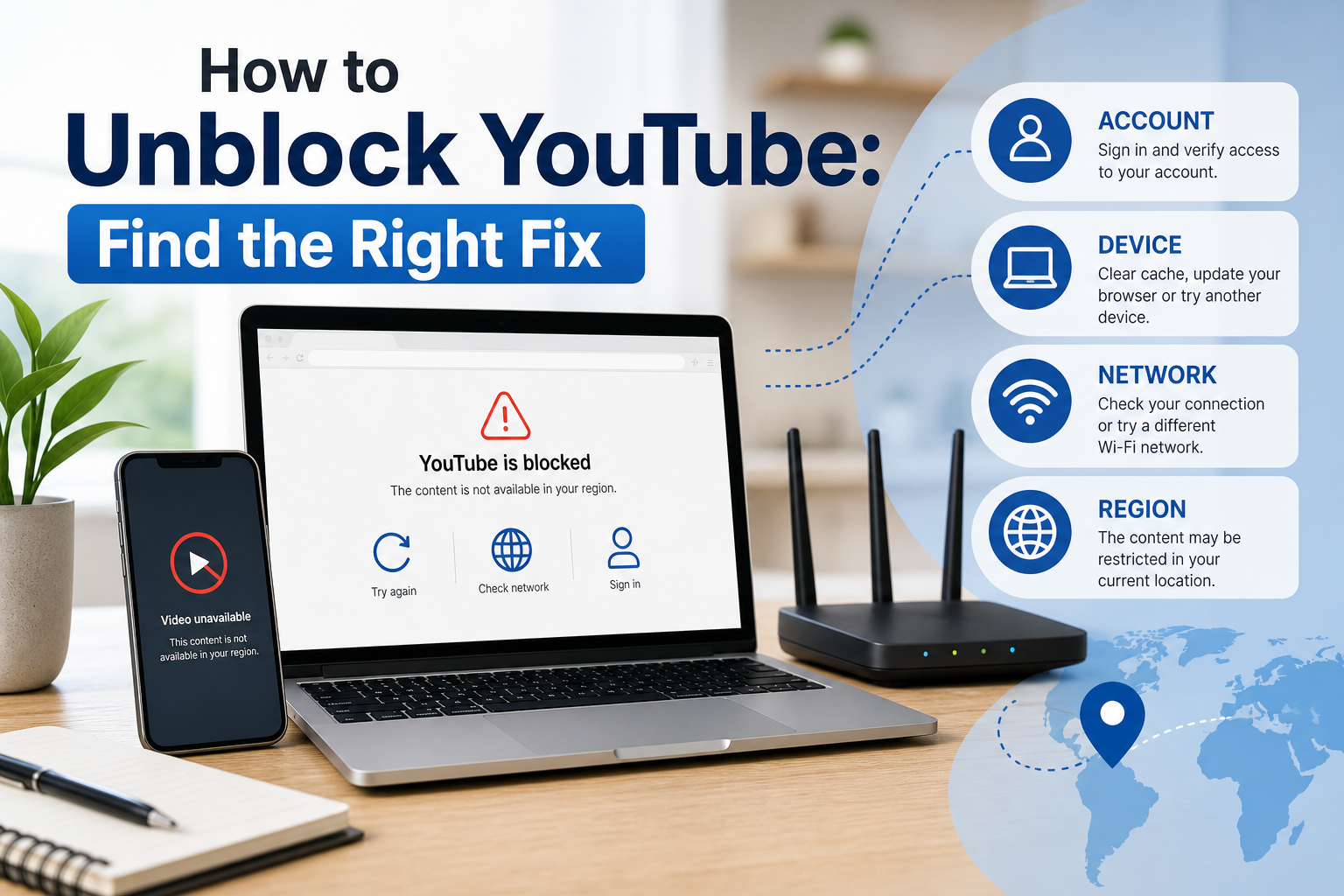
The fastest way to unblock YouTube is to identify **what is actually blocking it**.
A school or workplace network filter is not the same as a video that is unavailable in your country. Restricted Mode is not the same as an age restriction. A DNS failure is not the same as an account-level warning. Because the causes are different, the correct fixes are different too.
Start with the error message and test whether the problem follows your account, your device, or your network. Then choose the least invasive solution that matches the restriction.
This guide is for troubleshooting devices, accounts, and networks you own or are authorized to administer. It does not provide steps for defeating school, workplace, parental, or device-management controls. For managed systems, request approved access from the administrator.
First, Identify the Type of YouTube Block
Before installing anything, answer four questions.
Does YouTube fail on every device connected to the same Wi-Fi?
If YouTube works on mobile data but fails on your laptop, phone, and TV while they are connected to one Wi-Fi network, the restriction is probably network-level.
Possible causes include:
- school or workplace filtering
- router parental controls
- DNS filtering
- ISP or regional restrictions
- a network outage or misconfiguration
Does only one video fail?
If YouTube opens normally but a particular video says it is unavailable, the issue may be content-specific.
YouTube's official help documentation says videos can be unavailable in a country or region because the video owner limited availability, often due to licensing rights, or because YouTube must comply with local law.
A private, deleted, age-restricted, or members-only video also requires a different fix from a network block.
Does the problem follow your Google account?
Sign out or test another permitted account on the same device.
If the restriction only appears while signed in, check:
- age eligibility
- supervised account settings
- Restricted Mode
- account or channel enforcement
- organization-managed Google account policies
YouTube states that age-restricted videos cannot be viewed by signed-out users or users under 18. In some regions, viewers may also be asked to verify age.
Does the problem only happen on one device or app?
If YouTube works everywhere except one phone, browser, smart TV, or console, treat it as a device problem first.
Update the app, restart the device, check data permissions, and test the connection before changing your public IP address.
For the official technical reference behind this point, see MDN HTTP overview.
For the official technical reference behind this point, see Anthropic documentation.
A Quick Decision Guide
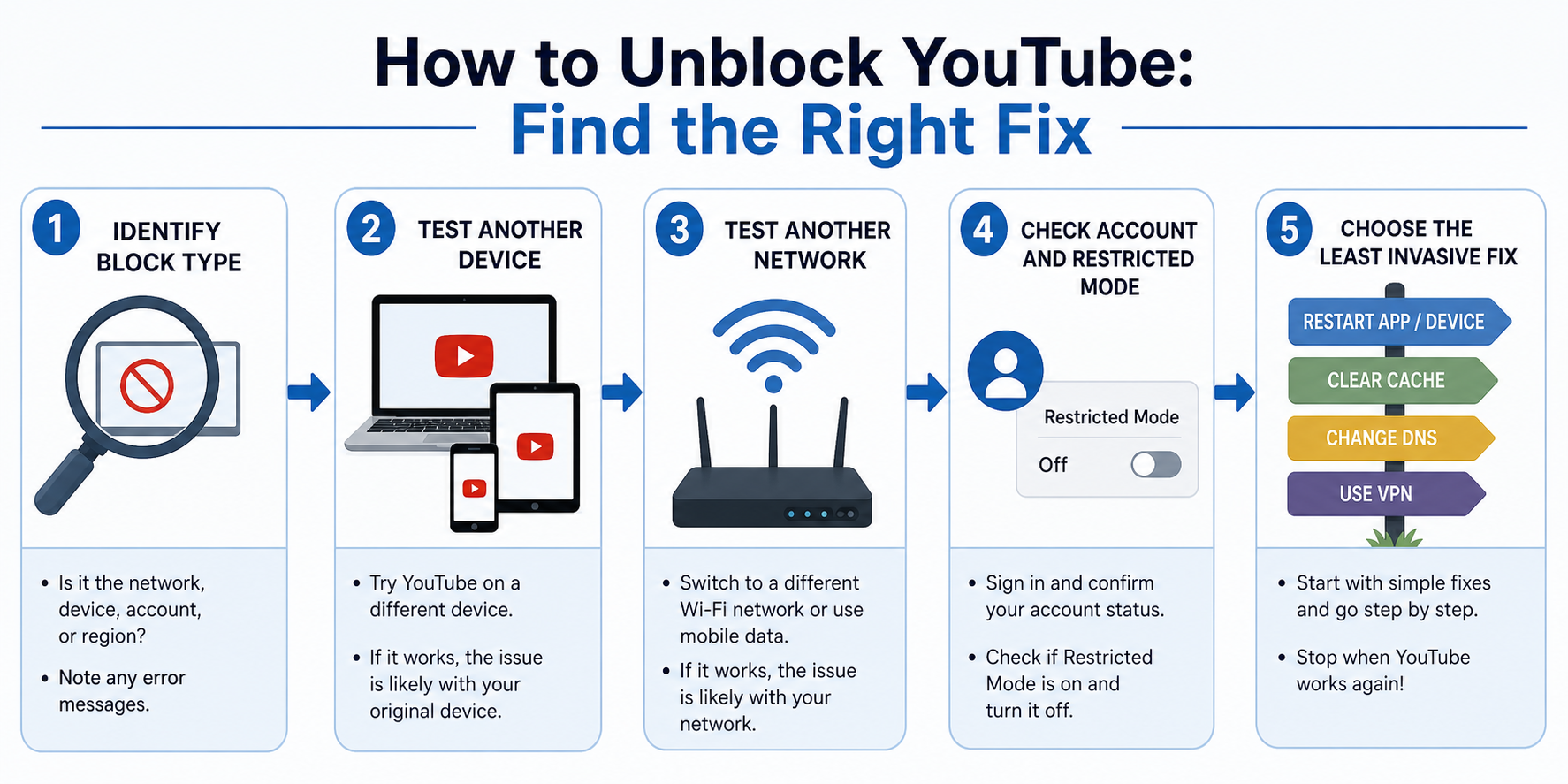
- "Restricted by administrator": Check administrator or device policy first.
- YouTube fails only on one Wi-Fi: Test mobile data, then inspect router or DNS settings.
- "Video isn't available in your country/region": Confirm whether licensing or local availability is the issue.
- "Sign in to confirm your age": Sign in and complete YouTube's required verification.
- Restricted Mode cannot be turned off: Use YouTube's content restrictions checker to identify the controlling setting.
- The app loads but videos fail: Restart, update, and check data usage and connection quality.
- One browser fails but private mode works: Clear YouTube site data and test extensions.
The goal is to stop guessing. A proxy cannot fix a Family Link setting. Changing DNS will not make an age-restricted video available to an underage account.
Method 1: Fix Local Browser or App Problems First
Many people search for "YouTube unblocked" when the platform is not actually being blocked.
YouTube's own troubleshooting guidance recommends checking internet speed and data usage, signing in, restarting the app or device, and installing updates.
Try this sequence:
- Open YouTube in a private or incognito window.
- Test another browser or the official YouTube app.
- Restart the app.
- Restart the device.
- Update the browser or YouTube app.
- Check whether mobile data is enabled for YouTube.
- Clear YouTube cache or site data if the problem is isolated to one device.
On Android, YouTube's help documentation specifically recommends opening the device's app settings, selecting YouTube, opening Storage or Storage & cache, and clearing the app cache when troubleshooting streaming problems.
Private mode is particularly useful as a diagnostic tool. If YouTube works privately but not in your normal browser profile, the problem is more likely to involve cookies, site data, or an extension.
Do not immediately install an unknown "YouTube unblocker" extension. First identify whether an existing extension is already breaking playback.
For the LycheeIP implementation details behind this step, review LycheeIP proxy infrastructure.
For the LycheeIP implementation details behind this step, review static residential proxies.
For the LycheeIP implementation details behind this step, review AI-powered browser automation hub.
For the LycheeIP implementation details behind this step, review AI browser automation setup guide.
Method 2: Check Restricted Mode and Account Controls
Restricted Mode is an optional YouTube setting intended to screen out potentially mature content. It is different from age restriction.
On a personal account, you can check it from your YouTube profile settings. On Android, for example, YouTube documents the path as Profile photo > Settings > General > Restricted Mode.
The important limitation is this: you may not control the setting yourself.
YouTube says computers in libraries, universities, schools, and other public institutions may have Restricted Mode enabled by a network administrator. Family Link can also enforce Restricted Mode for eligible child accounts.
If the switch is unavailable or turns back on, use YouTube's content restrictions page to identify whether the restriction comes from an administrator or your personal account.
Trying to bypass an administrator-controlled restriction can violate school or workplace policy. On a managed network or managed Chromebook, the correct route is to ask the administrator for access when YouTube is required for legitimate work or study.
Method 3: Switch Networks to Confirm a Network-Level Block
A personal hotspot is one of the best diagnostic tools because it changes the network without changing the device or account.
Here is the test:
- Keep the same device and Google account.
- Disconnect from Wi-Fi.
- Connect to mobile data or a personal hotspot you are authorized to use.
- Open the same YouTube page.
If YouTube works, you have strong evidence that the original network is responsible.
This does not automatically mean the network is censoring YouTube. The cause could be a DNS configuration, parental control, firewall rule, security filter, or temporary network problem.
On a workplace or school network, respect the organization's rules. On your own home network, inspect router controls, security services, and DNS settings.
Method 4: Change DNS When DNS Filtering or Resolution Is the Problem
The Domain Name System translates domain names into network addresses. Some organizations use DNS policies to control which websites and services users can reach.
Cloudflare's documentation describes DNS policies as controls that inspect DNS queries and can decide which services users can access. Cloudflare's own 1.1.1.1 for Families also demonstrates how DNS resolvers can intentionally filter categories such as malware or adult content.
That means changing DNS can help when the failure happens at the DNS layer.
Public DNS options include services such as Cloudflare 1.1.1.1 or Google Public DNS.
But DNS is not a universal YouTube unblocker.
Changing your resolver will not:
- change your Google account age
- remove a YouTube channel restriction
- override a video owner's regional licensing decision by itself
- bypass a firewall that blocks YouTube IP traffic
- disable device management
Also remember that an organization may enforce DNS through its own network or endpoint software. Changing a browser setting may not override that policy.
Use DNS as a targeted network fix, not a random first step.
Method 5: Review Authorized VPN or Proxy Settings
A VPN or proxy can change how traffic is routed, but it should only be used on a device or network where you are authorized to change the connection settings. On managed school or workplace systems, ask the administrator for access rather than attempting to work around filtering or device controls.
For your own device, first check whether an existing VPN, browser proxy, security app, or custom network profile is causing the problem. Disable the tool temporarily, return to a normal direct connection, and test YouTube again. If YouTube starts working, troubleshoot that network tool or contact its provider.
If your organization requires an approved VPN or proxy, use the configuration supplied by its administrator. Avoid unknown free proxy websites, and never enter a Google password into an intermediary page that imitates YouTube.
Method 8: Use Official Offline Downloads for Travel or Unreliable Connections
Sometimes the best way to "unblock" viewing is to avoid depending on the problem network at playback time.
YouTube Premium supports offline video downloads in supported locations. YouTube's official instructions allow eligible Premium users to download a video from its watch page and view it later from the Downloads section.
This is particularly useful for:
- flights
- commuting
- areas with unstable mobile coverage
- hotel or conference Wi-Fi
- travel where your subscription benefits remain available
YouTube notes that Premium benefits can vary while traveling and that previously downloaded videos may remain available offline for a limited period under its travel policy.
Use YouTube's official download feature rather than random third-party download sites. Unofficial tools can introduce malware, deceptive ads, copyright problems, or credential theft.
Be Cautious With Unknown Unblocker Sites
Translation tricks, mirror sites, bookmarklets, and free web proxies are often unreliable and can expose credentials or session data. Never enter a Google password into an unfamiliar intermediary or install forced downloads. These workarounds also avoid the real diagnosis: a mirror site cannot fix router parental controls or an account restriction.
Use the smallest, most understandable solution that addresses the actual cause.
When to Change Network Settings
Change DNS only when your tests point to DNS resolution or a home-network filtering problem you are authorized to manage. Review a VPN or proxy when an existing routing tool may be misconfigured or when your organization has provided an approved configuration.
Do not use network-routing tools to defeat administrator controls, account restrictions, age requirements, or platform enforcement. Those problems require the relevant settings, administrator, or YouTube support process.
What to Do on a School or Work Network
Schools and companies may restrict streaming for acceptable-use, bandwidth, safeguarding, or security reasons. Do not attempt to bypass those controls.
If YouTube is required for legitimate work or study, document the specific video, channel, or playlist and request access, a whitelist exception, or an approved alternative from the administrator.
Diagnose YouTube access issues with LycheeIP proxies
A Safer YouTube Unblocking Workflow
Use this order:
- Read the exact error message.
- Test another video.
- Test private browsing or another app.
- Restart and update the app or browser.
- Check sign-in, age, Restricted Mode, and account controls.
- Test mobile data or another authorized network.
- Inspect home router and DNS settings if the problem is network-specific.
- Change network settings only on systems you own or are authorized to administer.
- Use official offline downloads for predictable access during travel or poor connectivity.
- Escalate managed-network access to the administrator instead of trying to bypass controls.
The order matters. It starts with free diagnostic steps and only introduces network tools when they match the problem.
Frequently Asked Questions
Why is YouTube blocked even though other websites work?
YouTube may be specifically filtered by a network policy, Restricted Mode, router control, or content rule. Test the same device on mobile data to determine whether the restriction is tied to the current network.
Can changing DNS unblock YouTube?
Sometimes. It can help when DNS filtering or a broken resolver is the cause. It will not fix account restrictions, age verification, device management, or every firewall block.
Can a VPN or proxy fix a YouTube access problem?
Sometimes an existing VPN or proxy is the cause of the problem. On a device you control, test a normal direct connection first. If an organization requires a VPN or proxy, use only its approved configuration.
Why does one YouTube video say it is unavailable in my country?
YouTube says video owners may restrict content to specific countries or regions, often because of licensing rights, and YouTube may also block content to comply with local law.
Why can't I turn off Restricted Mode?
It may be controlled by Family Link, a managed account, or a network administrator. YouTube provides a content restrictions checker that can identify the source of the restriction.
Are free YouTube unblocker sites safe?
Treat unknown unblocker sites cautiously. Do not enter Google credentials into them, install forced downloads, or grant unnecessary extension permissions. Use official YouTube troubleshooting and reputable network tools instead.
Can I download YouTube videos and watch them offline?
YouTube Premium supports official offline downloads in supported locations. Availability and travel behavior depend on YouTube's current Premium rules and the specific content. Conclusion There is no single best method to unblock YouTube because "blocked" describes several different problems. The best solution is diagnostic. First determine whether the restriction comes from the video, account, device, or network. Fix local playback problems locally. Handle age and Restricted Mode through YouTube's account controls. Use DNS only for DNS-layer issues and review routing tools only on systems you are authorized to configure. On managed networks, request legitimate access rather than attempting to bypass controls. Once you match the tool to the actual restriction, YouTube troubleshooting becomes much faster and safer.
Related LycheeIP Guides and Resources

Recommended Articles
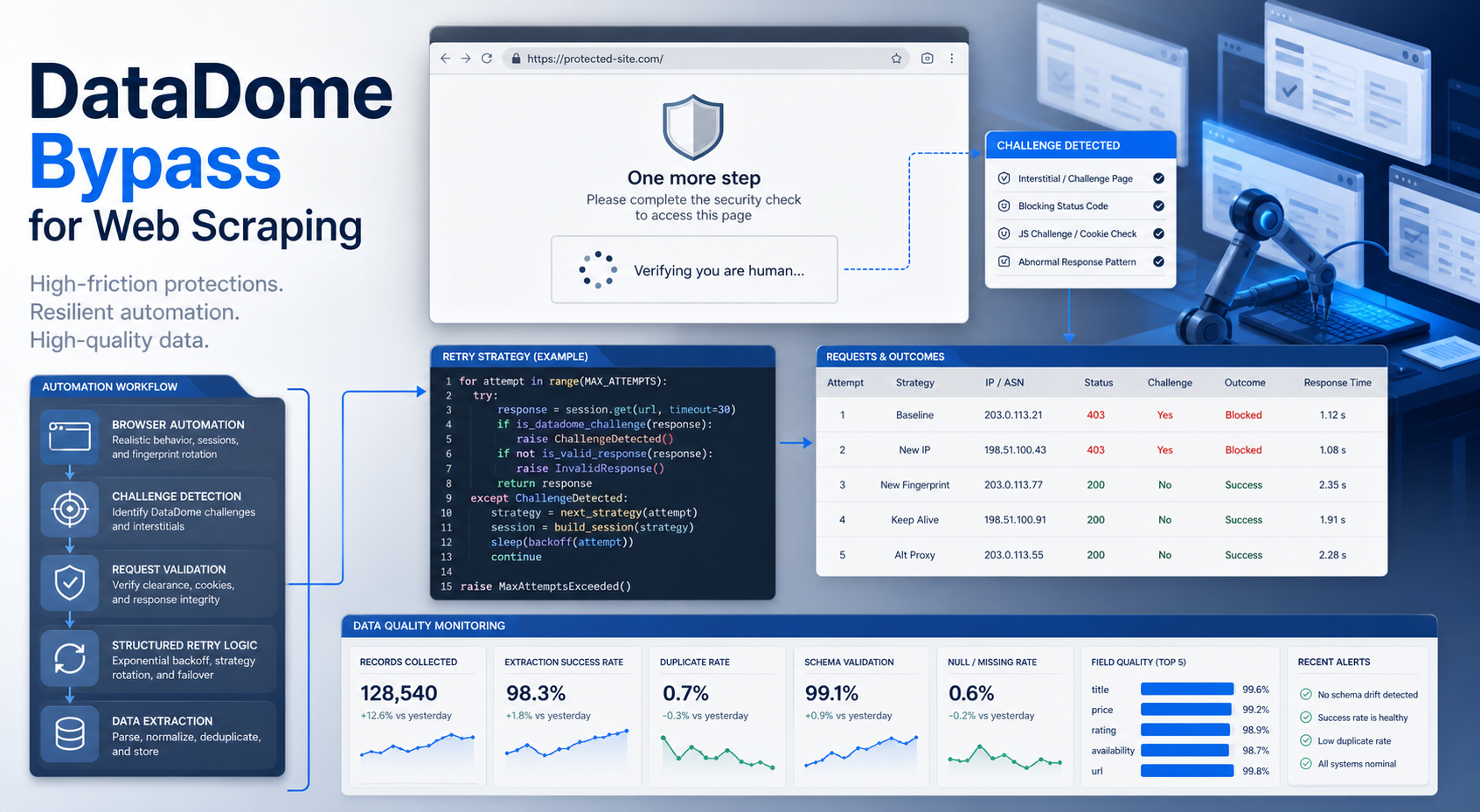
DataDome Bypass for Web Scraping
DataDome Bypass for Web Scraping
View Details
Web Scraping Rate Limiting: How to Handle 429s, Backoff, and Concurrency
Web scraping rate limiting is the engineering discipline of keeping an authorized collection workload inside a target service's acceptable request envelope. When that envelope is exceeded, a server may respond with HTTP 429 Too Many Requests, delay responses, or apply other controls.
View Details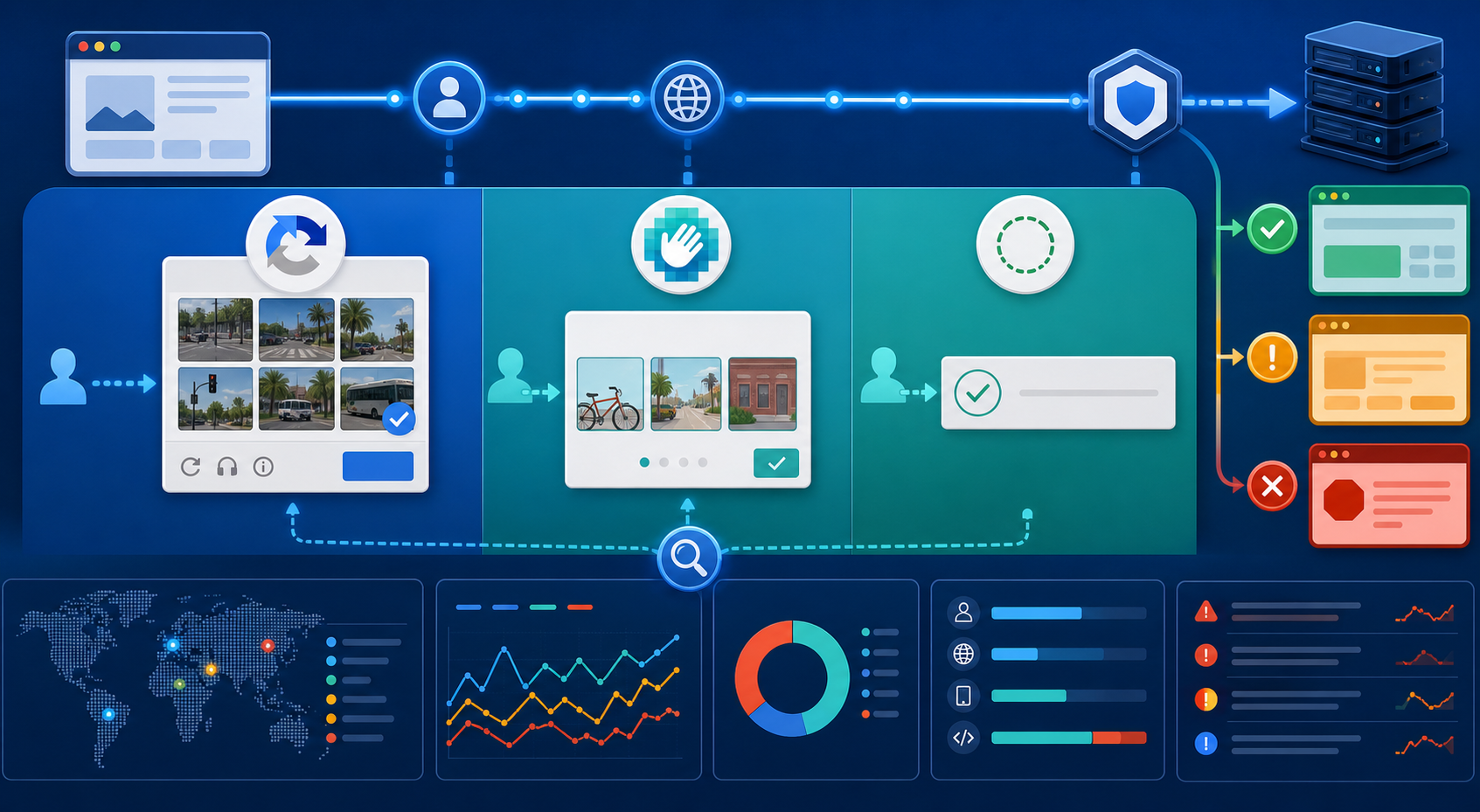
reCAPTCHA vs hCaptcha vs Cloudflare Turnstile: What Scraping Teams Need to Know
If an authorized data-collection workflow suddenly stops at a verification screen, identifying the protection system matters before you change code, browser settings, or proxy infrastructure. reCAPTCHA vs hCaptcha vs Turnstile is not simply a branding comparison. The three systems can expose different browser flows, token models, risk decisions, and failure symptoms.
View Details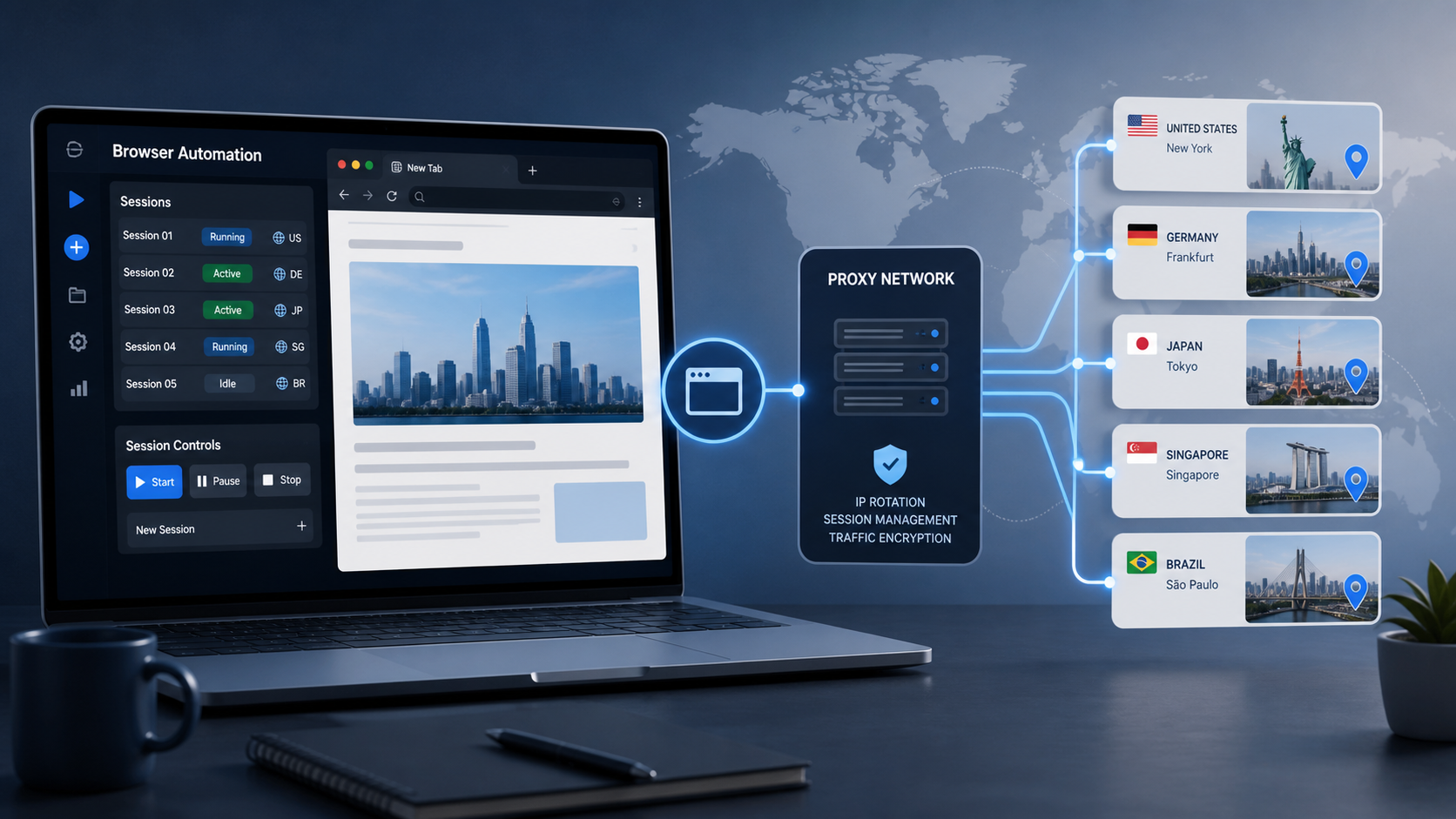
Browser Automation Proxies: IPs, Geo-Targeting, Sessions, and AI Agents
A browser automation proxy belongs to the network layer of Playwright, Selenium, cloud-browser, and AI-agent workflows. It changes how browser traffic is routed and can affect the source IP address, geographic egress, and session continuity seen by a destination site. It does not improve an AI model's reasoning, repair browser logic, or guarantee that a website will accept the session.
View Details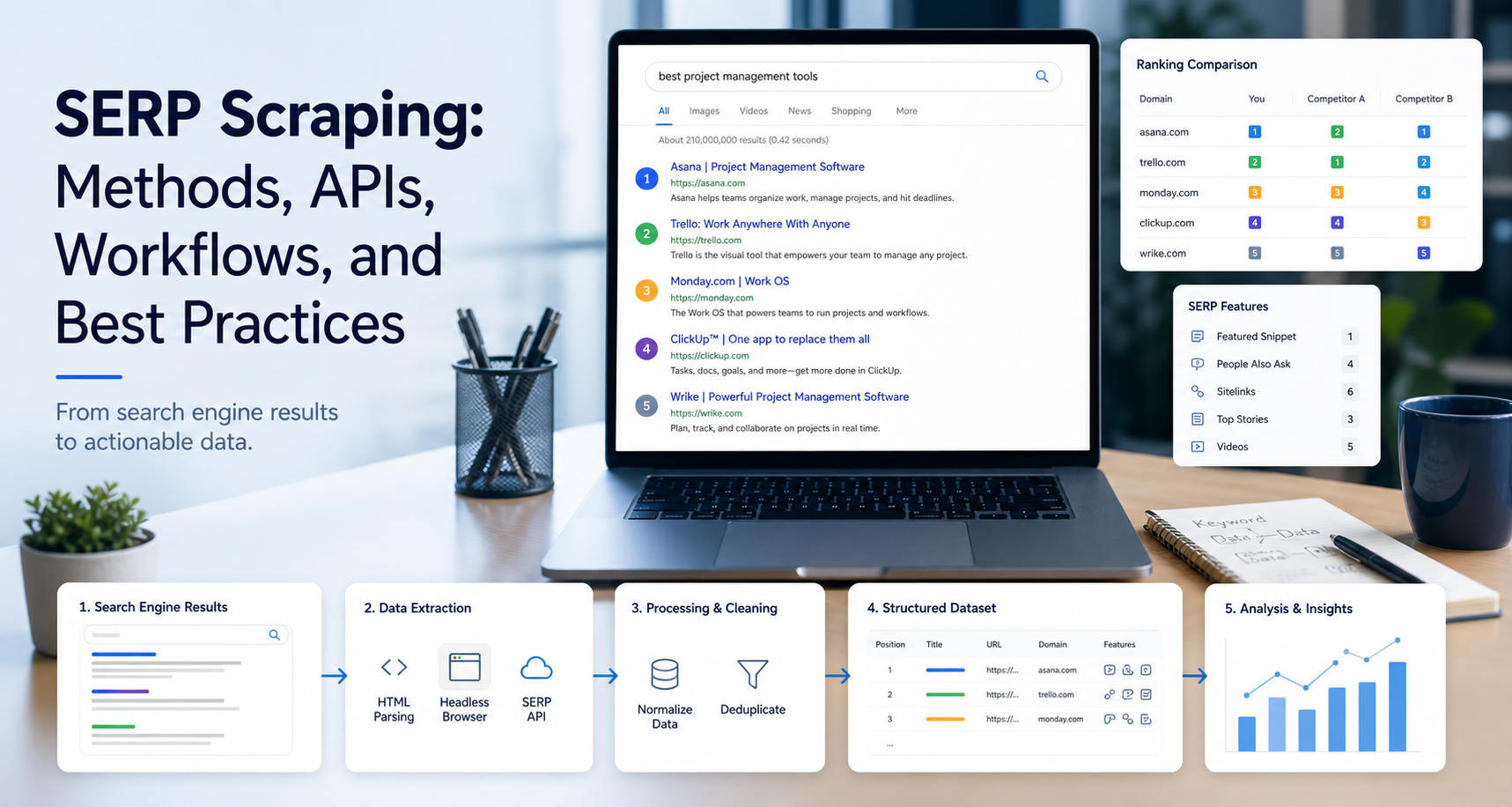
SERP Scraping: Methods, APIs, Workflows, and Best Practices
SERP scraping is the automated collection of information from search engine results pages. A SERP scraper can capture organic rankings, advertisements, featured snippets, People Also Ask questions, local results, shopping listings, images, and other search features, then convert them into structured data for analysis.
View Details