
YouTube Error 400: What It Means and How to Fix It
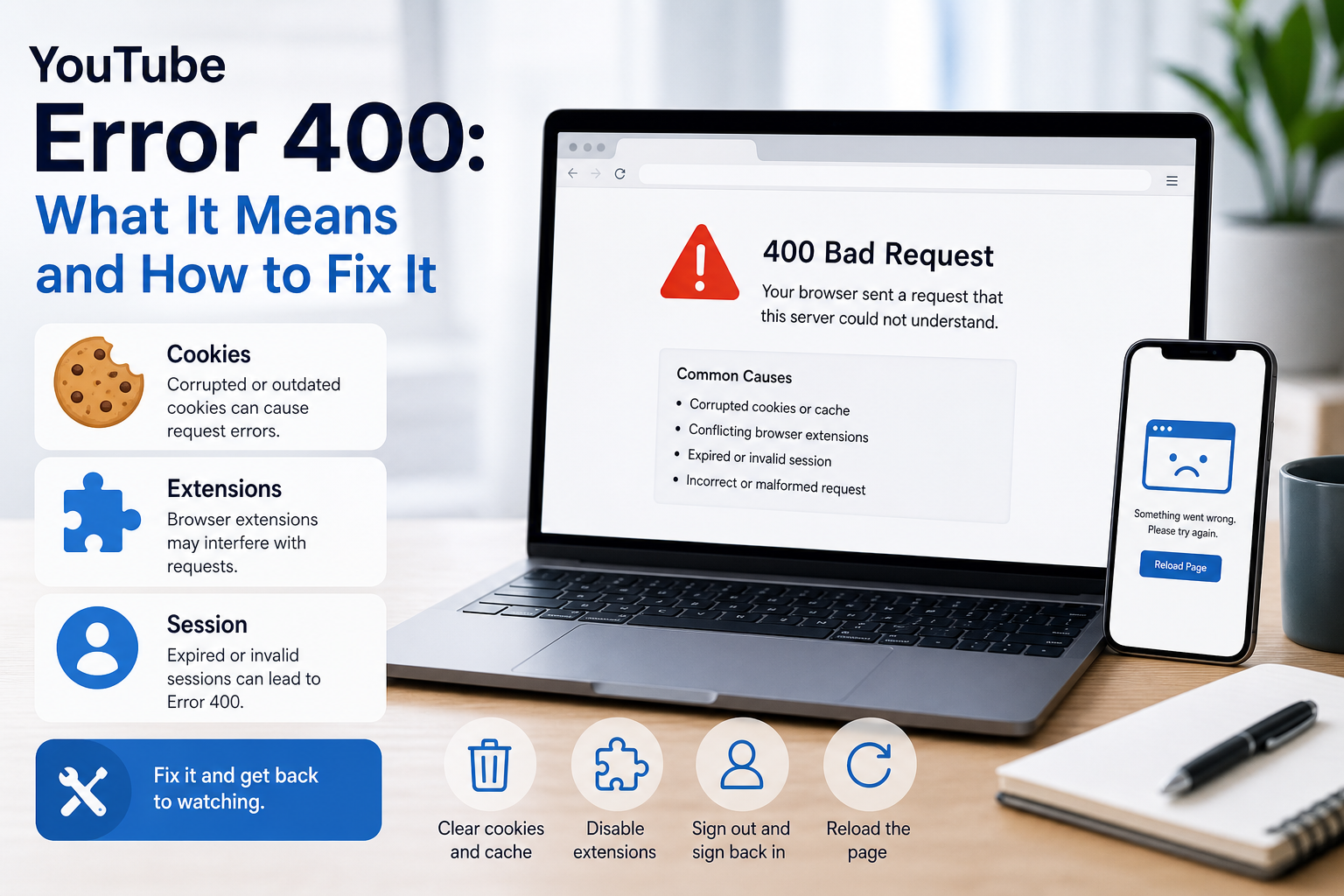
YouTube Error 400 usually means a request reached a server but was rejected as a **bad request**.
In HTTP terminology, a 400 Bad Request is a client-error response. MDN explains that servers commonly return 400 when they consider the request malformed, incorrectly framed, or deceptively routed. The important troubleshooting clue is that repeating the exact same request without changing anything is expected to fail again.
That is why endlessly refreshing YouTube is not a complete fix.
The request or the client state often needs to change. In a browser, that may mean clearing YouTube site data, removing a conflicting extension, correcting a malformed URL, or signing in again. In an app, it may mean restarting, clearing cache on Android, updating the app, or rebuilding the local session.
The Fastest Fix Order
Try these in order:
- Open YouTube in a private or incognito window.
- If it works, clear YouTube cookies and site data in the normal browser.
- Disable request-modifying extensions such as ad blockers, privacy tools, user-agent switchers, or proxy extensions one at a time.
- Check the URL and open the video from YouTube search instead of the old link.
- Sign out, restart the browser or app, and sign in again.
- Update the browser or YouTube app.
- On Android, clear the YouTube app cache.
- Test another network.
- Check automatic date and time.
- If the error follows the account across devices and networks, use YouTube Help or submit feedback.
This order is designed to isolate the cause without deleting more data than necessary.
For the LycheeIP implementation details behind this step, review static residential proxies.
For the LycheeIP implementation details behind this step, review AI-powered browser automation hub.
For the LycheeIP implementation details behind this step, review Claude-powered AI operating system.
For the official technical reference behind this point, see MDN HTTP overview.
For the official technical reference behind this point, see Anthropic documentation.
First Confirm That It Is Really a 400 Error
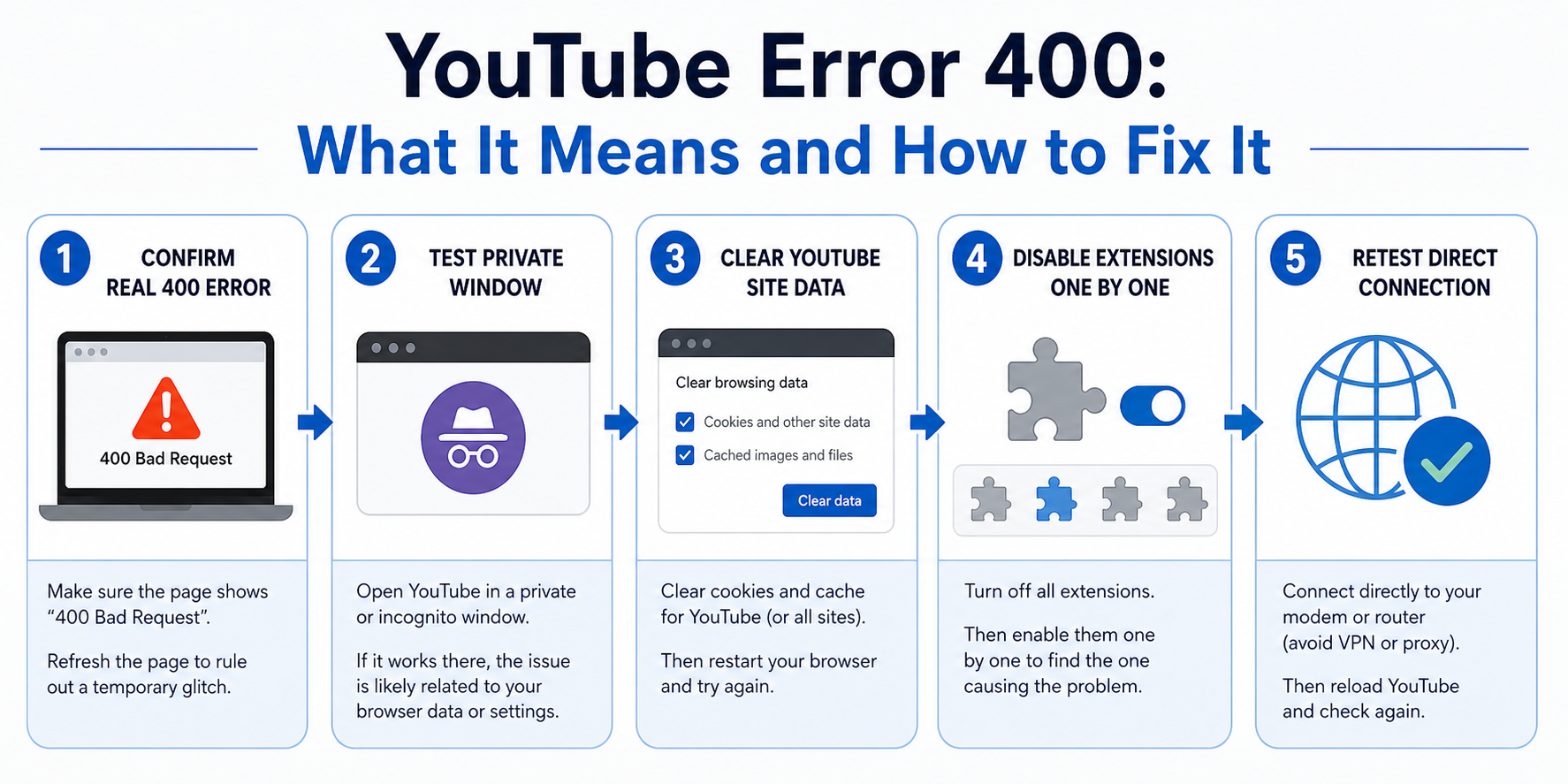
A true HTTP 400 is about the request the server received.
Symptoms can include:
- a page explicitly showing "400 Bad Request"
- a YouTube request failing immediately while other pages work
- a specific saved or shared URL repeatedly failing
- the problem disappearing in a clean browser session
- the error following a particular cookie or signed-in state
By contrast, the following symptoms point more strongly to general playback troubleshooting:
- video starts but buffers every few seconds
- quality automatically drops
- audio and video stutter
- all streaming apps are slow
- the connection repeatedly disconnects
YouTube's official troubleshooting page publishes recommended sustained connection speeds ranging from 0.7 Mbps for 360p to 20 Mbps for 4K. Slow bandwidth can absolutely break playback, but that is not the same technical diagnosis as HTTP 400.
Separating these two problems prevents you from clearing cookies when the real issue is Wi-Fi congestion, or changing your router when the real issue is malformed browser state.
Why YouTube Can Return Error 400
Corrupted or incompatible site data
Browsers store cookies and local data so websites can remember sessions and preferences. That state can become inconsistent after account changes, interrupted updates, browser migrations, or extension interference.
If the server receives a request tied to invalid or unexpected session data, it may reject the request.
This is why private browsing is such a valuable test. A private window starts with a cleaner cookie and storage context.
A conflicting browser extension
Extensions can modify headers, block scripts, rewrite requests, alter user agents, inject code, change proxies, or filter content.
Most extensions are not trying to break YouTube. But an outdated rule or unexpected interaction can change a request in a way the site does not accept.
Potential categories include:
- ad blockers
- privacy extensions
- script blockers
- proxy and VPN extensions
- user-agent switchers
- download helpers
- content filters
Do not disable every extension permanently. Test them one at a time so you can identify the cause.
A malformed or stale URL
A copied YouTube link can contain extra characters, a damaged parameter, an old redirect, or a truncated video identifier.
If one URL fails but YouTube search can open the same video, stop using the old link.
This is particularly common with links copied from email tracking systems, chat apps, website redirects, or manually edited URLs.
A broken signed-in session
Google account sessions involve authentication cookies and changing session state. A failed login transition, expired session, or conflicting account state can sometimes produce request problems.
Test YouTube while signed out, then sign in again.
If the problem only appears with one Google account and follows that account to another device, the issue is less likely to be local browser cache.
Outdated browser or app software
YouTube is a continuously updated web and app platform. Old software may lack current compatibility, security fixes, or playback components.
YouTube's official video troubleshooting guidance recommends checking for app updates and restarting the app or device.
App cache problems on Android
YouTube specifically documents clearing the app cache as a troubleshooting step for streaming and video issues on Android.
The exact labels vary by phone manufacturer, but the common route is:
Settings > Apps > YouTube > Storage or Storage & cache > Clear cache
Clear cache before clearing all app data. Clearing data is more disruptive and may sign you out or reset local settings.
Network or system-state issues
An existing VPN, proxy extension, security gateway, or severely incorrect system time can complicate requests and authentication. These are later-stage checks. On a device you control, test YouTube on a normal direct connection. For managed systems, use the approved network configuration or contact the administrator. DNS changes are not a first-line fix for a true 400 because DNS resolution normally happens before the HTTP request reaches the server.
How to Fix YouTube Error 400 in Chrome, Edge, Firefox, or Safari
Step 1: Test a private window
Open YouTube in Incognito, InPrivate, or Private Browsing.
Then try the exact page that failed.
If YouTube works: the cause is likely connected to cookies, site data, or an extension in your normal profile.
If YouTube still fails: move to the URL, account, browser update, and network tests.
Step 2: Clear YouTube site data, not your entire browser history
Many guides tell users to delete everything. That is usually unnecessary.
A more precise fix is to remove cookies and site data for YouTube and, when needed, related Google authentication domains.
In Chrome or Edge, you can use the browser's site data settings to search for YouTube and remove stored data for the site. Browser menu names change over time, so use the current settings search for "site data" or "cookies."
Then close the affected YouTube tabs and reopen the site.
You may need to sign in again.
Step 3: Disable extensions one at a time
Start with extensions that modify web requests or page content.
After disabling one extension:
- Close the YouTube tab.
- Reopen YouTube.
- Repeat the failing action.
If the error disappears, update or remove the extension and check its permissions.
A private window may disable many extensions by default, which is why Step 1 often provides the first clue.
Step 4: Rebuild the URL
Do not repeatedly refresh the same failing link.
Open the YouTube homepage, search for the video title or channel, and navigate to the content from YouTube itself.
If the new page works, discard the old URL.
For a standard watch link, avoid manually adding unknown query parameters. Parameters used for playlists, timestamps, referrals, or embeds can be useful, but a damaged URL is easier to replace than debug.
Step 5: Sign out and sign back in
Sign out of YouTube, close the browser, reopen it, and sign in again.
If you use several Google accounts in one browser, test the affected account in a clean browser profile. This helps separate account state from browser-profile state.
Step 6: Update the browser
Use the browser's built-in update page and install pending updates.
Restart the browser after the update. Some browser components are not fully replaced until the application restarts.
Step 7: Test another browser
If YouTube fails in Chrome but works in Firefox, the issue is likely browser-specific.
If it fails in every browser on one computer but works on your phone using the same Wi-Fi, investigate the computer's security software, proxy settings, system clock, and local network configuration.
How to Fix YouTube Error 400 on Android
Restart the YouTube app
Close the app completely from the recent apps screen and reopen it.
YouTube's official troubleshooting guidance also recommends restarting the app or rebooting the device for video errors.
Clear the YouTube cache
Go to:
Settings > Apps > YouTube > Storage or Storage & cache > Clear cache
Then reopen YouTube.
This removes temporary cached files without immediately wiping all app data.
Check data access
YouTube recommends confirming that data usage is enabled for the app.
Check:
- mobile data permission
- background data settings
- Data Saver exceptions
- battery restrictions that aggressively suspend the app
A data restriction usually causes playback or connection problems rather than a textbook HTTP 400, but it is worth checking when the app behaves differently on Wi-Fi and mobile data.
Update YouTube and Android components
Install pending YouTube updates from the Play Store.
Also update Android system components when available. Restart the phone after major updates.
Use automatic date and time
Open the date and time settings and enable automatic time and automatic time zone.
Then restart YouTube.
Clear app data only as a later step
If cache clearing does not help and the error is isolated to the Android app, you can consider clearing YouTube app storage/data through Android settings.
This is more disruptive. Expect local app state to reset, and you may need to sign in again.
How to Fix YouTube Error 400 on iPhone or iPad
iOS does not provide the same per-app cache controls as Android for every app. Force close YouTube, restart the device, update the app, check network access, and sign in again. If the failure remains isolated to YouTube, delete and reinstall the app after confirming you know the Google account credentials you need.
How to Fix YouTube Errors on a Smart TV or Streaming Device
A TV may show a generic playback error rather than the same 400 message as a browser. YouTube recommends power cycling the device by unplugging it, waiting at least 30 seconds, and reconnecting it. Then check app and firmware updates, sign in again, and test another video.
If every device in the home has a YouTube problem, investigate the shared network instead of repeatedly resetting individual apps.
Check Existing VPN, Proxy, or Security Tools
A VPN or proxy is not a standard cure for HTTP 400. In fact, an existing routing or filtering tool may be part of the problem.
On a device or network you are authorized to configure, temporarily return to a normal direct connection and test YouTube again. If the error disappears, update or troubleshoot the existing tool, verify its approved settings, or contact its provider or administrator.
Do not stack multiple VPNs, proxies, or browser routing extensions while diagnosing the error. That makes it harder to identify which layer is changing the request.
For the LycheeIP implementation details behind this step, review LycheeIP proxy infrastructure.
Troubleshooting Mistakes That Waste Time
Refreshing the same request forever: MDN warns that repeating an unchanged 400 request is expected to fail again. Change the URL, session, site data, extension configuration, or app state.
Clearing everything immediately: Start with YouTube-specific site data or Android app cache. Broad deletion creates unnecessary work.
Blaming bandwidth for every 400: Slow internet can cause buffering, but buffering is not automatically an HTTP 400.
Changing DNS too early: A true 400 means a server rejected a request. DNS is more relevant when names fail to resolve or a network filter is involved.
Adding a random fixer extension: Another request-modifying extension can make diagnosis harder. Test existing extensions first.
Treating an account restriction as a network error: Follow the appropriate appeal or support process. YouTube's Terms of Service prohibit using another channel to circumvent restrictions imposed because of a strike.
Troubleshoot YouTube routing issues with LycheeIP
When to Contact YouTube Support or Submit Feedback
Escalate the issue when:
- the same account fails on multiple devices and networks
- the exact Error 400 persists in a clean browser profile
- YouTube fails after a fresh app installation
- the problem started after an account or channel action
- many unrelated users are reporting the same YouTube outage
- the error includes an account-specific message you do not understand
Before escalating, record:
- the exact error text
- device and operating system
- browser or YouTube app version
- whether private mode works
- whether another network works
- whether the issue follows the Google account
- the failing URL, if one specific page is affected
That information is more useful than saying "YouTube is broken."
Frequently Asked Questions
What does YouTube Error 400 mean?
It generally refers to a Bad Request response. In HTTP, 400 means the server considers the request invalid because of a client-side request problem such as malformed syntax, invalid message framing, or problematic routing.
Is YouTube Error 400 caused by slow internet?
Not necessarily. Slow internet more commonly causes buffering, low quality, or playback interruptions. A true HTTP 400 is a rejected request. Test the exact error before treating it as a bandwidth problem.
Why does YouTube work in Incognito but not normal Chrome?
That strongly suggests a cookie, site-data, or extension issue in the normal browser profile. Clear YouTube site data and disable request-modifying extensions one at a time.
Should I clear cache or cookies first?
On a desktop browser, test private mode first, then remove YouTube-specific site data. On Android, YouTube officially recommends clearing the app cache as a troubleshooting step for streaming issues.
Can a VPN or proxy cause YouTube Error 400?
It can contribute to request problems if the tool or extension is misconfigured. On a device you control, disable the existing routing tool and test a normal connection. It will not fix corrupted cookies, a bad URL, or a broken signed-in session.
Does changing DNS fix Error 400?
Usually not as a first step. DNS problems happen before the HTTP request reaches the web service. Use DNS troubleshooting when domains fail to resolve or the problem is clearly network-specific.
Why does one YouTube link give Error 400 while other videos work?
The URL may be damaged, stale, or carrying a problematic parameter. Search for the video directly on YouTube and open a fresh watch page. Conclusion YouTube Error 400 is easiest to fix when you treat it as a rejected request, not a generic streaming problem. Start with a clean browser session. If private mode works, clear YouTube site data and inspect extensions. Replace suspicious URLs instead of refreshing them indefinitely. Rebuild signed-in sessions, update the browser or app, clear the Android app cache, and review existing network tools only when your tests point to the connection. The most important step is diagnosis. Once you separate a true 400 Bad Request from buffering or general playback errors, the troubleshooting path becomes much shorter.
Related LycheeIP Guides and Resources

Recommended Articles
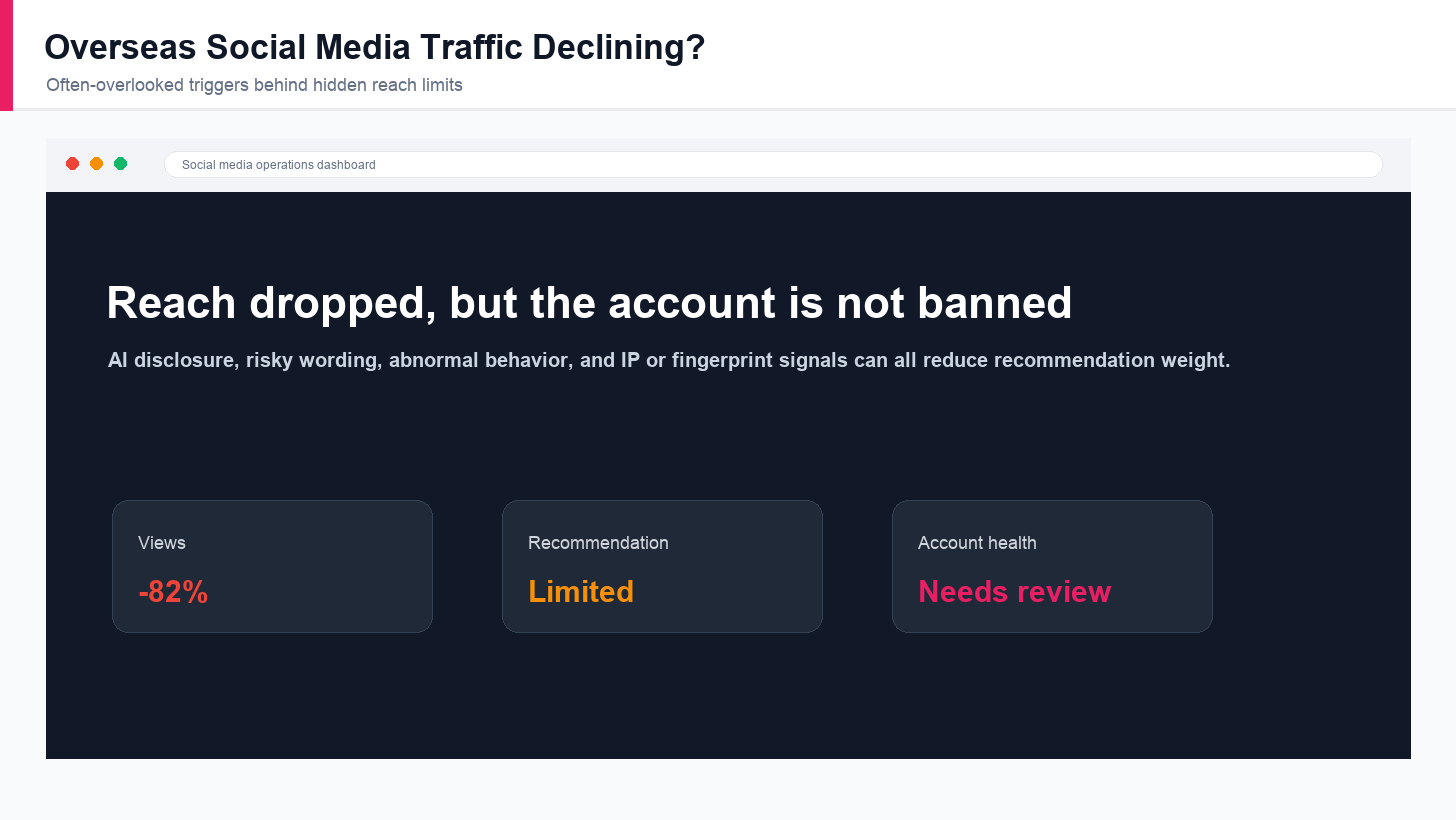
Overseas Social Media Traffic Declining? These Reach-Limiting Triggers Are Often Overlooked
A practical guide to overlooked overseas social media reach drops, covering AI content disclosure, risky wording, abnormal account behavior, hidden reach-limiting signals, and account environment checks.
View Details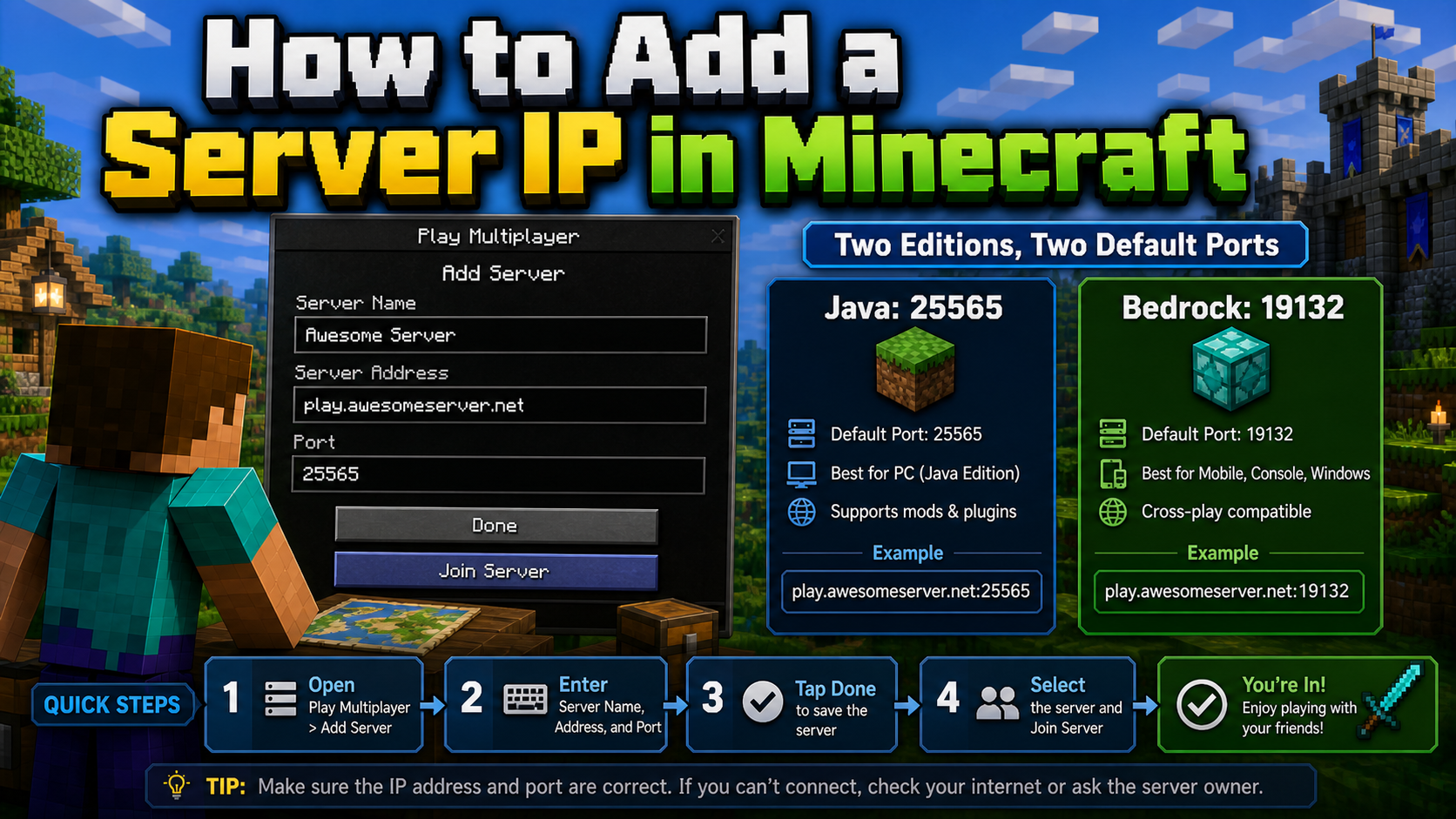
How to Add a Server IP in Minecraft Step by Step
Learn exactly where to enter a Minecraft server IP in Java, Bedrock, and Pocket Edition, plus how to fix common connection errors, ports, and edition mismatches.
View Details
How to Find a Working Minecraft Server IP Fast
Stop wasting time on dead Minecraft server IPs. Learn how to verify live servers quickly, read status icons, check ports, and source updated server addresses.
View Details
Best 24/7 Online Minecraft Server IPs — No Downtime
Find reliable 24/7 Minecraft server IPs for Java and Bedrock, plus uptime checks, port basics, ping guidance, crossplay notes, and network stability tips.
View Details
Minecraft Server IPs for Every Game Mode in 2026
Find Minecraft server IPs by game mode for 2026, including survival, PvP, minigames, roleplay, SkyBlock, anarchy, Java, Bedrock, crossplay, and pay-to-win notes.
View Details