
How to Add a Server IP in Minecraft Step by Step
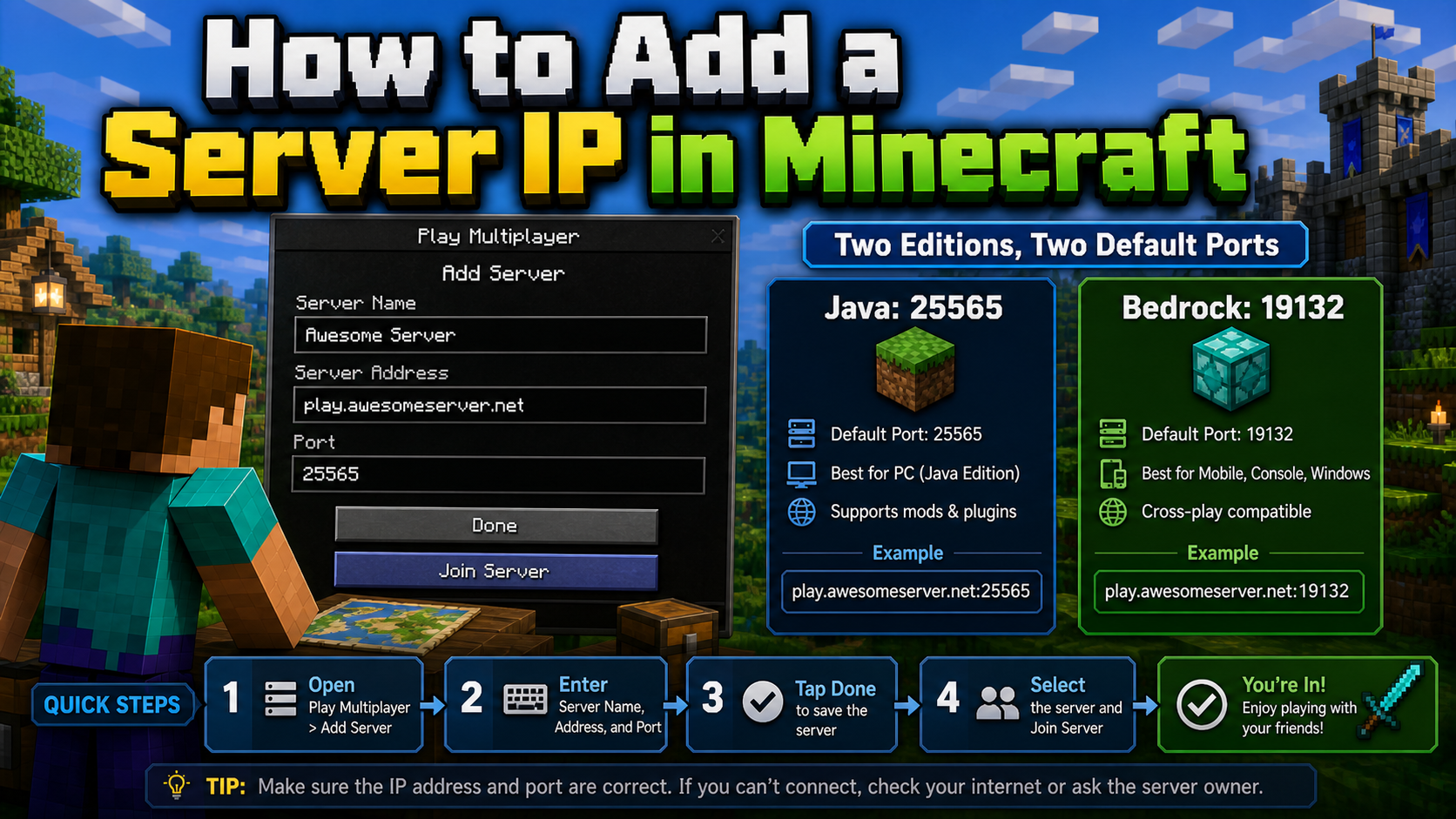
Adding a server IP in Minecraft takes less than a minute once you know which menu to open, which field to use, and whether your server needs a custom port.
This is one of the most common sticking points for new Minecraft players. You may have the right server address, but Java, Bedrock, and Pocket Edition place the server-entry fields in slightly different places. This guide walks through each version and explains the errors that usually appear when something goes wrong.
Before You Start: Confirm the Address Format
A Minecraft server address can be a plain numeric IP, a domain name, or an address with a custom port. The official Minecraft Help guide explains the Java flow for adding or directly entering multiplayer server addresses in its Minecraft Java multiplayer server guide.
- Plain IP:
192.168.1.100 - IP with port:
192.168.1.100:25565 - Domain:
play.someserver.net - Domain with port:
play.someserver.net:19132
Java Edition uses port 25565 by default. Bedrock and Pocket Edition commonly use port 19132. If the server owner gives you a custom port, copy the full address exactly.
Adding a Server IP in Java Edition
Java Edition has the most straightforward multiplayer menu. The key field is called Server Address.
Step-by-Step: Java Edition
- Open Minecraft Java Edition and wait for the main menu.
- Click Multiplayer.
- If an online-play warning appears, click Proceed.
- Click Add Server.
- In Server Name, type any label you want.
- In Server Address, paste or type the server IP or domain.
- Leave resource pack settings at default unless the server owner told you otherwise.
- Click Done, select the server, and click Join Server.
Java Address Examples
| Address Type | Example | Notes |
|---|---|---|
| Domain | play.someserver.net | Most common for public servers |
| Domain with custom port | play.someserver.net:25600 | Use when the server owner provides a port |
| Numeric IP | 45.33.32.156 | Works, but harder to remember |
| Local LAN IP | 192.168.x.x | Only works inside the same local network |
Adding a Server IP in Bedrock and Pocket Edition
Bedrock Edition covers Windows 10/11, Xbox, PlayStation, Switch, and mobile-style interfaces. Pocket Edition on Android and iOS follows nearly the same pattern.
Step-by-Step: Bedrock Edition
- Open Minecraft and go to Play.
- Select the Servers tab.
- Scroll past the featured servers and choose Add Server.
- Enter a server name, the server address, and the port.
- Use
19132unless the server owner provides a different Bedrock port. - Click Save, then select the server to join.
Step-by-Step: Pocket Edition
- Open Minecraft PE and tap Play.
- Tap the Servers tab.
- Scroll down and tap Add Server.
- Enter the server name, server address, and port.
- Tap Save, then tap the server entry to connect.
Java vs Bedrock Port Table
| Edition | Default Port | Protocol | Important Detail |
|---|---|---|---|
| Java Edition | 25565 | TCP | Port can be omitted when default |
| Bedrock / Pocket Edition | 19132 | UDP | Port field is usually visible in the UI |
| Crossplay servers | Varies | Bridge-dependent | Confirm support before joining |
Cross-Play Limitations
Java and Bedrock are separate versions. A Java server cannot normally be joined from Bedrock, and a Bedrock server cannot normally be joined from Java. Crossplay requires a bridge layer.
GeyserMC is one common bridge for letting Bedrock players connect to Java servers, and the Geyser setup documentation explains how server owners configure that kind of support. If an IP fails even though it looks correct, confirm that you and the server are using the same edition.
Suggested Video: Java and Bedrock Crossplay
This short walkthrough is useful if you want to understand why Java and Bedrock addresses do not always work interchangeably, and how server owners can bridge the editions.
How to Check the IP Before You Join
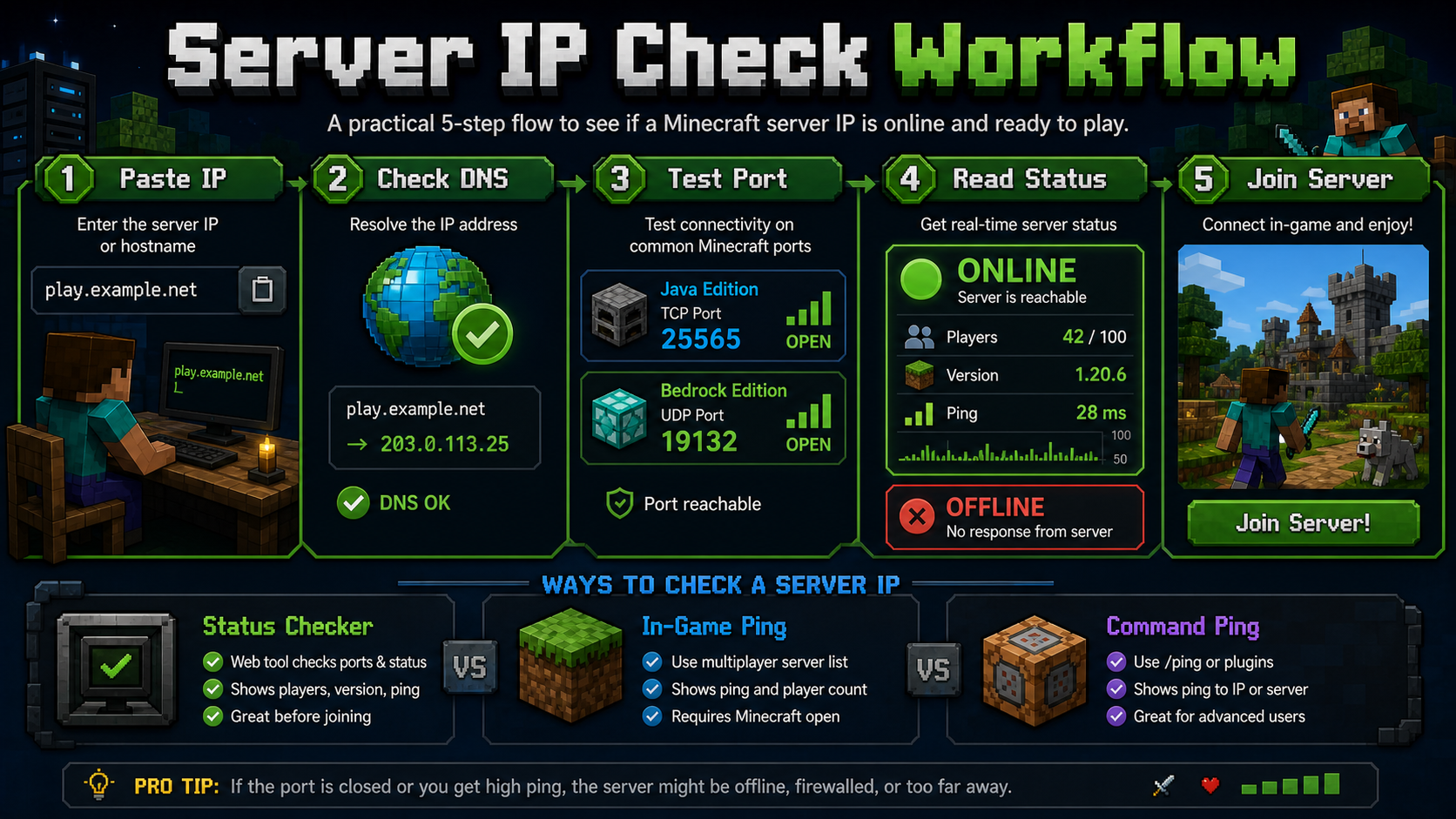
Before troubleshooting inside the game, check the basics: the address, port, edition, and server status. A server can be typed correctly and still fail because it is offline, firewalled, overloaded, or using a different version.
- Paste the address into a Minecraft server status checker.
- Confirm the server version and edition.
- Check whether the player count and MOTD load.
- Make sure the port matches Java or Bedrock.
- Try joining only after the status check responds.
Fixing Common Connection Errors
Connection Refused
This usually means the game reached the IP but nothing is listening on the expected port. Confirm the server is running, verify the port, and ask whether a firewall is blocking incoming connections.
Can't Resolve Hostname
This means the domain name could not be translated to an IP address. Check for typos, missing letters, extra spaces, expired domains, or DNS issues.
Timed Out
A timeout means the client tried to connect but did not receive a response in time. The server may be overloaded, offline, blocked by the network, or too far away from your route.
Outdated Client or Outdated Server
Your Minecraft version does not match the server. In Java Edition, use the Minecraft Launcher’s Installations tab to switch versions if the server requires an older release.
Wrong Edition
If all details look right and the connection still fails, double-check that you are not using a Java client for a Bedrock server, or a Bedrock client for a Java-only server.
IP Routing Matters Beyond Minecraft
For most players, adding a server IP is a one-time task. For server owners, uptime tools, QA teams, and network-dependent products, IP routing, ports, and regional reachability become serious infrastructure concerns.
LycheeIP supports responsible workflows where teams need to compare access from different locations, test public-facing services, or understand route behavior. Dynamic residential proxies can help with distributed testing, while static IPs are better for stable, repeatable checks.
For high-speed or scaled technical workflows, datacenter proxies may be the better fit. You can start from the LycheeIP IP services page and choose the IP type that matches your use case.
Common Mistakes to Avoid
- Copying extra spaces before or after the server IP.
- Using a Java address on Bedrock or a Bedrock address on Java.
- Forgetting the custom port when the server provides one.
- Trying to join before the server has fully started.
- Using a local LAN address like
192.168.x.xfrom outside the same network. - Forgetting to save the server entry on Bedrock or Pocket Edition.
For technical monitoring outside normal gameplay, teams can combine static proxy routes, dynamic IP pools, and datacenter IP infrastructure to compare reachability more consistently.
Conclusion
Adding a server IP in Minecraft is simple once you know the right menu. Java uses Multiplayer, then Add Server. Bedrock and Pocket Edition use Play, then Servers, then Add Server. The two details that matter most are the server address and the port.
If the connection fails, the error usually points toward the cause: wrong port, wrong edition, DNS issue, version mismatch, firewall block, or an offline server. Work through those checks and you can usually identify the issue quickly.
For broader IP-dependent testing, LycheeIP offers flexible proxy infrastructure across dynamic residential IPs, static proxies, and datacenter proxy options.
Frequently Asked Questions
Where do I type a server IP in Minecraft Java Edition?
Go to Multiplayer, click Add Server, and type the IP or domain into the Server Address field. Then click Done and select the server to join.
Where do I enter a server IP in Minecraft Bedrock Edition?
Go to Play, select the Servers tab, scroll to Add Server, enter the server address and port, then save.
What port does Minecraft Java Edition use?
Java Edition uses port 25565 by default. If a server uses a different port, include it after a colon.
What port does Minecraft Bedrock and Pocket Edition use?
Bedrock and Pocket Edition commonly use port 19132. Always confirm the port with the server owner.
Why does it say connection refused?
The server may be offline, the port may be wrong, or a firewall may be blocking the connection.
Can I join a Java server from Bedrock?
Not by default. The server needs crossplay support through a bridge such as GeyserMC.
Why does it say can't resolve hostname?
The domain could not be found. Check for typos, DNS issues, expired domains, or ask for the raw IP.
Can I join from a school or work network?
Many school and work networks block gaming ports. Try another network only where permitted.
What does outdated client mean?
Your Minecraft version does not match the server. Use the correct version for that server.
Do I need to re-enter the server IP every time?
No. Once saved, the server entry stays in your server list unless you delete it.

Recommended Articles
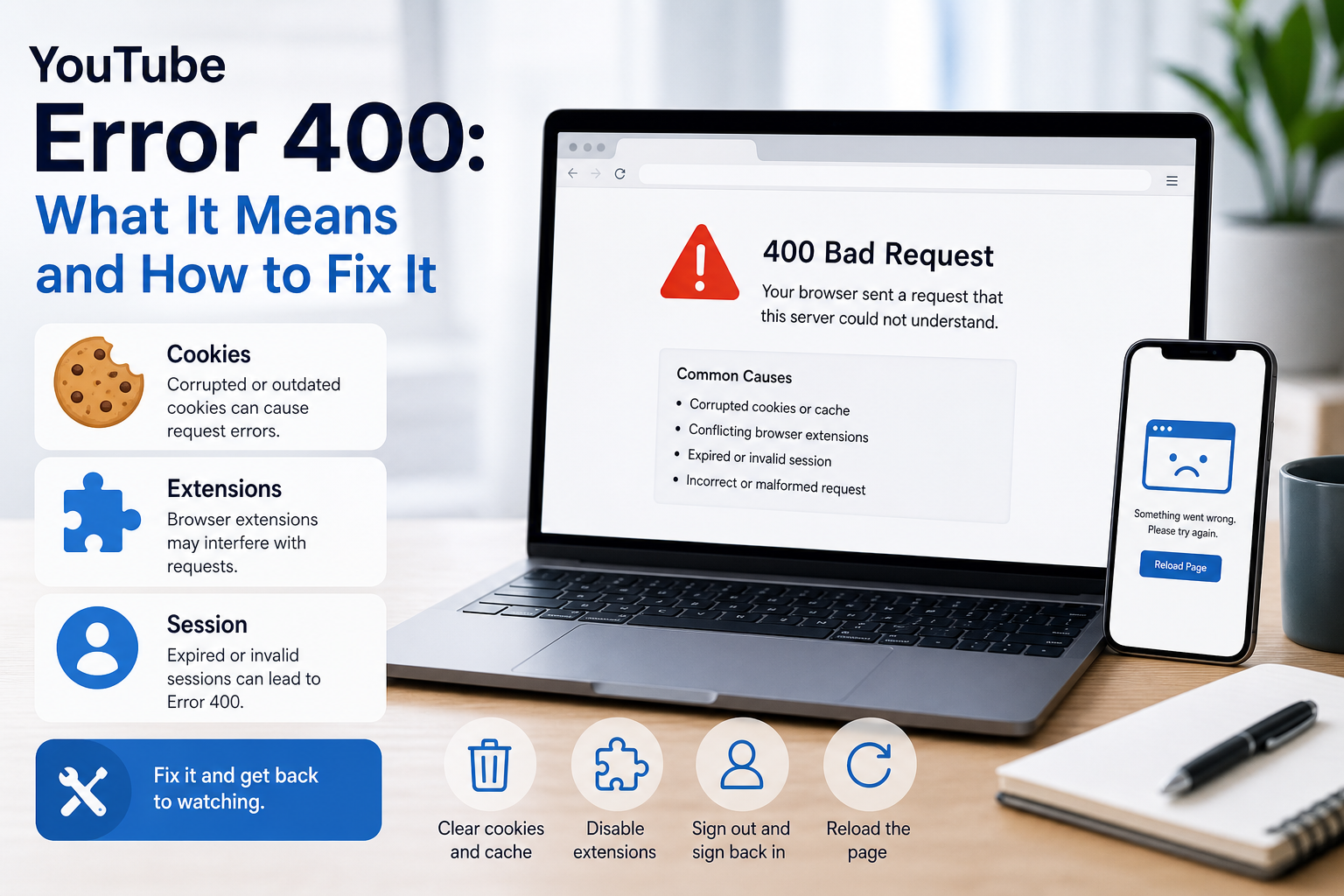
YouTube Error 400: What It Means and How to Fix It
In HTTP terminology, a 400 Bad Request is a client-error response. MDN explains that servers commonly return 400 when they consider the request malformed, incorrectly framed, or deceptively routed. The important troubleshooting clue is that repeating the exact same request without changing anything is expected to fail again.
View Details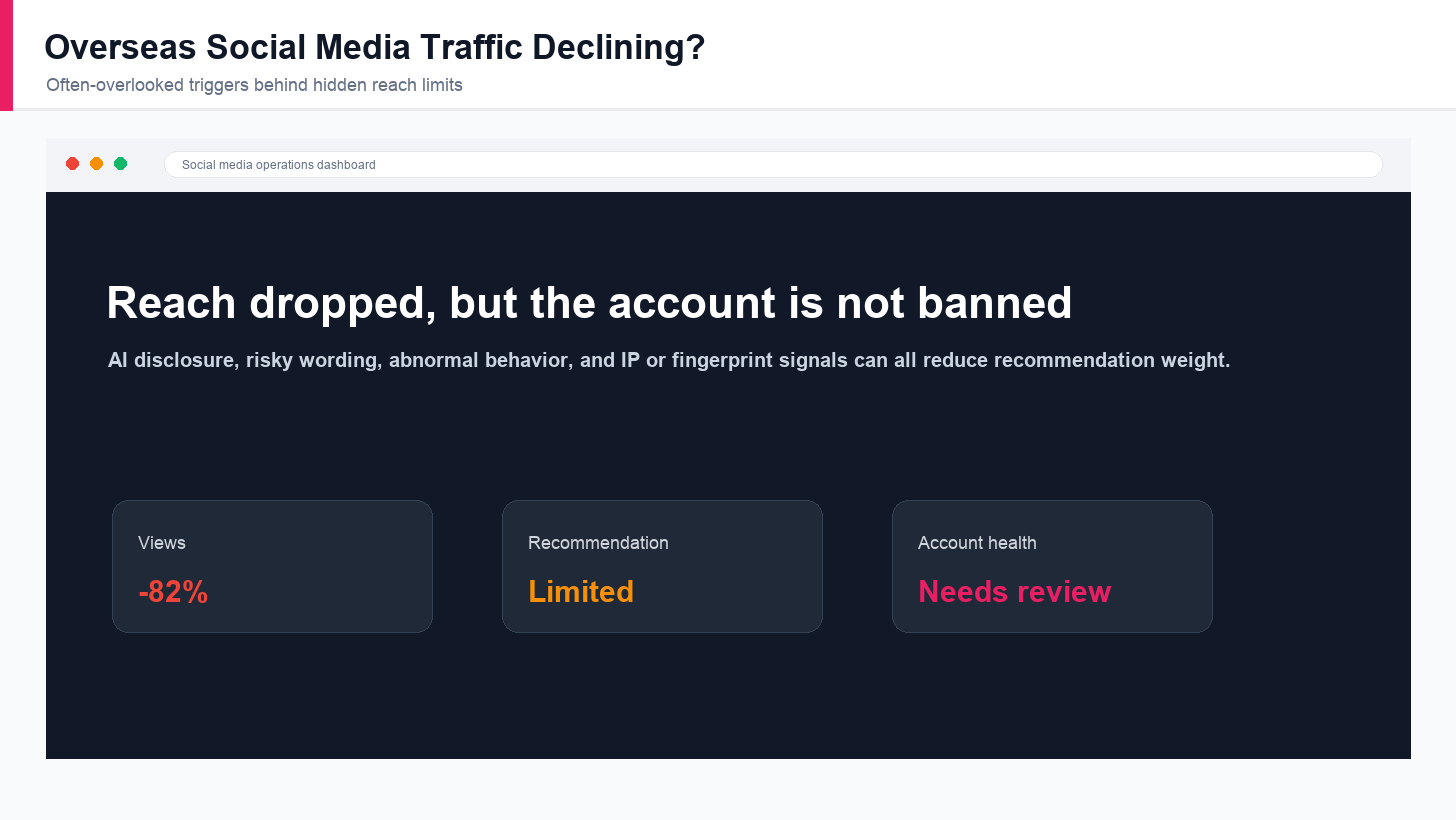
Overseas Social Media Traffic Declining? These Reach-Limiting Triggers Are Often Overlooked
A practical guide to overlooked overseas social media reach drops, covering AI content disclosure, risky wording, abnormal account behavior, hidden reach-limiting signals, and account environment checks.
View Details
How to Find a Working Minecraft Server IP Fast
Stop wasting time on dead Minecraft server IPs. Learn how to verify live servers quickly, read status icons, check ports, and source updated server addresses.
View Details
Best 24/7 Online Minecraft Server IPs — No Downtime
Find reliable 24/7 Minecraft server IPs for Java and Bedrock, plus uptime checks, port basics, ping guidance, crossplay notes, and network stability tips.
View Details
Minecraft Server IPs for Every Game Mode in 2026
Find Minecraft server IPs by game mode for 2026, including survival, PvP, minigames, roleplay, SkyBlock, anarchy, Java, Bedrock, crossplay, and pay-to-win notes.
View Details