
X Login Error Attestation Denied: What It Means and How to Fix It
X login error Attestation Denied usually means the X app could not complete a device or app integrity check during login. The fastest safe fix is to stop repeated login attempts, test whether the web login works, then isolate whether the blocker is your account, your mobile app environment, your browser session, or your network path.
This guide keeps the current page focused on the queries already driving impressions: x login error attestation denied, login error attestation denied, attestation denied x, and related X app login errors. It is not a bypass guide; it is a recovery workflow that helps you avoid extra lockouts while fixing the likely cause.
Quick answer: what does Attestation Denied mean?
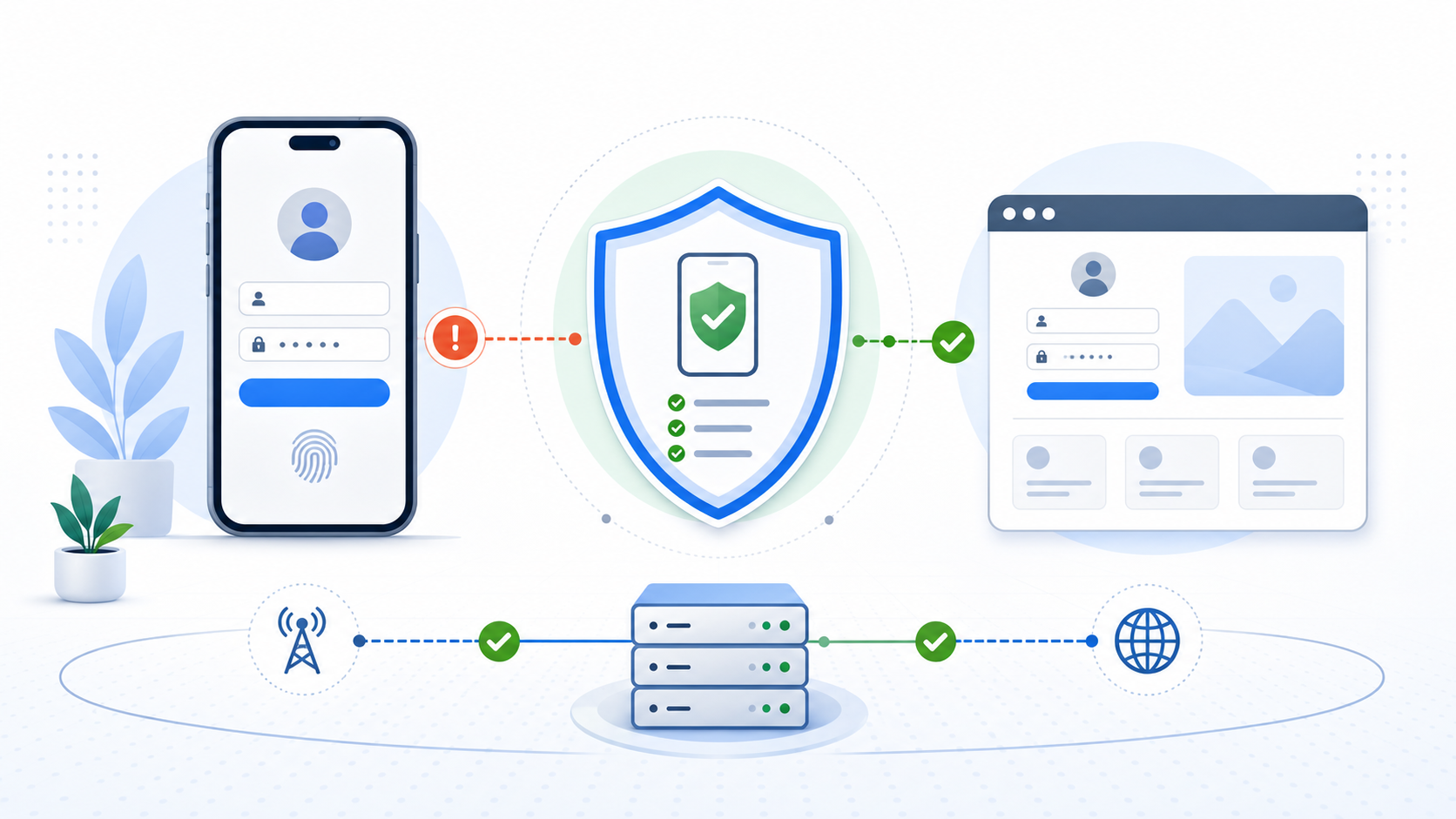
Attestation Denied is most often an app-side trust signal failure. The app is trying to confirm that the device, app install, operating system state, and login environment look normal enough to continue. On Android, many apps use integrity signals similar to the ones described in the Android Play Integrity overview, but the exact checks and enforcement decisions are controlled by the app provider.
The practical meaning is simple: if web login works but the mobile app fails, your password is probably not the main problem. Treat the app install, device state, browser cookies, 2FA flow, and network consistency as separate variables.
- Account-level issue: wrong password, 2FA failure, locked account, or limited account.
- App-level issue: outdated app, corrupted app data, unsupported modified build, or device integrity failure.
- Browser-level issue: stale cookies, blocked scripts, extension conflicts, or redirect loops.
- Network-level issue: sudden location changes, shared VPN abuse history, firewall blocks, or unstable routing.
Run the 5-minute isolation test before retrying
Do not keep pressing Log In. Repeated failed attempts can turn a recoverable login issue into a temporary rate limit or security lock. Instead, run one clean isolation test and change only one variable at a time.
| Test | What to do | What the result means |
|---|---|---|
| Web vs app | Try x.com in a desktop or mobile browser. | If web works and app fails, focus on the app or device environment. |
| Private window | Try the browser login in a private window with extensions disabled. | If private mode works, cookies or extensions are likely interfering. |
| Device swap | Try a trusted second device on a normal network. | If the second device works, the original device is the suspect. |
| Network swap | Try cellular instead of Wi-Fi, or a known stable network instead of a VPN. | If one network works, the failed network may be blocked or inconsistent. |
If you are testing from Android, compare the login behavior with a normal mobile browser after reviewing your local setup. These related guides can help when the network path is part of the problem: how to set up a proxy on Android and how to use a proxy on Android without breaking the connection.
Fix the browser path first
If the X app fails but the browser gives you a chance to continue, make the browser path clean and boring. Remove only the site data for x.com and twitter.com, then retry once. MDN's guide to HTTP cookies is useful background for why old session cookies can cause redirect loops or stale authentication state.
- Open browser privacy settings and delete site data for x.com and twitter.com.
- Disable script blockers, aggressive ad blockers, and privacy extensions for one login attempt.
- Confirm the device clock is set automatically. Time drift can break login and 2FA validation.
- Try a private window once. If it works, rebuild the normal browser session rather than changing the password again.
For teams that automate browser workflows, session separation matters. Keep account cookies in separate browser profiles, and review browser fingerprinting and bot detection when repeated login challenges appear across multiple profiles.
Fix the mobile app path
When Attestation Denied appears in the X app, focus on the app install and device environment before assuming the account is gone.
- Update the app and OS: install the latest stable X app version and operating system update available for your device.
- Use the official app store build: remove modified, side-loaded, or unofficial app builds before retrying.
- Clear app storage: on Android, clear app data, restart the phone, then reinstall if the error persists.
- Temporarily remove network variables: disconnect consumer VPNs, captive Wi-Fi, and unstable proxy paths for the recovery attempt.
- Use web as a fallback: if the app fails but browser login works, finish the urgent account task in the browser and repair the app later.
If your workflow depends on mobile network identity rather than a desktop browser, compare the tradeoffs in what a mobile proxy is and how it works. If you use privacy browsers for legitimate account separation, the mobile anti-detect browser guide explains the fingerprint side of that decision.
Recover account access and 2FA carefully
If login fails everywhere, switch from device troubleshooting to account recovery. This is where password resets, backup codes, SMS delivery, and account locks matter.
Use the right recovery path
- Incorrect password: reset the password once, then wait before retrying on every device.
- Authenticator code rejected: sync the authenticator app time and use the newest code only.
- SMS code not arriving: check spam filtering, blocked short codes, roaming restrictions, and carrier delays.
- Backup codes available: use one backup code instead of requesting repeated SMS codes.
- Account locked or limited: follow the in-product prompts and wait out any displayed cooldown.
For operational teams, account recovery should be documented like any other production runbook: who owns the account, which recovery channels are valid, where backup codes are stored, and when to stop retrying. LycheeIP's proxy authentication guide is a useful companion when the same team also manages infrastructure credentials.
Prevent repeat X login failures in team workflows

For agencies, QA teams, data teams, and social operations teams, repeated login failures usually come from unstable operating patterns rather than a single broken password. The goal is consistency: consistent device profile, consistent session storage, consistent region, and consistent handoff process.
- Use separate browser profiles for separate accounts instead of logging in and out of one shared profile.
- Keep successful sessions alive when policy and workflow requirements allow it.
- Avoid impossible travel signals, such as logging into one account from multiple countries in a short window.
- Document who can access each account and which recovery channel belongs to it.
- Test network quality before scaling repetitive workflows.
When the network path is part of the workflow, use the right proxy type for the job instead of rotating randomly during login. Static residential proxies are better suited to stable account sessions, while rotating residential proxies are better suited to distributed data collection. For broader infrastructure planning, compare static vs rotating residential proxies, LycheeIP proxy infrastructure, and proxy quality testing before scaling.
For teams that need a proxy path for QA, account operations, scraping infrastructure, or browser automation, LycheeIP can provide the residential, static residential, rotating residential, and datacenter proxy options needed to design a stable workflow. The important part is matching the proxy type to the task instead of treating every login issue as a reason to rotate IPs.
If you also work with anti-bot or automation tooling, review digital fingerprint protection and datacenter proxies so your infrastructure choices match the risk level of each workflow.
Explore LycheeIP Proxy Infrastructure
Troubleshooting video
The video below is useful when you want a visual walkthrough of common X login recovery steps before working through the written checklist.
Frequently Asked Questions
What is the main cause of X Login Error Attestation Denied?
The most likely cause is an app or device integrity check that did not pass. It can happen with outdated app builds, modified devices, unofficial app installs, corrupted app data, or environments that look unusual to the app.
Should I reset my password when I see Attestation Denied?
Not immediately. If web login works and only the app fails, a password reset is unlikely to fix the attestation problem. Reset your password only when the error says your credentials are wrong or you suspect account compromise.
Why can I log in on the web but not in the X app?
That pattern usually means your account credentials are valid, but the app environment is failing. Focus on updating the app, clearing app storage, reinstalling from the official store, and removing unstable network variables.
Can a VPN or proxy cause X login errors?
It can contribute, especially if the network location changes suddenly or the address has been heavily shared. For recovery, use a stable and familiar network path, then reintroduce proxy infrastructure only when you know the account and app are healthy.
How long should I wait after too many failed X login attempts?
Wait at least until any displayed cooldown ends, and avoid repeated attempts across multiple devices. If there is no timer, pause long enough to change one real variable, such as app data, browser cookies, or network path, before trying again.

Recommended Articles
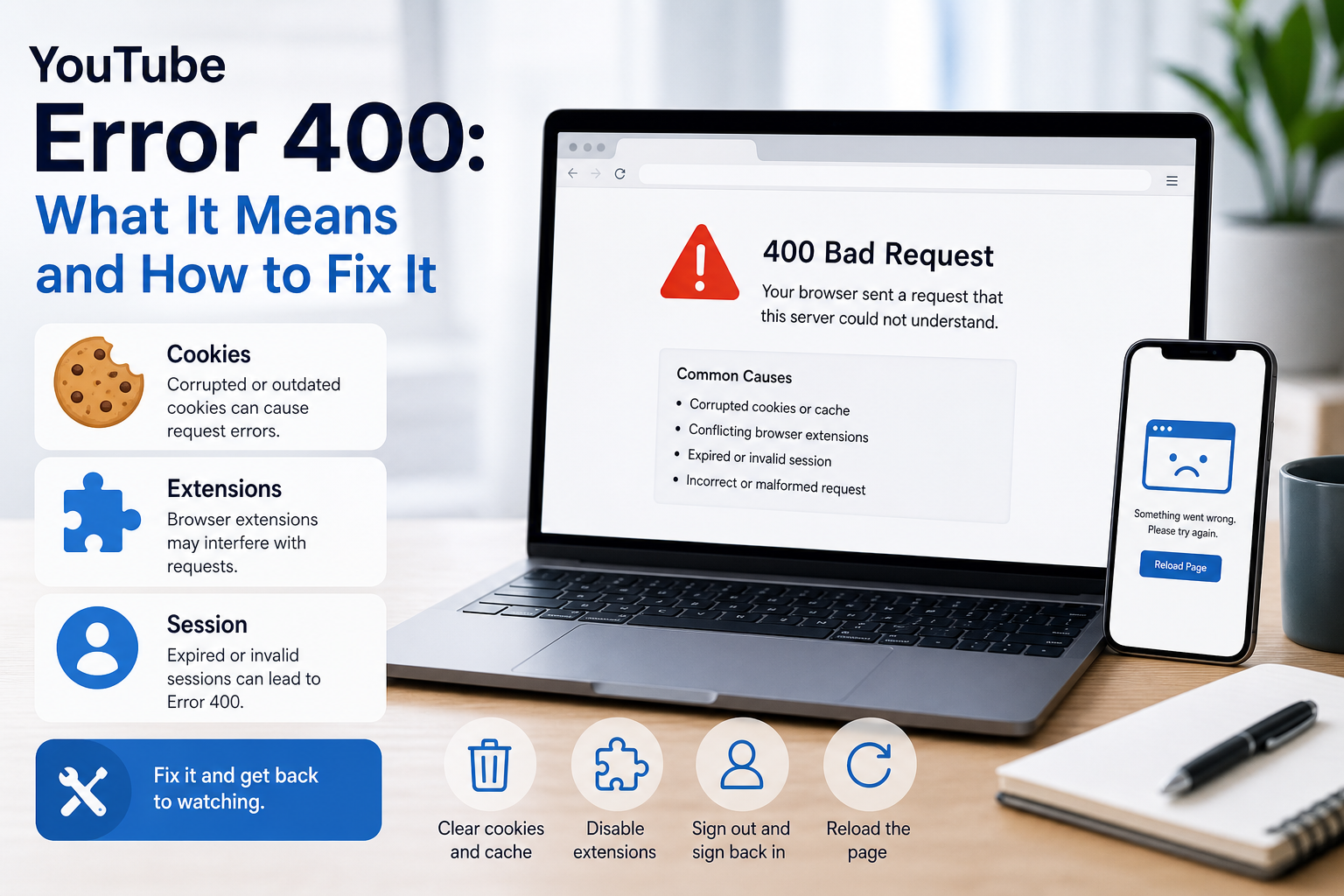
YouTube Error 400: What It Means and How to Fix It
In HTTP terminology, a 400 Bad Request is a client-error response. MDN explains that servers commonly return 400 when they consider the request malformed, incorrectly framed, or deceptively routed. The important troubleshooting clue is that repeating the exact same request without changing anything is expected to fail again.
View Details
Overseas Social Media Traffic Declining? These Reach-Limiting Triggers Are Often Overlooked
A practical guide to overlooked overseas social media reach drops, covering AI content disclosure, risky wording, abnormal account behavior, hidden reach-limiting signals, and account environment checks.
View Details
How to Add a Server IP in Minecraft Step by Step
Learn exactly where to enter a Minecraft server IP in Java, Bedrock, and Pocket Edition, plus how to fix common connection errors, ports, and edition mismatches.
View Details
How to Find a Working Minecraft Server IP Fast
Stop wasting time on dead Minecraft server IPs. Learn how to verify live servers quickly, read status icons, check ports, and source updated server addresses.
View Details
Best 24/7 Online Minecraft Server IPs — No Downtime
Find reliable 24/7 Minecraft server IPs for Java and Bedrock, plus uptime checks, port basics, ping guidance, crossplay notes, and network stability tips.
View Details