
DHCP vs Static IP: Which Should You Use?
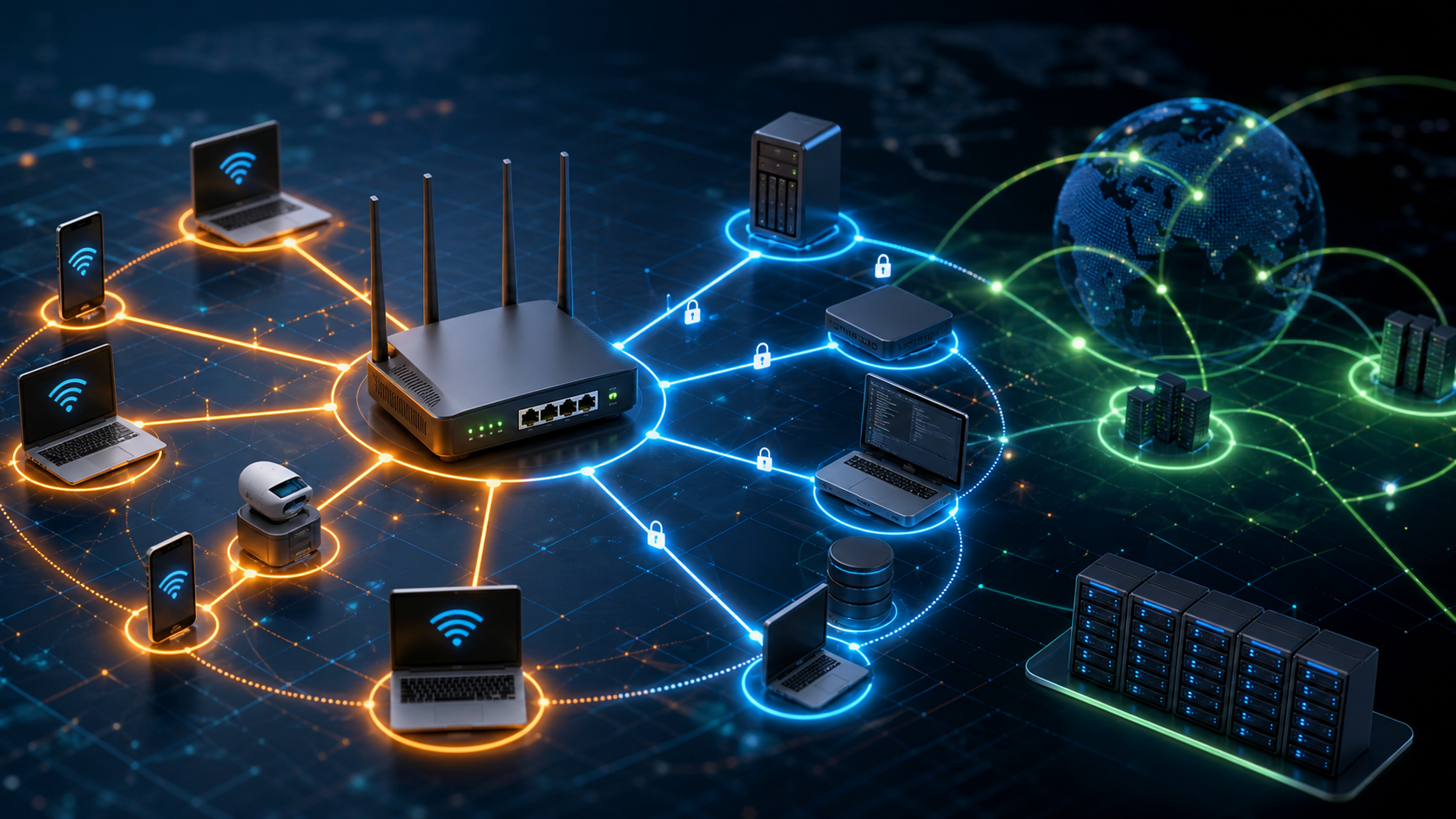
Most devices use DHCP by default. For some devices, that's a mistake.
For general-purpose computing, DHCP works fine. Your laptop connects to a network, gets an address, and moves on. But when you start running a home lab, a small business network, or any setup where machines need to find each other reliably, the default approach starts to break things in ways that are frustratingly hard to diagnose.
Printers go offline. Security cameras stop recording to network storage. Self-hosted services become unreachable after a router reboot. These aren't hardware failures. In most cases, they're IP address failures.
This guide is a practical decision-making resource. It explains how DHCP and static IP assignment each work, which devices need which approach, and how DHCP reservations give you the best of both without the overhead of managing everything manually.
How DHCP Works and Where It Creates Problems
What DHCP Actually Does
DHCP stands for Dynamic Host Configuration Protocol. When a device connects to a network, it broadcasts a request for network configuration. The router (or a dedicated DHCP server) responds with an IP address, subnet mask, default gateway, and DNS server addresses.
This address is leased, not permanent. After the lease expires, the device requests a renewal. Usually it gets the same address back. But not always.
For laptops, phones, and tablets, this is completely fine. These devices are clients. They initiate connections. Nothing needs to find them by address.
Where DHCP Creates Real Problems
DHCP becomes a liability the moment another device needs to find a machine at a consistent address.
Here are the most common failure points:
Network printers
You add a printer to your network. Every computer maps to it using its current IP address. The router reboots after a firmware update. The printer gets a different IP. Every mapped printer connection breaks.
NAS drives and file servers
A NAS device holding shared folders or backups gets a new IP after a lease expires. All your mapped drives stop working. Applications that write to network paths fail silently.
Security cameras and NVRs
IP cameras stream to a Network Video Recorder using configured IP addresses. If a camera's address changes, the NVR loses the feed. You may not notice until you need the footage.
Self-hosted services and home lab servers
If you run Pi-hole, Home Assistant, a game server, a local web server, or anything accessed by hostname-to-IP mapping, a changing IP breaks DNS records, bookmarks, and any service that references it directly.
Smart home hubs and IoT devices
Many smart home platforms store device IPs in their configuration. When those addresses change, devices go unresponsive until you re-pair or reconfigure them.
The underlying issue is the same in every case: DHCP is designed for clients, not servers. The moment a device needs to be found reliably, dynamic addressing becomes a source of intermittent failures.
Static IPs, When to Use Them, and the Smarter Middle Ground
What a Static IP Assignment Means
A static IP is an address configured manually on the device itself. The device always presents that address to the network, regardless of what the DHCP server offers.
This solves the reliability problem completely. If your NAS is always at 192.168.1.50, every mapped drive, every scheduled backup, every app pointing to it will keep working after any network event.
Devices That Should Use Static IPs
As a general rule, any device that other machines on your network need to reach by address should have a static IP. That includes:
- Network printers
- NAS drives and file servers
- IP cameras and NVRs
- Home automation hubs (Home Assistant, SmartThings hubs, etc.)
- Local DNS servers (like Pi-hole)
- Routers and managed switches
- Raspberry Pi servers and home lab nodes
- Any self-hosted application with a web interface
Devices that can safely stay on DHCP:
- Laptops and desktops used as clients
- Smartphones and tablets
- Smart TVs (unless you run a local media server that connects to them)
- Guest devices
- Any device that only initiates connections, never receives them
The Problem With Manual Static IP Configuration
Assigning static IPs directly on devices works, but it creates a management problem at scale.
When you configure a static IP on a device, you're working outside the DHCP server's awareness. Your router doesn't know that 192.168.1.50 is taken. If DHCP is still handing out addresses in that range, it might assign 192.168.1.50 to a laptop tomorrow, causing an IP conflict. Both devices stop working until the conflict resolves.
To avoid this, you have to manually track which addresses are in use and deliberately exclude them from your DHCP pool. That's manageable for five devices. It becomes error-prone at twenty.
DHCP Reservations: The Best of Both Approaches
DHCP reservations (sometimes called static DHCP or IP address reservation) solve this cleanly.
Instead of configuring the IP address on the device, you configure the assignment at the router level. You tell the DHCP server: whenever you see a request from this MAC address, always assign this IP.
The device still goes through the DHCP process. It requests an address. The router checks its reservation table and hands back the same address every time.
Why this is usually the right approach:
- The address is managed centrally in your router, not scattered across device settings
- The DHCP server knows the address is reserved and won't assign it to anyone else
- If you replace a device, you update one entry in your router, not a setting buried in the device's configuration
- Your network topology is visible in one place
How to set up a DHCP reservation:
1. Log into your router's admin interface
2. Find the DHCP server settings or connected devices list
3. Identify the device you want to reserve an address for (by its current IP or device name)
4. Note the device's MAC address
5. Create a reservation linking that MAC address to a specific IP
6. Save and reboot the device to confirm it picks up the reserved address
Most consumer routers and every small business router supports this. The menu location varies by brand, but the concept is universal.
Comparing the Three Approaches
| Approach | Address Stability | Management Overhead | Conflict Risk | Best For |
|---|---|---|---|---|
| DHCP (default) | Low | None | Low | Client devices, general use |
| Manual static IP | High | High | Medium (if pool not adjusted) | Isolated devices, specific configs |
| DHCP reservation | High | Low | Very low | Servers, printers, cameras, labs |
A Decision Framework for Home Labs and Small Business Networks
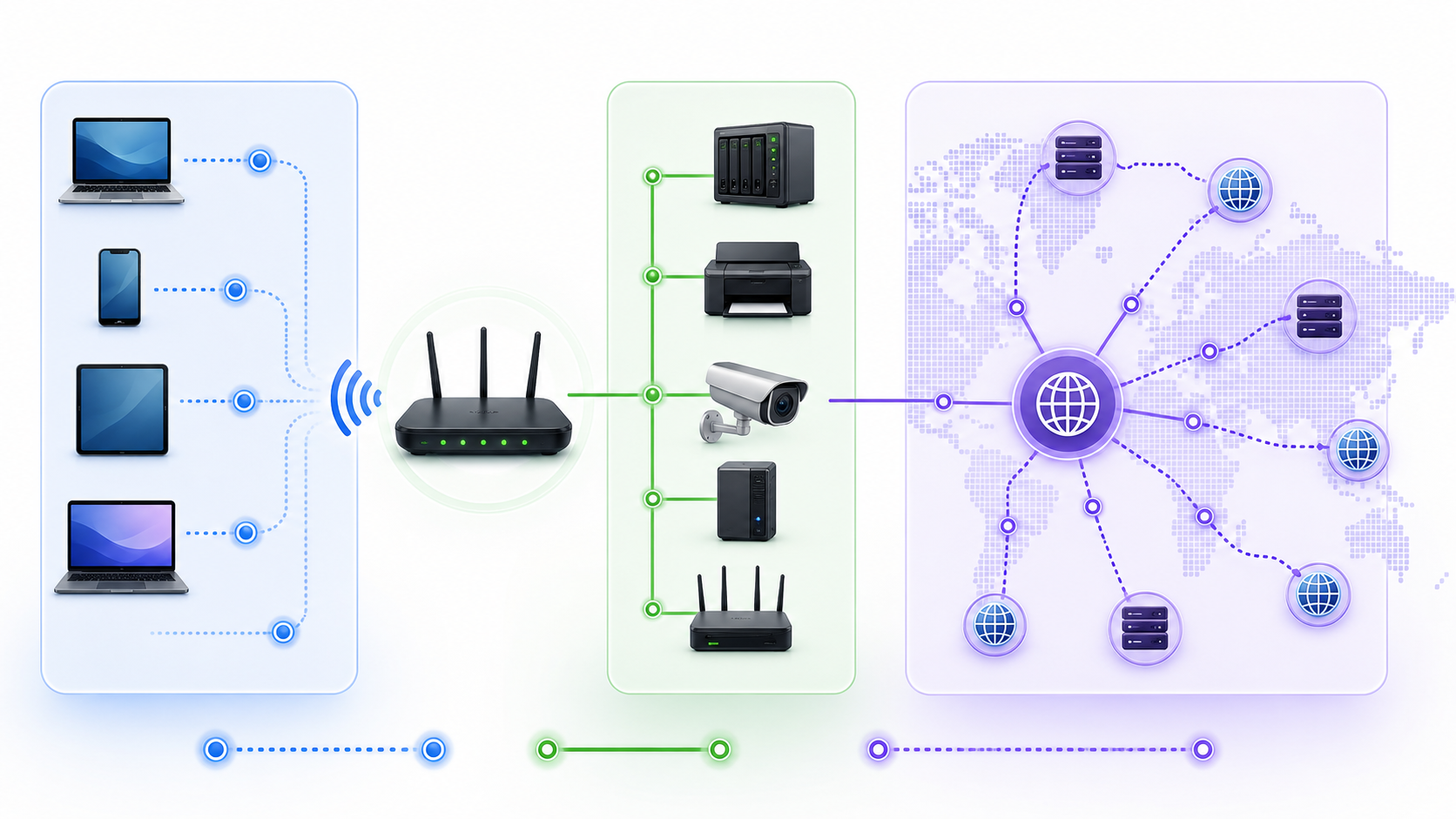
Rather than applying one rule to every device, work through this decision process for each machine on your network.
Step 1: Does Anything Need to Find This Device?
If the answer is no, DHCP is fine. Laptops, phones, and tablets almost always fall here.
If the answer is yes, the device needs a consistent address. Continue to step 2.
Step 2: Is This Device Managed Locally or Remotely?
If you have easy access to the device's settings and won't be reconfiguring it often, a manual static IP can work. Devices like managed switches and dedicated servers often fall into this category.
If you'd rather manage addresses centrally and minimize the chance of conflicts, use a DHCP reservation.
Step 3: How Many Devices Are You Managing?
For small networks with five to ten static-address devices, either manual static IPs or reservations work fine.
For larger home labs or small business networks with fifteen or more devices needing consistent addresses, DHCP reservations are significantly easier to maintain. All your assignments live in one interface.
Step 4: Are You Segmenting Your Network?
If you use VLANs to separate device types (IoT devices on one segment, servers on another, guest Wi-Fi on a third), each VLAN typically has its own DHCP pool. Plan your IP ranges per VLAN and use reservations within each segment for devices that need them.
Practical IP Range Planning
A simple approach for a home lab or small business:
- Reserve 192.168.1.1 to 192.168.1.20 for routers, switches, and access points
- Reserve 192.168.1.21 to 192.168.1.60 for servers, NAS, printers, and cameras (all assigned via DHCP reservation)
- Let DHCP hand out 192.168.1.100 to 192.168.1.254 for client devices
This keeps your infrastructure addresses predictable without removing them from DHCP management.
Watch: DHCP vs Static IP Basics
For a quick visual refresher, this short networking explainer walks through how DHCP and static addressing work before you apply the same logic to proxy IP strategy.
IP Assignment Logic and Proxy Infrastructure
The same logic that makes static IPs valuable on local networks applies directly to proxy infrastructure and IP-dependent automation workflows.
When you run web scraping pipelines, automated data collection, geo-testing, or ad verification, the type of IP address you use and how consistently it behaves matters in similar ways.
Dynamic rotating proxies change IP addresses between requests, much like DHCP assigns different addresses to devices over time. This is useful when you need to distribute requests across many IPs to avoid rate limits during large-scale public data collection.
Static residential proxies provide a consistent IP address that persists across sessions. Like a DHCP reservation, the address is stable but still managed at the infrastructure level. These are particularly useful for account management workflows, session-based automation, and scenarios where a consistent identity matters across multiple interactions.
Datacenter proxies are analogous to manually configured static IPs: fast, predictable, and straightforward, but more easily identified by target platforms.
Teams evaluating proxy infrastructure for scraping, localization testing, or e-commerce research face similar tradeoffs. Consistency matters for some workflows. Rotation matters for others. Providers like LycheeIP offers both rotating and static proxy options, allowing teams to match their IP assignment strategy to their specific use case.
As with local network planning, the right choice depends on what the workflow requires: is the target looking for a consistent identity, or is request distribution the priority?
Always review the terms of service for websites you interact with through automated workflows, respect robots.txt directives, and avoid generating traffic loads that could affect a target site's availability.
Common Mistakes and Considerations
Assigning static IPs in the DHCP range without excluding them
This is the most common cause of IP conflicts on small networks. If your DHCP pool runs from .100 to .254, any static IP in that range is at risk. Either move your static assignments outside the pool or exclude them explicitly.
Not documenting your IP assignments
Even if you use DHCP reservations, keep a simple spreadsheet or a network documentation tool with each device's name, MAC address, assigned IP, and purpose. This saves significant troubleshooting time when something breaks.
Assuming DHCP renewals always return the same address
They usually do on small networks, but it's not guaranteed. If you're counting on address consistency, use a reservation. Don't rely on DHCP behavior you haven't explicitly configured.
Setting overly long DHCP lease times to compensate
Some people extend lease times to 30 or 90 days thinking it will reduce address changes. It helps slightly, but it's not a substitute for a proper reservation. It also means the router holds onto old lease records long after a device leaves the network.
Forgetting to update reservations when replacing hardware
MAC addresses are tied to hardware. When you replace a NAS, printer, or camera, the new device has a different MAC. Remember to update the reservation, or the new device will get a random address and your services will stop responding.
Not auditing your network periodically
Over time, networks accumulate devices. Running a network scan (tools like Nmap or even your router's connected-device list) periodically helps you identify unknown devices, orphaned reservations, and potential IP conflicts before they cause problems.
Conclusion
DHCP is not broken. It's the right default for client devices that don't need to be found by other machines on the network. It reduces administrative work and handles most everyday devices without any configuration.
But DHCP becomes a liability the moment you have printers, servers, cameras, NAS drives, or any other device that needs a consistent address to stay reachable. For those devices, relying on dynamic assignment introduces a category of intermittent, hard-to-diagnose failure that has nothing to do with the hardware itself.
The practical answer for most home labs and small business networks is a hybrid approach: DHCP for client devices, DHCP reservations for everything that needs a consistent address. This gives you centralized management, eliminates conflict risk, and keeps your infrastructure predictable without the overhead of manually tracking and maintaining static configurations across dozens of devices.
Know what each device on your network is doing. If something needs to be found, give it a consistent address. If it only initiates connections, DHCP is fine. That single distinction resolves most network address problems before they start.
Frequently Asked Questions
Q: What is the main difference between DHCP and a static IP?
A: DHCP assigns IP addresses automatically from a pool managed by your router. The address can change over time. A static IP is a fixed address that stays the same every time the device connects, either because it's configured manually on the device or reserved in the router via DHCP reservation.
Q: When should I use a static IP instead of DHCP?
A: Use a static IP (or a DHCP reservation) for any device that other machines need to reach by address. This includes network printers, NAS drives, IP cameras, local servers, smart home hubs, and DNS servers like Pi-hole. Devices that only initiate connections, like laptops and phones, can stay on DHCP.
Q: What is a DHCP reservation and how is it different from a static IP?
A: A DHCP reservation is a configuration in your router that tells the DHCP server to always assign the same IP address to a specific device, identified by its MAC address. Unlike a manual static IP configured on the device itself, the address is managed centrally in the router. The device still goes through the normal DHCP process but always receives the same address.
Q: Can DHCP and static IP assignments cause conflicts?
A: Yes. If you manually configure a static IP on a device but that address falls within the DHCP pool range, the router might assign the same address to a different device, causing a conflict. Both devices will experience connectivity issues. To avoid this, either assign static IPs outside the DHCP range or use DHCP reservations, which the router manages to prevent conflicts.
Q: How do I find a device's MAC address to create a DHCP reservation?
A: You can usually find a device's MAC address in its network settings, on a label on the hardware itself, or in your router's connected devices list. On Windows, run 'ipconfig /all' in Command Prompt. On macOS or Linux, use 'ifconfig' or 'ip link show'. Most router admin interfaces also display MAC addresses next to connected devices.
Q: What happens if I change or replace a device that has a DHCP reservation?
A: The reservation is tied to the old device's MAC address. The new device will have a different MAC and will receive a random IP from the DHCP pool instead of the reserved address. You need to update the reservation in your router with the new device's MAC address to restore consistent addressing.
Q: Is it safe to give all devices static IPs or reservations?
A: Technically yes, but it creates unnecessary management overhead for client devices that don't need consistent addresses. It's more practical to use DHCP for laptops, phones, and tablets, and reserve consistent addresses only for infrastructure devices like servers, printers, and cameras.
Q: How does DHCP lease time affect address stability?
A: DHCP lease time controls how long a device keeps its assigned address before requesting a renewal. On most home networks, devices get the same address back at renewal. However, if the device was off when the lease expired, the address may be reassigned. Longer lease times reduce the chance of address changes but are not a reliable substitute for DHCP reservations if consistency is required.
Q: Does this concept apply to proxy IP addresses as well?
A: Yes, in a practical sense. The same tradeoff between consistency and rotation applies to proxy infrastructure. Static residential proxies provide a consistent IP across sessions, which is useful for account management and session-based workflows. Rotating proxies change the IP with each request or at set intervals, which is better for distributing large-scale data collection. Choosing the right type depends on whether the workflow requires a consistent identity or broad IP distribution.
Q: What is the easiest way to manage IP addresses on a small business network?
A: Use DHCP for general client devices and create DHCP reservations in your router for all infrastructure devices. Keep a simple spreadsheet or use a network documentation tool to record each device's name, MAC address, assigned IP, and role. This gives you visibility across your network and makes troubleshooting faster when issues arise.

Recommended Articles
DataDome Bypass for Web Scraping
DataDome Bypass for Web Scraping
View Details
Web Scraping Rate Limiting: How to Handle 429s, Backoff, and Concurrency
Web scraping rate limiting is the engineering discipline of keeping an authorized collection workload inside a target service's acceptable request envelope. When that envelope is exceeded, a server may respond with HTTP 429 Too Many Requests, delay responses, or apply other controls.
View Details
reCAPTCHA vs hCaptcha vs Cloudflare Turnstile: What Scraping Teams Need to Know
If an authorized data-collection workflow suddenly stops at a verification screen, identifying the protection system matters before you change code, browser settings, or proxy infrastructure. reCAPTCHA vs hCaptcha vs Turnstile is not simply a branding comparison. The three systems can expose different browser flows, token models, risk decisions, and failure symptoms.
View Details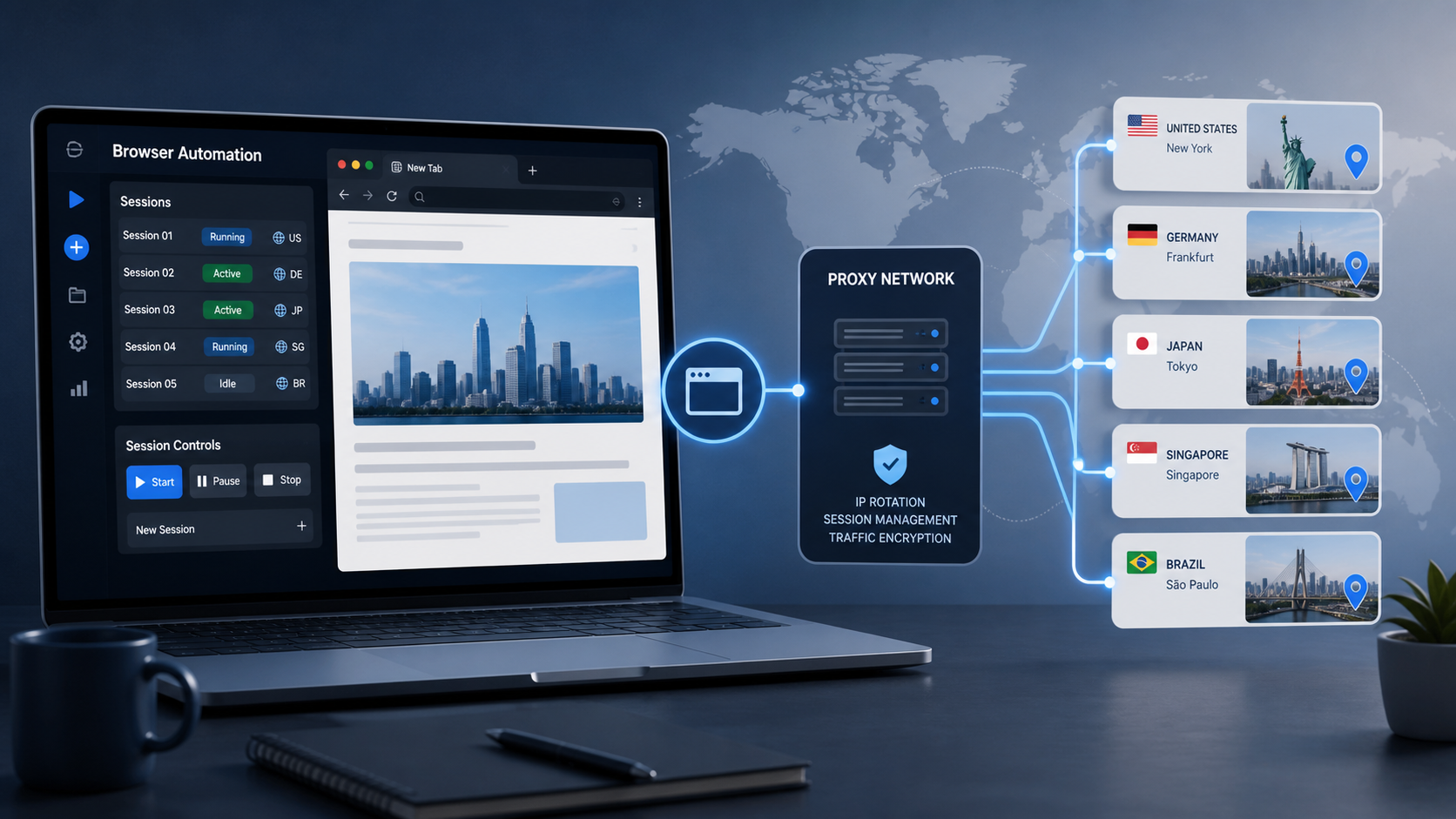
Browser Automation Proxies: IPs, Geo-Targeting, Sessions, and AI Agents
A browser automation proxy belongs to the network layer of Playwright, Selenium, cloud-browser, and AI-agent workflows. It changes how browser traffic is routed and can affect the source IP address, geographic egress, and session continuity seen by a destination site. It does not improve an AI model's reasoning, repair browser logic, or guarantee that a website will accept the session.
View Details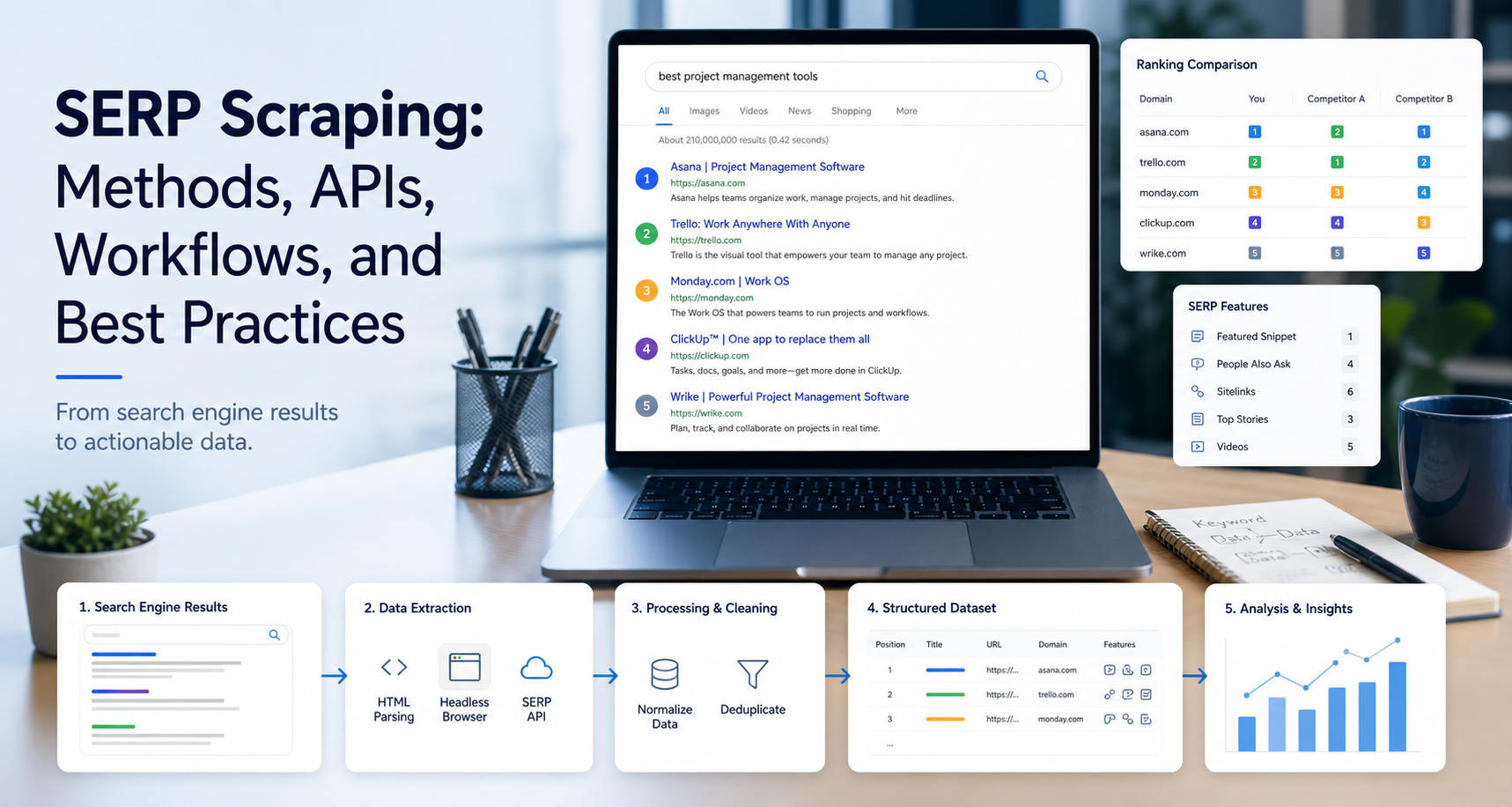
SERP Scraping: Methods, APIs, Workflows, and Best Practices
SERP scraping is the automated collection of information from search engine results pages. A SERP scraper can capture organic rankings, advertisements, featured snippets, People Also Ask questions, local results, shopping listings, images, and other search features, then convert them into structured data for analysis.
View Details