
Test Your Network Speed: Built-in Tools vs Apps
Stop Using Speedtest Apps, Your OS Already Has This Built In
For years, developers, sysadmins, and everyday users have reflexively downloaded Speedtest by Ookla or navigated to Fast.com whenever they needed to diagnose a network bottleneck. But here is the technical reality that most users overlook: Windows 11, iOS, and Android now possess robust, native network diagnostic capabilities that are not only faster to access but often more accurate and privacy-friendly than their third-party counterparts.
The era of relying exclusively on external applications for baseline network diagnostics is fading. Modern operating systems have quietly evolved, embedding professional-grade telemetry tools directly into your taskbar or developer settings. Let's break down the technical differences between native OS metrics and external throughput tests, and explore why you might want to retire those ad-heavy speed test apps for good.
Run Global Tests with LycheeIP
Windows 11's Hidden Speed Test Feature
How to Access Native Metrics
Windows 11 introduced native network speed indicators that hide in plain sight, offering immediate Layer 2 (Data Link) diagnostic data without opening a browser:
- Quick View: Click the Wi-Fi or Ethernet icon in your system tray (bottom-right corner).
- Connection Properties: Right-click your active connection and select "View connection properties."
- Review Metrics: Scroll down to view real-time metrics, including your negotiated Link Speed (Receive/Transmit).
For a more detailed, active diagnostic test:
- Open Settings → Network & Internet.
- Select your active connection type (Wi-Fi or Ethernet).
- Click Network troubleshooter → "I have a different problem" → "Test my network speed."
Understanding What It Actually Measures
It is critical to understand the technical distinction between native tools and web-based apps. Unlike third-party applications that establish external TCP connections to measure payload transfer rates, Windows 11's built-in tools measure:
- Link Speed: The absolute maximum theoretical capacity negotiated between your Network Interface Card (NIC) and your local router/switch.
- Network Utilization: The real-time, aggregate bandwidth currently being consumed by all processes on your machine.
- Gateway Latency: The ping time exclusively to your local gateway (router), which is essential for isolating internal WLAN/LAN issues from broader ISP outages.
The Accuracy Question
Methodology Matters
Third-party applications like Speedtest evaluate your connection by routing synthetic payloads through their global Content Delivery Networks (CDNs). As defined in standards like IETF RFC 6349 (Framework for TCP Throughput Testing), measuring end-to-end throughput introduces massive external variables:
- Server Selection: Results fluctuate wildly depending on which test server the app automatically selects.
- Backbone Congestion: Tests inevitably include current internet backbone traffic and ISP peering congestion.
- Routing Hops: Multi-hop BGP routing algorithms can inadvertently skew latency and throughput results.
Conversely, native OS tools establish a direct diagnostic baseline. They measure the raw, unadulterated connection between your device and your local network hardware, removing third-party server dependencies and providing a highly consistent baseline.
Real-World Testing Discrepancies
When testing a locally provisioned 500 Mbps connection, the metric variations between tools become glaringly obvious. Here is how the same network performs across different testing methodologies:
- Windows 11 Native: 487 Mbps Download | 112 Mbps Upload | 3ms Latency (measured to local gateway)
- Speedtest by Ookla: 421 Mbps Download | 98 Mbps Upload | 12ms Latency (measured to external test server)
- Fast.com: 390 Mbps Download | N/A Upload | 18ms Latency (measured to Netflix's CDN)
The Technical Verdict: Native tools reveal what your local hardware is physically capable of delivering. Third-party apps reveal what you actually receive from your ISP after accounting for global routing overhead. For troubleshooting internal network drops, poor Wi-Fi coverage, or faulty Cat6 cables, native tools provide the ground truth.
Privacy Benefits You're Overlooking
What Third-Party Apps Collect (The Telemetry Cost)
If you read the privacy policies and inspect the network payloads of popular free speed test applications, the amount of harvested telemetry is staggering. Common data collection includes:
- Device identifiers, MAC addresses, and hardware specifications.
- Precise location data often leveraging the Geolocation API or raw GPS coordinates.
- Detailed test histories tied to persistent user profiles.
- ISP routing information and IP addresses, which are frequently monetized.
- Embedded third-party ad-tracking pixels injected directly into the results page.
Companies like Ookla aggregate billions of individual tests into massive datasets. These datasets are then commercially licensed and sold to ISPs, government regulators, and telecom researchers. While technically anonymized, it still represents a massive scale of commercial data harvesting occurring on your device.
What Native Tools Don't Do
Built-in OS network diagnostics provide a completely isolated, privacy-first environment:
- They do not phone home to third-party servers with your payload results.
- They do not require account creation or OAuth login credentials.
- They do not serve targeted advertisements based on your IP's geographic location.
- They do not build persistent marketing profiles based on your connectivity habits.
For privacy-conscious developers and technical operators, this is the ultimate killer feature. Your internal network performance data remains strictly on your local machine.
Run Global Tests with LycheeIP
Mobile Native Options
iOS (iPhone/iPad) Diagnostics
Apple intentionally abstracts deep network metrics from the standard UI, but powerful diagnostic tools still exist natively:
- Link Speed: Navigate to Settings → Wi-Fi → tap the (i) icon next to your network to view underlying network details.
- Network Quality Tool: Introduced in iOS 15, macOS, and iOS developer settings, the hidden networkQuality command-line tool executes tests against Apple's CDNs to measure RPM (Responsiveness under working conditions), distinguishing between idle and loaded latency.
Android Diagnostic Tools
Google has increasingly embedded robust network telemetry directly into the Android OS (specifically Android 12 and newer):
- Connection Details: Go to Settings → Network & Internet → Internet → tap the Gear icon to view transmit/receive link speeds and frequency bands (2.4GHz vs 5GHz).
- Developer Options: Advanced network debugging, including detailed Wi-Fi roaming scans and verbose logging, can be enabled via Android's hidden Developer Options menu.
- OEM Additions: Certain hardware manufacturers (like Samsung and OnePlus) bake dedicated, privacy-respecting network diagnostic widgets directly into their custom UI overlays.
Mobile Reality Check: While native tools are improving, the mobile ecosystem is still slightly behind desktop OS capabilities. Third-party apps maintain a stronger utility foothold here, but technical users should always check native OS capabilities first as they improve with every major kernel update.
Slide 5: When to Use Each Tool
Use Native OS Tools When:
- Troubleshooting the LAN: Diagnosing slow local file transfers, NAS connectivity, or mapping Wi-Fi dead zones.
- Hardware Verification: Confirming your router's actual wireless output capabilities versus the manufacturer's advertised speeds.
- Privacy is Paramount: You require strict, privacy-first diagnostics without external data harvesting.
- Interface Testing: Comparing exact Ethernet vs. Wi-Fi performance limits on the same physical device.
- Isolating Faults: Determining if a bottleneck is local (router/device) or external (ISP/WAN).
Use Third-Party Apps When:
- SLA Verification: Verifying that your ISP is actually delivering the WAN speeds promised in your subscription tier.
- Provider Benchmarking: Comparing different ISPs or cellular plans using a standardized, external server baseline.
- Trend Analysis: You require historical, logged data to prove persistent evening throttling to an ISP support technician.
- Mobile Diagnostics: Testing from mobile devices where native UI metrics are heavily abstracted.
- Standardized Reporting: Sharing speed results with external IT support desks using a format they instantly recognize.
LycheeIP (Developer-First Proxy Infrastructure)
When engineering teams, QA testers, and data operators need to move beyond simple local network tests to evaluate how applications perform on a global scale, standard OS speed tools are no longer sufficient. LycheeIP is a developer-first proxy and data infrastructure platform that enables technical teams to reliably route and test their network requests globally.
If your team needs to simulate user traffic from specific global vantage points to accurately measure geographic latency, leveraging a robust developer-first proxy infrastructure is critical. For automated QA pipelines and public data collection scripts that require frequent IP rotation to bypass strict rate limits without skewing baseline performance metrics, dynamic IP networks provide necessary scalability. Conversely, when setting up continuous API monitoring dashboards that demand high-speed, stable throughput, datacenter IP solutions deliver the dedicated bandwidth required to establish an accurate performance baseline. Whether you are diagnosing regional application bottlenecks or conducting authorized geographic security testing, integrating LycheeIP ensures your network testing is robust, scalable, and globally accurate.
The Verdict: A Hybrid Approach Wins
The provocative hook was intentional, but the technical reality is nuanced. You do not necessarily need to permanently delete Speedtest or Fast.com, but you absolutely must stop using them as your singular diagnostic crutch.
The Ideal Troubleshooting Workflow:
- Start Local: Always check native OS tools first for quick baseline measurements and to isolate local hardware/LAN faults.
- Audit Externally: Use third-party applications quarterly to verify your ISP's SLA and external WAN performance.
- Prioritize Privacy: When external tests are necessary, choose privacy-respecting options like Fast.com (which minimizes tracking and serves zero ads).
- Understand the Metric: Know exactly what each tool measures (Layer 2 Link Speed vs. Layer 7 Throughput) before drawing expensive hardware conclusions.
Native OS tools represent a quiet revolution in user empowerment. As operating systems absorb deep telemetry features once exclusive to bloated third-party applications, we are witnessing the democratization of network diagnostics—paired with the massive bonus of robust data privacy.
Pro tip: Bookmark or memorize your OS's network settings shortcut for faster access than launching any web browser. On Windows 11, simply press Win + I, then type "network" into the search box.
Run Global Tests with LycheeIP
Frequently Asked Questions
Q: Are built-in OS speed tests as accurate as third-party apps like Speedtest by Ookla?
A: They are highly accurate, but they measure entirely different segments of your network. Native OS tools measure your local network's maximum physical capability (the link between your device and your router). Apps like Speedtest measure your actual end-to-end internet throughput (the route from your device, out through your ISP, to a remote server). For troubleshooting slow local Wi-Fi, native tools are actually more accurate because they eliminate the unpredictable variable of external internet congestion.
Q: Why do Windows 11 and Speedtest show vastly different speeds for the exact same connection?
A: Windows 11's network tools display your Link Speed—the maximum theoretical bandwidth your network adapter has negotiated with your local router. Speedtest measures Application-Layer Throughput—the actual real-world data transfer rate, which accounts for TCP/IP overhead, ISP throttling, and remote server performance. The Windows metric represents your local potential; the Speedtest metric represents your external reality.
Q: Do native network diagnostic tools work offline?
A: Yes, partially. Native tools that measure physical Link Speed, adapter status, and local network performance function perfectly without active internet connectivity. This makes them invaluable for diagnosing "Connected, No Internet" errors. However, deeper OS troubleshooting features that attempt to ping external DNS servers will naturally fail if the WAN connection is down.
Q: Which speed test method should I rely on when calling my ISP to report slow internet?
A: Use a widely recognized third-party application like Speedtest or Fast.com, and run multiple tests at different times of the day. ISPs recognize these standardized tools and typically require their results to escalate support tickets. Document the server location, timestamp, and speeds. However, you must use your native OS tools first to verify your local Link Speed is high. This ensures you rule out local hardware faults (like a degraded Cat5e cable or a dying Wi-Fi card) so you don't waste hours on the phone with your ISP for a problem residing inside your own house.

Recommended Articles
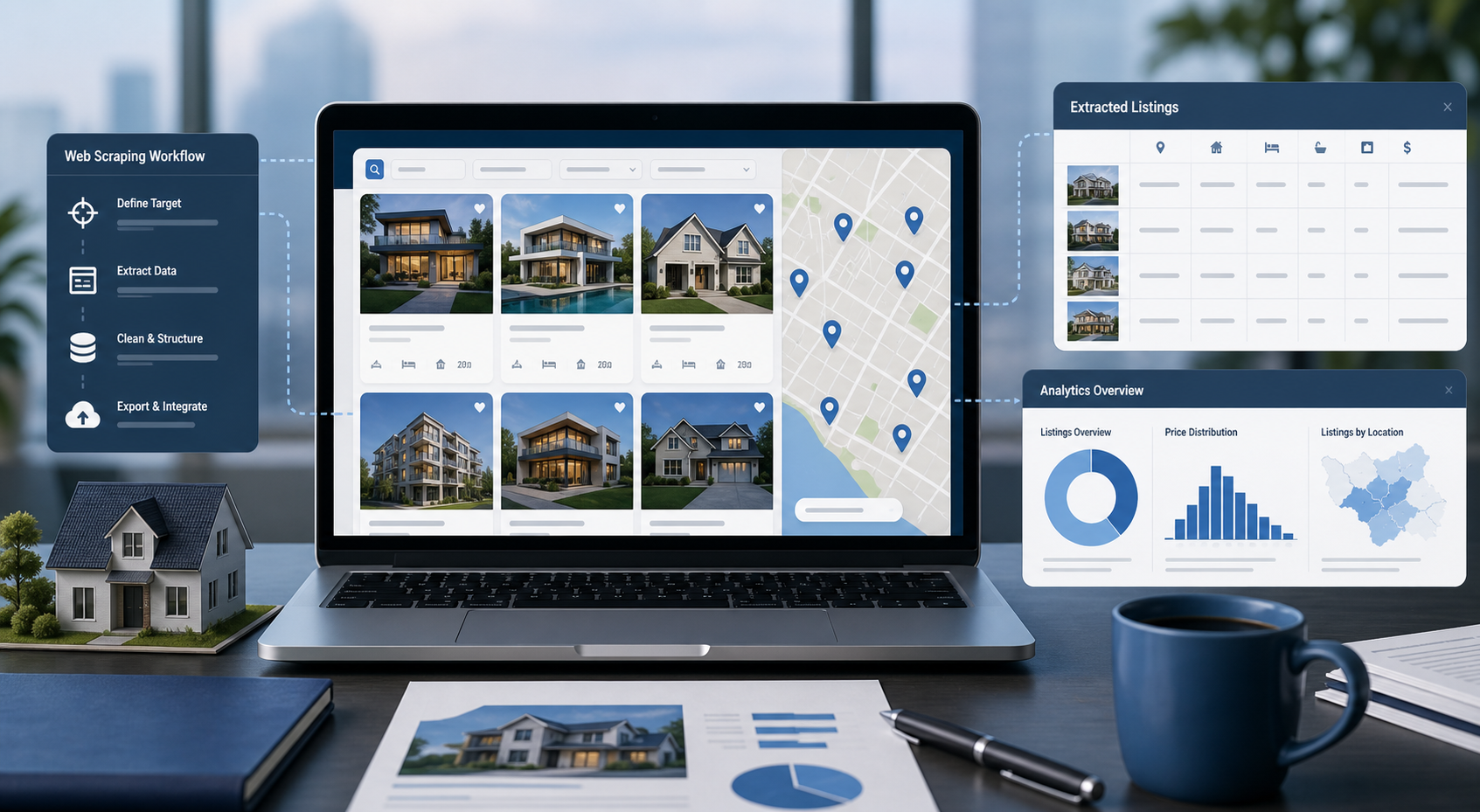
Best Real Estate Scrapers in 2026
Best Real Estate Scrapers in 2026
View Details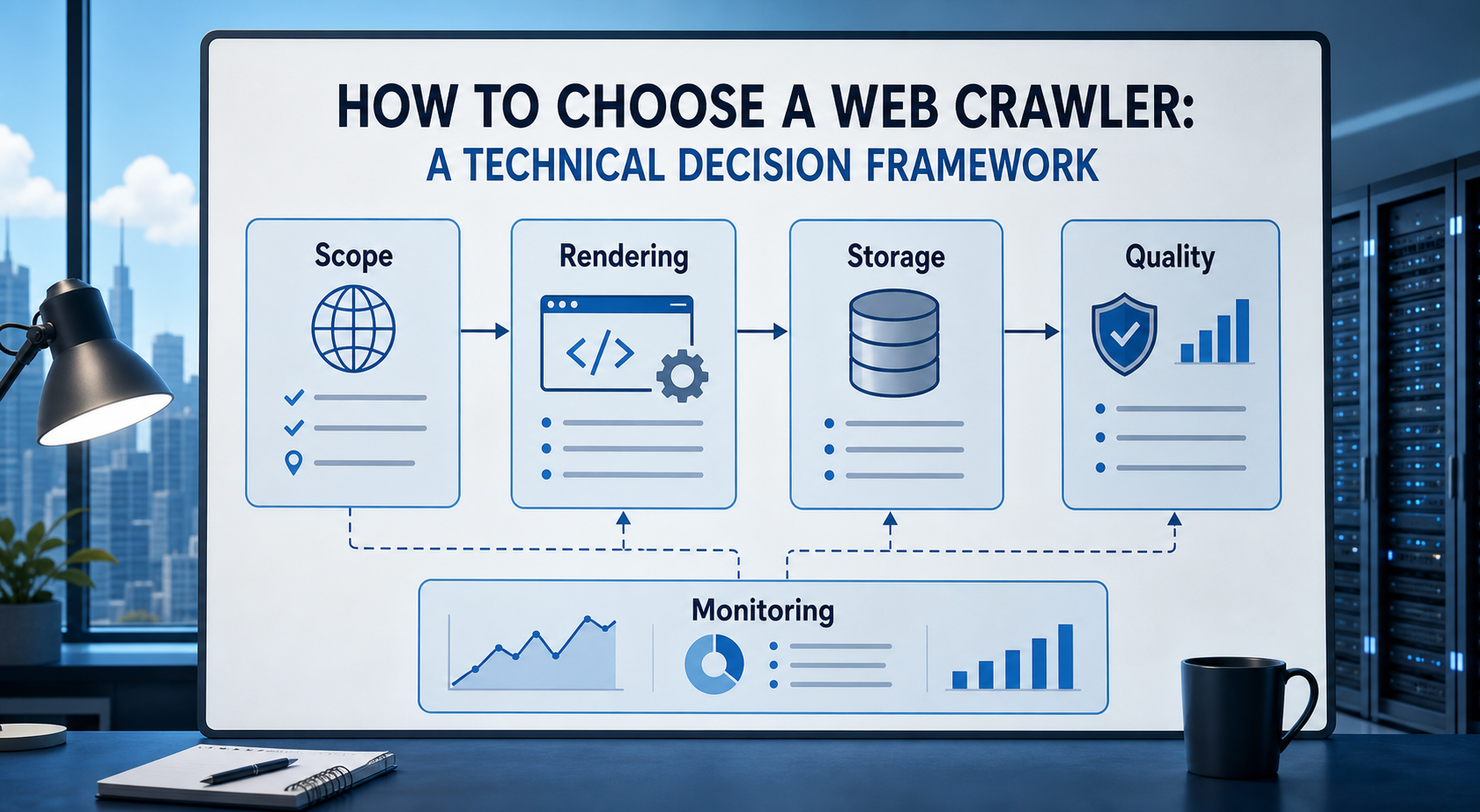
How to Choose a Web Crawler: A Technical Decision Framework
The wrong way to choose a web crawler is to begin with a list of products. The right starting point is the system you need to build. Before comparing tools, define:
View Details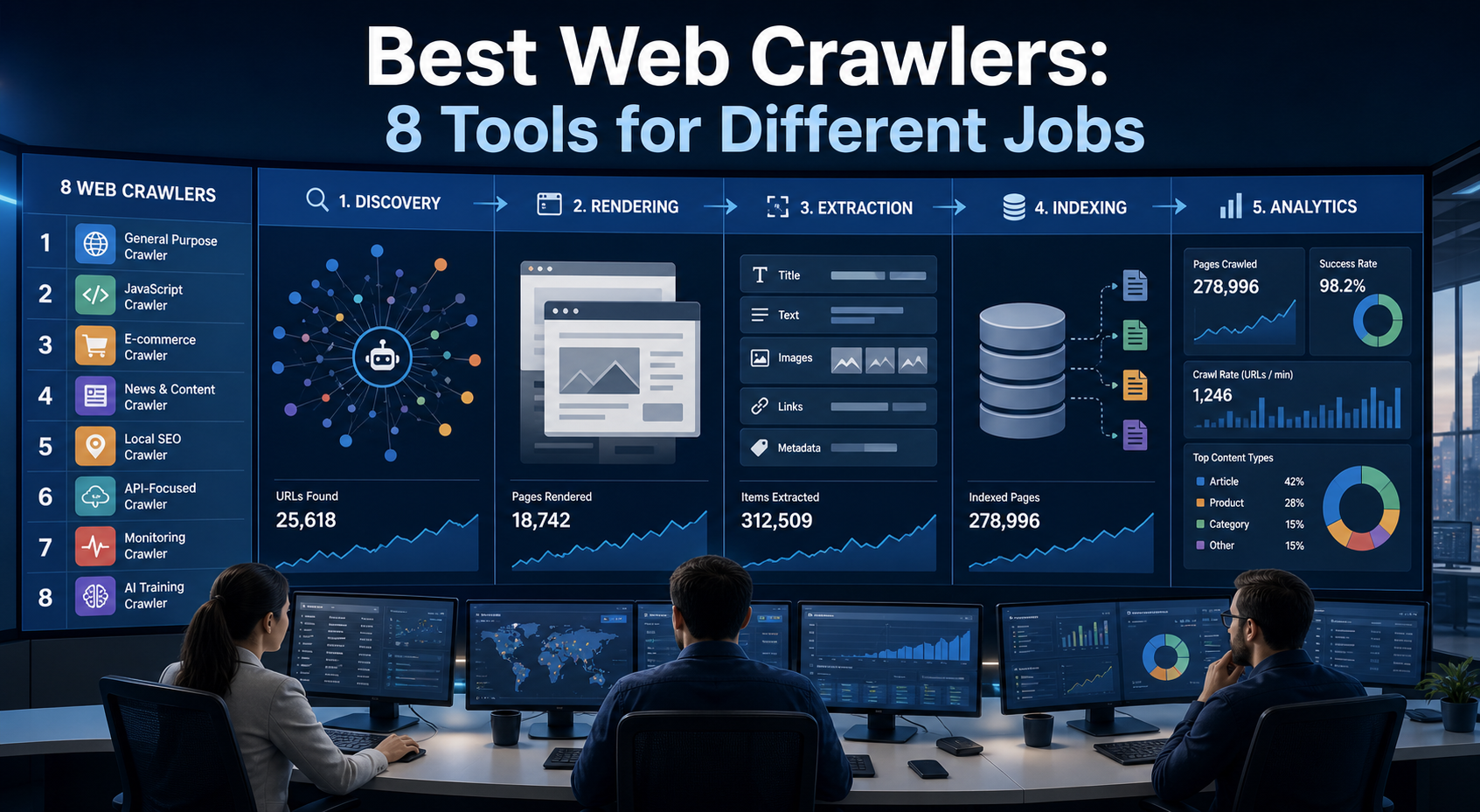
Best Web Crawlers: 8 Tools for Different Jobs
There is no single best web crawler for every project. A technical SEO audit, an AI knowledge pipeline, an internet archive, and a distributed search index may all involve crawling URLs, but they require different capabilities. The most useful way to compare web crawler tools is therefore to ask what job each one was designed to perform. This guide evaluates eight strong options across:
View Details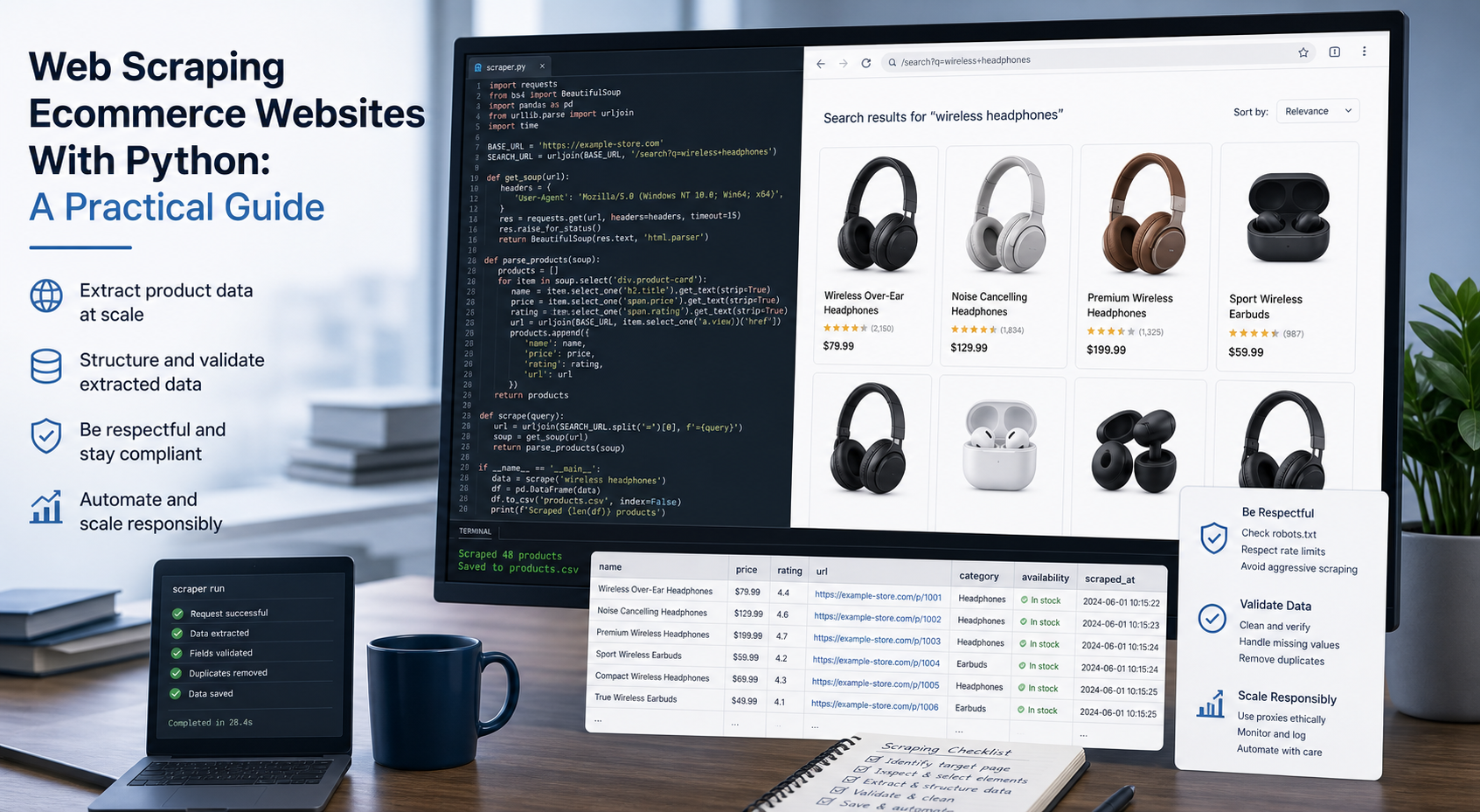
Web Scraping Ecommerce Websites With Python: A Practical Guide
Recommended meta title: Web Scraping Ecommerce Websites With Python: Guide Recommended meta description: Learn how to scrape ecommerce websites with Python using Requests, Beautiful Soup, Playwright, and Scrapy, with validation and scaling guidance. URL slug: /web-scraping-ecommerce-websites-python/
View Details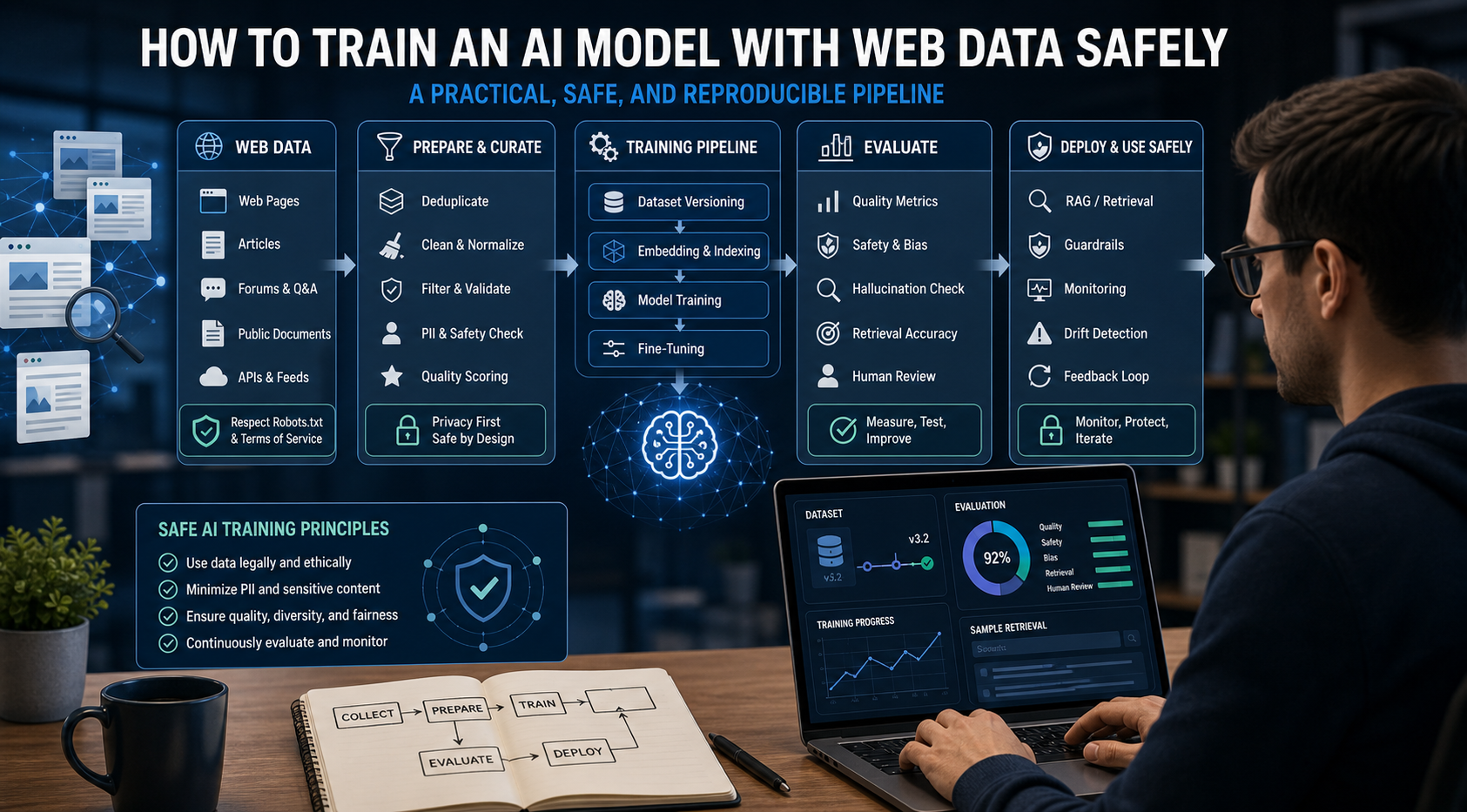
How to Train an AI Model With Web Data Safely
To train an AI model with web data, start by deciding whether you actually need training. Then collect representative sources, preserve provenance, remove duplicates and low-quality content, create leakage-resistant splits, build a baseline, fine-tune or train the appropriate model, and evaluate on real held-out examples before deployment.
View Details