
Hidden Email Privacy Risks You Need to Fix Today
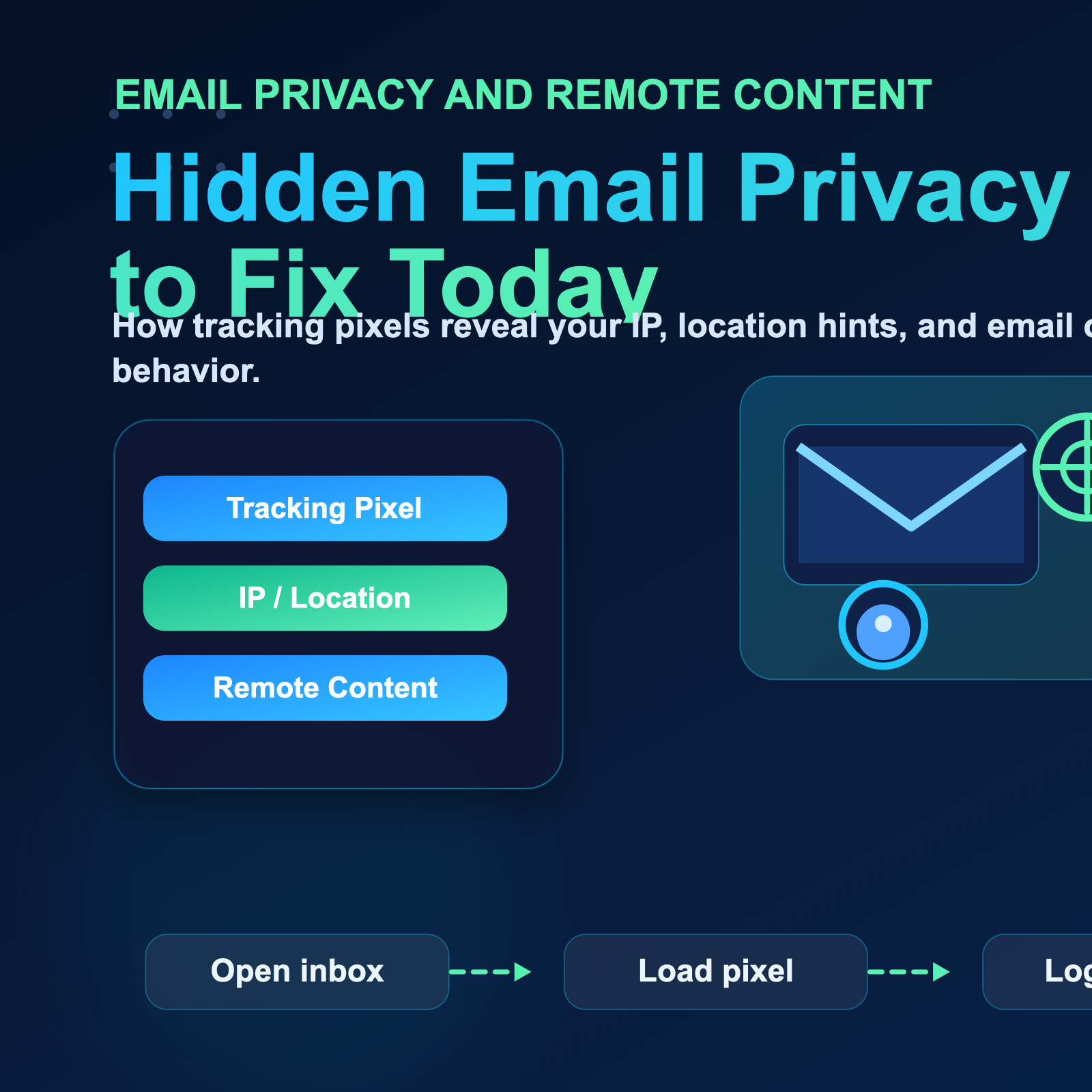
Your Email App Has a Privacy Setting That 99% of People Don't Know About
For teams comparing privacy, geo-testing, and data collection workflows, the practical question is not only what an IP address reveals. It is also how clean routing, trusted proxy infrastructure, session control, and compliance practices shape the final result.
For official technical background, see IANA number resources, ARIN IPv4 resources, RFC 791 Internet Protocol, MDN X-Forwarded-For reference.
Your email app has a privacy setting that 99% of people don't know about. Every time you open an email, there's a strong chance the sender knows your IP address, approximate location, device type, and email client within seconds. This happens automatically through default email settings that prioritize convenience over privacy.
The problem is simple but widespread: most email applications load remote content by default, including invisible tracking pixels that leak your IP address to senders without your knowledge or consent. These aren't just marketing emails from major brands. Any sender can embed tracking technology that captures your network information the moment you view their message.
This privacy risk affects billions of email users across Gmail, Outlook, Apple Mail, Yahoo, and virtually every other email platform. The good news is that fixing this vulnerability takes less than two minutes once you know where to look.
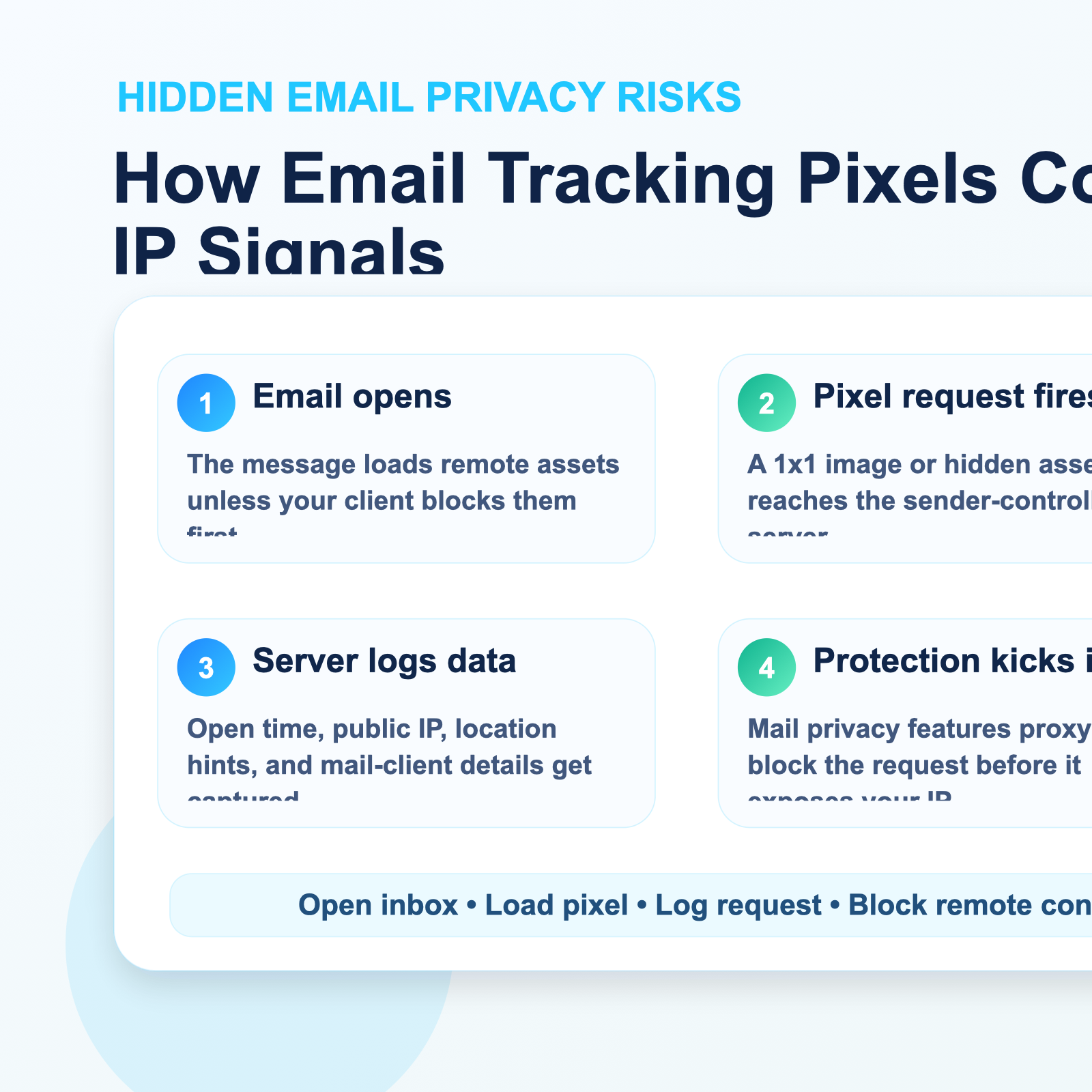
Email Tracking Pixels Explained: How Open Tracking Works
What Information Your IP Reveals to Email Senders
Your IP address functions as your device's network identifier on the internet. While it's not as revealing as your home address, it still exposes significant information about you and your online behavior.
Geographic Location Data
IP addresses are assigned in blocks to internet service providers and organizations based on geographic regions. Using IP geolocation databases, anyone with your IP address can determine:
- Your country with near certainty
- Your state or province with high accuracy
- Your city with reasonable accuracy (typically within 50-100 miles)
- Your time zone
- Your postal code in some cases
For residential internet connections, this geolocation data often pinpoints your approximate neighborhood. For mobile connections, it identifies the cell tower region you're connected to.
Internet Service Provider Information
IP lookup tools instantly reveal which ISP provides your internet connection. This information tells senders whether you're on a residential connection, corporate network, mobile carrier, VPN service, or datacenter IP range.
This distinction matters more than many people realize. Corporate IP ranges indicate you're reading email at work, potentially during business hours. Mobile carrier IPs suggest you're checking email on the go. VPN or proxy IP ranges signal privacy-conscious behavior or attempts to mask your true location.
Network Infrastructure Details
Beyond basic location and ISP data, IP addresses reveal technical details about your network infrastructure:
- Connection type (fiber, cable, DSL, mobile)
- Hosting provider for datacenter IPs
- Whether you're using a proxy, VPN, or anonymization service
- Autonomous System Number (ASN) of your network
Sophisticated tracking systems analyze these signals to build behavior profiles. For example, if your IP address changes frequently between different geographic regions, this suggests VPN usage or frequent travel.
How Senders Use Your IP Data
Marketers and sales professionals leverage IP data for several purposes:
Sales timing optimization: If a prospect opens an email at 9:47 AM from a corporate IP address, the sales rep knows this is a good time to follow up with a phone call.
Geographic targeting: Location data helps companies customize offers based on regional preferences, shipping costs, or local regulations.
Engagement scoring: Tracking when and how often recipients open emails helps prioritize hot leads versus cold contacts.
A/B testing: Comparing open rates and engagement across different times, locations, and device types helps optimize future campaigns.
List verification: Confirming that recipients are real people who actually open emails, not fake addresses or spam traps.
While these use cases might seem legitimate from a business perspective, they represent significant privacy intrusions that most email recipients never explicitly consented to.
The Privacy Implications
The combination of your email address and IP address creates a powerful identity linkage. Even if you use different email addresses for different purposes, your IP address ties these identities together.
This data often gets sold or shared with third-party advertising networks, data brokers, and analytics companies. Your email engagement patterns become part of larger consumer profiles that follow you across the internet.
For privacy-conscious users, professionals handling sensitive information, journalists communicating with sources, or anyone who values digital autonomy, email IP leakage represents an unacceptable vulnerability.
Quick Settings Change to Block IP Leakage
Protecting your IP address from email tracking requires disabling automatic remote content loading in your email client. This forces your email application to ask permission before loading images and other external resources.
Here's how to enable this protection across the most popular email platforms:
Gmail (Web)
1. Click the gear icon in the top right corner
2. Select "See all settings"
3. Scroll down to the "Images" section
4. Select "Ask before displaying external images"
5. Scroll to the bottom and click "Save Changes"
Gmail (Mobile App)
1. Open the Gmail app
2. Tap the menu icon (three lines)
3. Scroll down and tap "Settings"
4. Select your email account
5. Tap "Images"
6. Select "Ask before showing"
Apple Mail (macOS)
1. Open Mail and click "Mail" in the menu bar
2. Select "Preferences" or "Settings"
3. Click the "Privacy" tab
4. Check "Protect Mail Activity"
5. Optionally, uncheck "Load remote content in messages"
Apple Mail (iOS)
1. Open Settings on your iPhone or iPad
2. Scroll down and tap "Mail"
3. Tap "Privacy Protection"
4. Enable "Protect Mail Activity"
Outlook (Desktop)
1. Click "File" then "Options"
2. Select "Trust Center"
3. Click "Trust Center Settings"
4. Choose "Automatic Download"
5. Check "Don't download pictures automatically in HTML email messages"
6. Click "OK" to save
Outlook (Web)
1. Click the gear icon for Settings
2. Search for "external images" in the search bar
3. Under "Privacy and data", find "External images"
4. Select "Don't load external images or style references"
Thunderbird
1. Click the menu icon (three lines)
2. Select "Options" or "Preferences"
3. Click "Privacy & Security"
4. Under "Mail Content", uncheck "Allow remote content in messages"
Yahoo Mail
1. Click the Settings icon
2. Select "More Settings"
3. Click "Security and Privacy"
4. Under "Show images in messages", select "Ask before showing images"
What Happens After You Block Remote Content
Once you disable automatic loading, your email client will display placeholder boxes where images should appear. You'll see buttons or links that say "Show images" or "Display remote content."
You can click these buttons for individual emails when you trust the sender and want to view the full message. This gives you control over when to expose your IP address rather than leaking it automatically with every email you open.
For emails from known contacts and trusted sources, most email clients let you whitelist specific senders to always load their images. This provides convenience for legitimate correspondence while maintaining protection against tracking from unknown senders.
Additional Privacy Measures
Blocking remote content prevents IP leakage when reading emails, but senders can still collect your IP address when you click links in their messages. Consider these additional protections:
Use link preview tools: Before clicking unknown links, paste them into link preview services that show you where they lead without exposing your IP.
Browse through proxy infrastructure: For maximum privacy when clicking email links, route your traffic through proxy services that mask your real IP address.
Enable VPN protection: Virtual private networks replace your real IP with the VPN server's IP, preventing senders from learning your true location.
Use dedicated email clients: Privacy-focused email applications like ProtonMail and Tutanota block tracking by default and provide additional security features.
Connection to Proxy Infrastructure and IP Privacy
The email tracking problem highlights a broader issue with IP address exposure across internet activities. While email tracking represents one specific vulnerability, your IP address gets shared constantly as you browse websites, use mobile apps, and interact with online services.
This is why many privacy-conscious users, developers, and businesses rely on proxy infrastructure to control their IP exposure. Proxies act as intermediaries between your device and the internet, replacing your real IP address with a different one from the proxy provider's pool.
How Proxies Enhance Email Privacy
When you access email through a proxy connection, tracking pixels capture the proxy's IP address instead of your real one. This breaks the connection between your email activity and your true location, ISP, and network infrastructure.
For users who need strong email privacy protections, especially when accessing email over public WiFi or untrusted networks, proxy infrastructure provides an additional security layer beyond disabling remote content.
Proxy Types for Different Privacy Needs
Different proxy types serve different privacy and functionality requirements:
residential proxies use IP addresses assigned to real residential internet connections. These appear as legitimate home user connections, making them difficult to distinguish from regular email access patterns. They're ideal for maintaining natural-looking email activity while protecting your actual location.
datacenter proxies provide fast, reliable connections through datacenter IP addresses. While these are easier to identify as proxies, they offer excellent performance for users who prioritize speed and cost efficiency over appearing as residential users.
Static residential proxies combine residential IP addresses with the stability of dedicated connections. These maintain the same IP address for extended periods, which is useful for email accounts that flag suspicious activity when IPs change frequently.
Rotating proxies automatically change your IP address at set intervals or with each connection. This prevents tracking across multiple sessions and makes it nearly impossible to build consistent behavior profiles.
proxy infrastructure providers like LycheeIP offer these different proxy types to match various privacy, performance, and use case requirements. Teams evaluating proxy solutions for email privacy, web research, or other workflows should consider which proxy type best balances their security needs with functionality requirements.
Beyond Email: Broader Privacy Applications
The same proxy infrastructure that protects email privacy supports numerous other privacy-focused workflows:
- Testing websites and applications from different geographic locations without traveling
- Researching competitor pricing and content that varies by location
- Monitoring search engine results across different regions and markets
- Verifying that advertisements display correctly in target markets
- Collecting public data for research while respecting rate limits and access policies
- Managing multiple accounts or sessions that require separate IP addresses
- Automating workflows that would otherwise expose your real IP address
These use cases rely on the same fundamental principle: controlling which IP address you present to external services gives you control over your digital footprint and privacy.
Common Mistakes and Important Considerations
When implementing email privacy protections, avoid these common pitfalls:
Blocking All Images Permanently
While blocking remote content protects your IP, it also breaks legitimate email functionality. Many emails from trusted sources include important images, logos, and formatted content that won't display properly.
The solution is selective loading. Disable automatic loading by default, but manually enable images for trusted senders or whitelist specific contacts whose emails you regularly read.
Forgetting About Link Tracking
Blocking remote content in email bodies stops pixel tracking, but clicking links still exposes your IP when you visit the destination website. Many marketing emails use link tracking parameters that record when you click and where you navigate.
Be cautious about clicking links in promotional emails, or use proxy infrastructure to mask your IP when browsing websites reached through email links.
Inconsistent Protection Across Devices
Many people remember to disable remote content on their primary computer but forget to configure the same settings on their phone, tablet, or secondary devices. Email tracking only needs to succeed once to capture your information.
Review your privacy settings on every device and email client you use. Make this part of your setup process whenever you install new email applications.
Trusting "Privacy-Focused" Claims Without Verification
Some email providers claim to block tracking automatically, but their implementations vary in effectiveness. Apple's Mail Privacy Protection, for example, proxies image loading through Apple's servers, which prevents senders from seeing your IP but means Apple can see all your email activity.
Understand exactly what protection each privacy feature provides and who can still access your data.
Overlooking Corporate Email Policies
If you use email through your employer, workplace policies may prevent you from changing privacy settings or require specific configurations for security or compliance reasons.
Check with IT departments before modifying settings on work email accounts, and consider using separate personal email accounts for private correspondence.
Conclusion
Email tracking through invisible pixels represents one of the most widespread privacy vulnerabilities affecting internet users today. The default settings in virtually every email application prioritize convenience over privacy, automatically loading remote content that exposes your IP address, location, and device information to anyone who sends you a message.
The good news is that fixing this vulnerability requires only a simple settings change in your email client. By disabling automatic remote content loading, you regain control over when and how you expose your IP address through email interactions.
For users who need stronger privacy protections across all their internet activities, proxy infrastructure provides a comprehensive solution that masks your real IP address and prevents tracking across email, web browsing, and application usage.
Take two minutes today to review your email privacy settings across all your devices and email accounts. This simple action significantly reduces your digital exposure and gives you back control over your personal information.
Frequently Asked Questions
What is an email tracking pixel?
An email tracking pixel is a tiny, invisible image (typically 1x1 pixel) embedded in HTML emails that loads from the sender's server when you open the message. When your email client requests this image, the server logs your IP address, timestamp, location data, device type, and other information. The sender receives notification that you opened their email along with this tracking data, all without your knowledge or explicit consent.
Does disabling images completely break my email?
No, disabling automatic image loading doesn't break email functionality. Text, attachments, and all other email content still work normally. You'll see placeholder boxes where images should appear, with buttons to load images for specific emails when you choose. Most email clients also let you whitelist trusted senders whose images will load automatically, balancing privacy protection with convenience for legitimate correspondence.
Can senders still track me if I disable remote content?
Disabling remote content prevents tracking through embedded pixels and images, which is the most common tracking method. However, senders can still potentially track you when you click links in their emails, since visiting the destination website exposes your IP address to that site's server. For complete protection, combine image blocking with cautious link clicking, or use proxy infrastructure to mask your IP when browsing websites reached through email links.
How do I know if an email contains tracking pixels?
Tracking pixels are designed to be invisible, making them nearly impossible to detect visually. Some email clients and browser extensions can identify tracking elements by analyzing the email's HTML code for remote image requests and known tracking service domains. Privacy-focused email clients like ProtonMail may flag emails containing tracking elements, though this detection isn't foolproof since tracking techniques constantly evolve.
Will blocking images stop all email tracking?
Blocking automatic image loading stops pixel-based tracking, which represents the majority of email tracking methods. However, sophisticated tracking can also occur through link parameters, email read receipts (if enabled), and even some HTML rendering techniques. For comprehensive protection, combine image blocking with disabling read receipts, being cautious about link clicks, and potentially using proxy infrastructure for an additional privacy layer.
Does using a VPN prevent email tracking?
A VPN prevents senders from seeing your real IP address by replacing it with the VPN server's IP. This protects your actual location and ISP information from being captured through tracking pixels. However, VPNs don't prevent tracking entirely since senders still receive confirmation that you opened their email, just with the VPN's IP instead of yours. For complete protection, combine VPN usage with disabled remote content loading in your email client.
Are there email clients that block tracking by default?
Yes, several privacy-focused email clients block tracking by default. ProtonMail, Tutanota, and HEY disable remote content loading automatically and provide additional anti-tracking features. Apple Mail's Privacy Protection feature proxies image requests through Apple's servers to hide your IP address from senders, though this means Apple can see your email activity. Mainstream clients like Gmail, Outlook, and Yahoo Mail require manual configuration to block tracking.
Can proxy infrastructure protect my email privacy?
Yes, accessing email through proxy infrastructure masks your real IP address from tracking pixels by presenting the proxy's IP instead. This prevents senders from determining your actual location, ISP, or network information. Residential proxies from providers like LycheeIP appear as legitimate user connections, maintaining normal email functionality while protecting your privacy. This approach works well combined with disabled remote content loading for maximum protection.
Is email tracking legal?
Email tracking legality varies by jurisdiction. In most countries, including the United States, embedding tracking pixels in marketing emails is legal under current regulations. The EU's GDPR and California's CCPA impose stricter requirements around consent and disclosure, but enforcement specifically for email tracking remains limited. Many privacy advocates argue that email tracking without explicit consent should be regulated more strictly, but current laws generally permit the practice with minimal restrictions.
How can businesses send tracked emails responsibly?
Businesses using email tracking should provide clear privacy policies explaining their tracking practices, offer easy opt-out mechanisms, limit data collection to necessary business purposes, and avoid sharing tracking data with third parties without consent. Consider whether tracking is truly necessary for each campaign, use first-party tracking rather than third-party services when possible, and respect recipient preferences when they disable remote content or request removal from tracking. Transparency and respect for user privacy build trust more effectively than aggressive tracking.
Related LycheeIP Guides and Resources

Recommended Articles

AI Search API for AI Agents: How to Ground LLMs With Live Search Data
An AI search API gives an application or agent programmatic access to current search results. Its most useful role is discovery: the agent can find candidate sources, identify fresh information, and decide what to retrieve next instead of relying only on model memory.
View Details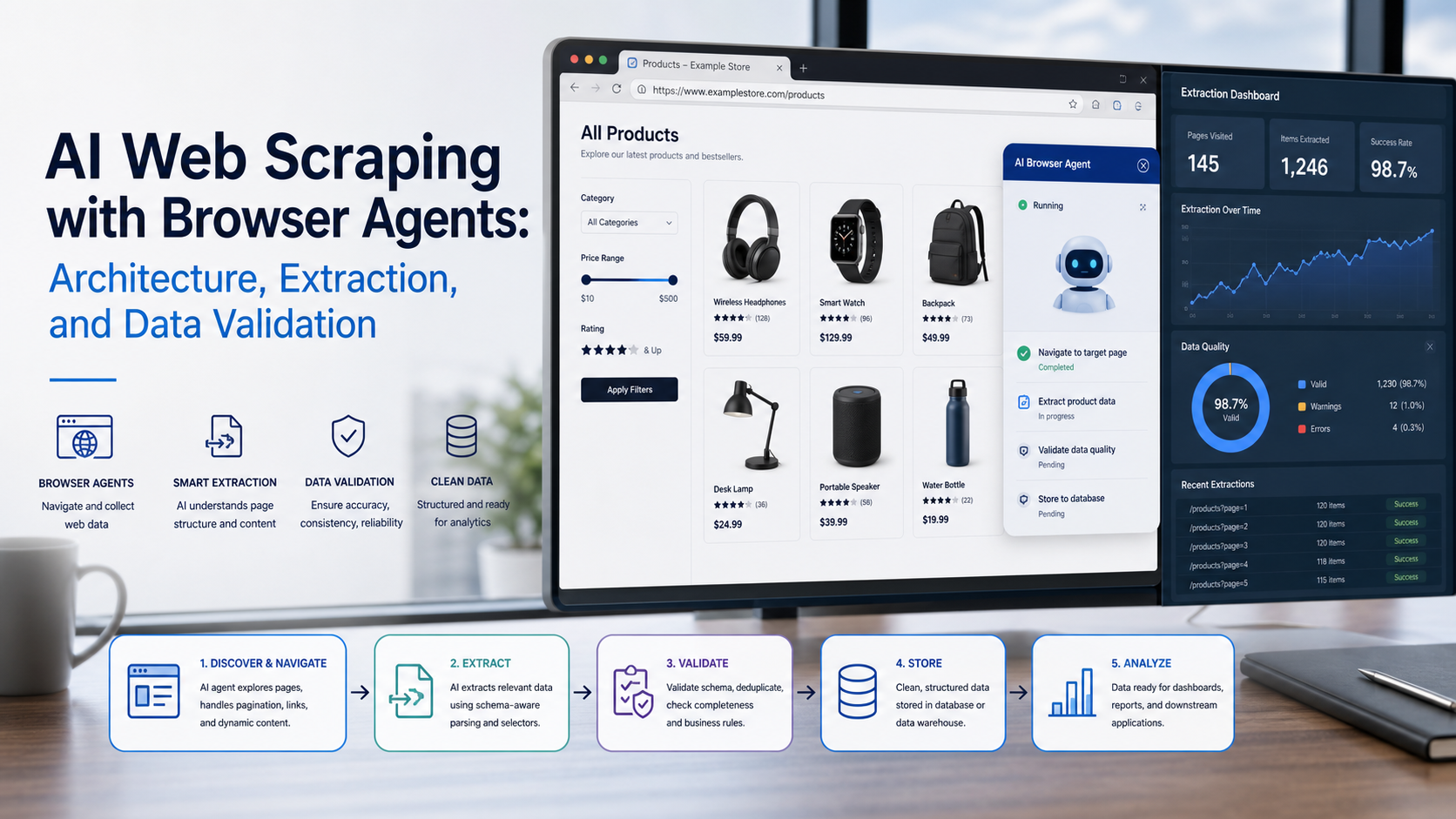
AI Web Scraping with Browser Agents: Architecture, Extraction, and Data Validation
AI web scraping uses AI to help discover, navigate, interpret, or extract information from websites. Browser agents are one implementation option when page interaction, rendering, or layout variation makes a simple scraper too brittle, but the agent should not become the entire data pipeline.
View Details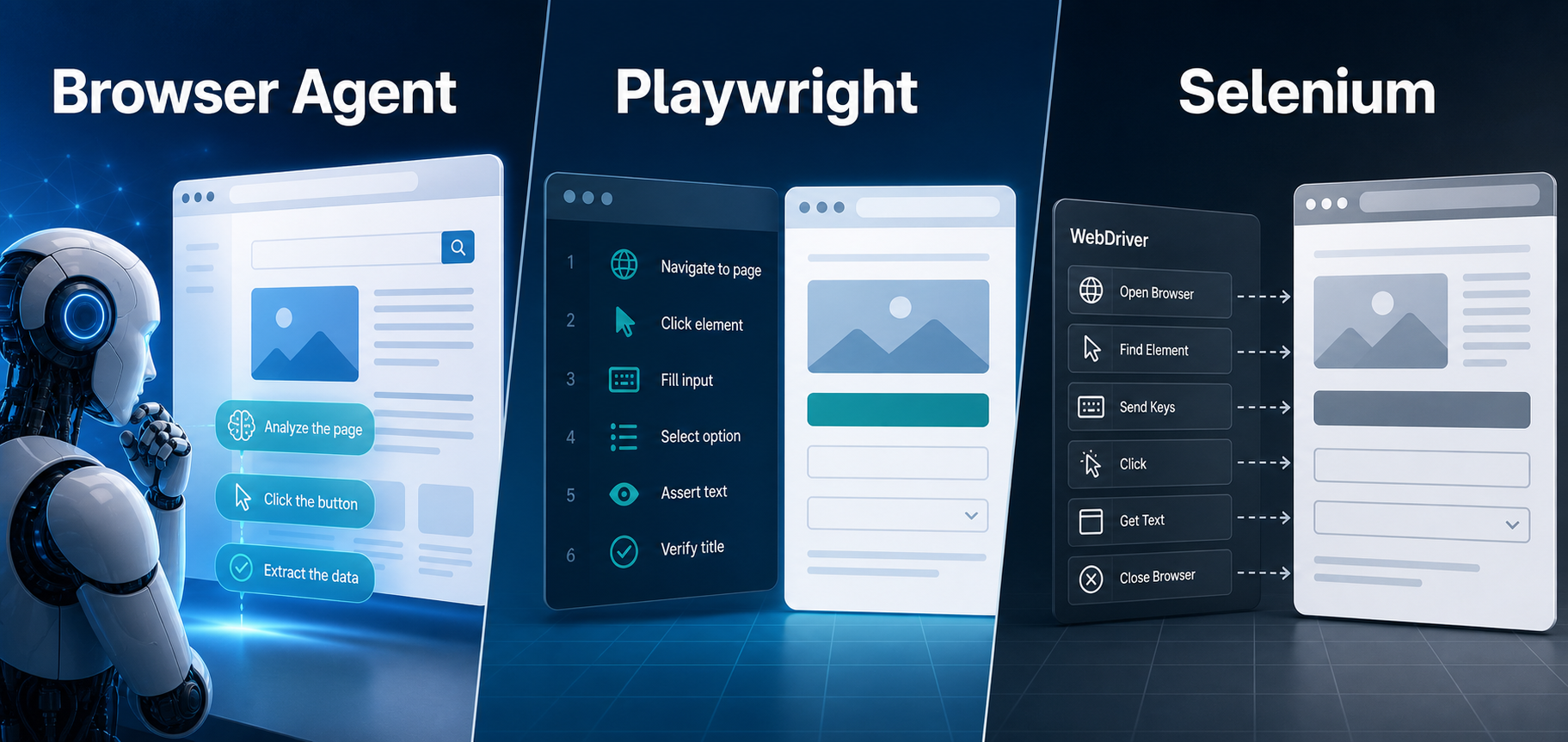
AI Browser Automation: Browser Agents vs Playwright vs Selenium
A browser agent interprets a goal and decides what browser action to take next. Playwright and Selenium can execute explicit, testable browser logic defined by developers. In 2026, however, Playwright also provides official MCP and agent-oriented workflows, so Playwright is no longer just the deterministic alternative to agentic automation. It can also serve as the browser-control layer inside an agent system.
View Details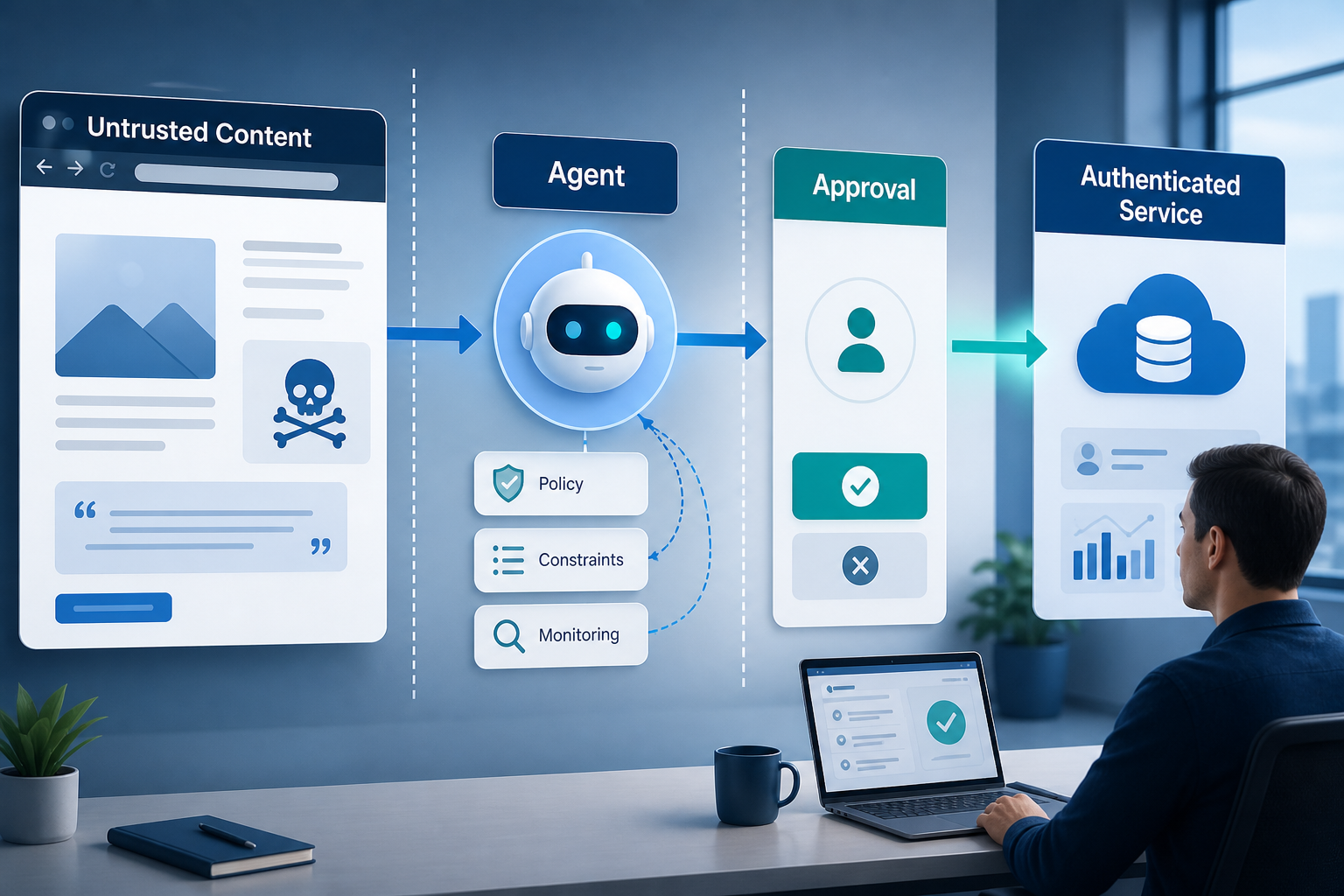
Agentic Browser Security: Prompt Injection, Permissions, and Safe Deployment
That combination creates risks that are different from ordinary browsing and traditional automation. The most important is indirect prompt injection, where hostile instructions hidden in web content attempt to redirect the agent away from the user's goal. Google describes indirect prompt injection as a primary new threat for agentic browsing and has introduced layered defenses that include origin constraints, independent action checks, threat detection, and user confirmation for sensitive actions. Google's Chrome security architecture is a useful reference for how browser-agent defenses are evolving.
View Details
How to Give AI Agents Reliable Real-Time Web Data
A production-ready solution therefore needs more than a web scraper. It needs a web data layer that connects acquisition, validation, storage, retrieval, security, and observability. This guide explains how to design that layer.
View Details