
GitHub Copilot CLI: Transform Your Terminal Workflow
GitHub Copilot just got a native CLI, and it is fundamentally changing how developers interact with the terminal.
If you have ever found yourself breaking flow state to Alt-Tab into a browser just to search Stack Overflow for the exact flags of a tar command, or googling "git rebase interactive" for the hundredth time, you are experiencing one of software development's most persistent friction points. Context switching between your terminal emulator and web documentation doesn't just slow you down; it drains your cognitive battery and makes routine infrastructure tasks feel unnecessarily complex.
GitHub Copilot CLI brings state-of-the-art AI assistance directly into your command line, eliminating that overhead. Instead of memorizing arcane POSIX syntax or hunting through dense man pages, you can describe what you want to accomplish in plain English and let Copilot generate the exact command. But this isn't just about saving keystrokes, it is about permanently shifting how technical operators manage their systems.
Power CLI Workflows with LycheeIP
What Makes GitHub Copilot CLI Different
Unlike the standard IDE-based GitHub Copilot (which excels at predictive autocomplete for code), the Copilot CLI is purpose-built for the unique constraints and dangers of terminal workflows. It understands command-line context, synthesizes complex piped one-liners, and integrates seamlessly into your existing shell configuration.
The tool operates through two primary commands:
- gh copilot suggest: Generates executable command suggestions based on natural language descriptions.
- gh copilot explain: Breaks down complex, unreadable commands into plain English explanations.
What truly sets it apart is its contextual awareness. Copilot CLI knows whether you are running Bash, Zsh, or PowerShell. It understands your underlying operating system (macOS vs. Linux). If you ask it to "deploy the current branch to staging", it doesn't just spit out a generic AWS command; it considers your current Git state and standard deployment paradigms.
Setup and Configuration: Getting Started
Installation Prerequisites
Before installing the Copilot CLI extension, ensure you have the following baseline requirements met:
- GitHub CLI (gh): Version 2.29.0 or later.
- Active Subscription: A valid GitHub Copilot tier (Individual, Business, or Enterprise).
- Supported Shell: Bash, Zsh, PowerShell, or Fish.
First, install or update the core GitHub CLI based on your OS:
macOS (Homebrew):
Bash
brew install gh
Windows (Winget):
Bash
winget install --id GitHub.cli
Linux (Debian/Ubuntu):
Bash
sudo apt install gh
Installing the Copilot CLI Extension
Once the base gh tool is installed and authenticated, add the official Copilot extension:
Bash
gh extension install github/gh-copilot
If you haven't authenticated your GitHub CLI yet, run gh auth login and follow the interactive prompts. Finally, verify the installation:
Bash
gh copilot --version
Shell Integration and Aliases
Typing gh copilot suggest every time you need help defeats the purpose of a fast terminal workflow. The real power comes from setting up shell aliases.
For Bash or Zsh, append the following to your .bashrc or .zshrc file:
Bash
eval "$(gh copilot alias -- bash)" # change to zsh if applicable
This automatically creates two highly efficient aliases:
- ghcs: Short for "gh copilot suggest"
- ghce: Short for "gh copilot explain"
For PowerShell, add this to your $PROFILE:
PowerShell
Invoke-Expression (gh copilot alias -- pwsh | Out-String)
After saving, remember to reload your shell (e.g., source ~/.zshrc). You can now invoke AI instantly with ghcs "find large files".
Power CLI Workflows with LycheeIP
Real-World Workflow Examples
Git Operations Made Simple
Git is notorious for its steep learning curve and endless flag combinations. Copilot CLI trivializes complex version control tasks.
Example 1: Interactive Rebasing
Instead of guessing how far back HEAD needs to go:
Bash
ghcs "rebase the last 5 commits interactively"
Copilot Suggests: git rebase -i HEAD~5
Example 2: Complex Log Queries
Bash
ghcs "show commits from last week by author with file changes"
Copilot Suggests: git log --since="1 week ago" --author="$(git config user.name)" --stat
Docker and Container Management
Docker commands quickly become unwieldy when dealing with volume mounts, port binding, and multi-stage builds.
Example 1: The Nuclear Option
Bash
ghcs "remove all stopped containers and dangling images"
Copilot Suggests: docker container prune -f && docker image prune -f
Example 2: Specific Container Runs
Bash
ghcs "run postgres in detached mode with persistent volume and custom port"
Copilot Suggests: docker run -d -p 5433:5432 -v postgres_data:/var/lib/postgresql/data --name my_postgres postgres:latest
Text Processing and Data Manipulation
Using tools like grep, awk, and sed is a superpower, but the regex syntax is easily forgotten.
Bash
ghcs "extract email addresses from file.txt and sort them uniquely"
Copilot Suggests: grep -Eo '\b[A-Za-z0-9._%+-]+@[A-Za-z0-9.-]+\.[A-Z|a-z]{2,}\b' file.txt | sort -u
Understanding Complex Commands with Explain
The explain feature (ghce) is arguably just as valuable as the suggest feature. When you encounter a cryptic one-liner in an old bash script or a colleague's documentation, you can safely parse it.
Bash
ghce "ps aux | grep -v grep | grep node | awk '{print $2}' | xargs kill -9"
Copilot will output a step-by-step breakdown of each pipe stage, explaining exactly what awk is doing, and warning you about the aggressive nature of the -9 (SIGKILL) signal. For a deeper dive into how standard input and output streams flow through these pipes, the GNU Bash Reference Manual on Pipelines is the definitive resource.
Productivity Tips and Best Practices
To get the most out of GitHub Copilot CLI, treat it like a junior system administrator you are delegating tasks to.
- Be Specific About Context:❌ "list files" (Too vague; will likely just return ls)✅ "list all hidden files modified in the last 24 hours"
- Iterate on Suggestions: If the first suggestion isn't quite right, refine your prompt by adding constraints (e.g., "backup postgres database, but compress it to a tar.gz file").
- Use Explain Before Executing: Never blindly run AI-generated commands, especially those involving sudo, rm, or chmod. Always run ghce on the output if you don't fully understand the flags.
- Mention Specific Tools: Force Copilot to use your preferred binaries. For example: "using jq, extract all name fields from the users array in this json file."
Custom Integration and Advanced Usage
Power users can wrap Copilot's functionality into custom shell scripts to create interactive, AI-driven deployment pipelines.
Creating a Smart Wrapper Function:
You can add a function to your .zshrc that fetches a suggestion, displays it, and asks for confirmation before executing:
Bash
function smart-deploy() {
  local suggestion=$(gh copilot suggest "deploy $1 branch to $2 environment" --target shell)
  echo "Suggested: $suggestion"
  read "?Execute? (y/n) " -n 1 -r
  if [[ $REPLY =~ ^[Yy]$ ]]; then
    eval $suggestion
  fi
}
Usage: smart-deploy feature/auth staging
LycheeIP (Developer-First Proxy Infrastructure)
As your terminal workflows become more sophisticated with tools like Copilot CLI, you may find yourself using the command line to automate heavy data extraction, test geo-restricted APIs via curl, or run complex Node.js scraping scripts. When running these high-volume, automated network requests directly from your terminal, you risk triggering rate limits or IP bans from target servers. LycheeIP is a developer-first proxy and data infrastructure provider designed to seamlessly integrate with your CLI automation. By routing your terminal's curl or wget commands through our dynamic IP routing networks, your automated scripts can reliably fetch public data without geographic blocks. For massive, parallelized data downloads initiated via shell scripts, high-performance datacenter proxies ensure your terminal doesn't bottleneck on bandwidth. Conversely, if you are using the CLI to trigger sensitive CI/CD deployments that require IP allowlisting, routing those specific commands through dedicated static IPs provides maximum security. Integrating a modern, developer-first proxy infrastructure into your .bashrc or shell environment variables ensures your AI-assisted terminal commands execute flawlessly, no matter where the target server is located.
The Verdict: Is It Worth It?
GitHub Copilot CLI fundamentally changes the terminal experience from "you must know the exact syntax" to "you must know what you want to accomplish." Where it excels:
- Synthesizing complex, piped one-liners you rarely use.
- Accelerating the learning curve for new CLI tools (like kubectl or ffmpeg).
- Drastically reducing time spent reading documentation.
Limitations:
- It requires an active internet connection to ping GitHub's API.
- It is not a replacement for understanding fundamental OS concepts.
- It can hallucinate incorrect flags if a tool has recently updated its CLI.
For technical operators who spend significant time in the terminal, Copilot CLI quickly becomes indispensable. The cognitive load reduced by simply typing ghcs "undo my last git commit" instead of breaking flow to search the web is profound. Your terminal becomes less about memorizing incantations and more about expressing intent.
Power CLI Workflows with LycheeIP
Frequently Asked Questions
Q: Do I need a GitHub Copilot subscription to use Copilot CLI?A: Yes, the CLI extension requires an active GitHub Copilot subscription (Individual, Business, or Enterprise). It is bundled as part of the broader Copilot ecosystem.
Q: Can GitHub Copilot CLI execute commands automatically?A: No. By design, Copilot CLI only suggests commands. It will print the command to your terminal and prompt you to either copy it, execute it, or revise your query. This "human-in-the-loop" requirement prevents the AI from accidentally executing destructive operations.
Q: Does Copilot CLI work offline?A: No. Because it relies on Large Language Models to interpret your natural language, it requires an active internet connection to communicate with GitHub's processing servers.
Q: Which shells are supported by GitHub Copilot CLI?A: It officially supports Bash, Zsh, PowerShell, and Fish. The CLI provides shell-specific alias generation commands for each, ensuring the AI understands the syntax nuances of your specific environment.
Q: How secure is it to send terminal queries to GitHub?A: While GitHub Copilot for Business/Enterprise has strict data privacy guarantees (prompts are not retained for training), individual users should still exercise caution. Never include hardcoded API keys, database passwords, or highly sensitive proprietary data in your ghcs queries. Always review security guidelines, such as the OWASP Top 10 for LLM Applications, when integrating AI tools into your development environment.

Recommended Articles
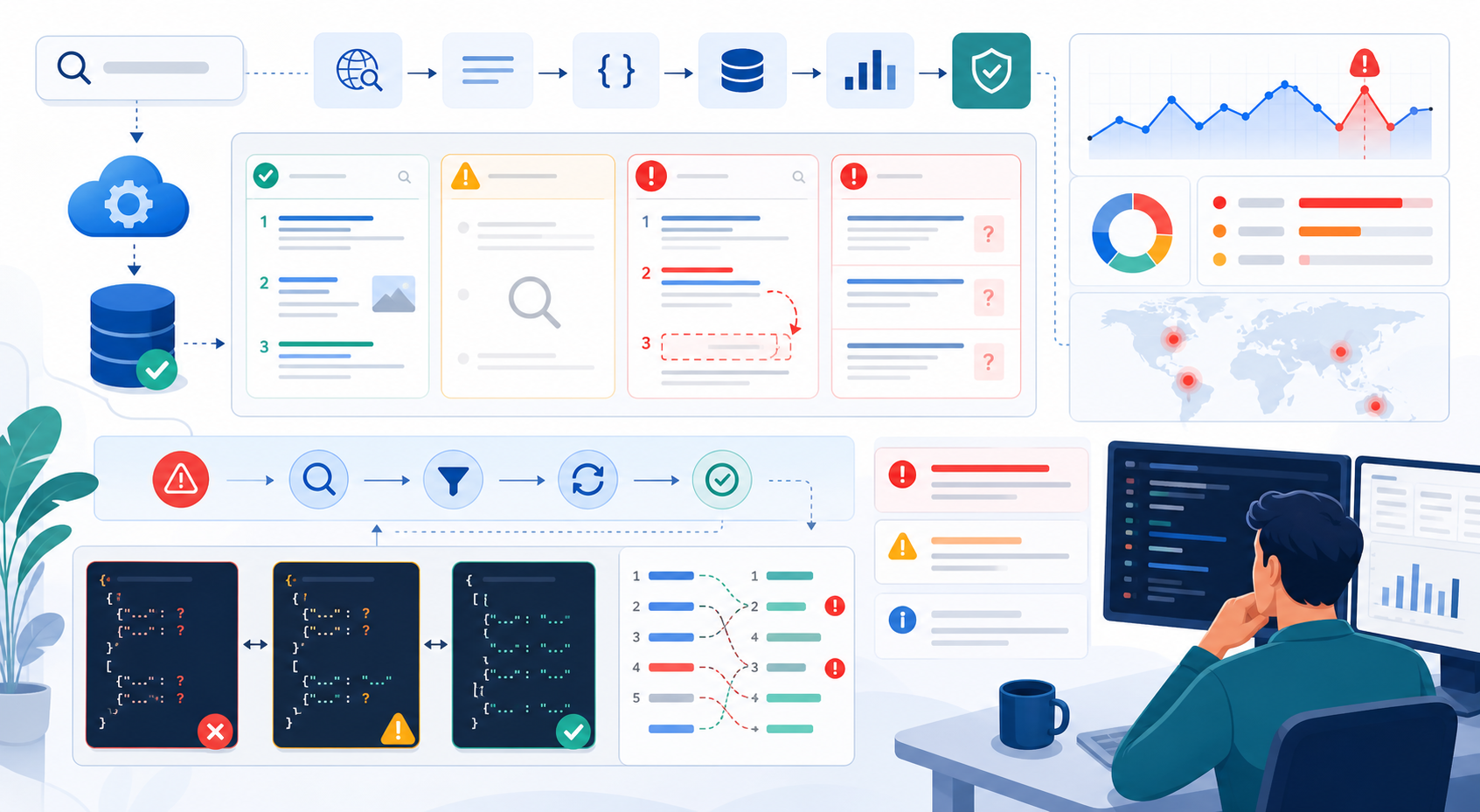
SERP API Troubleshooting: Fix Empty, Wrong, or Inconsistent Search Results
SERP API failures are not limited to obvious HTTP errors. A request can return successfully and still produce empty, incomplete, geographically wrong, duplicated, or misinterpreted search data. Production troubleshooting therefore has to separate transport problems from provider processing, SERP differences, and downstream parsing errors.
View Details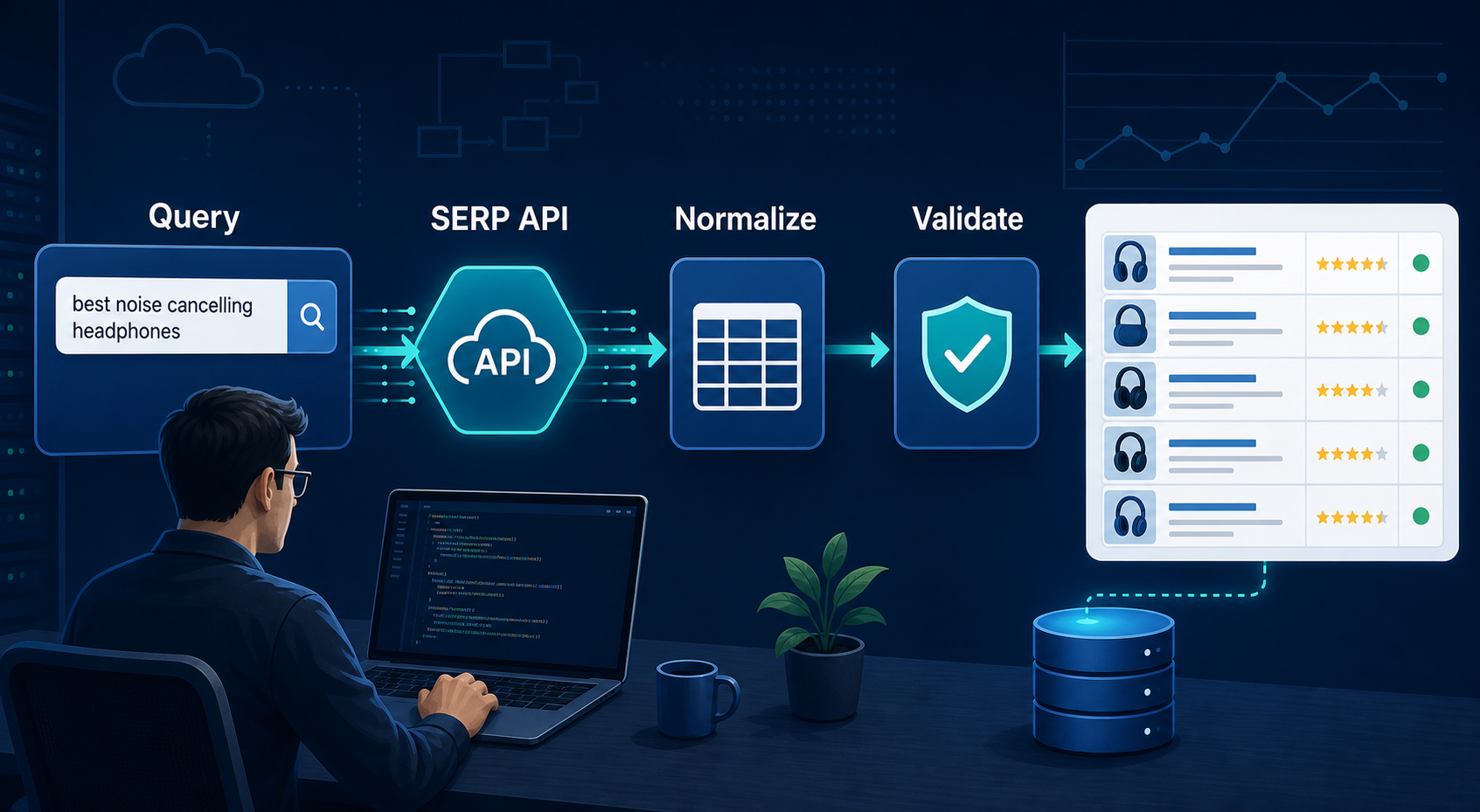
SERP API Python: How to Build a Reliable Search Data Pipeline
This guide shows a provider-neutral workflow for building that pipeline. It does not rank SERP API vendors. Instead, it focuses on the implementation choices that make a Python integration easier to operate, test, and migrate.
View Details
SERP Scraping API: How to Choose the Right Provider
Recommended Meta Description: Compare SERP scraping APIs by data coverage, localization, reliability, workflow fit, and cost structure, then choose and validate the right provider.
View Details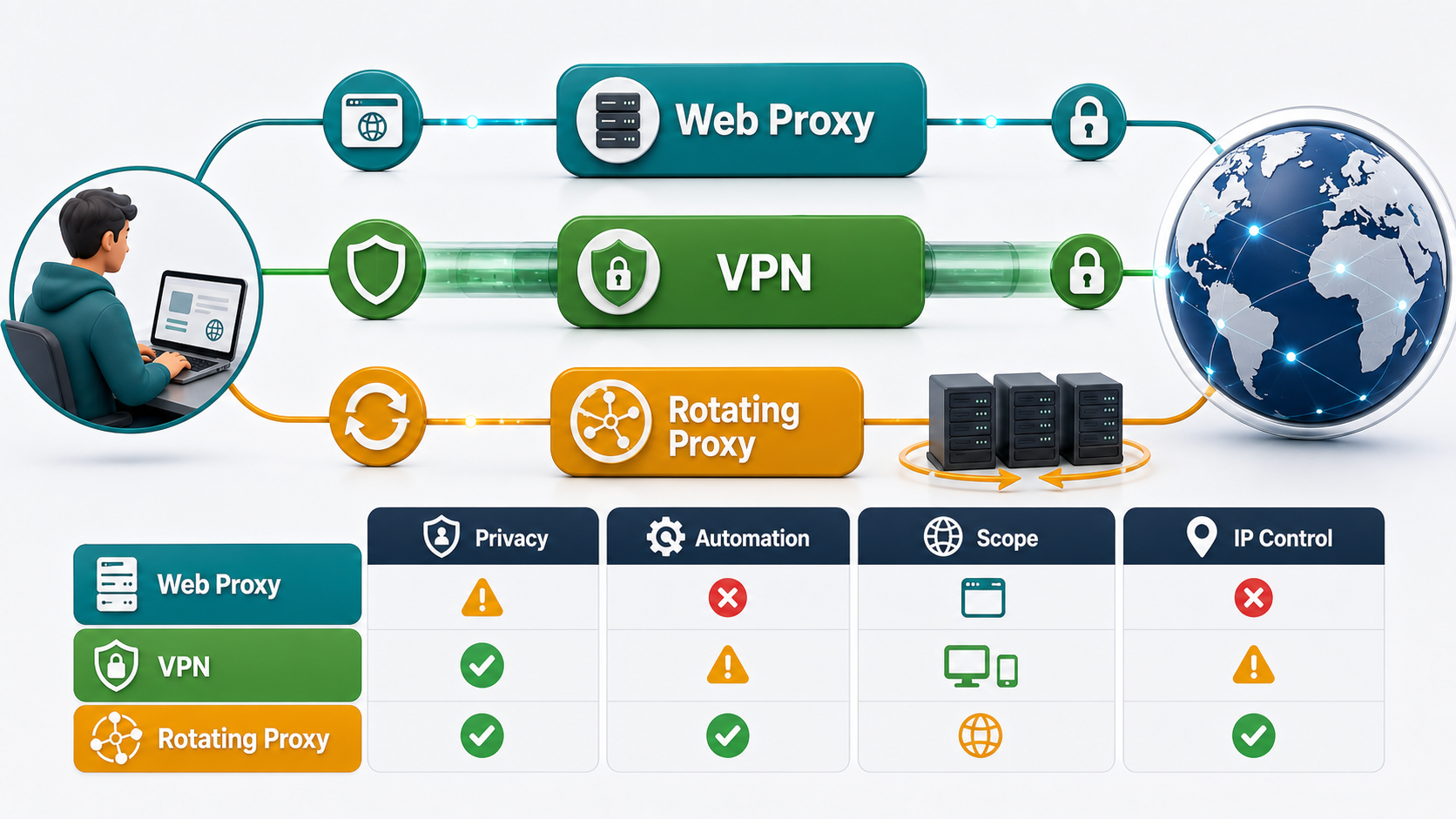
Free Web Proxy vs VPN vs Rotating Proxy: Which Should You Use?
Compare free web proxies, VPNs, rotating proxies, static proxies, and datacenter proxies by scope, encryption, IP control, automation, streaming, and account workflows.
View Details
BlockAway Not Working? Fix Common Proxy, Video, and Access Problems
Troubleshoot BlockAway when pages are blocked, YouTube fails, JavaScript breaks, speed drops, sessions expire, or mobile access behaves differently.
View Details