
Your Email App Is Leaking Your IP Address Right Now
Every email you open might be broadcasting your location. Here's how to stop it.
For teams comparing privacy, geo-testing, and data collection workflows, the practical question is not only what an IP address reveals. It is also how clean routing, trusted proxy infrastructure, session control, and compliance practices shape the final result.
For official technical background, see IANA number resources, ARIN IPv4 resources, RFC 791 Internet Protocol, MDN X-Forwarded-For reference.
Mail apps silently leak IP addresses to anyone who sends you an email through tracking pixels. These invisible images load the moment you preview or open a message, immediately revealing your IP address, approximate location, device type, and the exact time you viewed the email. For iPhone and Mac users concerned about privacy, this happens by default in most popular mail clients.
This article exposes the specific vulnerability in your email workflow and provides actionable steps to stop the leak.
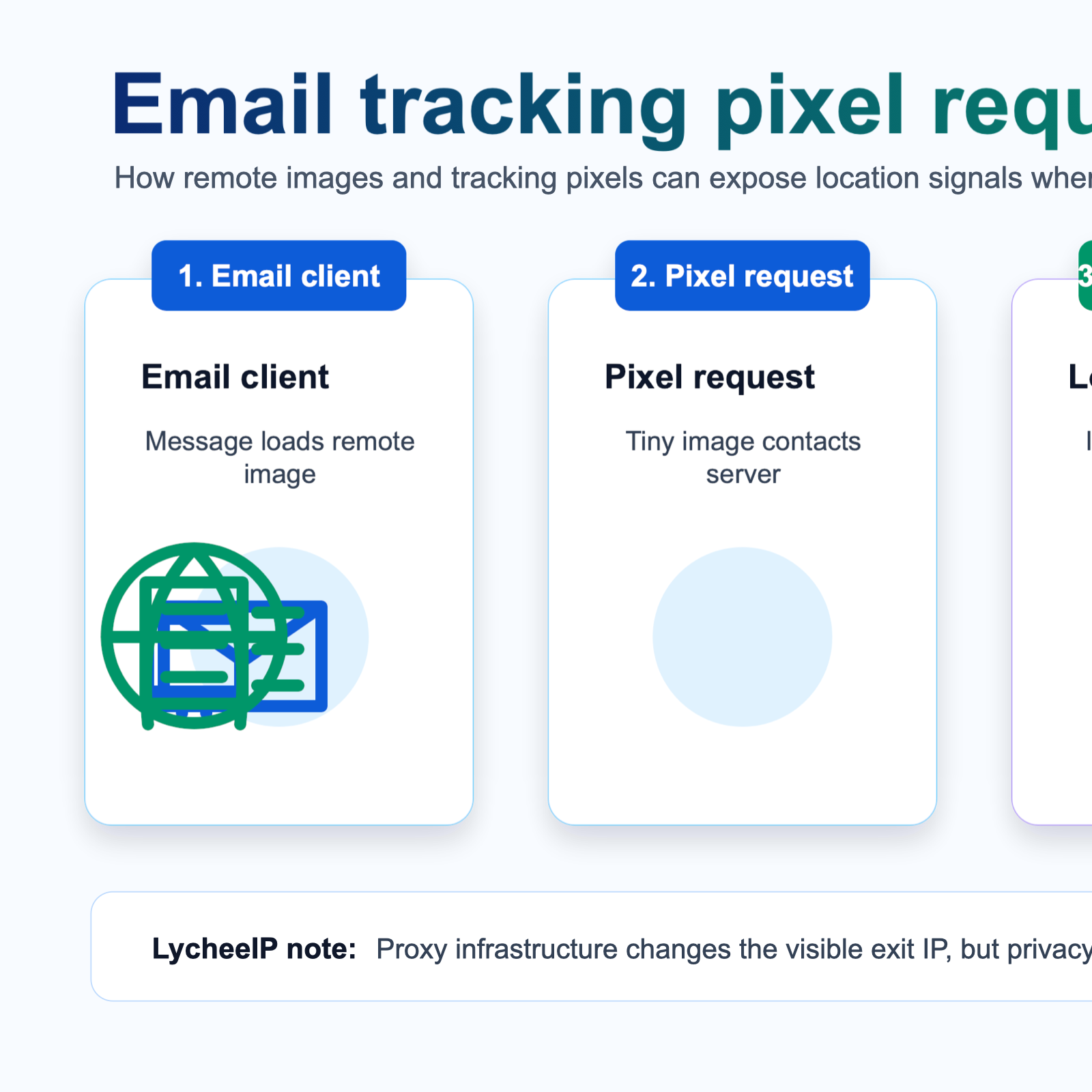
How Email Tracking Pixels Work
iPhone and iPad (Apple Mail)
Option 1: Enable Mail Privacy Protection (iOS 15+)
1. Open Settings on your iPhone or iPad
2. Scroll down and tap Mail
3. Tap Privacy Protection
4. Enable Protect Mail Activity
This feature proxies all image loads through Apple's servers, hiding your real IP address from email senders. Apple's servers make the image requests on your behalf, preventing location tracking.
Option 2: Block All Remote Content
1. Open Settings
2. Tap Mail
3. Scroll down and toggle off Load Remote Images
This prevents all external images from loading automatically. You'll see placeholders instead, and you can manually tap to load images for trusted emails.
Mac (Apple Mail)
Option 1: Enable Mail Privacy Protection (macOS Monterey+)
1. Open Mail application
2. Go to Mail* in the menu bar, then **Preferences** (or *Settings in newer versions)
3. Click Privacy tab
4. Check Protect Mail Activity
5. Close preferences
Mail will now proxy all image requests through Apple's servers.
Option 2: Disable Remote Content Loading
1. Open Mail
2. Go to Mail* > **Preferences** (or *Settings)
3. Click Viewing tab
4. Uncheck Load remote content in messages
5. Close preferences
Emails will display text content, but images and tracking pixels won't load until you explicitly allow them.
Gmail (Web)
1. Open Gmail in your browser
2. Click the gear icon in the top right
3. Select See all settings
4. Scroll to the Images section
5. Select Ask before displaying external images
6. Scroll down and click Save Changes
Gmail will now show a prompt before loading images in each email. While Google still proxies requests, this gives you more control over which senders can confirm email opens.
Outlook (Desktop)
Outlook blocks images by default, but verify your settings:
1. Open Outlook
2. Go to File* > *Options
3. Click Trust Center*, then *Trust Center Settings
4. Select Automatic Download
5. Ensure Don't download pictures automatically in HTML email messages is checked
6. Click OK to save
Outlook (Mobile)
Outlook mobile doesn't offer granular image blocking settings. Consider:
- Using the Outlook web interface instead
- Switching to Apple Mail with Privacy Protection enabled
- Using a privacy-focused email client like ProtonMail
Third-Party Mail Apps
Check your specific app's settings:
- Look for options labeled "Load remote images," "Privacy protection," or "Block trackers"
- Privacy-focused apps like ProtonMail and Hey block tracking by default
- If your app lacks privacy controls, consider switching to Apple Mail with Privacy Protection or another privacy-respecting client
The Trade-off: Functionality vs. Privacy
Disabling remote content breaks some email experiences:
- Marketing emails appear as plain text without images
- Newsletter layouts may look broken
- You need to manually load images for legitimate emails
- Some interactive email features stop working
This trade-off is worth it for privacy-conscious users. You maintain control over when and how your IP address gets shared.
Email Privacy and Proxy Infrastructure
The email tracking pixel vulnerability highlights a broader principle in digital privacy: your IP address reveals more than you think. This same concern extends to web browsing, application usage, and automated workflows.
For teams building data collection systems, running automated scripts, or managing multi-account workflows, IP address control becomes even more critical. proxy infrastructure provides the same kind of protection you gain by blocking email tracking pixels, but at the network level.
Proxy services like LycheeIP allow developers and businesses to route requests through different IP addresses, preventing websites, APIs, and online services from tracking their real location or identifying automated activity. This matters for:
- Web scraping workflows: Collecting public data without exposing your infrastructure
- Geo-testing: Verifying how websites and applications appear from different locations
- Account management: Operating multiple sessions without IP-based correlation
- Ad verification: Checking ad placement and localization across regions
- E-commerce research: Monitoring pricing and availability from different markets
Just as email tracking pixels exploit automatic image loading, many online services track IP addresses to build behavioral profiles, enforce geographic restrictions, or detect automation. proxy infrastructure gives you control over what IP address you present, similar to how Mail Privacy Protection proxies image requests through Apple's servers.
For technical teams evaluating proxy solutions, consider these parallels to email privacy:
- residential proxies: IP addresses from real internet service providers, appearing as legitimate home or mobile connections
- datacenter proxies: Fast, server-based IPs suitable for high-volume automated tasks
- Static residential proxies: Persistent residential IPs that don't rotate, useful for maintaining sessions
- Rotating proxies: Automatically changing IPs that prevent long-term tracking
The same privacy principle applies: control what information you broadcast by controlling your IP address presentation.
Common Mistakes and Considerations
When implementing email privacy protections, avoid these common mistakes:
Assuming Privacy Features Are Enabled by Default
Most mail apps prioritize user experience over privacy. Even if your device or app supports privacy protection, you must enable it manually. Check your settings on every device and app you use for email.
Using Third-Party Clients Without Checking Their Privacy Model
When you access Gmail, Outlook, or other services through Apple Mail or third-party apps, you may lose built-in proxy protections. Gmail's proxy protection only works within Gmail's own interface. Using Gmail through Apple Mail exposes your real IP unless you enable Mail Privacy Protection.
Forgetting About Email Previews and Notifications
Tracking pixels can load from:
- Lock screen notifications showing email content
- Widget previews on your home screen
- Background sync processes
- Quick reply interfaces
Adjusting main app settings helps, but some tracking may still occur through notification systems. Consider disabling email previews in notifications for sensitive accounts.
Trusting VPNs to Solve the Problem
VPNs mask your IP address for web browsing, but they don't prevent tracking pixels from confirming email opens. Senders still know you viewed the email, even if they see your VPN's IP instead of your real one. VPNs and mail privacy settings serve different purposes and should be used together.
Not Auditing Your Email Client Choice
Some email apps have poor privacy practices:
- Scanning email content for advertising purposes
- Sharing behavioral data with third parties
- Lacking basic privacy controls
Research your email client's privacy policy and technical implementation before trusting it with sensitive communications.
Overlooking Alternative Email Workflows
For highly sensitive communications, consider:
- Using privacy-focused email services like ProtonMail or Tutanota
- Viewing emails in text-only mode
- Using separate email addresses for different trust levels
- Implementing email filtering rules to identify tracking-heavy senders
Conclusion
Your email app leaks your IP address to anyone who embeds tracking pixels in messages. This happens automatically in most mail clients unless you explicitly disable remote content loading or enable proxy-based privacy protection.
For iPhone and Mac users, Apple's Mail Privacy Protection provides the best balance between functionality and privacy. It proxies image requests through Apple's servers, preventing senders from seeing your real IP address while maintaining the visual experience of HTML emails.
Alternatively, blocking remote content entirely gives you complete control, though at the cost of seeing plain-text emails until you manually load images.
The email tracking pixel problem reflects a broader privacy challenge: online services routinely track IP addresses to profile behavior, enforce restrictions, and correlate activity. Taking control of your IP address presentation, whether through email privacy settings or proxy infrastructure for automated workflows, is essential for maintaining privacy in modern digital operations.
Check your mail app settings today and enable the appropriate privacy protections for your threat model and workflow requirements.
Frequently Asked Questions
What is an email tracking pixel?
An email tracking pixel is a tiny, invisible image embedded in HTML emails that loads from a remote server when you open the message. It transmits your IP address, device information, and timestamp to the sender's tracking system, confirming that you opened the email and revealing your approximate location.
Does Apple Mail protect against email tracking?
Apple Mail offers Mail Privacy Protection on iOS 15+ and macOS Monterey+. When enabled, it proxies image requests through Apple's servers, hiding your real IP address from email senders. However, you must manually enable this feature in Settings. By default, Apple Mail loads images automatically without protection.
Can senders still track me if I use Mail Privacy Protection?
Mail Privacy Protection prevents senders from seeing your real IP address and exact open time, but they still receive confirmation that the email was opened. Apple's proxy servers load the images on your behalf, so senders know the email was delivered and accessed, just not your specific location or precise timing.
Does Gmail protect my IP address from tracking pixels?
Gmail automatically proxies images through Google's servers, preventing email senders from seeing your real IP address. However, Google itself knows your IP address, and senders still receive confirmation that you opened the email. This protection only works when you use Gmail's web or mobile interface, not when accessing Gmail through third-party mail apps.
What happens if I disable remote content in my mail app?
Disabling remote content prevents tracking pixels and images from loading automatically. Emails display text content only, with placeholders where images would appear. You can manually choose to load images for trusted emails. This provides complete protection against tracking pixels but requires you to take action to see email images.
Do tracking pixels work in text-only emails?
No, tracking pixels require HTML email format to function. Text-only emails (plain text format) cannot contain images or tracking pixels. If you receive all emails in plain text format, you're protected from pixel-based tracking, though senders may use other tracking methods like unique link URLs.
Can I tell if an email contains tracking pixels?
Tracking pixels are designed to be invisible. They're typically 1x1 pixel transparent images that don't appear in the email layout. Some privacy-focused email clients like Hey explicitly detect and block trackers, showing you which emails attempted tracking. In standard mail apps, you generally cannot see tracking pixels without inspecting the raw HTML code.
Should I use a VPN to prevent email tracking?
A VPN masks your IP address for all internet traffic, including email image requests. However, VPNs don't prevent tracking pixels from confirming email opens; they just show your VPN's IP address instead of your real one. For comprehensive email privacy, use both mail app privacy settings and a VPN. Mail privacy features are more effective for this specific threat.
What's the difference between blocking images and using proxy protection?
Blocking images prevents any remote content from loading, eliminating tracking entirely but showing text-only emails. Proxy protection (like Apple's Mail Privacy Protection or Gmail's proxying) loads images through intermediary servers, so you see full HTML emails while hiding your real IP address. Proxy protection maintains visual experience while providing privacy.
How do companies use email tracking data?
Companies use email tracking data to measure campaign effectiveness, segment audiences based on engagement, optimize send times, retarget non-openers, and build behavioral profiles. Sales teams track when prospects open emails to time follow-up calls. Marketing platforms correlate email opens with website visits and purchases. This data often flows to analytics platforms and may be shared with third-party services.
Related LycheeIP Guides and Resources

Recommended Articles

AI Search API for AI Agents: How to Ground LLMs With Live Search Data
An AI search API gives an application or agent programmatic access to current search results. Its most useful role is discovery: the agent can find candidate sources, identify fresh information, and decide what to retrieve next instead of relying only on model memory.
View Details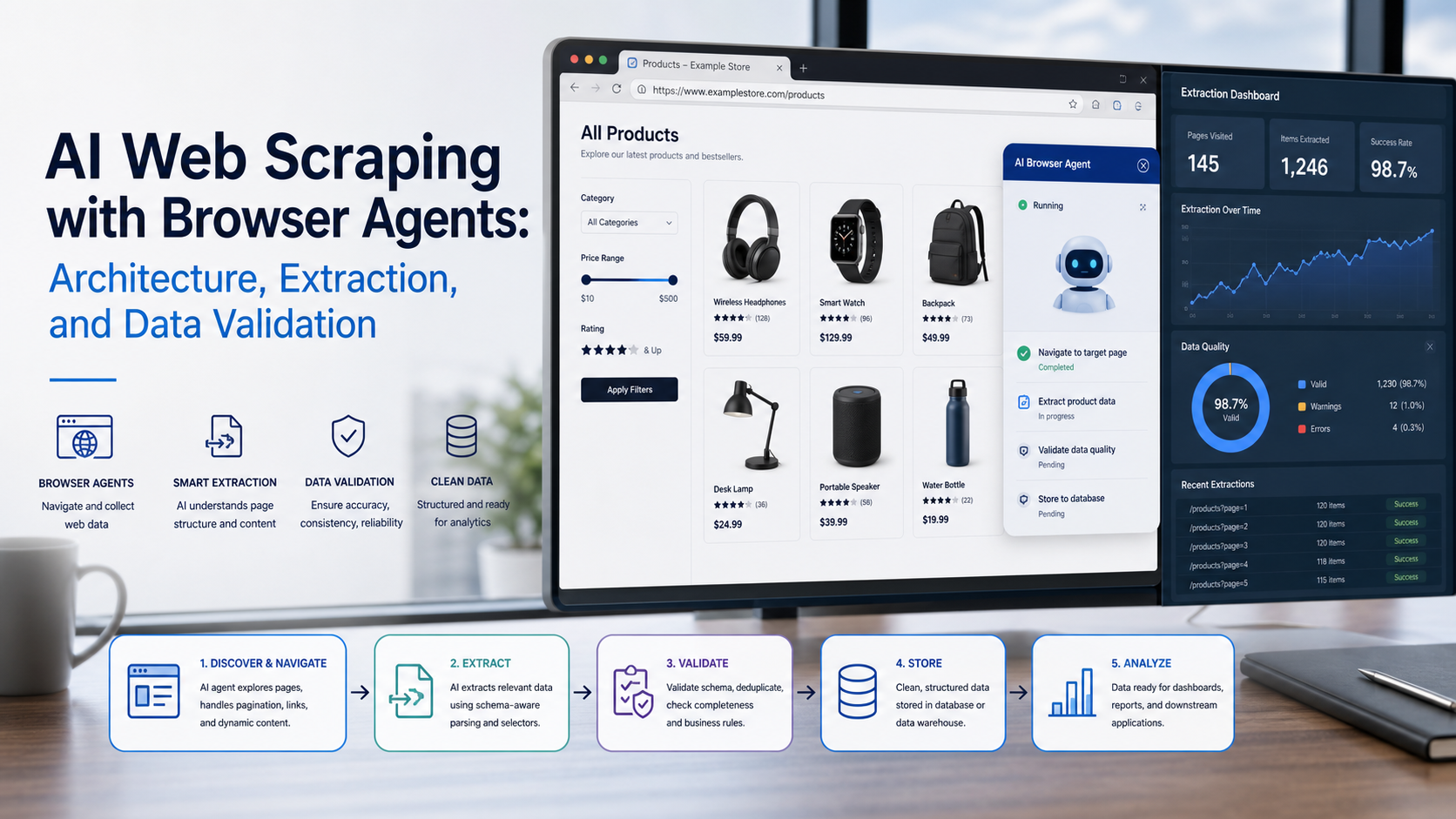
AI Web Scraping with Browser Agents: Architecture, Extraction, and Data Validation
AI web scraping uses AI to help discover, navigate, interpret, or extract information from websites. Browser agents are one implementation option when page interaction, rendering, or layout variation makes a simple scraper too brittle, but the agent should not become the entire data pipeline.
View Details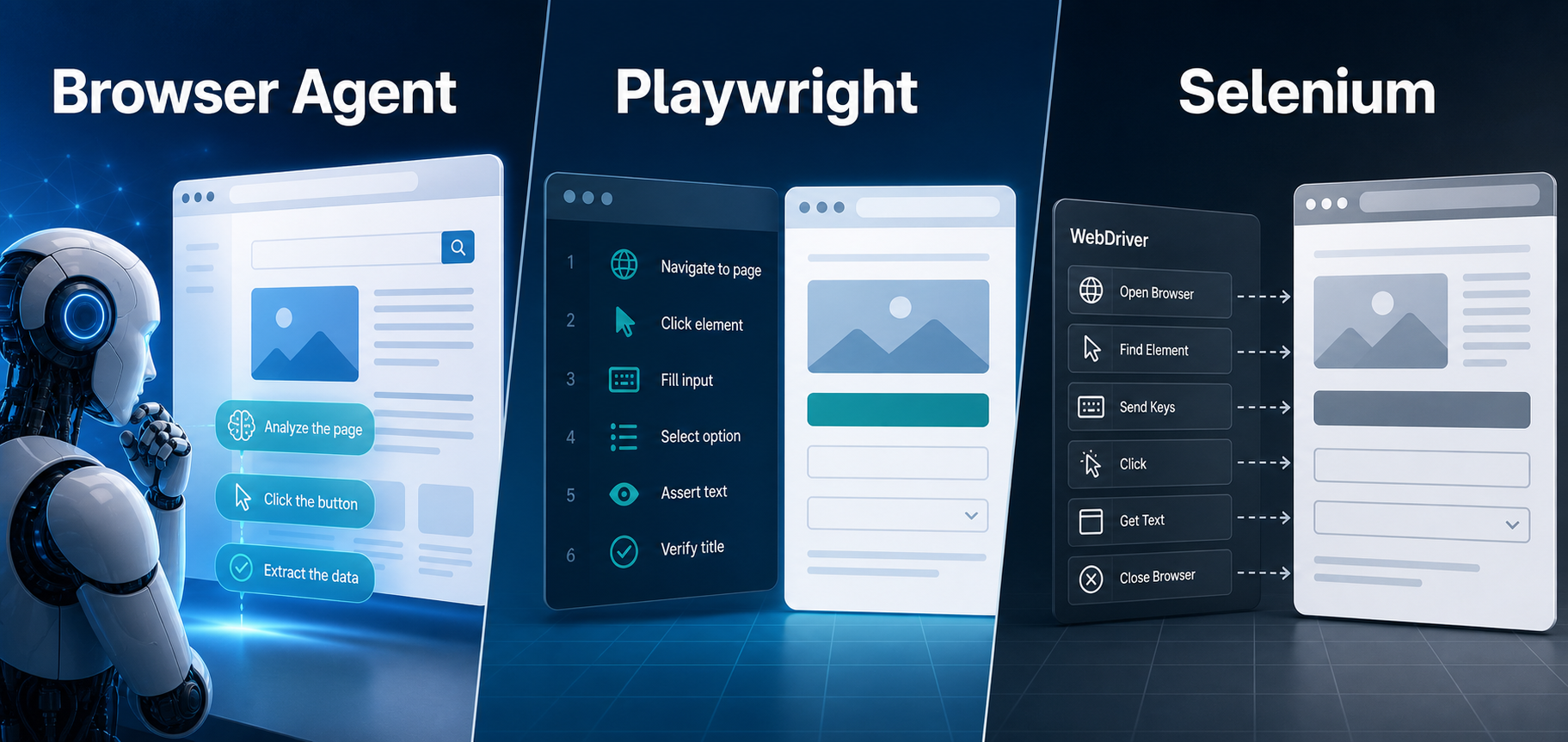
AI Browser Automation: Browser Agents vs Playwright vs Selenium
A browser agent interprets a goal and decides what browser action to take next. Playwright and Selenium can execute explicit, testable browser logic defined by developers. In 2026, however, Playwright also provides official MCP and agent-oriented workflows, so Playwright is no longer just the deterministic alternative to agentic automation. It can also serve as the browser-control layer inside an agent system.
View Details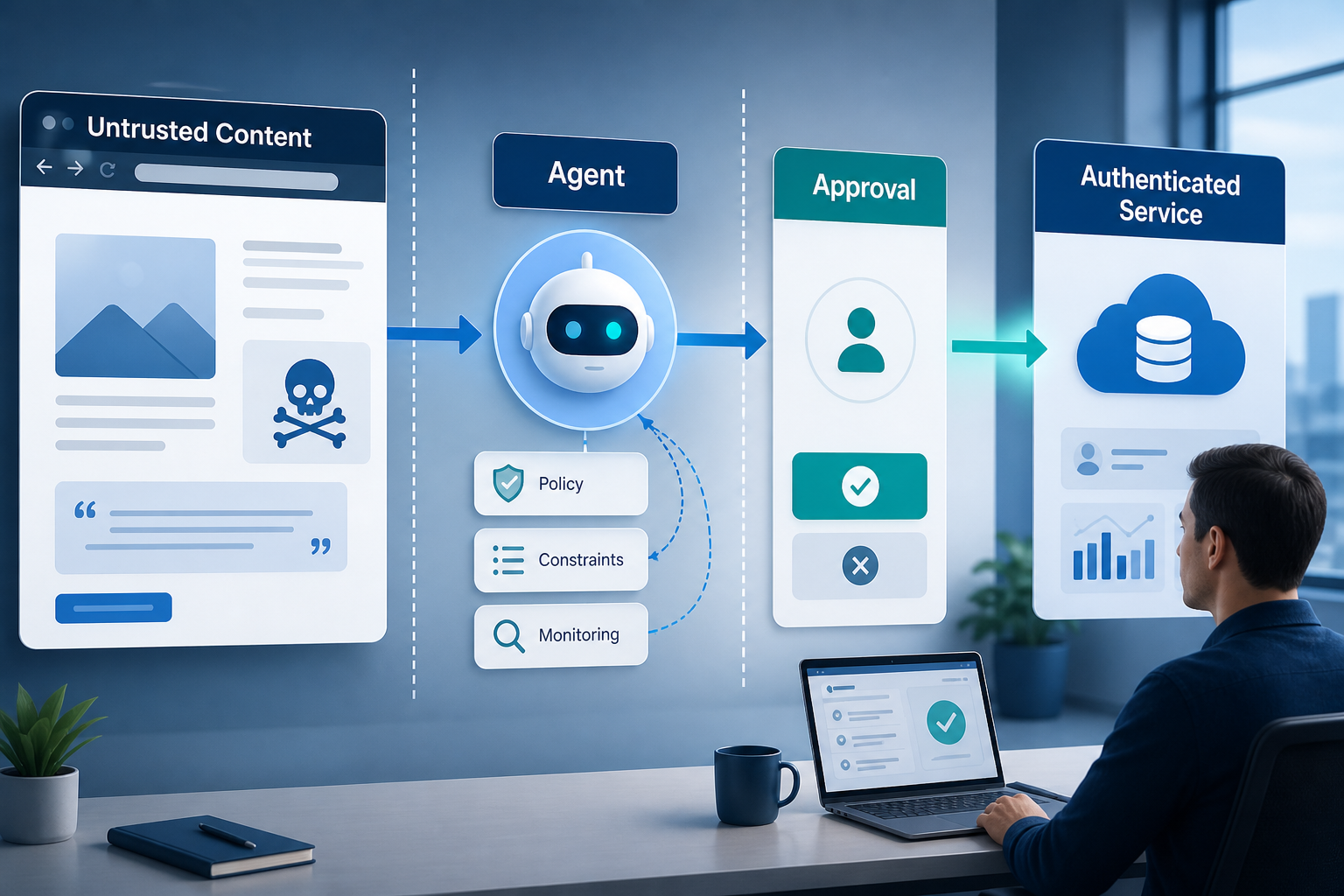
Agentic Browser Security: Prompt Injection, Permissions, and Safe Deployment
That combination creates risks that are different from ordinary browsing and traditional automation. The most important is indirect prompt injection, where hostile instructions hidden in web content attempt to redirect the agent away from the user's goal. Google describes indirect prompt injection as a primary new threat for agentic browsing and has introduced layered defenses that include origin constraints, independent action checks, threat detection, and user confirmation for sensitive actions. Google's Chrome security architecture is a useful reference for how browser-agent defenses are evolving.
View Details
How to Give AI Agents Reliable Real-Time Web Data
A production-ready solution therefore needs more than a web scraper. It needs a web data layer that connects acquisition, validation, storage, retrieval, security, and observability. This guide explains how to design that layer.
View Details