
Windows 11's Built-in Speed Test: How to Use It
Windows 11 just added a speed test right in your taskbar.
If you are a developer, systems administrator, or technical operator still opening your browser and navigating to Speedtest.net or Fast.com every time you need to validate your network throughput, you are adding unnecessary friction to your workflow. Microsoft's February 2026 update quietly introduced a native network diagnostic tool that lives directly in your operating system—no third-party websites required.
Most Windows 11 users have no idea this feature exists. They continue relying on browser-based tools that are bloated with heavy JavaScript execution, tracking cookies, and the hassle of remembering which external nodes to trust. Microsoft's built-in solution eliminates that overhead. Operating at the OS level, it provides the precise telemetry you need to troubleshoot API timeouts, validate CI/CD pipeline speeds, or verify you are getting the bandwidth your ISP SLA guarantees.
Test globally with LycheeIP
How to Access the Network Speed Test from the Windows 11 Taskbar
Accessing Windows 11's native speed test is remarkably simple once you know where to look. The feature integrates seamlessly into the network management interface you already use for configuring DNS and adapter settings.
- Step 1: Locate the network icon in your Windows 11 system tray (bottom-right corner). This icon looks like a Wi-Fi signal or a hardwired Ethernet symbol, depending on your active physical layer connection.
- Step 2: Right-click on the network icon. This opens a context menu with several network-related administrative options.
- Step 3: Select "Network & Internet Settings" from the menu. This opens the Settings app directly to your active network configuration page.
- Step 4: On the network settings page, scroll down to find the new option labeled "Network Performance" or "Test Network Speed" (the exact nomenclature varies slightly depending on whether you are on the 24H2 or 25H2 build). Click this option.
- Step 5: A dedicated diagnostic dashboard opens. Click the "Start Test" button to initiate the TCP handshake and payload transfer.
The test runs automatically, measuring your downstream throughput, upstream throughput, and latency in real-time. The entire process typically takes 20-30 seconds. You will see a visual indicator showing progress as the Windows kernel pings Microsoft's Azure edge servers to saturate your bandwidth.
Pro-Tip: You can access the speed test even faster through Windows Search. Press the Windows key, type "speed test," and the native feature will appear instantly.
Understanding the Speed Test Results and What They Mean
Once the test completes, Windows 11 displays three critical metrics that define your connection quality. For developers testing distributed applications, understanding how these specific metrics impact data transfer is vital. (For a deeper technical dive into how network protocols handle these metrics, refer to the IETF RFC 6349 framework for TCP throughput testing.
- Download Speed (Mbps/Gbps): This measures how quickly data flows from external servers to your local machine. It is critical for pulling large Docker images, cloning massive Git repositories, or standard 4K streaming.
- Upload Speed (Mbps/Gbps): This measures how quickly you can push data from your machine to the internet. Upstream capacity matters immensely for pushing code commits, uploading database backups, and maintaining stable two-way video conferencing. (Note: Most residential connections are asymmetrical, meaning your upload speed will be significantly lower than your download speed).
- Latency/Ping (ms): This measures the round-trip delay between your computer sending a request and receiving the acknowledgment (ACK) packet. Lower numbers are critical. Under 20ms is excellent for real-time SSH sessions and gaming. Anything over 100ms will cause noticeable input lag and protocol timeouts.
Windows 11 also provides a historical view of your speed test results. This logging feature allows you to track connection performance over time, which is invaluable for identifying ISP traffic shaping patterns or providing concrete telemetry when opening a support ticket with your provider.
Test globally with LycheeIP
Why This Is Better Than Using Browser-Based Speed Test Sites
Microsoft's native speed test offers several distinct technical advantages over traditional browser-based alternatives.
- No Browser Overhead: Browser-based tests are heavily skewed by browser extensions (like aggressive ad-blockers), cached DOM data, and JavaScript engine performance limits. The native Windows tool bypasses the browser entirely, communicating directly with your Network Interface Card (NIC) for a much more accurate hardware baseline.
- Privacy First: Free speed test websites fund their server costs through targeted ads and extensive third-party tracking cookies. Windows 11's built-in test runs locally against Microsoft's infrastructure without the invasive advertising ecosystem.
- Faster Triage: Instead of opening Chrome, typing a URL, waiting for the page to render, and clicking through cookie consent banners, you can access the native test in two clicks. For IT professionals triaging support tickets, this time savings is significant.
- Integrated System Diagnostics: Because the test is baked into the OS kernel, it integrates with the Windows Network Troubleshooter. If you are experiencing packet loss, the troubleshooter can now utilize your recent speed test data to provide contextual solutions rather than generic "reset your adapter" advice.
LycheeIP (Developer-First Proxy Infrastructure)
While Windows 11's native speed test is perfect for verifying the health of your local ISP connection, engineering and QA teams frequently need to test how their applications perform from entirely different geographic locations. This is where LycheeIP comes in. It is a developer-first proxy and data infrastructure platform designed to give technical operators complete control over their global network routing.
If your team needs to verify that a localized web application is routing correctly for users in Europe, or if you need to conduct latency tests for a global CDN rollout, relying solely on your local Windows connection is insufficient. By integrating LycheeIP's dynamic residential IPs, developers can seamlessly simulate authentic user traffic across various global regions, ensuring geo-targeted content and performance metrics are accurate.
Similarly, for data teams running authorized public-data aggregation tasks that require high-throughput stability, leveraging robust datacenter proxy networks prevents localized IP throttling. Integrating flexible data infrastructure ensures your testing environments reflect global realities, not just the speed of your local office router. (Note: Always ensure your data collection and routing practices strictly comply with applicable local laws and target site Terms of Service).
Final Thoughts
Windows 11's native speed test is one of those features that seems obvious in retrospect, why did technical operators need to rely on ad-heavy third-party websites for something so fundamental to modern computing?
Now that it is here, there is little reason to open a browser just to validate your connection speed. The feature is highly accurate, incredibly convenient, and bypasses the overhead of the DOM.
Update your Windows 11 system to the February 2026 build or later, and you will have instant, OS-level access to this diagnostic tool whenever you need it. It is a small architectural change that makes a massive difference in daily IT operations.
Test globally with LycheeIP
Frequently Asked Questions
Q: Do I need to install anything to use Windows 11's speed test?
A: No installation is required. The speed test is natively built into the Windows 11 kernel starting with the February 2026 cumulative update (KB5077241). Just ensure your system is updated via Windows Update, and the feature will appear in your network settings.
Q: Is Windows 11's speed test as accurate as Speedtest.net or Fast.com?
A: Yes, and in some cases, it is more accurate for local hardware baselines. Because it bypasses the browser and connects directly to Microsoft's global Azure edge network, it eliminates browser overhead. However, results may vary slightly from Ookla or Fast.com simply because your traffic is being routed to different physical server nodes. For more information on how network performance is measured across different environments, developers can review the MDN Web Docs on network performance.
Q: Does the Windows 11 speed test use my data allowance?
A: Yes. Like any legitimate throughput diagnostic, it must transfer physical data payloads to measure your connection's capacity. A typical test uses 50-100 MB of data. If you are tethered to a limited cellular data plan, be mindful of running automated or frequent tests.
Q: Can I use the speed test on Windows 10?
A: No. This built-in diagnostic feature is exclusive to Windows 11 (versions 24H2 and 25H2). Windows 10 is currently in its end-of-life support phase and is only receiving critical security patches, not new feature integrations.
Q: Why is my speed test result different from what my ISP advertises?
A: ISPs advertise maximum theoretical speeds under absolutely ideal lab conditions. Real-world speeds are affected by local node congestion (especially on shared cable networks during peak evening hours), Wi-Fi signal attenuation, the processing power of your router, and the physical distance to the testing server.

Recommended Articles
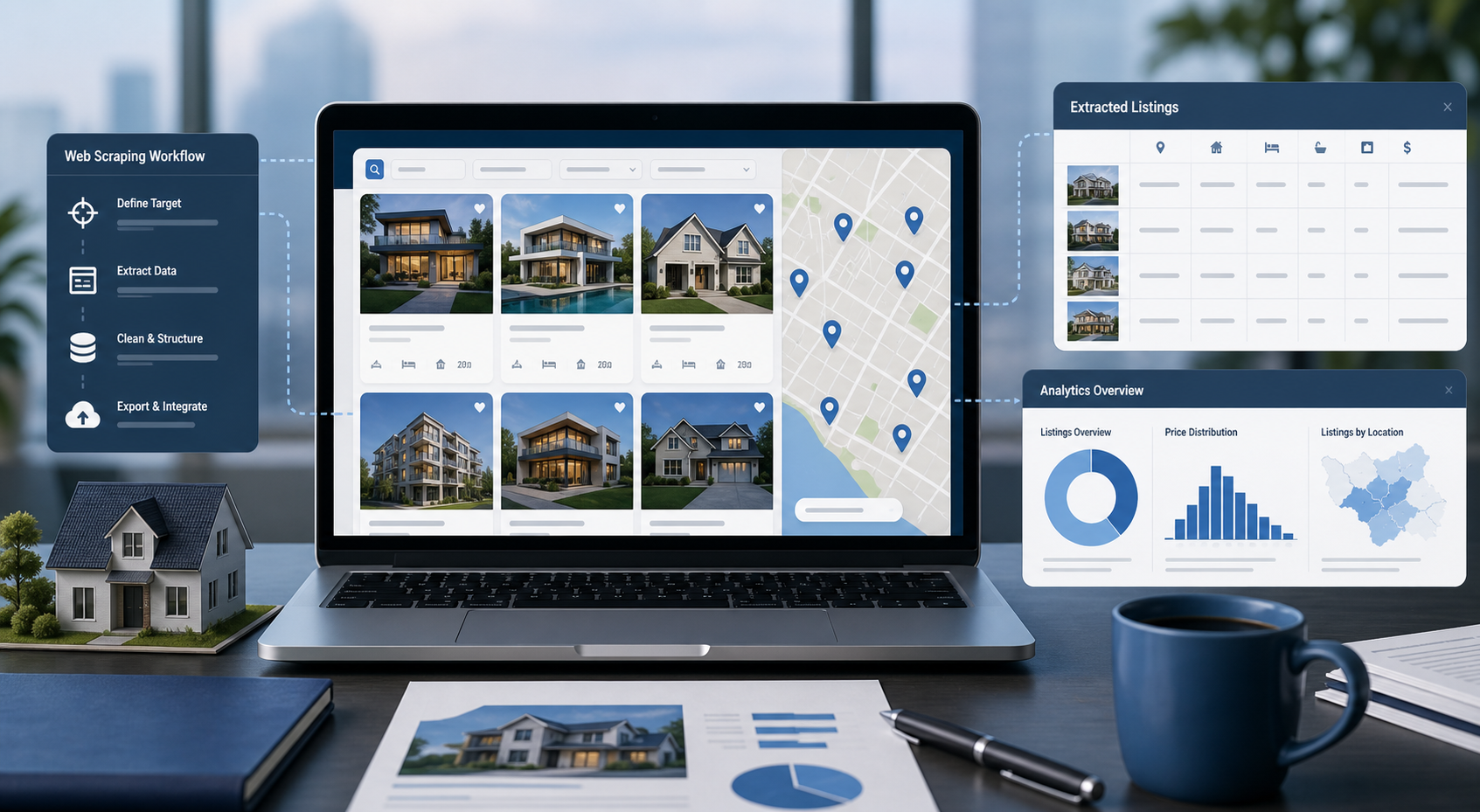
Best Real Estate Scrapers in 2026
Best Real Estate Scrapers in 2026
View Details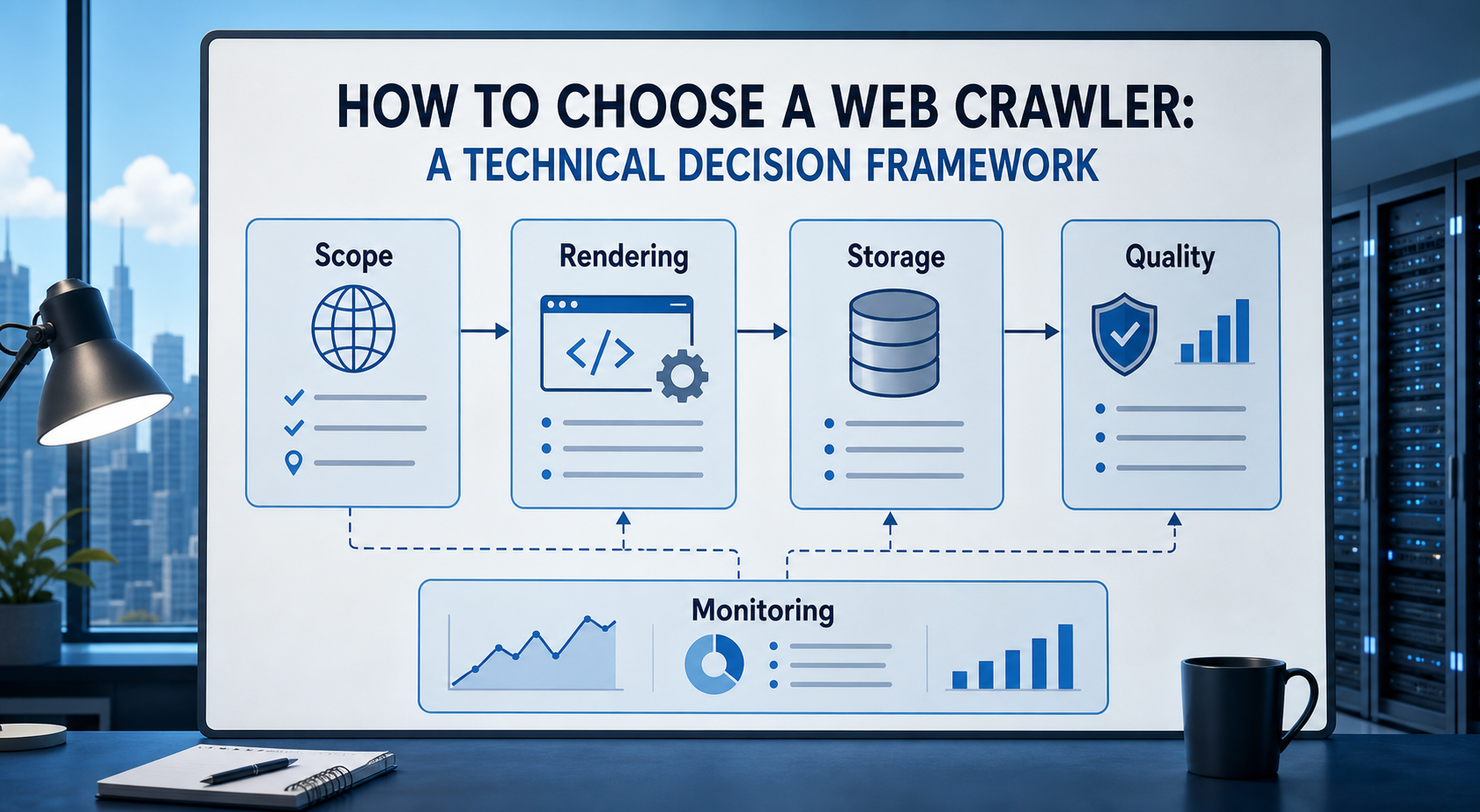
How to Choose a Web Crawler: A Technical Decision Framework
The wrong way to choose a web crawler is to begin with a list of products. The right starting point is the system you need to build. Before comparing tools, define:
View Details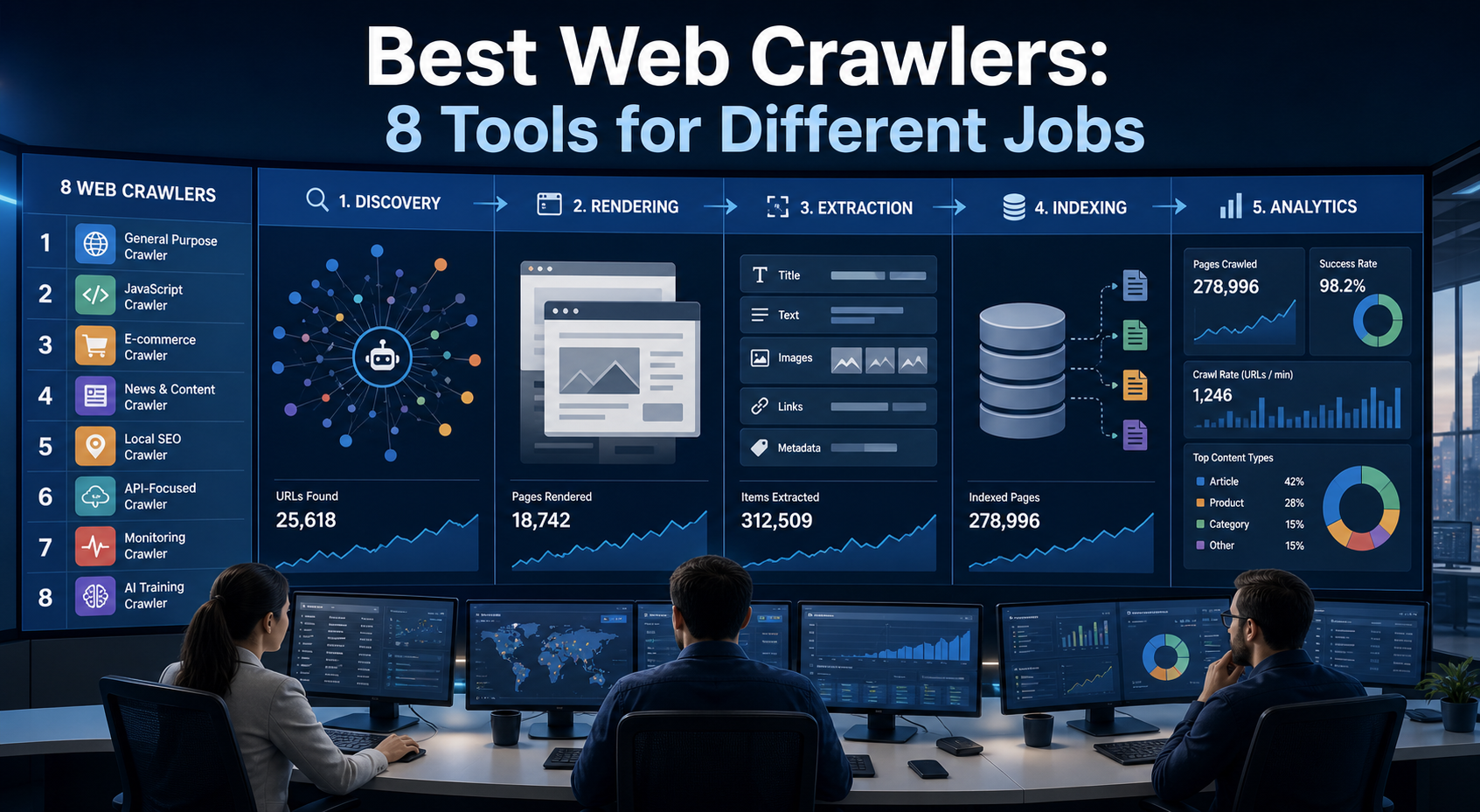
Best Web Crawlers: 8 Tools for Different Jobs
There is no single best web crawler for every project. A technical SEO audit, an AI knowledge pipeline, an internet archive, and a distributed search index may all involve crawling URLs, but they require different capabilities. The most useful way to compare web crawler tools is therefore to ask what job each one was designed to perform. This guide evaluates eight strong options across:
View Details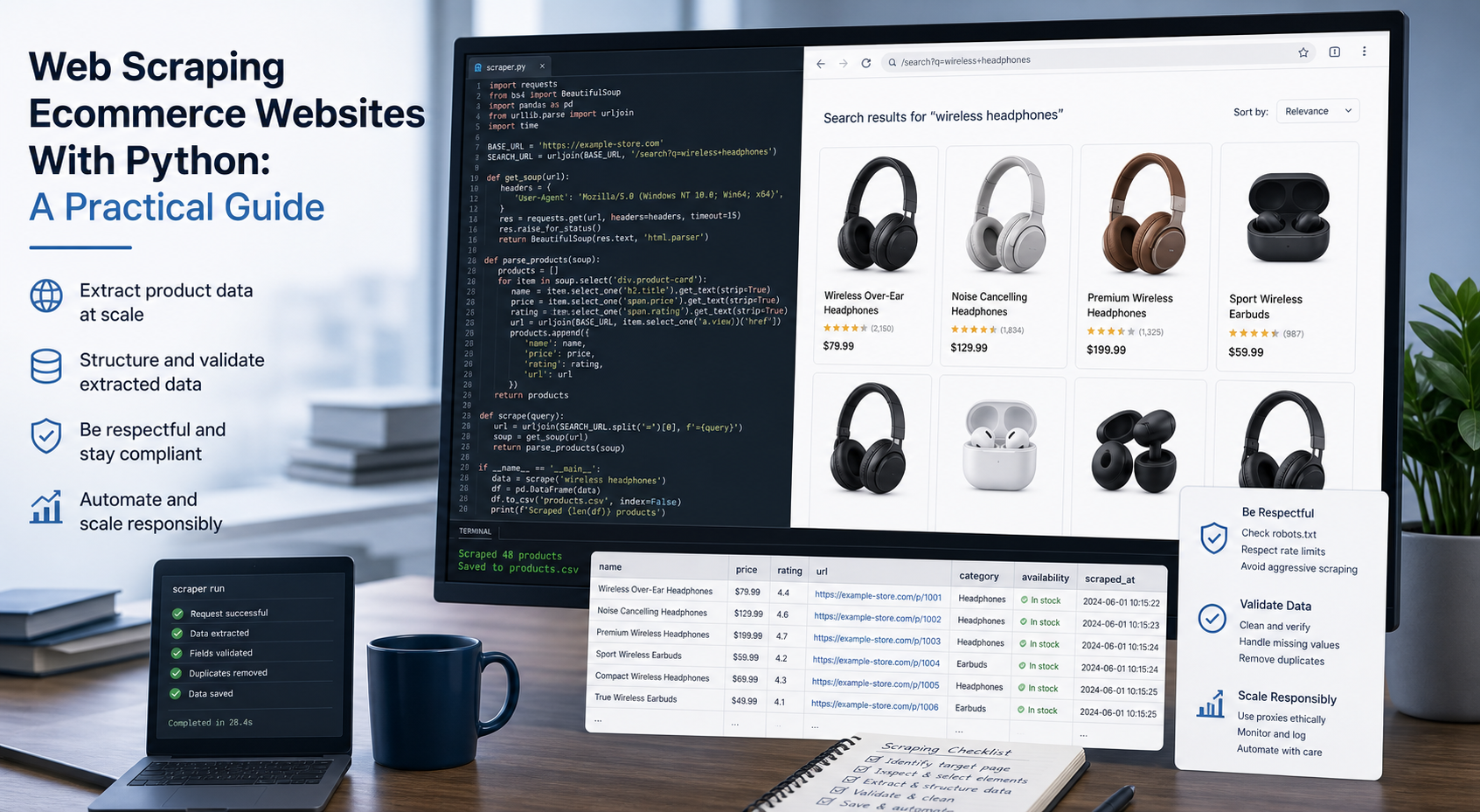
Web Scraping Ecommerce Websites With Python: A Practical Guide
Recommended meta title: Web Scraping Ecommerce Websites With Python: Guide Recommended meta description: Learn how to scrape ecommerce websites with Python using Requests, Beautiful Soup, Playwright, and Scrapy, with validation and scaling guidance. URL slug: /web-scraping-ecommerce-websites-python/
View Details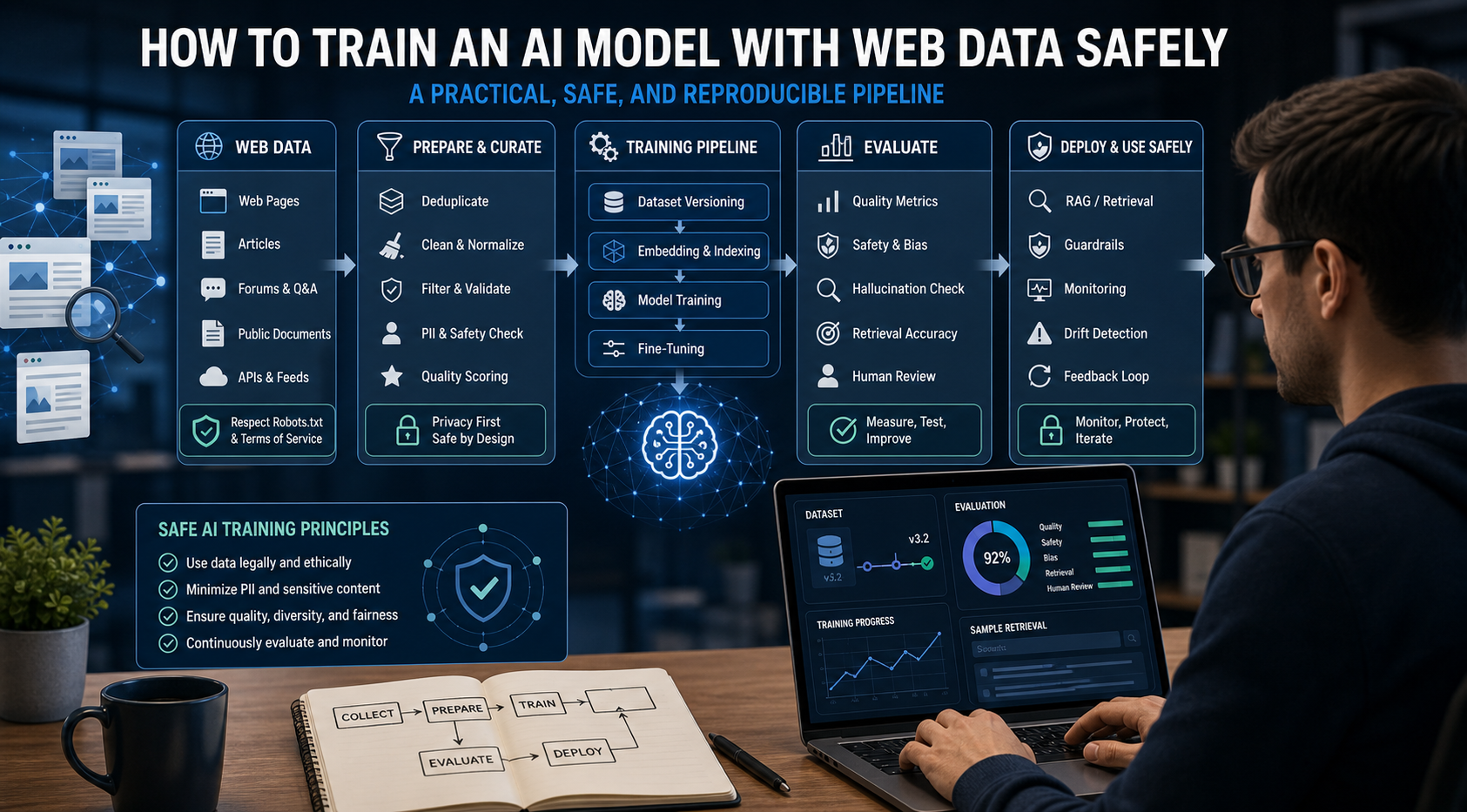
How to Train an AI Model With Web Data Safely
To train an AI model with web data, start by deciding whether you actually need training. Then collect representative sources, preserve provenance, remove duplicates and low-quality content, create leakage-resistant splits, build a baseline, fine-tune or train the appropriate model, and evaluate on real held-out examples before deployment.
View Details