
VPN Server Setup: The "Easy-Mode" WireGuard Guide (Docker + Web UI)
If you want a vpn server setup that feels like "click, scan, connect," the manual days of editing cryptic config files are over. In 2026, the most efficient path is self-hosting WireGuard on a cheap VPS using Docker and a simple web interface.
This approach gives you a static public IP, full encryption for travel, and total control over your data—without the complexity of legacy tools.
Explore LycheeIP's proxy network
What does a modern VPN server setup actually look like?
A modern vpn server setup on a Virtual Private Server (VPS) is streamlined. You rent a small Linux server (usually Ubuntu), install a lightweight container that runs the VPN protocol, and use a browser-based dashboard to add your phone or laptop.
Here is the reality of what you are building:
- The Engine: WireGuard. It is faster, leaner, and easier to audit than older protocols.
- The Management: A web UI (like wg-easy). This replaces terminal commands with a visual dashboard where you create users and generate QR codes.
- The Result: A persistent tunnel. When you connect, your internet traffic exits from the VPS location, not your coffee shop or hotel Wi-Fi.
Decision Matrix: WireGuard vs. OpenVPN vs. Tailscale
Before you spin up a server, ensure you are choosing the right tool. While WireGuard is the current gold standard for speed, other options have valid use cases.
Comparison Table: Options vs. Tradeoffs
| Option | Best For | Complexity | Performance |
| WireGuard + Docker + UI | Personal/Small Team VPN. Maximum speed, easiest setup, full control. | Low | High |
| Manual WireGuard | Purists/Sysadmins. Minimal footprint, no web UI security risks. | High | High |
| OpenVPN | Legacy Compatibility. connecting old routers that lack WireGuard support. | High | Medium/Low |
| Tailscale/ZeroTier | Mesh Networking. Connecting devices to each other (NAS to Laptop) without a central exit node. | Very Low | Variable |
Recommendation: If your goal is a general-purpose vpn server setup to secure your browsing or access a specific region, stick with WireGuard + Docker.
How to choose the right VPS and Public IP
Your VPN is only as good as the server it runs on. You do not need expensive hardware; WireGuard is incredibly efficient. A $5/month VPS with 1 CPU core and 1GB of RAM is usually sufficient for 5–10 concurrent users.
The 3-Point Checklist:
- Region: Pick a server location physically close to you for speed, or in the specific country you need to appear to be in (e.g., a US East Coast server for US-based access).
- Public IPv4: Ensure the provider offers a dedicated public IPv4 address. "NAT-only" or IPv6-only VPS plans make setup significantly harder for beginners.
- Bandwidth: Check the transfer limits. A personal VPN can consume terabytes of data quickly if you stream video through it.
Explore LycheeIP's proxy network
Step-by-Step: Deploying WireGuard with Docker
This guide assumes you have a fresh Ubuntu 22.04 or 24.04 VPS. We will use wg-easy, a popular open-source project that bundles WireGuard with a clean web UI.
1. Preparation (Ubuntu/Debian)
SSH into your server and update the system to ensure security patches are applied.
Bash
sudo apt update && sudo apt upgrade -y
Next, install Docker. This is the container engine that runs the VPN application.
Bash
curl -fsSL https://get.docker.com | sudo sh
sudo usermod -aG docker $USER
Note: You may need to log out and back in for the user permissions to take effect.
2. The Docker Compose Stack
We will use Docker Compose to define the vpn server setup. This makes the configuration reproducible and easy to update.
Create a directory for your VPN:
Bash
mkdir ~/wireguard
cd ~/wireguard
nano docker-compose.yml
Paste the following configuration (replace YOUR_SERVER_IP and YOUR_ADMIN_PASSWORD):
YAML
services:
wg-easy:
environment:
# Use your VPS Public IP here
- WG_HOST=YOUR_SERVER_IP
# Set a strong password for the Web UI
- PASSWORD=YOUR_STRONG_PASSWORD
- WG_PORT=51820
- WG_DEFAULT_DNS=1.1.1.1
image: ghcr.io/wg-easy/wg-easy
container_name: wg-easy
volumes:
- .:/etc/wireguard
ports:
- "51820:51820/udp" # The VPN Tunnel
- "51821:51821/tcp" # The Web UI
restart: unless-stopped
cap_add:
- NET_ADMIN
- SYS_MODULE
sysctls:
- net.ipv4.ip_forward=1
- net.ipv4.conf.all.src_valid_mark=1
Save the file (Ctrl+O, Enter) and exit (Ctrl+X).
Start the server:
Bash
docker compose up -d
3. Accessing the Admin UI
Once the container is running, open your web browser and navigate to:
http://YOUR_SERVER_IP:51821
Enter the password you set in the YAML file. You now have a visual dashboard to create clients.
Security: Which ports to open and how to harden the server
A vpn server setup is a security tool, so the server itself must be secure. Do not leave all ports open to the world.
Firewall Rules (UFW)
Ubuntu uses UFW (Uncomplicated Firewall) by default. You need to allow SSH (for you to manage the server), UDP 51820 (for the VPN traffic), and TCP 51821 (for the Web UI).
Critical Step: Ideally, restrict the Web UI port to only your home IP address so strangers cannot try to brute-force your password.
Bash
# Deny incoming by default
sudo ufw default deny incoming
sudo ufw default allow outgoing
# Allow SSH (Port 22)
sudo ufw allow 22/tcp
# Allow WireGuard VPN Traffic (Open to world)
sudo ufw allow 51820/udp
# Allow Web UI (Restricted to your Home IP recommended)
sudo ufw allow from YOUR_HOME_IP to any port 51821 proto tcp
# Enable Firewall
sudo ufw enable
SSH Hardening
For maximum security, disable password login for SSH and use SSH keys instead. This prevents bots from brute-forcing your server access.
Explore LycheeIP's proxy network
Connecting Clients: iPhone, Android, and Desktop
This is where the web UI shines.
- Mobile (iOS/Android): Download the official WireGuard app. In your web UI, click "New Client," name it (e.g., "Pixel 8"), and click the QR code icon. Scan it with the app. You are connected.
- Desktop (Windows/Mac): Download the configuration file (.conf) from the web UI. Import this file into the WireGuard desktop client and click "Activate."
Why use a VPS vs. Home Router (Unifi/Asus)?
You might see options for vpn server setup directly on your home router (like a Unifi Dream Machine or ASUS RT-AX86U). Why pay for a VPS?
- Home Router VPN: Best for accessing your devices (NAS, Home Assistant, Printer) while you are away. Your speed is limited by your home upload bandwidth.
- VPS VPN: Best for privacy, security on public Wi-Fi, and bypassing geo-blocks. It provides a high-speed, stable IP that is not associated with your home address.
When (and how) to use LycheeIP alongside your VPN
A self-hosted VPN is excellent for personal security and administrative access, but it is often the wrong tool for high-volume data tasks. If you are a data engineer, scraper, or agency managing multiple accounts, relying solely on a single VPS IP is risky.
- VPN (Your VPS): A single, static IP. If you scrape Amazon or manage 50 social accounts from this one IP, it will get flagged and banned quickly.
- Proxy (LycheeIP): A pool of millions of IPs. This allows you to rotate your digital identity instantly, essential for scraping or multi-accounting without bans.
How LycheeIP Fits into the Stack:
Many technical teams use a hybrid approach:
- VPN: Use your WireGuard setup for secure remote access to your internal tools and dashboards.
- LycheeIP: Route your automated scripts and scraping bots through LycheeIP's proxy network.
LycheeIP Advantages for Data Ops:
- Ethical Compliance: IPs are sourced directly from operators with cooling periods.
- Stability: 99.98% network availability ensures your scrapes don't hang.
- Clean Pools: Dynamic residential IPs with AI-filtering help avoid immediate CAPTCHAs that plague cheap VPS IPs.
- Granular Control: Choose between rotating residential IPs for scraping or static datacenter IPs for session stability.
Troubleshooting your VPN Server Setup
If your connection isn't working, check these common culprits.
| Symptom | Likely Cause | Fix |
| Client says "Active" but no internet | Handshake failure / Firewall | Check if 51820/udp is open on the VPS firewall (UFW) and the provider's cloud firewall (AWS/DigitalOcean security groups). |
| Cannot access Web UI | Wrong IP or Port | Verify you are using http (not https) and port 51821. Check if your IP has changed if you restricted access. |
| Slow speeds | MTU issues | Try lowering the MTU in the client config from 1420 to 1280. |
| Cannot reach internal docker containers | Routing | Ensure net.ipv4.ip_forward=1 is enabled on the host system. |
Assumptions and Limitations
- Anonymity: A VPS provider still knows who you are (billing info). This is not "dark web" anonymity; it is privacy from your ISP and local Wi-Fi snoopers.
- Streaming: Streaming services (Netflix/Hulu) aggressively ban VPS IP ranges. A self-hosted vpn server setup may not unlock all geo-content consistently.
- Maintenance: You are the admin. You must update the server and Docker container periodically to patch security vulnerabilities.
Explore LycheeIP's proxy network
Frequently Asked Questions
1. Is a self-hosted VPN cheaper than a commercial VPN?
Often, yes. A cheap VPS costs around $3–$5/month. Commercial VPNs can be cheaper on long-term plans, but self-hosting gives you a private IP that isn't shared with thousands of other users.
2. Can I use this setup for gaming?
Yes, WireGuard is very fast and low-latency. However, adding an extra hop to a VPS will almost always increase your ping slightly compared to a direct connection.
3. What is the difference between OpenVPN and WireGuard?
WireGuard is much newer, uses less code (easier to audit), connects faster, and consumes less battery on mobile devices. OpenVPN is older, slower, but has wider support on legacy hardware.
4. How do I update my vpn server setup?
With Docker Compose, it is easy. Run docker compose pull to download the latest image, then docker compose up -d to recreate the container with the new version.
5. Does this setup work with LycheeIP?
Yes. You can configure your local machine to use the VPN for security, while your specific applications (like a Python scraper or marketing browser) are configured to use LycheeIP proxies for outbound traffic.
6. Is WireGuard secure for 2026 standards?
Yes. WireGuard uses modern cryptography (Curve25519, ChaCha20, Poly1305) and is widely considered the industry standard for secure tunneling today.

Recommended Articles

SERP API Troubleshooting: Fix Empty, Wrong, or Inconsistent Search Results
SERP API failures are not limited to obvious HTTP errors. A request can return successfully and still produce empty, incomplete, geographically wrong, duplicated, or misinterpreted search data. Production troubleshooting therefore has to separate transport problems from provider processing, SERP differences, and downstream parsing errors.
View Details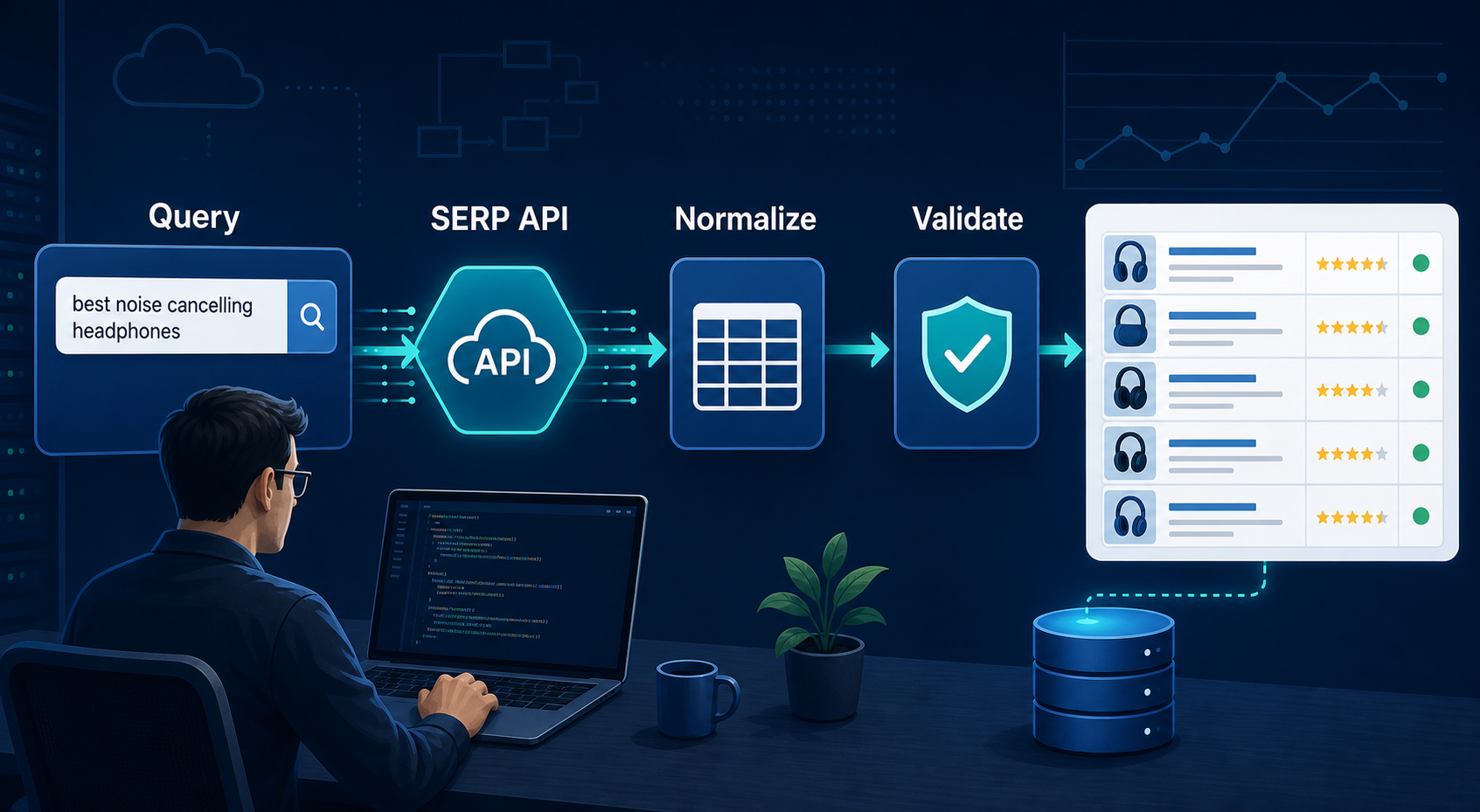
SERP API Python: How to Build a Reliable Search Data Pipeline
This guide shows a provider-neutral workflow for building that pipeline. It does not rank SERP API vendors. Instead, it focuses on the implementation choices that make a Python integration easier to operate, test, and migrate.
View Details
SERP Scraping API: How to Choose the Right Provider
Recommended Meta Description: Compare SERP scraping APIs by data coverage, localization, reliability, workflow fit, and cost structure, then choose and validate the right provider.
View Details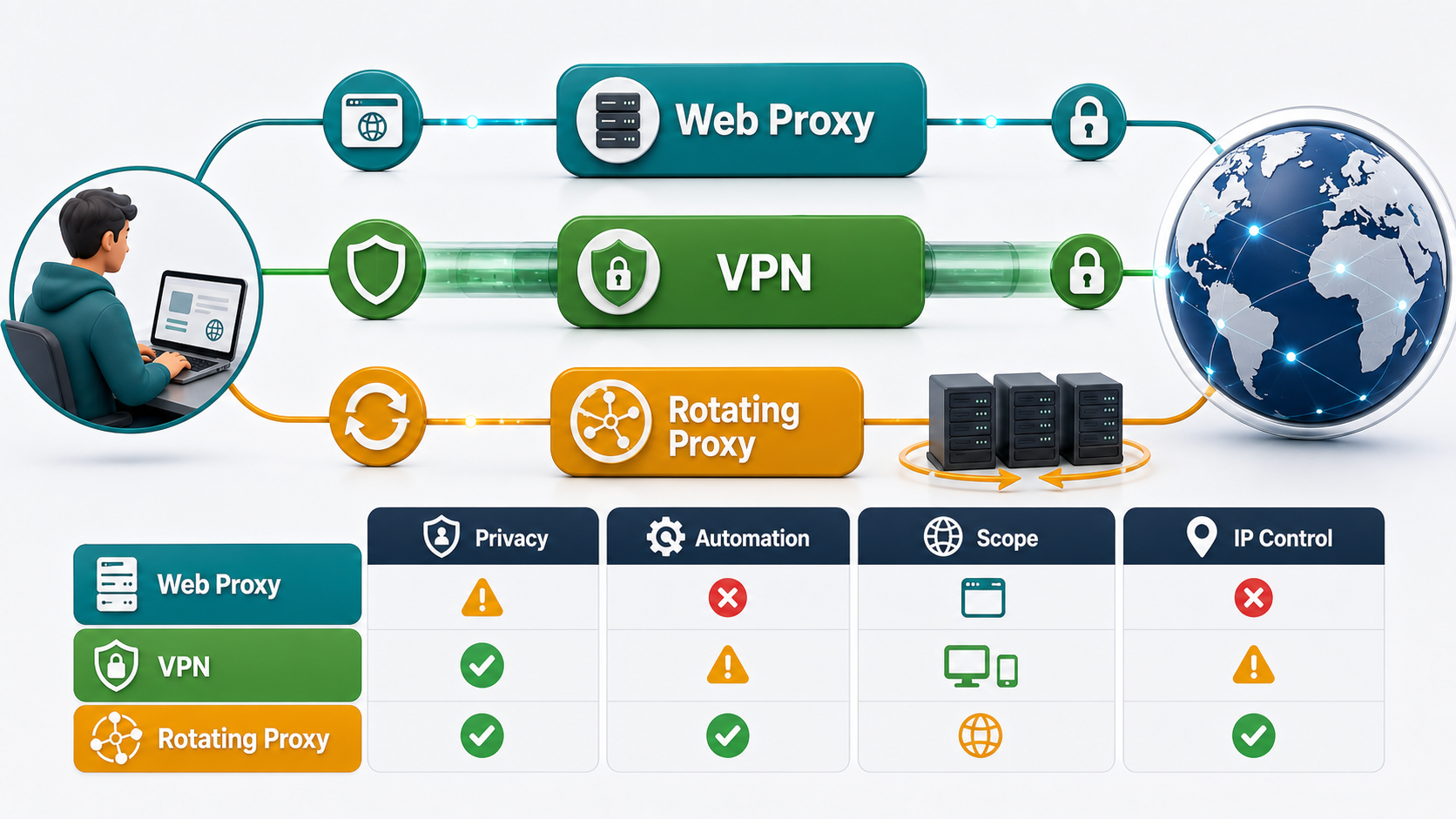
Free Web Proxy vs VPN vs Rotating Proxy: Which Should You Use?
Compare free web proxies, VPNs, rotating proxies, static proxies, and datacenter proxies by scope, encryption, IP control, automation, streaming, and account workflows.
View Details
BlockAway Not Working? Fix Common Proxy, Video, and Access Problems
Troubleshoot BlockAway when pages are blocked, YouTube fails, JavaScript breaks, speed drops, sessions expire, or mobile access behaves differently.
View Details