
SwitchyOmega: How to Manage Proxies, Install MV3, and Handle Firefox
SwitchyOmega: How to Manage Proxies, Install MV3, and Handle Firefox
For developers, data engineers, and growth teams, managing multiple proxy configurations can be a cumbersome task. You might need to test a US-based residential proxy one minute and a German datacenter proxy the next. This is the exact problem SwitchyOmega solves. It's a browser extension that acts as a powerful, high-level manager for all your proxy profiles, saving you from digging into system settings.
However, recent changes to Chrome's extension platform (Manifest V3) and the status of the Firefox add-on have made setup more confusing. This article provides a clear, practical path to installing the correct switchyomega v3 build, setting up your profiles, and understanding the limitations of the switchyomega firefox version.
What is SwitchyOmega?
SwitchyOmega is a free, open-source browser extension that simplifies managing and switching between multiple proxy servers. Instead of manually changing your operating system or browser's proxy settings, the switchyomega extension provides a simple toolbar menu to select pre-configured profiles, including a "Direct Connection" option to bypass all proxies.
How does the proxy SwitchyOmega extension actually work?
The extension works by taking control of your browser's proxy API. You provide proxy SwitchyOmega with the details of the proxy servers you want to use (e.g., address, port, protocol). When you select a profile, SwitchyOmega instructs the browser to route all relevant network traffic through that specific server.
It's helpful to think of it as a traffic controller. It doesn't create the roads (the proxies) or the cars (your data), it just directs the cars down the specific road you've chosen from its menu. This layer of control is invaluable for tasks like:
- QA Testing: Quickly checking how a website behaves from different geographic locations.
- Data Collection: Routing web scraping tasks through a pool of rotating proxies. [Link to: What is a Proxy Server?]
- Development: Separating traffic between a live environment and an internal staging server.
Why is SwitchyOmega confused with a proxy or VPN?
SwitchyOmega is often confused with a proxy service or VPN because it's a critical tool used with them. Many proxy provider setup guides include a switchyomega tutorial as the final step.
This leads to the misconception that the extension provides the proxy service itself. To be perfectly clear: SwitchyOmega is not a proxy provider or a VPN. It does not offer any IP addresses, encryption, or unblocking services on its own. You must have an existing subscription or access to a proxy server from a provider like LycheeIP to use it effectively.
Use LycheeIP's proxy pools
How do I install SwitchyOmega on Chrome with Manifest V3 (MV3)?
You install a Manifest V3 (MV3) compatible build of SwitchyOmega directly from the Chrome Web Store. Due to Chrome's mandatory migration to MV3, older versions of the extension will stop working. MV3 is the modern standard for Chrome extensions, introducing new API and security requirements.
This migration caused a split in the switchyomega community, as the original project was slow to update. As a result, several "forks" (modified versions) have become popular to ensure switchyomega chrome compatibility.
Which SwitchyOmega V3 build should I use?
When searching the Chrome Web Store, you will likely find two primary switchyomega v3 options. Both restore the classic switchyomega functionality for modern Chrome.
- Proxy SwitchyOmega 3 (ZeroOmega): This is a popular, frequently updated fork that is fully MV3 compatible. It has a large user base and is actively maintained.
- Proxy SwitchyOmega (V3): This is another MV3-compatible listing from a different developer. It also implements the core features and clearly states its MV3 status.
Choosing between them is a matter of developer preference. The most important factor is that you select a version explicitly listed as Manifest V3 compatible.
How can I verify the extension's version and developer?
You can verify the extension's details directly on its Chrome Web Store page. This is a crucial trust and security step before installing any extension that handles proxy credentials.
- Find the listing: Search for switchyomega on the Chrome Web Store.
- Check the "Offered by" field: This shows who published the extension.
- Check the "Updated" date: A recent date suggests active maintenance, which is vital for security and bug fixes.
- Check the "Version" number: This can help you confirm you have the latest build.
This simple check helps ensure you're not installing an abandoned or malicious copycat of the switchyomega extension.
Can I use SwitchyOmega in Firefox today?
You can install the official SwitchyOmega add-on in Firefox, but it is not recommended for reliable, modern use. The core issue is that the official switchyomega firefox extension is abandoned.
What are the main limitations for SwitchyOmega Firefox?
The primary limitation is its age. The last update to the official switchyomega firefox add-on on the Mozilla store was in January 2018.
- It is not maintained: The original developer has stated the project is no longer maintained. [Cite: GitHub - FelisCatus/SwitchyOmega]
- Potential for bugs: Firefox has undergone massive changes since 2018. The outdated extension may conflict with modern browser features, fail to route traffic correctly, or contain unpatched security vulnerabilities.
- Missing features: It lacks support for features and protocols developed in recent years.
While it might "work" for a simple HTTP proxy, relying on an unmaintained security-adjacent tool is a significant risk. We strongly advise switchyomega firefox users to seek alternatives.
Use LycheeIP's proxy pools
What are realistic alternatives for Firefox users?
For Firefox users who need robust proxy management, the most common and well-regarded alternative is FoxyProxy.
- FoxyProxy: This extension is actively maintained, fully compatible with modern Firefox, and offers features very similar to proxy SwitchyOmega, including profile creation and rule-based switching.
- Chromium-based Browsers: If your workflow is heavily dependent on the specific switchyomega interface, the most practical solution is to use a Chromium-based browser (like Google Chrome, Brave, or Edge) and install one of the switchyomega v3 builds.
How do I set up my first proxy profile in SwitchyOmega?
You set up your first profile by opening the extension's "Options" page, creating a new "Proxy Profile," and entering your proxy server's details. The interface is straightforward and designed for developers.
What is the step-by-step SwitchyOmega tutorial for a new profile?
This simple switchyomega tutorial will get your first proxy running in under two minutes.
- Open Options: After installing the switchyomega chrome extension, click its icon in the toolbar and select "Options."
- Create New Profile: In the left-hand sidebar, click "New profile...".
- Name Your Profile: Give it a clear name, like "Work Datacenter" or "US Residential Test." Select "Proxy Profile" as the type and click "Create."
- Enter Server Details: You will now see fields for your proxy server.
- Protocol: Choose the correct protocol (e.g., HTTP, HTTPS, or SOCKS5).
- Server: Enter the proxy server's address (e.g., gate.lycheeip.io).
- Port: Enter the corresponding port number (e.g., 7000).
- Apply Changes: Click the green "Apply changes" button in the sidebar.
That's it. You can now click the switchyomega extension icon in your toolbar and select your new profile. Your browser traffic will immediately begin routing through that proxy.
How do I add proxy authentication (username/password)?
You add authentication by clicking the "lock" icon next to your proxy server entry in the Options screen.
Most high-quality proxy services, especially residential or mobile proxies, require authentication.
- After entering your Server and Port, click the small lock icon on the right.
- A new window will pop up asking for your "Username" and "Password."
- Enter the credentials provided by your proxy service.
- Click "Save changes" and then "Apply changes."
For example, to configure a LycheeIP rotating residential proxy, you would enter gate.lycheeip.io as the server, 7000 as the port, and then click the lock icon to add your specific lychee-user-xyz username and password. This seamless integration is why SwitchyOmega remains a developer favorite.
How can I back up and import my settings?
You can back up all your profiles from the "Import/Export" tab in the Options. This is useful for migrating your setup to a new computer or sharing configurations with your team. You can export a .bak file and import it on another switchyomega installation.
Use LycheeIP's proxy pools
What is the Auto Switch mode and when should I use it?
Auto Switch mode is a powerful feature that automatically selects a proxy profile based on the URL you are trying to visit. You define a set of rules, and proxy SwitchyOmega handles the switching for you in the background.
This is the feature that elevates SwitchyOmega from a simple switcher to an essential workflow tool. You use it when you need to route some traffic through a proxy while keeping everything else direct.
What are common use cases for Auto Switch rules?
You create rules based on hostnames, domains, or URL patterns.
- Use Case 1: QA & Competitor Research
- Goal: Only proxy traffic to specific target sites.
- Rule: *.competitor-site.com $\rightarrow$ "US Residential Proxy"
- Default: All other traffic $\rightarrow$ "Direct Connection"
- Use Case 2: Internal Development
- Goal: Route traffic for internal tools through a corporate SOCKS proxy.
- Rule: *.dev.internal $\rightarrow$ "Work SOCKS Proxy"
- Default: All other traffic $\rightarrow$ "Direct Connection"
- Use Case 3: Bypassing Local CDN Caches
- Goal: Test a specific asset from a different country.
- Rule: cdn.my-app.com $\rightarrow$ "German Datacenter Proxy"
- Default: All other traffic $\rightarrow$ "Direct Connection"
When does a PAC (Proxy Auto-Config) file make more sense?
A PAC file is a legacy method that uses a JavaScript file to define complex, conditional proxy rules. The "Auto Switch" mode in proxy SwitchyOmega is essentially a modern, user-friendly replacement for manually writing a PAC file.
For nearly all modern use cases, the Auto Switch mode is superior. You should only consider using a PAC profile if you are in a large enterprise environment that already provides a complex, centrally-managed PAC file for you to use.
Why does my SwitchyOmega extension conflict with other add-ons?
Your SwitchyOmega extension conflicts with other add-ons because browsers like Chrome only allow one extension to control the proxy settings at a time. This is a deliberate security and stability design from Google. [Cite: Chrome Developer Documentation]
If you have another extension that also wants to manage your proxy (like a VPN extension, a different proxy manager, or some "security" add-ons), they will fight for control.
What are the symptoms of a proxy conflict?
The most common symptoms of a conflict are:
- SwitchyOmega shows a red badge or error icon.
- You select a profile, but your IP address doesn't change.
- Your settings are "overwritten" or reset back to "Direct Connection."
- The switchyomega extension options page shows a warning that another extension has taken priority.
How do I resolve extension priority issues?
Resolving this is a process of elimination.
- Open your browser's extensions page (chrome://extensions).
- Disable all other extensions that might control your network settings. This includes VPN clients, ad blockers that use proxy features, and any other proxy tools.
- Leave only your switchyomega v3 extension enabled.
- Reload your browser and try again.
- If it works, re-enable your other extensions one by one until you find the one causing the conflict. You must choose which extension is more important and keep the other disabled.
Which alternative tools should I consider if SwitchyOmega isn't right for me?
You should consider FoxyProxy for Firefox, native OS settings for locked-down environments, or a provider's own extension for simplicity. While SwitchyOmega is excellent, it's not the only solution.
When should I use FoxyProxy or native browser settings?
- FoxyProxy: This is the recommended alternative for Firefox users. As discussed, the switchyomega firefox version is obsolete, and FoxyProxy is actively maintained and provides a very similar, powerful feature set.
- Native Browser/OS Settings: If you work in a high-security corporate environment that blocks browser extensions, you have no choice but to use the built-in proxy settings for Windows, macOS, or Linux. This is cumbersome, but it's the only option if SwitchyOmega is disallowed.
When should I use a provider's dedicated extension?
Some proxy providers offer their own, simplified Chrome extensions. These are a good choice for non-technical users who:
- Only use one proxy provider.
- Do not need complex Auto Switch rules.
- Want a simple "on/off" button that is pre-configured with their account credentials.
For data engineers and developers who manage multiple providers, protocols, and complex rule sets, a dedicated controller like the switchyomega v3 extension remains the more powerful and flexible tool. [Link to: How to Use Rotating Proxies]
Comparison/Table:
| Extension Name | Browser | MV3 Support | Maintenance Status | Best For... |
| Proxy SwitchyOmega 3 (ZeroOmega) | Chrome, Edge | Yes | Actively Maintained | switchyomega chrome users needing a stable, modern switchyomega v3 build. |
| Proxy SwitchyOmega (V3) | Chrome, Edge | Yes | Actively Maintained | switchyomega chrome users looking for an alternative switchyomega v3 fork. |
| SwitchyOmega (Legacy) | Firefox | No (N/A) | Abandoned (2018) | Not recommended. Users should migrate to FoxyProxy or a Chromium browser. |
| FoxyProxy Standard | Firefox | N/A | Actively Maintained | The best switchyomega alternative for switchyomega firefox users. |
Use LycheeIP's proxy pools
Frequently Asked Questions:
- What is SwitchyOmega?
SwitchyOmega is a browser extension that acts as a proxy manager or controller. It allows you to quickly create, save, and switch between different proxy server profiles directly from your browser's toolbar. It does not provide any proxy servers itself. - What is SwitchyOmega V3?
SwitchyOmega V3 refers to any version of the extension that has been rewritten to be compatible with Google Chrome's Manifest V3 (MV3) platform. MV3 is Chrome's modern extension standard, and older extensions (MV2) are being phased out. Using a switchyomega v3 build is mandatory for modern Chrome. - How do I use proxy SwitchyOmega for just one website?
You use the "Auto Switch" mode. In the extension's Options, create a rule for the specific website (e.g., *.example.com) and assign your desired proxy profile to it. Then, set the "Default" rule to "Direct Connection."
- Is the SwitchyOmega extension safe?
The open-source SwitchyOmega builds on the official Chrome Web Store are generally considered safe. However, you are trusting them with your proxy credentials. It is vital to install a well-maintained version from a trusted developer (like the V3 forks) and avoid any unofficial copies. - Why is the SwitchyOmega Firefox extension not recommended?
The official switchyomega firefox add-on is no longer maintained and has not been updated since 2018. It may contain security flaws or fail to work with modern versions of Firefox. Firefox users are advised to use FoxyProxy instead. - Does SwitchyOmega slow down my browsing?
The switchyomega extension itself is extremely lightweight and adds no noticeable overhead. Any slowness you experience is caused by the proxy server you are routing your traffic through. A slow proxy will result in slow browsing, regardless of how you connect to it.

Recommended Articles
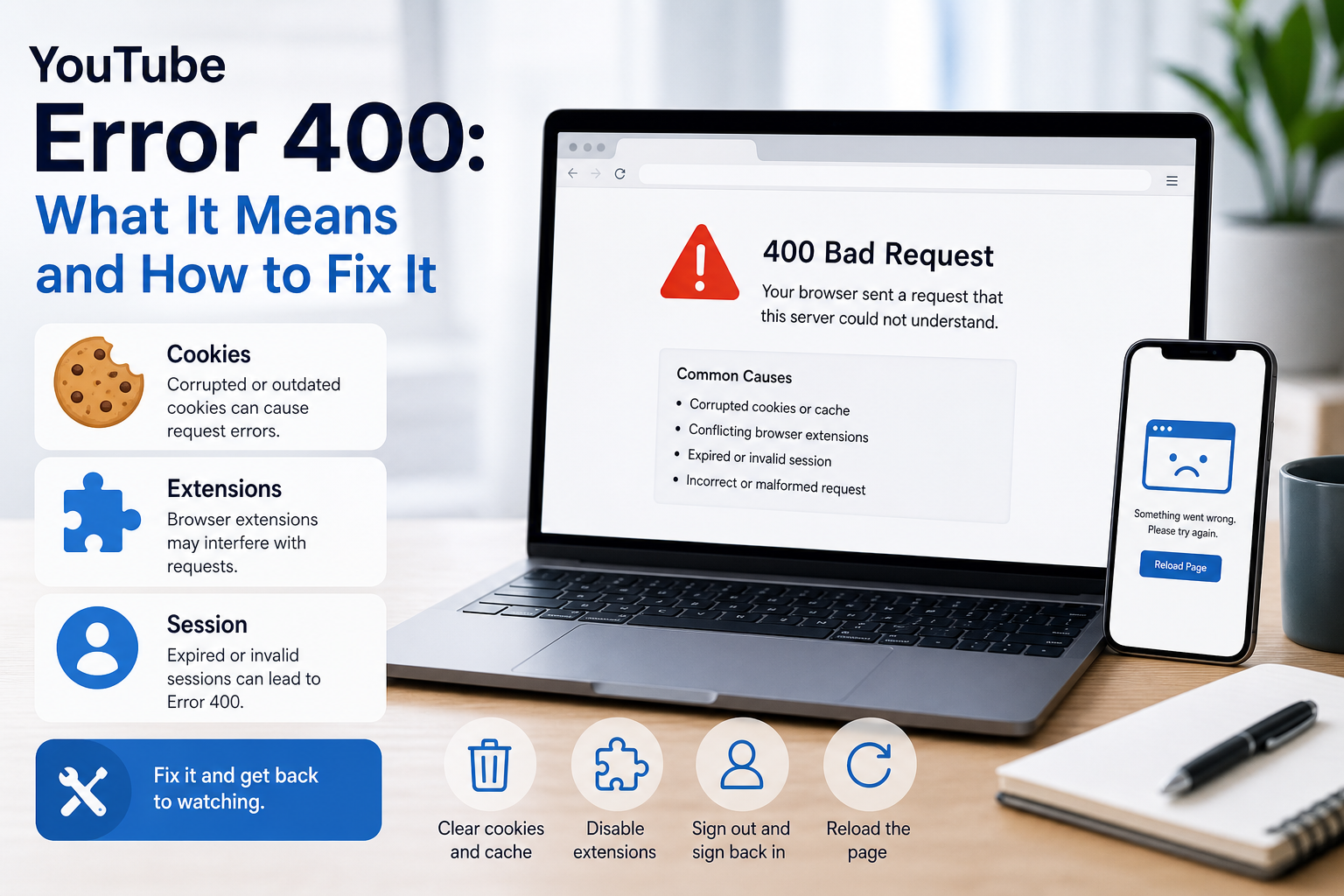
YouTube Error 400: What It Means and How to Fix It
In HTTP terminology, a 400 Bad Request is a client-error response. MDN explains that servers commonly return 400 when they consider the request malformed, incorrectly framed, or deceptively routed. The important troubleshooting clue is that repeating the exact same request without changing anything is expected to fail again.
View Details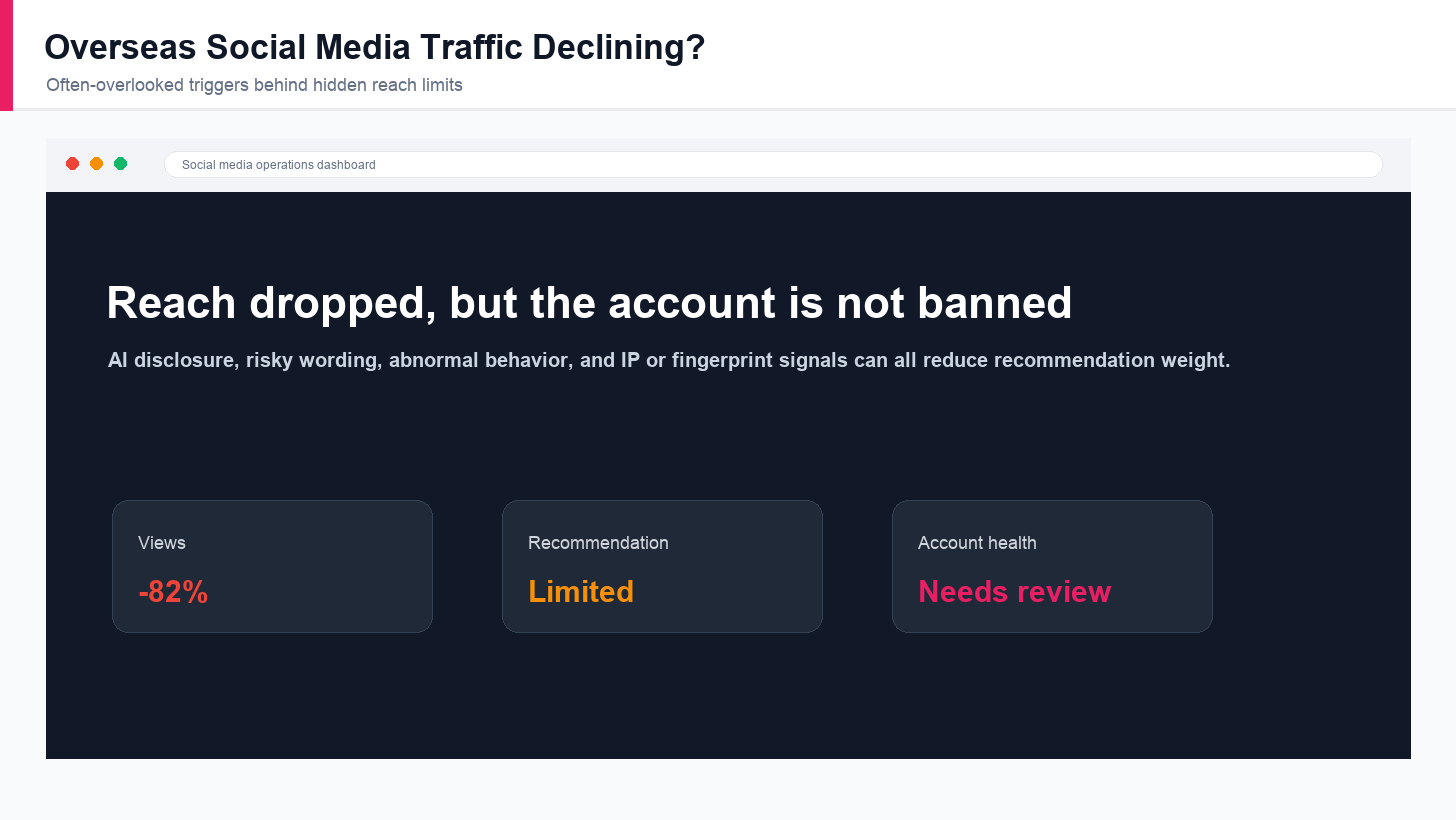
Overseas Social Media Traffic Declining? These Reach-Limiting Triggers Are Often Overlooked
A practical guide to overlooked overseas social media reach drops, covering AI content disclosure, risky wording, abnormal account behavior, hidden reach-limiting signals, and account environment checks.
View Details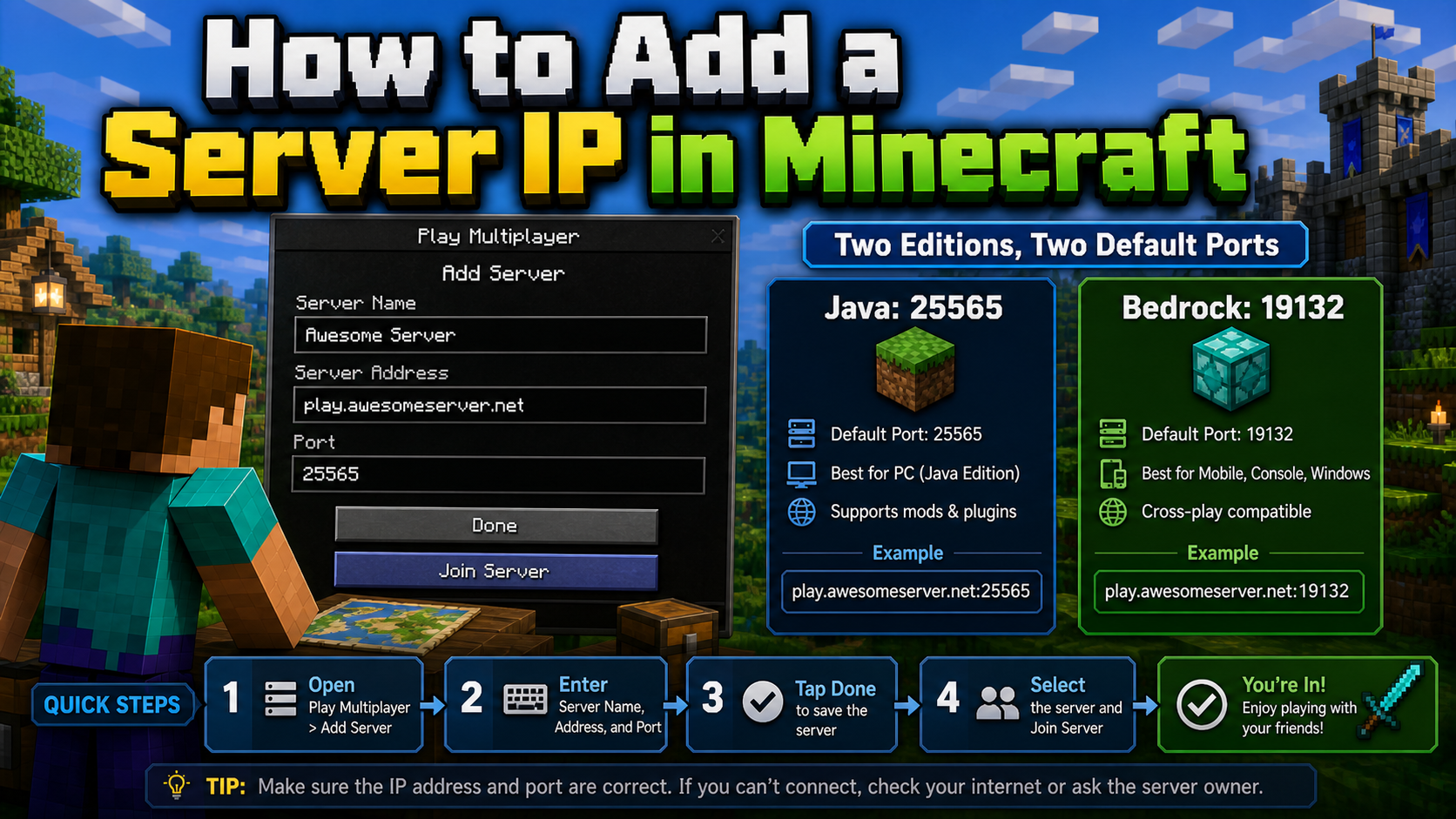
How to Add a Server IP in Minecraft Step by Step
Learn exactly where to enter a Minecraft server IP in Java, Bedrock, and Pocket Edition, plus how to fix common connection errors, ports, and edition mismatches.
View Details
How to Find a Working Minecraft Server IP Fast
Stop wasting time on dead Minecraft server IPs. Learn how to verify live servers quickly, read status icons, check ports, and source updated server addresses.
View Details
Best 24/7 Online Minecraft Server IPs — No Downtime
Find reliable 24/7 Minecraft server IPs for Java and Bedrock, plus uptime checks, port basics, ping guidance, crossplay notes, and network stability tips.
View Details