
Set Up MCP in Claude Code: Step-by-Step
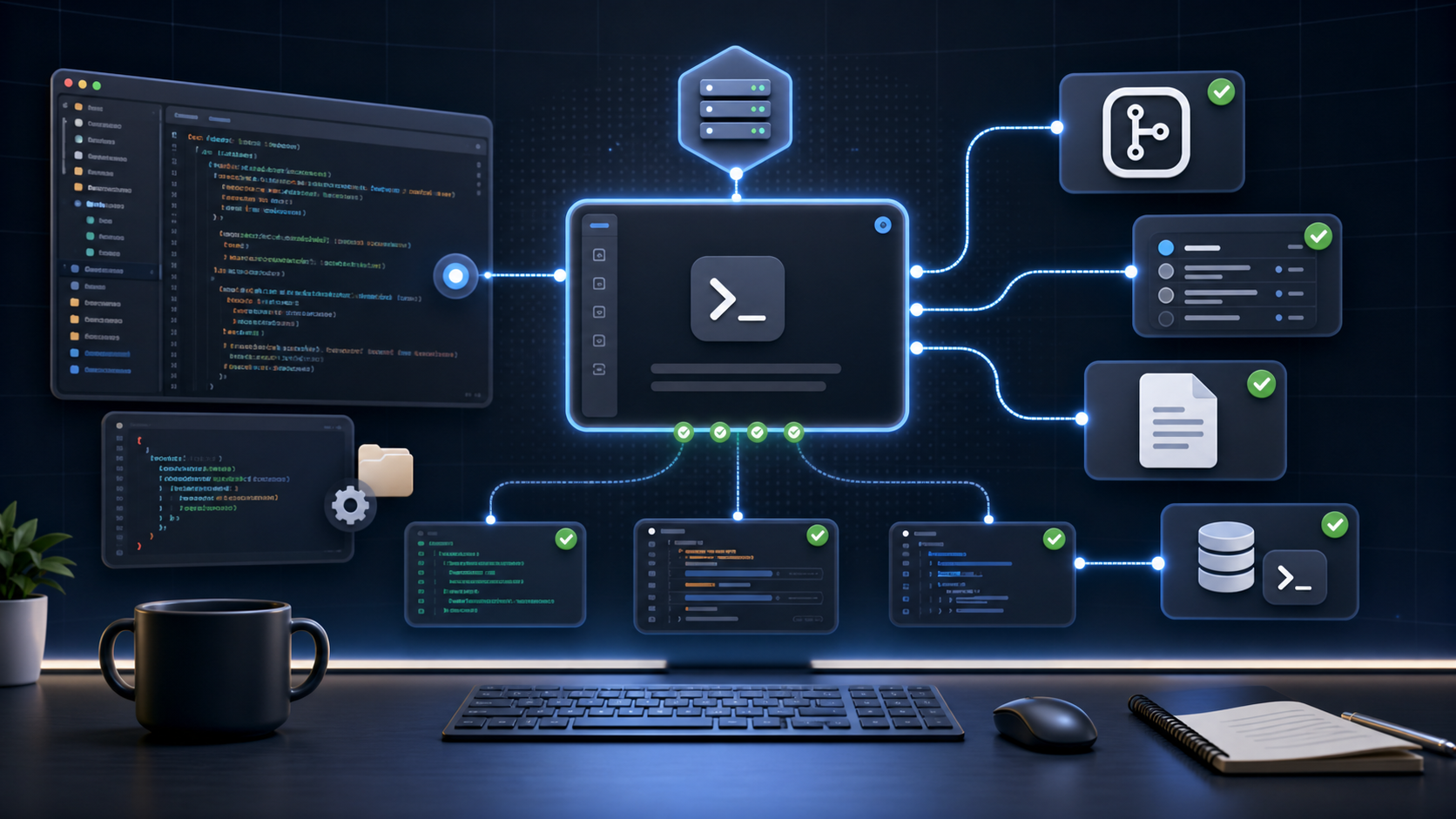
Claude Code can talk to your GitHub, Linear, and docs — most people skip the setup that makes this work.
If you have been using Claude Code as a standalone coding assistant, you are likely leaving a significant amount of its capability on the table. The Model Context Protocol (MCP) is what allows Claude Code to reach outside its default context window and connect directly to the tools your engineering team already uses. The configuration process is straightforward once you understand the pieces involved, but without a clear walkthrough, most developers either skip it entirely or set it up in ways that cause problems later — especially around access scope and token costs.
This guide covers the full setup process: connecting MCP servers, scoping them correctly for individual and team environments, and managing the context overhead that comes with enabling multiple integrations.
Adding MCP Servers to Claude Code
What MCP Actually Does
MCP stands for Model Context Protocol. It is an open standard that allows AI systems like Claude to connect with external tools, APIs, and data sources in a structured way. Instead of copying and pasting GitHub issues or Linear tickets into your chat window, an MCP server acts as a live bridge — Claude can query, read, and in some cases write to connected tools directly within your workflow.
For engineers, this means Claude Code can:
- Pull open issues from a GitHub repository without you manually describing them
- Read Linear tickets associated with a current sprint
- Access internal documentation or API specs through a docs server
- Run database queries or interact with local file systems through custom MCP implementations
This changes Claude from a capable code assistant into something closer to a context-aware engineering collaborator.
The Configuration File
Claude Code reads MCP server configuration from a JSON file. The default location for this file depends on how you are running Claude Code, but it typically lives at:
~/.claude/claude_desktop_config.jsonFor Claude Code running in a project context, you may also define configuration at the project level. This distinction matters and will be covered in detail in Act 2.
Try LycheeIP for Scaled Data Workflows
The configuration file follows this structure:
{
"mcpServers": {
"github": {
"command": "npx",
"args": ["-y", "@modelcontextprotocol/server-github"],
"env": {
"GITHUB_PERSONAL_ACCESS_TOKEN": "your_token_here"
}
}
}
}
Each key under mcpServers is the name you give the server. The command and args fields tell Claude how to start the server process. The env block passes credentials securely without hardcoding them into your prompts.
Connecting GitHub
The GitHub MCP server is one of the most commonly used integrations. To add it:
- Install Node.js if it is not already on your system.
- Generate a GitHub Personal Access Token with the scopes you need (typically
repoandread:orgfor most engineering workflows). - Add the GitHub server block to your
claude_desktop_config.jsonas shown above. - Restart Claude Code.
Once configured, you can ask Claude things like "list the open pull requests on this repo" or "summarize the issues labeled bug" and it will pull live data from GitHub rather than relying on what you manually provide.
Connecting Linear
Linear has community-maintained MCP servers available. The setup follows the same pattern:
"linear": {
"command": "npx",
"args": ["-y", "linear-mcp-server"],
"env": {
"LINEAR_API_KEY": "your_linear_api_key"
}
}
You can generate a Linear API key from your Linear workspace settings under API. With this configured, Claude can reference active tickets, filter by assignee or sprint cycle, and give you summaries of what is in progress — directly inside your coding session.
Connecting Documentation Sources
For teams that maintain internal documentation in Notion, Confluence, or a local markdown directory, there are MCP servers available for each. The setup varies by server, but the pattern is the same: point Claude at the server binary, pass it the right credentials, and it becomes queryable context.
Local file system servers are particularly useful for teams with large internal API specs, architecture decision records, or onboarding documentation that you want Claude to reference without copying it into every session.
Scoping MCP Servers Correctly
Why Scope Matters
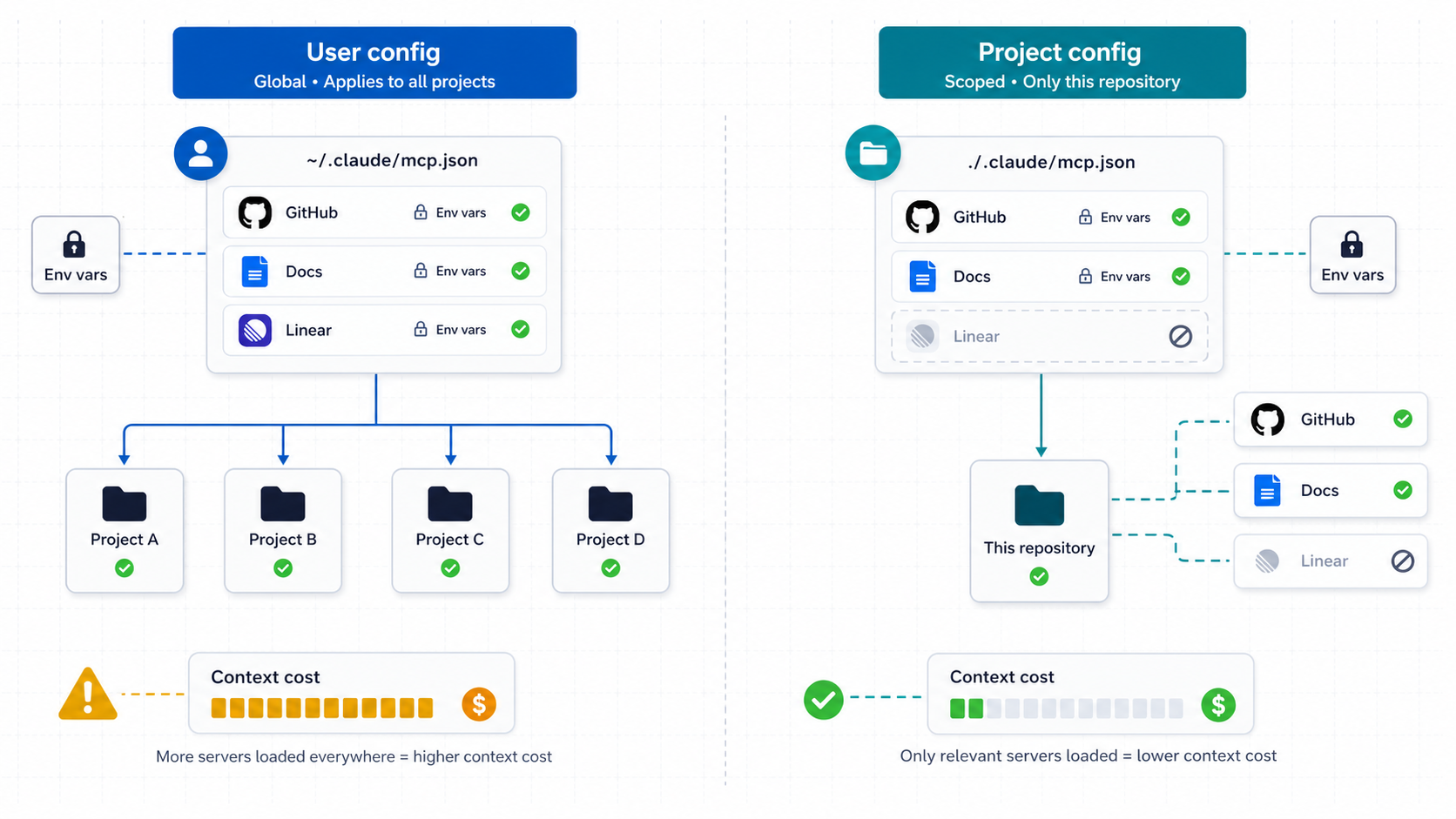
One of the most overlooked aspects of MCP setup is access scope. If you configure all your MCP servers at the global user level, every project you open in Claude Code will have access to all of them. This creates two problems:
Problem 1: Unintended tool access across projects.
If you are working on a personal side project and your work GitHub token is globally configured, Claude might inadvertently pull context from your work repositories when answering questions about your personal code. This gets messier on shared machines or in environments where multiple team members use the same base configuration.
Problem 2: Context pollution.
Every enabled MCP server adds available tools to Claude's context window. Even servers that Claude does not end up using in a given session still contribute to the initialization overhead. More on this in Act 3.
User-Level vs. Project-Level Configuration
Claude Code supports two configuration scopes:
| Scope | File Location | When to Use |
|---|---|---|
| User-level | ~/.claude/claude_desktop_config.json | Tools you want available across all projects |
| Project-level | .claude/claude_desktop_config.json in the project root | Tools specific to a single repository or team project |
Project-level configuration files can be committed to version control, which makes them excellent for team standardization. When a new engineer clones a repository and opens it in Claude Code, they automatically get the correct MCP configuration for that project.
User-level configuration is better suited for personal tooling — things like a local notes server, a personal GitHub account, or a development database connection that is specific to your machine.
Structuring Team Configurations
For engineering teams, the recommended approach is:
- Define project-level MCP servers in the repository. Include only the servers relevant to that project. A frontend repository probably does not need a database query server. A data pipeline project probably does not need a design tool integration.
- Use environment variables for credentials, never hardcoded values. The
envblock in the MCP config should reference variable names. Each developer sets those variables in their local environment or through a secrets manager. Committing actual API keys to version control is a security risk regardless of how the file is used. - Document which servers are required and why. A short comment in a
README.mdor a.claude/README.mdfile explaining what each server does prevents confusion when someone encounters an unfamiliar configuration. - Avoid duplicating global servers at the project level. If a developer already has a GitHub server configured globally, adding another GitHub server at the project level with different credentials causes conflicts. Make the scope boundaries explicit in your team documentation.
Handling Multi-Repo Teams
Teams working across multiple repositories with different access requirements should lean heavily on project-level scoping. A monorepo team might configure a single set of MCP servers at the root. A team with separate frontend, backend, and infrastructure repositories should configure each independently.
For teams that also run automation workflows — such as scraping competitive data, monitoring public APIs, or running geo-distributed tests — the same scoping logic applies to any MCP server that exposes external API access. You want those connections scoped to the projects that actually need them, not bleeding into unrelated codebases.
Managing Context Costs from MCP Servers
The Token Overhead Reality
Every MCP server you enable adds to Claude's context initialization. When Claude starts a session, it loads the available tools from each configured server. This means it needs to process the tool definitions, understand their parameters, and keep them available for potential use throughout the conversation.
For a session with two or three simple MCP servers, this overhead is small. But as you add more servers — especially ones with many available tools or complex schemas — the token cost at the start of each session grows. In long coding sessions, this accumulates.
What Contributes to Context Cost
Not all MCP servers are equal in their token footprint. The main factors are:
- Number of tools exposed. A server that exposes 20 different GitHub operations costs more than one that exposes 4.
- Complexity of tool schemas. Tools with many parameters, nested objects, or long descriptions consume more tokens in their definitions.
- Data returned per query. When Claude actually calls an MCP tool, the response is added to the context. A tool that returns a full repository diff costs more than one that returns a ticket title.
- Frequency of tool calls in a session. Long sessions with many tool calls build up context faster than short focused ones.
Practical Strategies to Keep It Lean
Only enable servers you will use in that session.
If you are fixing a specific bug and do not need Linear context, remove or disable the Linear server for that project temporarily. This is easier with project-level configs because you can modify them without affecting your global setup.
Choose servers with minimal tool surface area.
When multiple MCP servers exist for the same tool, prefer the one that exposes only the operations you need. Some community servers expose every possible API endpoint. Others are purpose-built for specific workflows. The focused version will cost less.
Be deliberate about what data you ask MCP tools to return.
Instead of asking Claude to "pull everything from this GitHub repo," ask it to retrieve a specific pull request or a named issue. Scoping your queries reduces the size of what gets added to context.
Use shorter sessions for high-tool-usage workflows.
If you are doing a workflow that involves many MCP tool calls — like triaging a backlog of Linear issues while reviewing related GitHub PRs — breaking it into multiple focused sessions keeps each context window cleaner than one very long session.
Monitor which tools are being called.
Claude Code typically surfaces tool calls in the UI. Reviewing which MCP tools actually get used in your typical sessions helps you identify servers that are loaded but rarely needed. Those are candidates for removal.
Benchmarking Your Setup
There is no universal right number of MCP servers. The practical benchmark is whether Claude's responses are remaining accurate and relevant throughout your sessions. If you notice Claude starting to lose track of earlier context or becoming less precise on code-related tasks toward the end of a long session, context overload from MCP tools is one variable worth examining.
Start lean. Add servers one at a time as you confirm they are genuinely useful. This approach also makes it easier to attribute context cost to specific integrations.
How This Connects to Broader Developer Infrastructure Thinking
Explore LycheeIP for Developer Workflows
The discipline of scoping access and managing resource costs in MCP configuration is a specific instance of a broader engineering pattern: connecting systems to external tools should be intentional, bounded, and monitored.
This same logic applies when developers build data collection workflows, automation pipelines, or geo-distributed testing setups. When a workflow involves external API access, web requests, or multi-environment testing, the tool access layer needs careful design. Teams that use proxy infrastructure for tasks like public data collection, geo-testing, or SERP monitoring face similar decisions about which tools are scoped to which workflows and how to avoid cross-contamination between environments.
Providers like LycheeIP operate in this infrastructure space, offering proxy IP solutions for developers building workflows that require controlled, location-aware, or session-based IP routing. The architectural thinking is parallel: define what each workflow needs, scope the access accordingly, and avoid over-provisioning resources that add cost without adding value.
Common Mistakes to Avoid
Suggested video: Model Context Protocol setup and AI agent tooling explainer
Watch on YouTubeCommitting API keys to version control.
The env block in MCP configs is not a safe place to store actual credentials if the file is going into a shared repository. Use environment variable names as placeholders and manage the actual values through your team's secrets workflow.
Using global config for everything.
Configuring all servers at the user level seems convenient but creates long-term maintenance problems. Project-level configs keep things organized and make onboarding new team members much cleaner.
Adding servers speculatively.
Adding a server because it might be useful eventually increases context overhead with no immediate benefit. Add servers when you have a confirmed use case for them.
Ignoring tool call output sizes.
Asking MCP tools to return large datasets in a single call can blow out your context window faster than the tool definitions themselves. Design your MCP queries to return targeted, relevant data.
Not testing configuration after changes.
After editing the MCP config file, always restart Claude Code and verify the servers are loaded correctly before starting a real work session. A misconfigured server can fail silently or return unhelpful errors mid-session.
Mixing personal and team credentials.
If a team member configures a shared server using their personal API token, rotating that token or removing that person's access breaks the tool for everyone. Use service accounts or shared credentials managed through your team's access control system.
Conclusion
MCP transforms Claude Code from a capable standalone assistant into a connected engineering tool. The setup process is not complicated, but it requires deliberate decisions about which servers to connect, how to scope them, and how to manage the token costs they introduce.
Connect GitHub and Linear at the project level. Keep credentials out of version control. Scope each server to the projects that actually need it. Start with a minimal server set and expand only when you confirm additional tools are adding real value. Monitor context usage in longer sessions and be willing to trim servers that are loaded more than they are used.
The developers who get the most out of Claude Code with MCP are not the ones who connect every available integration. They are the ones who configure it carefully, keep it lean, and treat their AI tooling with the same architectural discipline they apply to the rest of their systems.
Frequently Asked Questions
What is MCP in the context of Claude Code?
MCP stands for Model Context Protocol. It is an open standard that allows Claude Code to connect to external tools and data sources — such as GitHub, Linear, databases, and documentation — so Claude can access live information during your coding sessions rather than relying only on what you manually provide.
Where does the MCP configuration file live for Claude Code?
The default user-level configuration file is located at ~/.claude/claude_desktop_config.json. For project-specific configurations, you can create a .claude/claude_desktop_config.json file inside your project root directory. Project-level configs can be committed to version control for team sharing.
Can I commit MCP configuration files to a shared Git repository?
Yes, but only if you are using environment variable placeholders in the env block rather than actual API keys or tokens. Never commit real credentials to version control. Use variable names in the config and manage actual values through your team's secrets management workflow.
What is the difference between user-level and project-level MCP configuration?
User-level configuration applies across all projects you open in Claude Code. Project-level configuration applies only to the specific repository where the config file is placed. Project-level scoping is better for team environments because it limits tool access to relevant projects and allows the configuration to be version-controlled alongside the codebase.
Do MCP servers increase token usage in Claude Code sessions?
Yes. Each enabled MCP server adds tool definitions to Claude's initialization context. The number of tools a server exposes, the complexity of those tool schemas, and the size of data returned when tools are called all contribute to token overhead. Keeping only the servers you actively need is the best way to manage this cost.
How do I add a GitHub MCP server to Claude Code?
Add an entry under the mcpServers key in your config file using npx as the command, pointing to the @modelcontextprotocol/server-github package. Pass your GitHub Personal Access Token via the env block. Restart Claude Code after saving the config to load the new server.
Can multiple developers on a team share the same MCP configuration?
Yes. By placing the MCP config in the project repository at .claude/claude_desktop_config.json, all team members get the same server setup when they clone the project. Each developer supplies their own credentials through local environment variables, keeping access controlled at the individual level while standardizing the configuration.
What happens if a configured MCP server is unavailable or misconfigured?
Claude Code may fail to load that server or encounter errors when attempting to call its tools during a session. It is a good practice to restart Claude Code after any config change and verify all servers are loading correctly before beginning a real work session. Misconfigured servers can sometimes fail silently.
How many MCP servers should I run at once?
Start with only the servers you have an immediate use case for. Two or three focused servers is a practical starting point for most engineering workflows. Add more only after confirming each new integration provides genuine value. Running many servers speculatively increases context overhead without proportional benefit.
Is it safe to use MCP servers that access internal tools and APIs?
MCP servers run as local processes on your machine and communicate with Claude through a defined protocol. The primary security considerations are credential management and access scoping. Use service accounts rather than personal tokens for team configurations, store credentials in environment variables rather than config files, and limit each server's API permissions to only what the workflow actually requires.

Recommended Articles
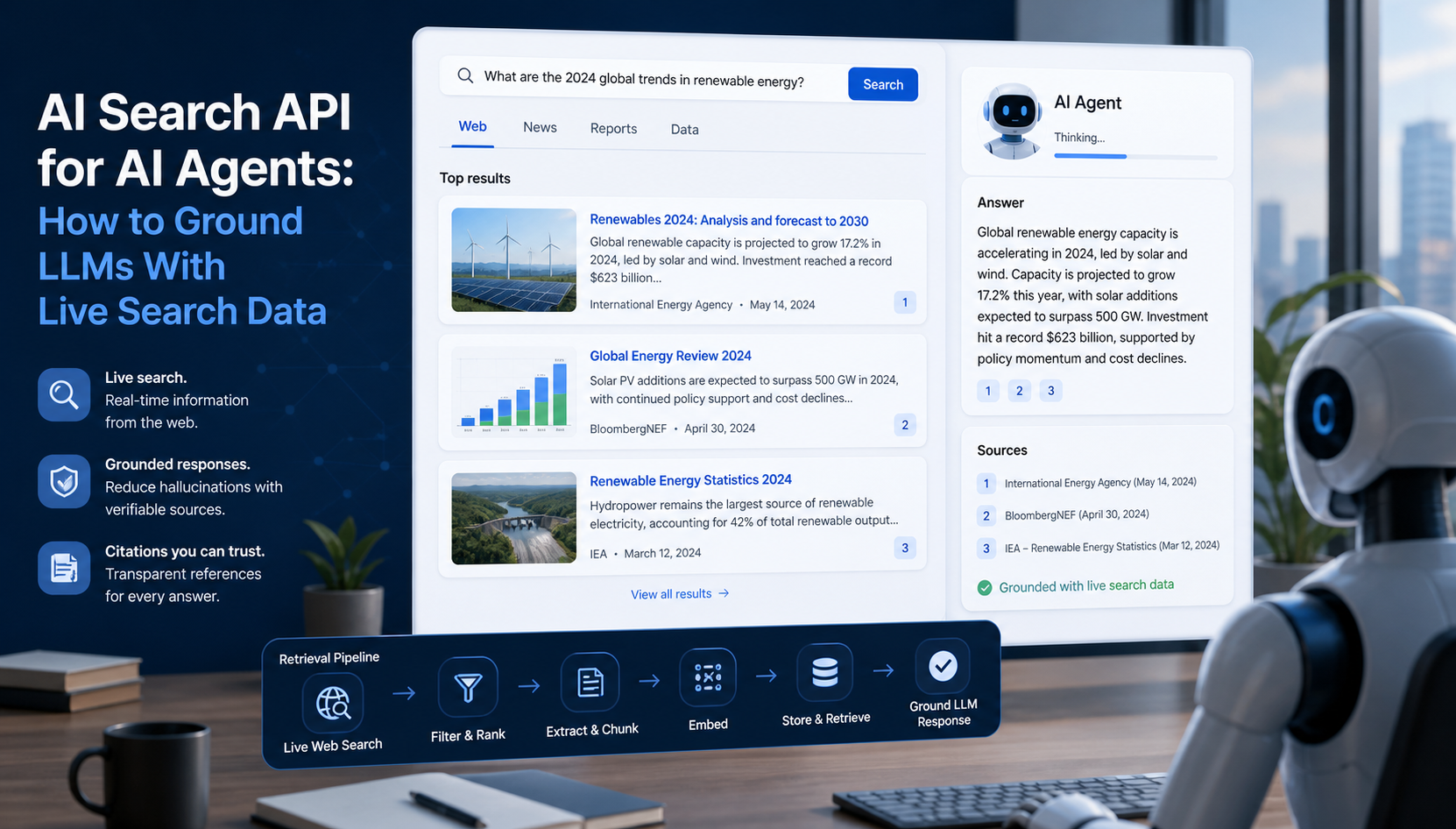
AI Search API for AI Agents: How to Ground LLMs With Live Search Data
An AI search API gives an application or agent programmatic access to current search results. Its most useful role is discovery: the agent can find candidate sources, identify fresh information, and decide what to retrieve next instead of relying only on model memory.
View Details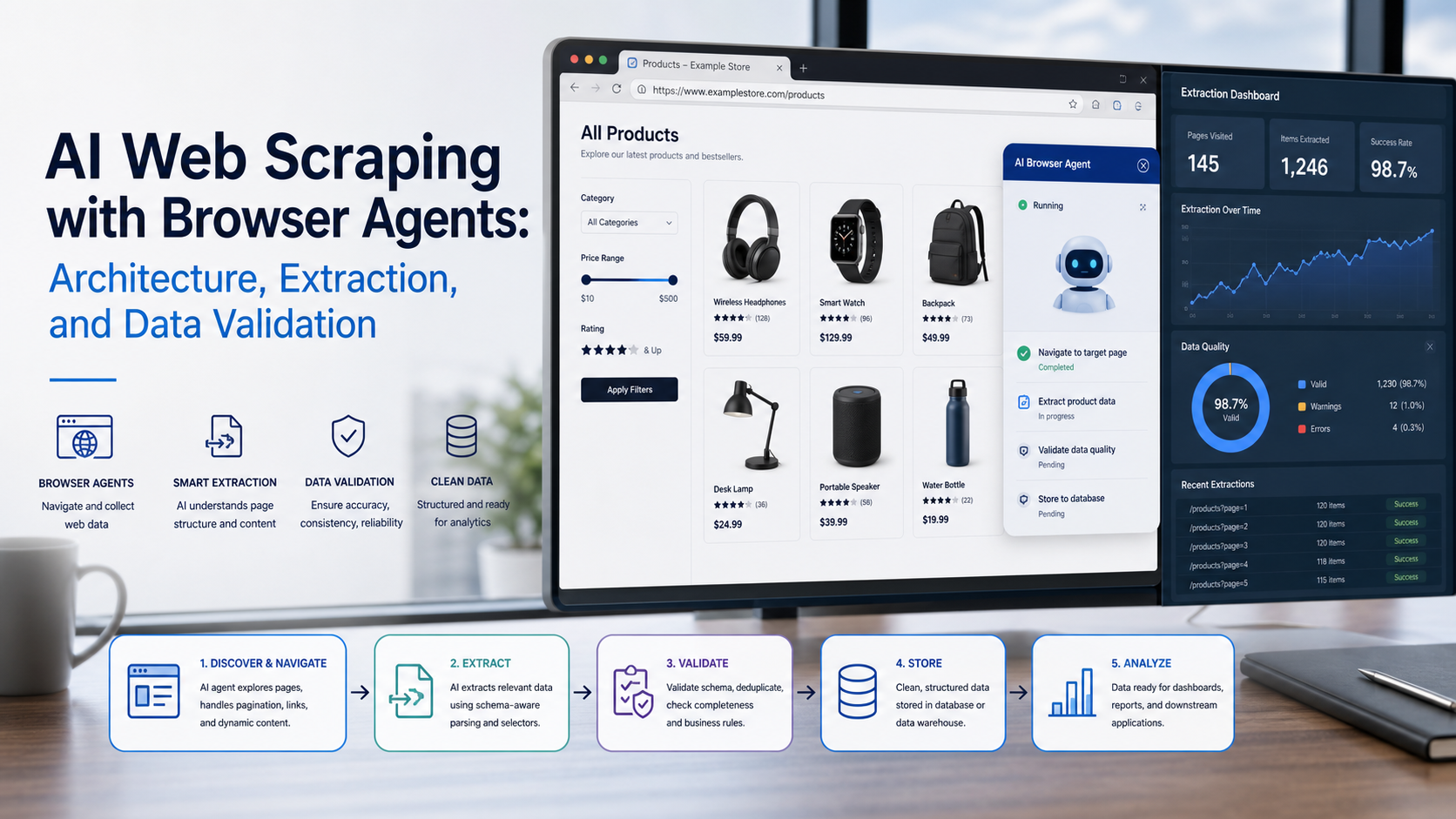
AI Web Scraping with Browser Agents: Architecture, Extraction, and Data Validation
AI web scraping uses AI to help discover, navigate, interpret, or extract information from websites. Browser agents are one implementation option when page interaction, rendering, or layout variation makes a simple scraper too brittle, but the agent should not become the entire data pipeline.
View Details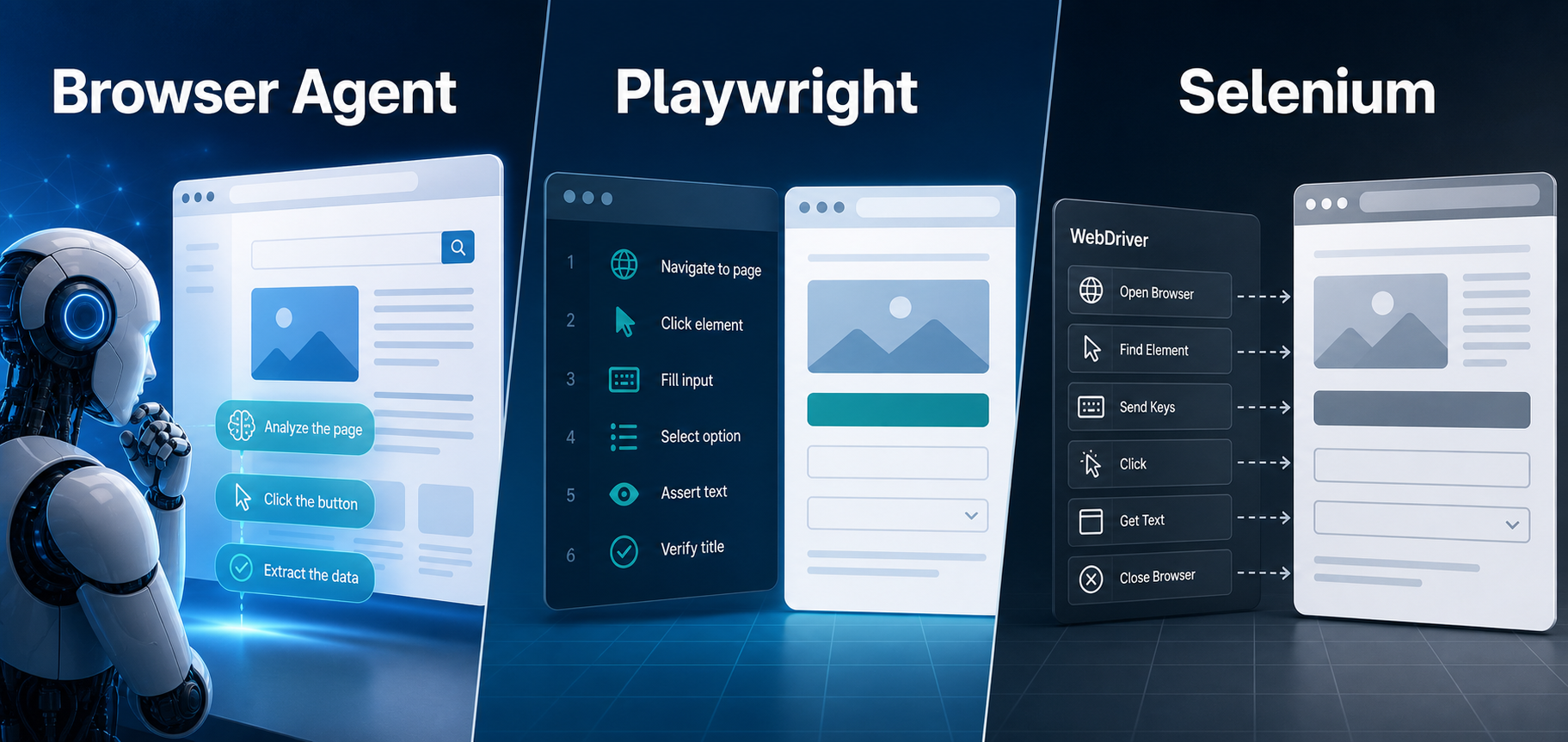
AI Browser Automation: Browser Agents vs Playwright vs Selenium
A browser agent interprets a goal and decides what browser action to take next. Playwright and Selenium can execute explicit, testable browser logic defined by developers. In 2026, however, Playwright also provides official MCP and agent-oriented workflows, so Playwright is no longer just the deterministic alternative to agentic automation. It can also serve as the browser-control layer inside an agent system.
View Details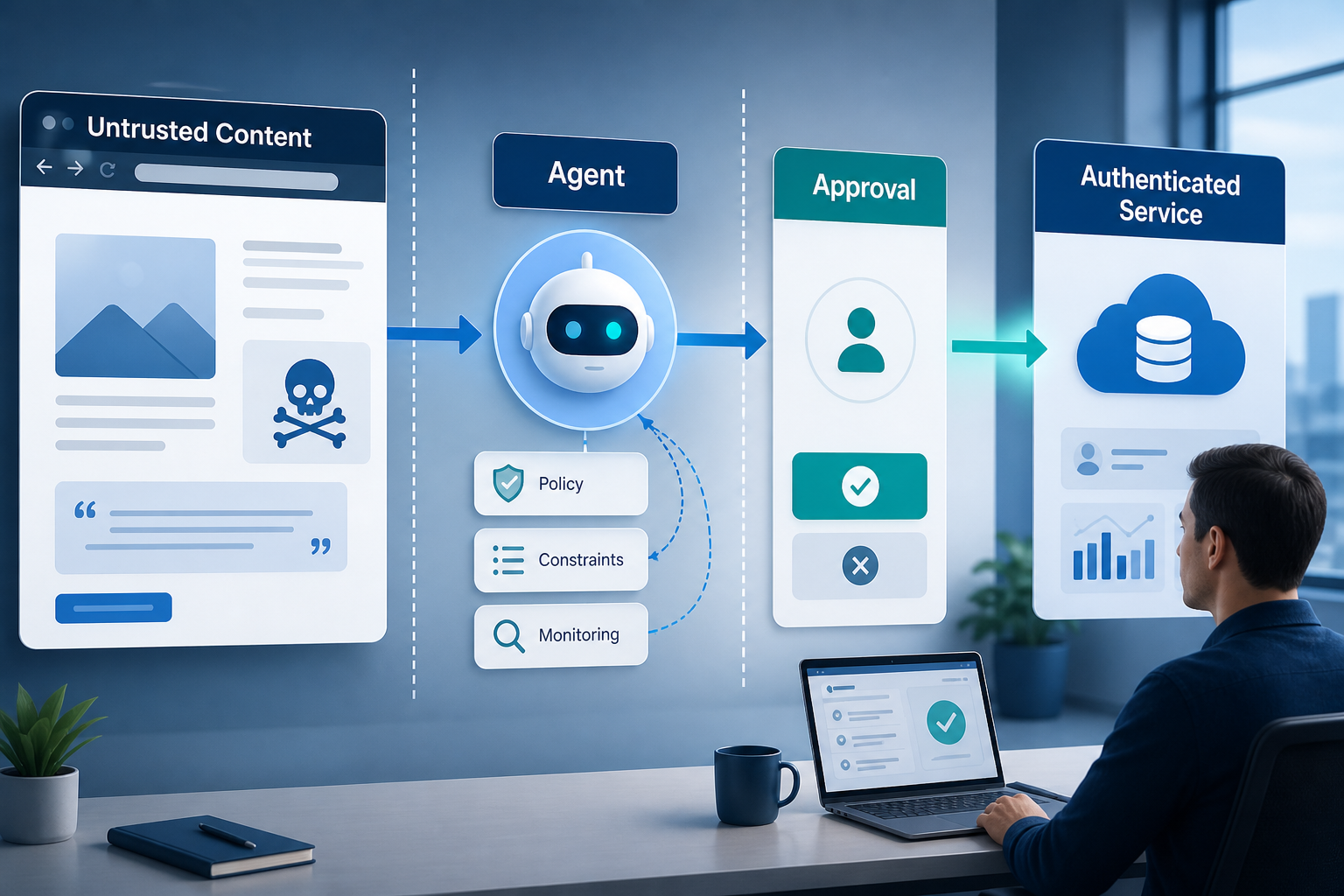
Agentic Browser Security: Prompt Injection, Permissions, and Safe Deployment
That combination creates risks that are different from ordinary browsing and traditional automation. The most important is indirect prompt injection, where hostile instructions hidden in web content attempt to redirect the agent away from the user's goal. Google describes indirect prompt injection as a primary new threat for agentic browsing and has introduced layered defenses that include origin constraints, independent action checks, threat detection, and user confirmation for sensitive actions. Google's Chrome security architecture is a useful reference for how browser-agent defenses are evolving.
View Details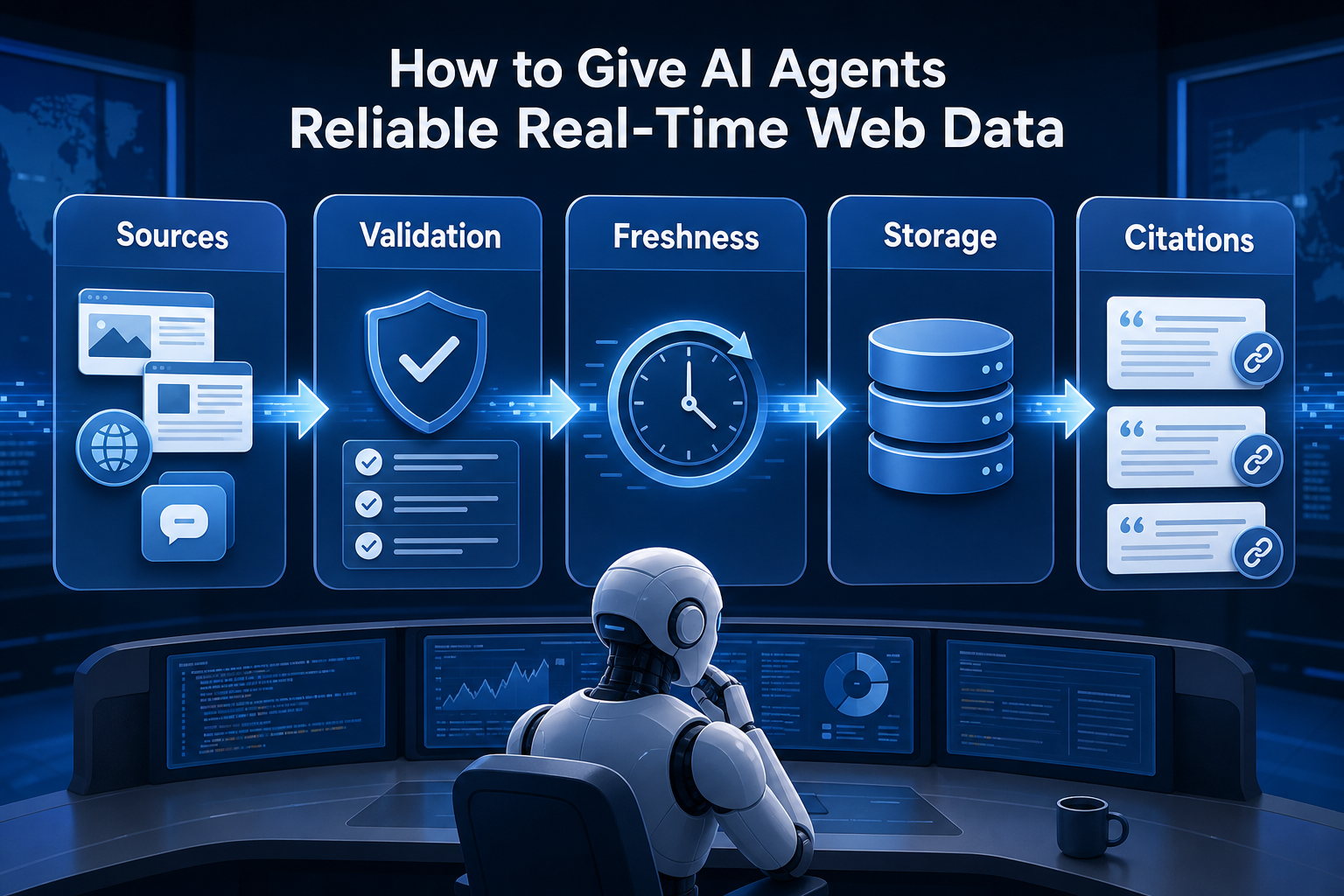
How to Give AI Agents Reliable Real-Time Web Data
A production-ready solution therefore needs more than a web scraper. It needs a web data layer that connects acquisition, validation, storage, retrieval, security, and observability. This guide explains how to design that layer.
View Details