
Linux Essentials for Cybersecurity Professionals
Linux Essentials for Cybersecurity Professionals
You can't be a cybersecurity pro without knowing Linux. It's a hard truth that catches many aspiring security professionals off guard, especially those coming from Windows backgrounds. While you might have mastered Windows Defender and know your way around PowerShell, the reality is that most professional security tools, from penetration testing frameworks like Metasploit to network analyzers like Wireshark's command-line cousin, require solid Linux knowledge.
The problem isn't just that Linux exists in the cybersecurity ecosystem; it's that it dominates it. Kali Linux, Parrot OS, and similar distributions are the industry standard for security testing. Cloud infrastructure runs primarily on Linux servers. When you're analyzing malware, investigating breaches, or conducting vulnerability assessments, you're working in Linux environments whether you like it or not.
For Windows users making the transition, this can feel overwhelming. The graphical user interface you've relied on is replaced by a blinking cursor. Simple tasks suddenly require memorizing commands. But here's the good news: you don't need to become a Linux system administrator to be effective in cybersecurity. You need to master the essentials, the commands, concepts, and workflows that security operations demand.
This guide breaks down exactly what you need to know, organized around practical security workflows rather than theoretical Linux administration.
Use LycheeIP proxies on Linux
Essential Linux Commands for Security Operations
Let's start with the command-line tools you'll use daily in security work. Unlike general Linux tutorials that teach you everything, we're focusing specifically on what matters for security professionals.
Navigation and File Discovery
Before you can analyze anything, you need to find it. These commands are your foundation:
`ls` lists directory contents, but security work requires specific variations:
- `ls -la` shows hidden files (those starting with `.`) and detailed permissions—critical when you're looking for backdoors or configuration files
- `ls -lh` displays file sizes in human-readable format, helping you spot suspiciously large log files or data exfiltration
- `ls -lt` sorts by modification time, essential for identifying recently changed files during incident response
`cd` changes directories, but understanding the Linux file system hierarchy is crucial:
- `/etc` contains system configuration files. This is where you'll find service configurations, user databases, and security policies
- `/var/log` houses log files for forensic analysis
- `/tmp` is a common location for malicious scripts and temporary exploit files
- `/home` contains user directories where you'll investigate user activity
`pwd` (print working directory) seems basic, but it prevents costly mistakes when you're running security scans or deleting suspicious files. Always know where you are.
File Examination and Pattern Matching
Security work involves analyzing massive amounts of text data, log files, configuration files, and captured network traffic.
`cat` displays file contents, but for security purposes:
- `cat /var/log/auth.log` shows authentication attempts, look for failed login patterns that indicate brute-force attacks
- `cat /etc/passwd` reveals user accounts, unauthorized users here mean you've been compromised
`grep` searches for patterns and is arguably the most important security command you'll learn:
- `grep "Failed password" /var/log/auth.log` filters authentication logs for failed attempts
- `grep -r "malicious_string" /var/www/` recursively searches web directories for injected code
- `grep -i "error" logfile.txt` performs case-insensitive searches (the `-i` flag)
- `grep -v "normal_traffic" access.log` excludes normal patterns to surface anomalies (the `-v` flag inverts the match)
Combining these with pipes (`|`) creates powerful one-liners:
```bash
cat /var/log/apache2/access.log | grep "POST" | grep -v "200 OK"
```
This shows POST requests that didn't return success—potential attack attempts.
`find` locates files based on criteria:
- `find / -name "*.php" -mtime -1` finds PHP files modified in the last 24 hours—useful for detecting web shells
- `find /home -perm -4000` locates SUID files that could be exploited for privilege escalation
Network Analysis Commands
Cybersecurity is fundamentally about networks, and Linux provides powerful built-in tools.
`netstat` (network statistics) shows active connections:
- `netstat -tulpn` displays listening ports and the processes using them, unexplained listening services are red flags
- `netstat -an` shows all connections numerically without DNS resolution (faster for analysis)
`ss` (socket statistics) is the modern replacement for netstat:
- `ss -tunap` provides similar output with better performance on busy systems
`ifconfig`* or *`ip addr` displays network interface configuration:
- Check for unusual interfaces that might indicate virtual networks used by attackers
- Verify IP addresses match expected configuration
`tcpdump` captures network traffic:
- `tcpdump -i eth0 port 80` captures HTTP traffic on the eth0 interface
- `tcpdump -w capture.pcap` writes to a file for later analysis with Wireshark
Process Management
Malware runs as processes, and security tools need to be managed. These commands give you control.
`ps` shows running processes:
- `ps aux` displays all processes with user information, look for processes running as root that shouldn't be
- `ps aux | grep suspicious_name` searches for specific processes
`top`* or *`htop` provides real-time process monitoring:
- Unusual CPU or memory usage can indicate cryptominers or DoS attacks
- Sort by memory (`M` key) or CPU (`P` key) to spot resource hogs
`kill` terminates processes:
- `kill -9 [PID]` forcefully stops a process—use when malware won't exit gracefully
- Always identify before you terminate; killing the wrong process can crash critical services
Privilege and Security Commands
`sudo` (superuser do) executes commands with elevated privileges:
- Most security tools require root access to capture network traffic or modify system files
- Understanding sudo is essential; `sudo -l` shows what commands you're authorized to run
`chmod`* and *`chown` we'll cover in detail next, but they're fundamental to security.
Use LycheeIP proxies on Linux
File System Navigation and Permission Management
If you take away only one concept from this guide, make it Linux permissions. More security breaches result from misconfigured permissions than any single vulnerability.
Understanding the Linux Directory Structure
Windows users are accustomed to `C:\Program Files` and `C:\Users`. Linux organizes differently, and each directory has security implications:
`/etc` ("editable text configuration") contains system-wide configuration:
- `/etc/passwd` and `/etc/shadow` store user account information
- `/etc/ssh/sshd_config` controls SSH access—misconfiguration here exposes your entire system
- Attackers modify these files to create backdoors or weaken security
`/var` ("variable") holds changing data:
- `/var/log` contains log files—your forensic gold mine
- `/var/www` typically houses web applications—common attack targets
- `/var/tmp` is another temporary directory malware often uses
`/home` contains user directories:
- `/home/username/.ssh` stores SSH keys, if compromised, attackers gain passwordless access
- `/home/username/.bash_history` reveals command history, useful for investigating what an attacker or insider did
`/tmp` is world-writable temporary space:
- Malware scripts often land here during initial compromise
- Security best practices include mounting `/tmp` with `noexec` to prevent script execution
`/root` is the root user's home directory:
- If you find files here owned by regular users, investigate immediately
The Permission Model
Linux permissions determine who can read, write, or execute files. When you run `ls -l`, you see:
```
-rw-r--r-- 1 user group 1234 Jan 15 10:30 file.txt
```
Let's decode this:
- The first character (`-`) indicates file type (- for file, d for directory, l for link)
- The next nine characters are permissions in three groups: owner, group, others
- `rw-r--r--` means:
- Owner can read and write (rw-)
- Group can only read (r--)
- Others can only read (r--)
Each position represents:
- r (read): View file contents or list directory contents (value: 4)
- w (write): Modify file or create/delete files in directory (value: 2)
- x (execute): Run file as program or enter directory (value: 1)
Numeric Permissions
Permissions are often expressed numerically by adding the values:
- `chmod 644 file.txt` sets rw-r--r-- (6=4+2, 4=4, 4=4)
- `chmod 755 script.sh` sets rwxr-xr-x (owner can execute, others can read and execute)
- `chmod 600 private_key` sets rw------- (only owner can read/write)
Security-Critical Permission Scenarios
World-writable files (permissions ending in -w-) are dangerous:
```bash
find / -perm -002 -type f
```
This finds files anyone can modify—attackers can inject malicious code.
SUID/SGID files run with owner's privileges regardless of who executes them:
```bash
find / -perm -4000 -type f
```
Legitimate uses exist (like `sudo`), but unexpected SUID files indicate privilege escalation attempts.
Checking file ownership:
```bash
chown user:group file.txt
```
Files in `/etc` owned by regular users instead of root signal compromise.
Practical Permission Management
When setting up security tools:
1. Scripts should be `chmod 700` (only you can read, write, execute)
2. Configuration files containing credentials should be `chmod 600`
3. Web server files should never be executable unless necessary
4. Log files should be `chmod 640` (owner reads/writes, group reads)
Scripting Basics for Automation and Tool Customization
Once you're comfortable with individual commands, the real power comes from combining them into scripts. Security professionals automate repetitive tasks, customize tools, and create workflows that would be impossible manually.
Why Bash Scripting Matters for Security
Most security tools are written in or controlled by shell scripts. You need scripting to:
- Automate daily security scans
- Parse log files for indicators of compromise
- Customize tools like Nmap or Metasploit
- Respond rapidly during incidents without typing the same commands repeatedly
Bash Scripting Fundamentals
A basic script structure:
```bash
#!/bin/bash
This is a comment
echo "Starting security scan..."
Store command output in a variable
open_ports=$(nmap -p 1-1000 192.168.1.1 | grep "open")
echo "Open ports found:"
echo "$open_ports"
Conditional logic
if grep -q "22/tcp" <<< "$open_ports"; then
echo "SSH is running - checking for weak passwords..."
fi
```
Key components:
- `#!/bin/bash` (shebang) tells the system this is a bash script
- Variables store data: `variable_name=value` (no spaces around `=`)
- `$(command)` captures command output
- `if [ condition ]; then ... fi` provides conditional execution
Automating Security Tasks
Daily log analysis:
```bash
#!/bin/bash
Check for failed SSH attempts
failed_attempts=$(grep "Failed password" /var/log/auth.log | wc -l)
if [ $failed_attempts -gt 10 ]; then
echo "WARNING: $failed_attempts failed SSH attempts detected!"
grep "Failed password" /var/log/auth.log | tail -20 | mail -s "SSH Alert" admin@company.com
fi
```
Port scan automation:
```bash
#!/bin/bash
for ip in 192.168.1.{1..254}; do
echo "Scanning $ip..."
nmap -sV -p 22,80,443 $ip >> scan_results.txt
done
echo "Scan complete. Results in scan_results.txt"
```
Loops for Repetitive Tasks
For loops iterate over lists:
```bash
for user in $(cat users.txt); do
echo "Checking $user..."
grep "$user" /var/log/auth.log
done
```
While loops continue until a condition is false:
```bash
while true; do
netstat -an | grep "ESTABLISHED" > connections.txt
sleep 60 # Check every minute
done
```
Reading and Modifying Security Tool Scripts
Most security tools provide example scripts you can customize. When you encounter:
```bash
nmap -sS -p 1-65535 $TARGET -oN output.txt
```
You should understand:
- `-sS` performs a SYN scan (stealth)
- `-p 1-65535` scans all ports
- `$TARGET` is a variable you define
- `-oN output.txt` writes results to a file
Modifying this for your environment:
```bash
#!/bin/bash
TARGET="192.168.1.0/24"
OUTPUT_DIR="/home/security/scans"
DATE=$(date +%Y%m%d)
nmap -sS -p 1-65535 $TARGET -oN "$OUTPUT_DIR/scan_$DATE.txt"
echo "Scan saved to $OUTPUT_DIR/scan_$DATE.txt"
```
Piping and Redirection
Security work relies heavily on combining commands:
Pipes (`|`) send output from one command to another:
```bash
cat access.log | grep "404" | wc -l
```
This counts 404 errors in a web server log.
Redirection (`>`, `>>`) sends output to files:
- `>` overwrites: `echo "New scan" > results.txt`
- `>>` appends: `echo "Additional data" >> results.txt`
Input redirection (`<`) feeds file contents to commands:
```bash
while read ip; do
ping -c 1 $ip
done < ip_list.txt
```
Practical Script Examples for Security
Check for rootkits:
```bash
#!/bin/bash
echo "Checking for suspicious SUID files..."
find / -perm -4000 -type f 2>/dev/null > current_suid.txt
if [ -f baseline_suid.txt ]; then
diff baseline_suid.txt current_suid.txt
if [ $? -ne 0 ]; then
echo "WARNING: SUID files have changed!"
fi
else
echo "Creating baseline..."
cp current_suid.txt baseline_suid.txt
fi
```
Automated incident response:
```bash
#!/bin/bash
echo "Incident Response - $(date)" > incident_report.txt
echo "\n=== Current Connections ===" >> incident_report.txt
netstat -tunap >> incident_report.txt
echo "\n=== Recent Authentication ===" >> incident_report.txt
tail -100 /var/log/auth.log >> incident_report.txt
echo "\n=== Running Processes ===" >> incident_report.txt
ps aux >> incident_report.txt
echo "Report generated: incident_report.txt"
```
Use LycheeIP proxies on Linux
The Path Forward for Windows Users
Transitioning from Windows to Linux for cybersecurity isn't about abandoning what you know, it's about expanding your toolkit. Start by setting up a Linux virtual machine (Ubuntu or Kali Linux) and practicing these commands daily.
Create a learning lab:
1. Install VirtualBox or VMware
2. Set up a Kali Linux VM for security tools
3. Add an Ubuntu Server VM as a target for practice
4. Work through scenarios: scan the Ubuntu server from Kali, analyze logs, write scripts
Focus on muscle memory. The commands we've covered should become second nature:
- Navigate directories without thinking: `cd /var/log && ls -lah`
- Check permissions automatically: `ls -la` before examining files
- Grep everything: searching for patterns should be your first instinct
- Pipe commands together: combine tools for complex analysis
Most importantly, read the manual pages. When you encounter a new command, run `man command_name` to understand all its options. The difference between a beginner and a professional isn't knowing every flag, it's knowing how to find the right flag when you need it.
Your Windows background is actually an advantage. You understand security concepts; you just need to apply them in a different environment. The terminal that seems intimidating now will become your most powerful tool. Every penetration tester, incident responder, and security analyst went through this same transition.
Strategic Infrastructure: How LycheeIP Fits the Linux Security Workflow
While Linux provides the tools to perform security tasks, LycheeIP provides the high-fidelity network environment required for those tools to function effectively in real-world scenarios.
1. High-Fidelity Network Reconnaissance
- Bypassing Reputation Filters: Modern security systems (like WAFs and IPS) instantly flag traffic coming from data centers or unknown cloud providers. LycheeIP provides ethically sourced residential proxies that appear as genuine home users, allowing your Linux-based scanners (like Nmap) to test defenses without being immediately blacklisted.
- Granular Geo-Targeting: Practice "geographical pivoting" by routing your traffic through 200+ regions. This is essential for testing "Geo-fencing" rules and ensuring that your regional security policies are functioning as intended across different geographic zones.
2. Testing Under Persistent Conditions (Static vs. Dynamic)
- Static Residential (ISP) Proxies: Ideal for simulating long-dwell threats. If your security project involves maintaining a persistent "backdoor" or a long-term Command & Control (C2) channel, LycheeIP’s static IPs provide a fixed, stable identity that won't cycle mid-session.
- Dynamic Rotation for Stress Testing: Use the dynamic residential pool to rotate IPs for every request. This is critical for testing how your Linux Intrusion Detection Systems (IDS) handle distributed attacks or rate-limiting bypass attempts.
3. Developer-First Security Automation
- API-Driven Infrastructure: Professional security teams shouldn't be manual. LycheeIP provides a near real-time API and web dashboard, allowing you to programmatically rotate IPs or monitor traffic statistics directly within your custom Bash or Python security scripts.
- Purity and Cooling Protocols: Every IP in the pool undergoes a 6-month cooling period before reuse. This ensures your security tests aren't skewed by "burnt" IPs that were blacklisted by previous users, providing a clean baseline for your research.
4. Technical Protocol Support
- Versatile Proxy Protocols: Full support for HTTP/HTTPS and SOCKS5 ensures that every tool in the Linux security arsenal, from Metasploit to Hydra, can be seamlessly routed through a professional proxy layer without protocol errors.
Conclusion: Transitioning to the Professional Mindset
The transition from Windows to Linux for cybersecurity isn't about abandoning what you know, it's about expanding your toolkit. Start by setting up a Linux virtual machine and practicing these commands daily. Focus on muscle memory; the terminal that seems intimidating now will become your most powerful tool.
However, in the modern landscape, technical expertise also requires an understanding of network integrity. Integrating a solution like LycheeIP into your practice allows you to simulate the tactics of real-world adversaries and test your defenses against modern, IP-aware security systems.
The cybersecurity industry doesn't expect you to be a Linux guru on day one. But it does expect you to be functional with the command line, comfortable with permissions, and capable of managing your network footprint. Master these essentials, and you'll find that the security tools everyone talks about suddenly make sense. You're not just running commands anymore, you're understanding the system and the network they run on.
That's when you transition from someone learning cybersecurity to someone practicing it.
Use LycheeIP proxies on Linux
Frequently Asked Questions
Q: Do I need to stop using Windows to work in cybersecurity?
A: No, you don't need to abandon Windows entirely. Most security professionals use both operating systems. However, you need to be proficient with Linux because the majority of security tools, servers, and testing environments run on Linux. Set up a Linux virtual machine alongside your Windows system and use it for security-related tasks while keeping Windows for general productivity.
Q: Which Linux distribution should I learn for cybersecurity?
A: Start with Kali Linux or Parrot Security OS, as they come pre-loaded with security tools and are industry standards for penetration testing. However, understanding general Linux distributions like Ubuntu or CentOS is also valuable since you'll encounter them as servers in production environments. The command-line skills transfer between distributions, so focus on mastering the fundamentals rather than worrying about which distro to choose.
Q: How long does it take to become proficient with Linux for security work?
A: With dedicated daily practice, you can become functionally proficient in 2-3 months. This means you'll be comfortable navigating the file system, using essential commands, managing permissions, and writing basic scripts. True mastery takes years, but you don't need to be an expert to start working in cybersecurity. Focus on the security-specific workflows covered in this guide, and you'll be productive much faster than trying to learn all of Linux administration.
Q: What's the difference between terminal, shell, and bash?
A: The terminal is the application window where you type commands (also called a terminal emulator). The shell is the program that interprets and executes those commands. Bash (Bourne Again Shell) is the most common shell program in Linux. Think of it this way: the terminal is your window, the shell is the language interpreter, and bash is the specific language dialect. For cybersecurity work, you'll primarily use bash, though other shells like zsh or sh exist.
Q: Can I practice Linux commands without risking breaking my system?
A: Absolutely. Use virtual machines (VirtualBox, VMware, or even cloud-based options like AWS free tier) to create isolated practice environments. You can break, reinstall, and experiment without risk. Additionally, many online Linux terminals and practice labs exist specifically for learning. Never practice destructive commands (like rm -rf or dd) on production systems or your primary computer. Virtual machines give you the freedom to learn through mistakes.

Recommended Articles
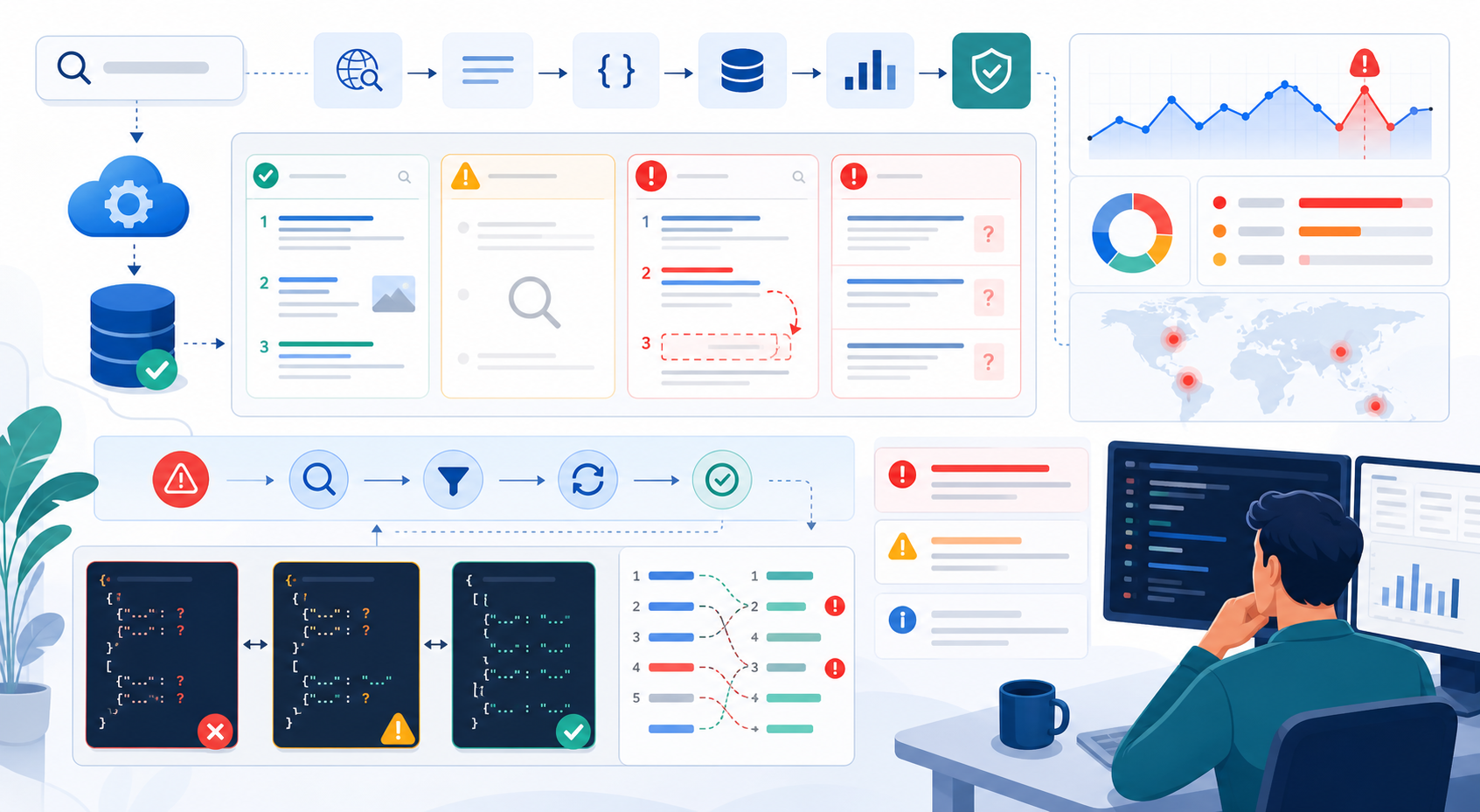
SERP API Troubleshooting: Fix Empty, Wrong, or Inconsistent Search Results
SERP API failures are not limited to obvious HTTP errors. A request can return successfully and still produce empty, incomplete, geographically wrong, duplicated, or misinterpreted search data. Production troubleshooting therefore has to separate transport problems from provider processing, SERP differences, and downstream parsing errors.
View Details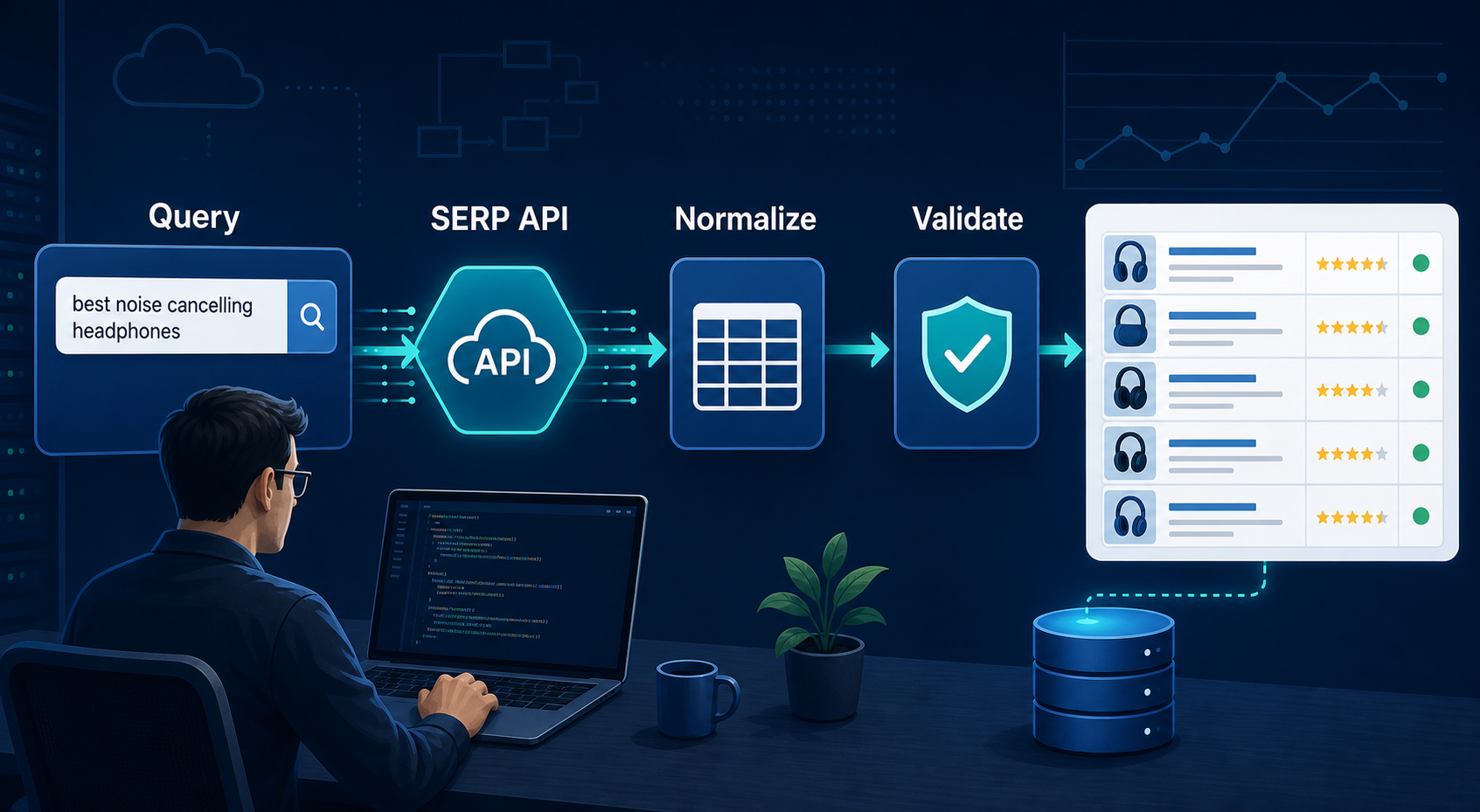
SERP API Python: How to Build a Reliable Search Data Pipeline
This guide shows a provider-neutral workflow for building that pipeline. It does not rank SERP API vendors. Instead, it focuses on the implementation choices that make a Python integration easier to operate, test, and migrate.
View Details
SERP Scraping API: How to Choose the Right Provider
Recommended Meta Description: Compare SERP scraping APIs by data coverage, localization, reliability, workflow fit, and cost structure, then choose and validate the right provider.
View Details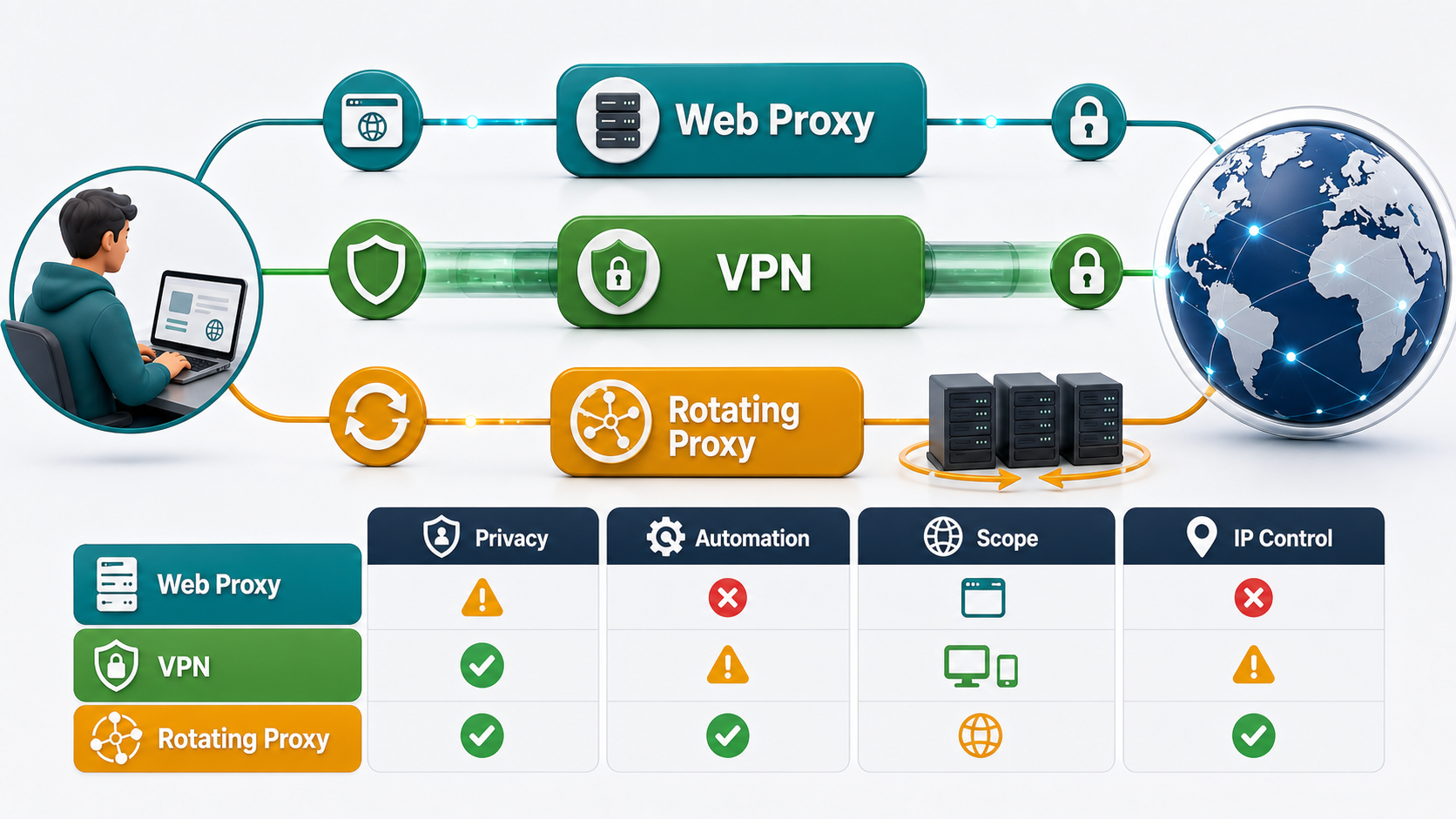
Free Web Proxy vs VPN vs Rotating Proxy: Which Should You Use?
Compare free web proxies, VPNs, rotating proxies, static proxies, and datacenter proxies by scope, encryption, IP control, automation, streaming, and account workflows.
View Details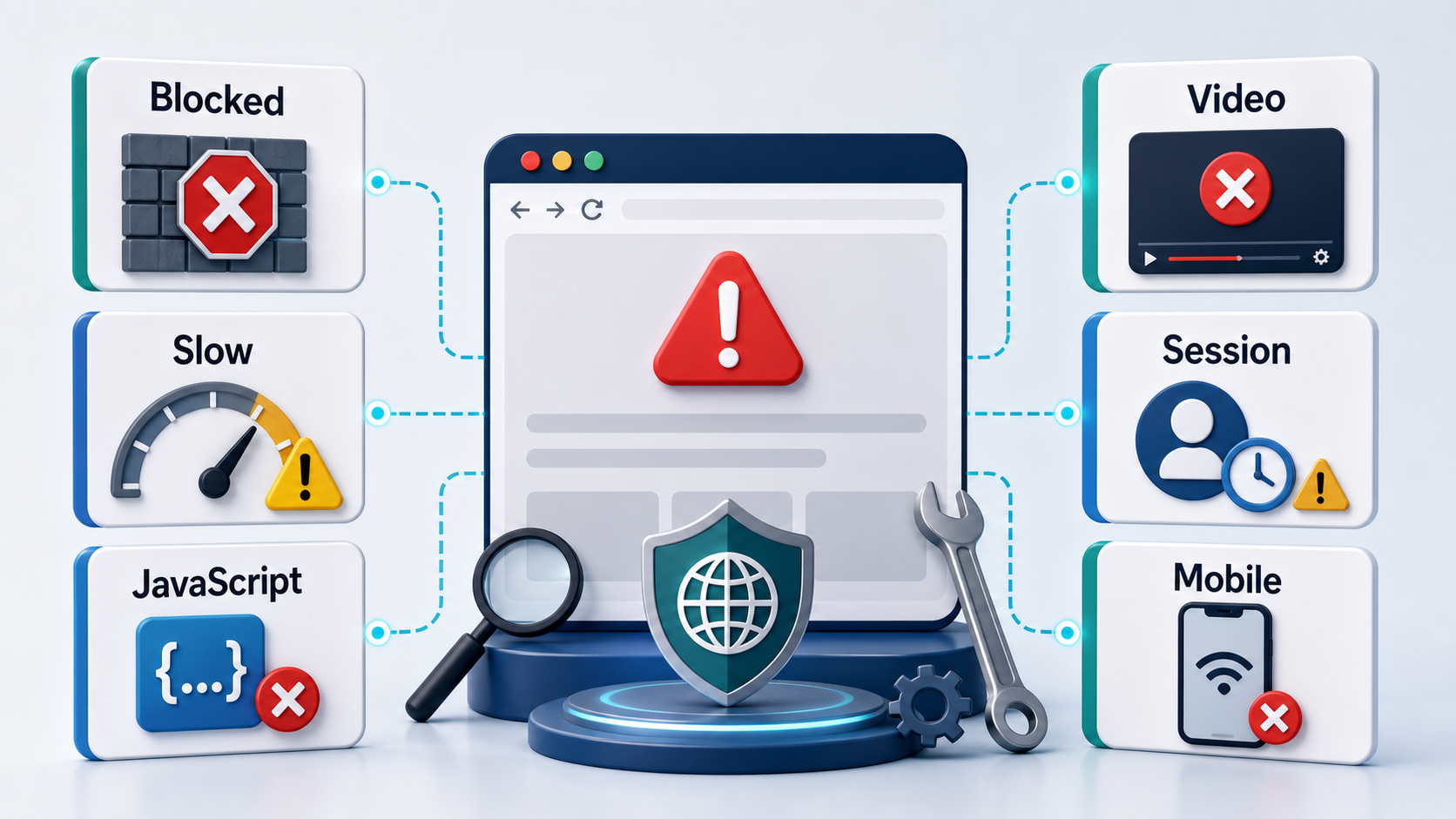
BlockAway Not Working? Fix Common Proxy, Video, and Access Problems
Troubleshoot BlockAway when pages are blocked, YouTube fails, JavaScript breaks, speed drops, sessions expire, or mobile access behaves differently.
View Details