
Browser Security Settings Most Users Never Touch
Your browser shipped with the settings that are best for the browser company, not for you.
That is not a conspiracy theory—it is a business model. Chrome wants you syncing data to Google. Firefox wants your usage metrics. Edge wants you perpetually logged into Microsoft's ecosystem. Every default setting your browser shipped with was approved by a team whose primary metrics are retention and data collection, not your personal operational security.
The result is that most technical operators, developers, and everyday users are navigating the web in a state of quiet, constant exposure. Passwords are stored in vulnerable databases, telemetry is phoned home constantly, and DNS requests are intercepted without a single warning.
You do not need to be a cybersecurity engineer to fix this. You need about fifteen minutes and the willingness to navigate settings menus you have probably never opened. Here are five concrete, high-impact changes—organized into three critical areas—that apply to virtually every major browser.
Stop Letting Your Browser Save Your Passwords
Why the Built-In Password Manager Is a Liability
Every major browser offers to save your passwords. It feels convenient, and for years, security professionals admitted it was better than reusing weak passwords. That remains technically true, but "better than the worst option" is not the same as secure.
Browser-stored passwords are a high-value target precisely because browsers have a massive attack surface. They are connected to the internet by definition, they run third-party extensions with excessive permissions, and they sync credentials across devices through cloud accounts. In recent years, the infostealer malware ecosystem (strains like RedLine and Raccoon) specifically evolved to extract browser credential stores. According to the MITRE ATT&CK framework, stealing credentials from local web browsers is a primary tactic for lateral movement and initial access.
When you store passwords in Chrome, those credentials are tied to your Google account. If your Google account is phished or breached via session hijacking, every password you have ever saved is potentially exposed. The same applies to Microsoft Edge or Firefox Sync.
What to Do Instead
Step 1 — Disable password saving in your browser.
- Chrome/Edge: Go to Settings → Autofill → Password Manager → turn off "Offer to save passwords."
- Firefox: Go to Settings → Privacy & Security → Logins and Passwords → uncheck "Ask to save logins and passwords for websites."
- Safari: Go to Settings → Passwords → turn off "AutoFill Passwords."
Step 2 — Migrate to a dedicated zero-knowledge password manager.
Options like Bitwarden, 1Password, or Dashlane are purpose-built cryptographic vaults. They use zero-knowledge, end-to-end encryption, meaning even the service provider cannot read your passwords. They also offer active breach monitoring and cross-device sync that doesn't rely on your browser's cloud account.
Shut Down the Data Pipeline Running in the Background
Browser telemetry sounds highly technical and relatively harmless. In practice, it means your browser is silently sending behavioral data back to its parent company: what features you click, how long pages take to render, what extensions you run, and often, broad information about your navigation paths. This happens quietly in the background, opted-in by default upon installation.
Beyond telemetry, most browsers now include integrated ad personalization—a system where your local browsing behavior is aggregated to target you with advertising. Google's Privacy Sandbox and Microsoft Edge's advertising ID system are actively profiling your behavior unless you manually intervene.
Changes to Make Right Now
Disable telemetry and usage data sharing:
- Chrome: Go to Settings → Privacy and Security → Sync and Google Services → turn off "Help improve Chrome's features and performance."
- Edge: Go to Settings → Privacy, Search, and Services → Optional Diagnostic Data → set to off. Also disable "Personalize your web experience."
- Firefox: Go to Settings → Privacy & Security → Firefox Data Collection and Use → uncheck all boxes.
Disable ad personalization features:
- Chrome: Go to Settings → Privacy and Security → Ad Privacy → aggressively turn off Ad Topics, Site-Suggested Ads, and Ad Measurement.
- Edge: Turn off "Allow sites to check if you have payment methods saved" and review the Advertising ID settings.
Review and prune your extensions:
Extensions execute with significant DOM permissions and represent one of the most underappreciated attack surfaces in modern browsing. If you don't actively use an extension, remove it.
Why this matters: Data that isn't collected cannot be breached, sold, or subpoenaed. Reducing your browser's telemetry footprint is one of the few privacy upgrades that carries zero downside to your user experience.
LycheeIP (Developer-First Proxy Infrastructure)
While locking down your personal browser prevents passive telemetry collection, engineering and data teams face an entirely different set of network exposure challenges when executing automated operations. LycheeIP is a developer-first proxy and data infrastructure provider built to give technical teams absolute control over their network routing, security, and global visibility.
When your team runs automated QA tests, conducts geographic compliance checks, or performs authorized public-data extraction, utilizing a standard corporate IP or a default browser exposes your infrastructure to immediate rate-limiting and IP bans. By integrating a stable proxy network directly into your headless browser environments, developers can securely route traffic through specific global regions. For data scraping pipelines requiring high throughput and persistence, datacenter proxies provide unparalleled speed and stability. Conversely, if your QA team needs to validate localized ad delivery or bypass sophisticated geo-fencing, dynamic IP routing allows your automated requests to mimic organic, residential user connections perfectly. Partnering with a professional data infrastructure provider ensures your external operations remain secure, scalable, and untethered from your primary network identity.
Encrypt the Road Your Data Travels On
The Two Encryption Gaps Most Users Don't Know Exist
You have likely noticed that most websites now show a padlock icon, indicating HTTPS—an encrypted TLS connection between your browser and the server. That is good, but there are two critical gaps where your traffic can still be intercepted.
- Gap 1: Inconsistent HTTPS Enforcement. Not every website forces HTTPS. If you visit an HTTP page on public Wi-Fi, anyone packet-sniffing on that network can read your unencrypted payloads in plain text.
- Gap 2: Plaintext DNS Lookups. Before your browser connects to a website, it must look up the site's IP address via the Domain Name System (DNS). By default, these lookups are unencrypted. Your ISP—or anyone intercepting your connection—can see every domain you request, even if the resulting page content is encrypted.
Enable HTTPS-Only Mode
This setting forces your browser to refuse HTTP connections and upgrade all requests to HTTPS. If a site lacks basic encryption, the browser halts the connection and displays a warning.
- Chrome: Go to Settings → Privacy and Security → Security → turn on "Always use secure connections."
- Firefox: Go to Settings → Privacy & Security → HTTPS-Only Mode → select "Enable HTTPS-Only Mode in all windows."
Configure DNS over HTTPS (DoH)
DNS over HTTPS (DoH), a protocol standardized by the IETF (RFC 8484), encrypts those initial domain lookups so network observers cannot build a log of the sites you visit.
- Chrome/Edge: Go to Settings → Privacy and Security → Security → turn on "Use secure DNS." Select a trusted provider like Cloudflare (1.1.1.1), which maintains a strict no-logging privacy policy.
- Firefox: Go to Settings → Privacy & Security → DNS over HTTPS. Set it to "Max Protection" to strictly enforce encrypted lookups.
Why this matters: HTTPS-only mode and DoH close the two most common interception vectors for everyday browsing without slowing down your connection. They simply ensure the road your data travels on is encrypted end-to-end.
The Five-Minute Version
If you want the condensed, actionable checklist:
- Turn off browser password saving and migrate to a zero-knowledge manager (like Bitwarden).
- Disable telemetry and diagnostic data reporting in your browser settings.
- Disable ad personalization features (Chrome Ad Privacy, Edge Advertising ID).
- Enable HTTPS-Only mode to force TLS encryption.
- Turn on DNS over HTTPS (DoH) utilizing Cloudflare's 1.1.1.1 resolver.
None of these changes require deep technical expertise. They do not cost money. They will not break your browsing experience. The only reason most users have never made them is that the default configurations worked against them from the moment the software was installed.
That is the reality worth understanding: the browser worked perfectly well without these changes—just not for you.
Frequently Asked Questions
Q: Is it really unsafe to save passwords in Chrome or Firefox?
A: It is safer than reusing passwords, but it is structurally insecure. Browser-stored passwords are tied to your OS login and cloud accounts (like Google Sync). If malware executes on your machine or your Google account is phished, all your credentials are exposed simultaneously. Dedicated managers use zero-knowledge encryption, isolating your vault from your browser and OS.
Q: Will enabling HTTPS-only mode break websites I use regularly?
A: Occasionally. If a legacy site only supports HTTP, you will see a warning page instead of it loading automatically. This is actually a feature, not a bug; it warns you that the site lacks basic encryption. You can choose to proceed manually for sites you trust.
Q: What is DNS over HTTPS and why should I care?
A: Every time you type a URL, your browser sends an unencrypted request to look up the site's IP address. Your ISP and local network admins can see these lookups, building a log of every domain you visit. DNS over HTTPS (DoH) encrypts these requests, hiding your browsing destinations from network-level observers.
Q: Which DNS over HTTPS provider should I choose?
A: Cloudflare (1.1.1.1) is widely considered the gold standard for privacy-conscious users. They have published strict policies committing to not selling DNS query data and deleting logs within 24 hours. While Google (8.8.8.8) is fast, their core business is advertising, making Cloudflare the superior choice for strict privacy.
Q: Does turning off telemetry actually affect how well the browser works?
A: No. Telemetry data is used by browser engineers to aggregate feature usage metrics; it does not power any functionality you actively interact with. Disabling it has zero effect on page load speeds, extension functionality, or rendering.
Q: Should I also use a VPN on top of these settings?
A: A VPN adds another layer of protection, particularly on public Wi-Fi, but it is not a substitute for browser hardening. A VPN encrypts traffic between your device and the VPN server, but the VPN provider can still see your DNS requests if DoH isn't enabled. These five browser settings protect you at the application level regardless of your network layer. Think of them as complementary, not interchangeable.

Recommended Articles
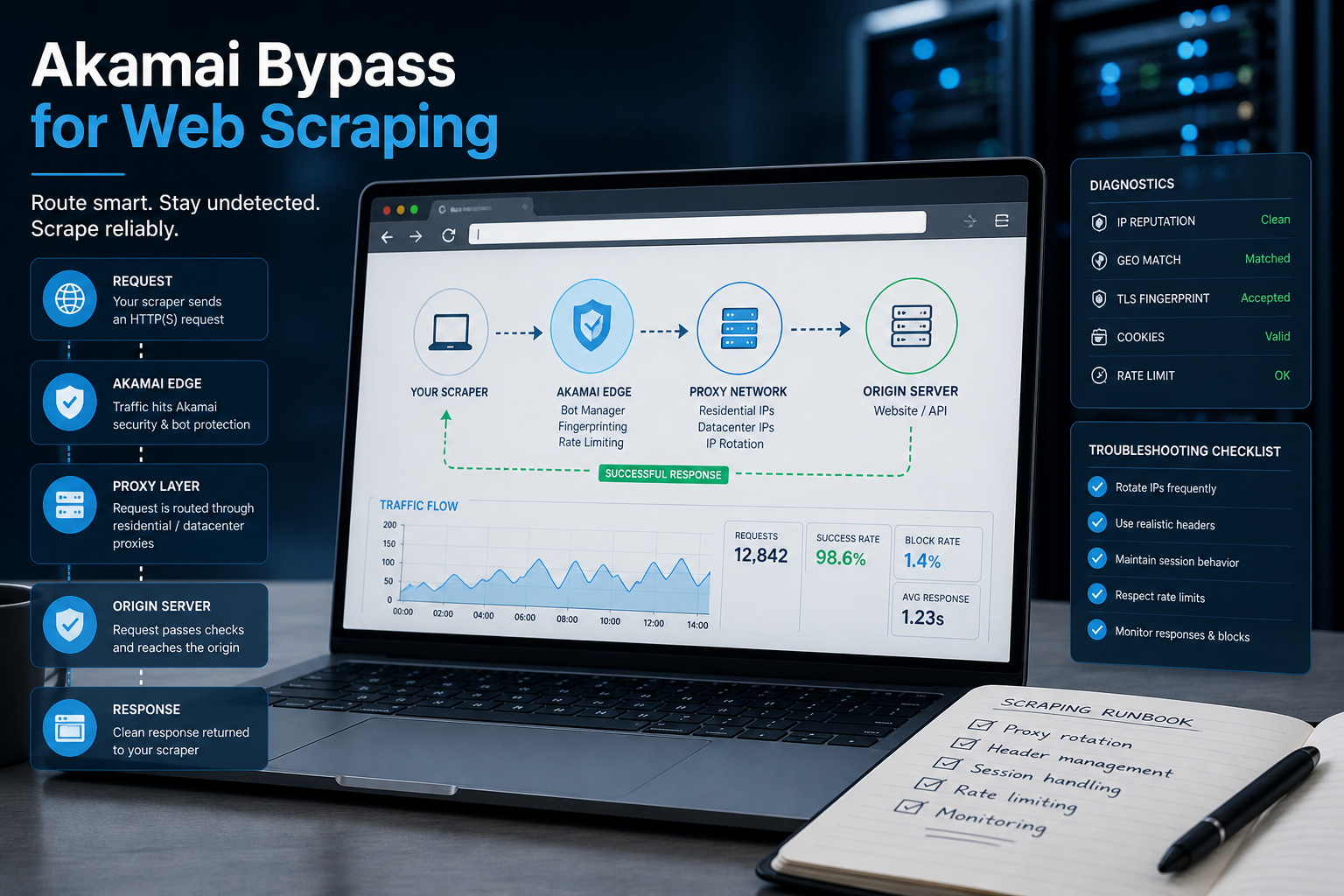
Akamai Bypass for Web Scraping
Akamai Bypass for Web Scraping
View Details
Stop Saving Passwords in Your Browser
Letting Chrome or Safari remember your passwords feels incredibly convenient, but it is a massive security risk. Discover the hidden dangers of browser autofill and exactly what you should be using instead.
View Details
Should You Pay for a Browser? The Case For and Against
Are you currently paying for your free browser with your personal data? Discover if upgrading to a paid tool like Brave Origin is the ultimate privacy hack or just a complete waste of your cash.
View Details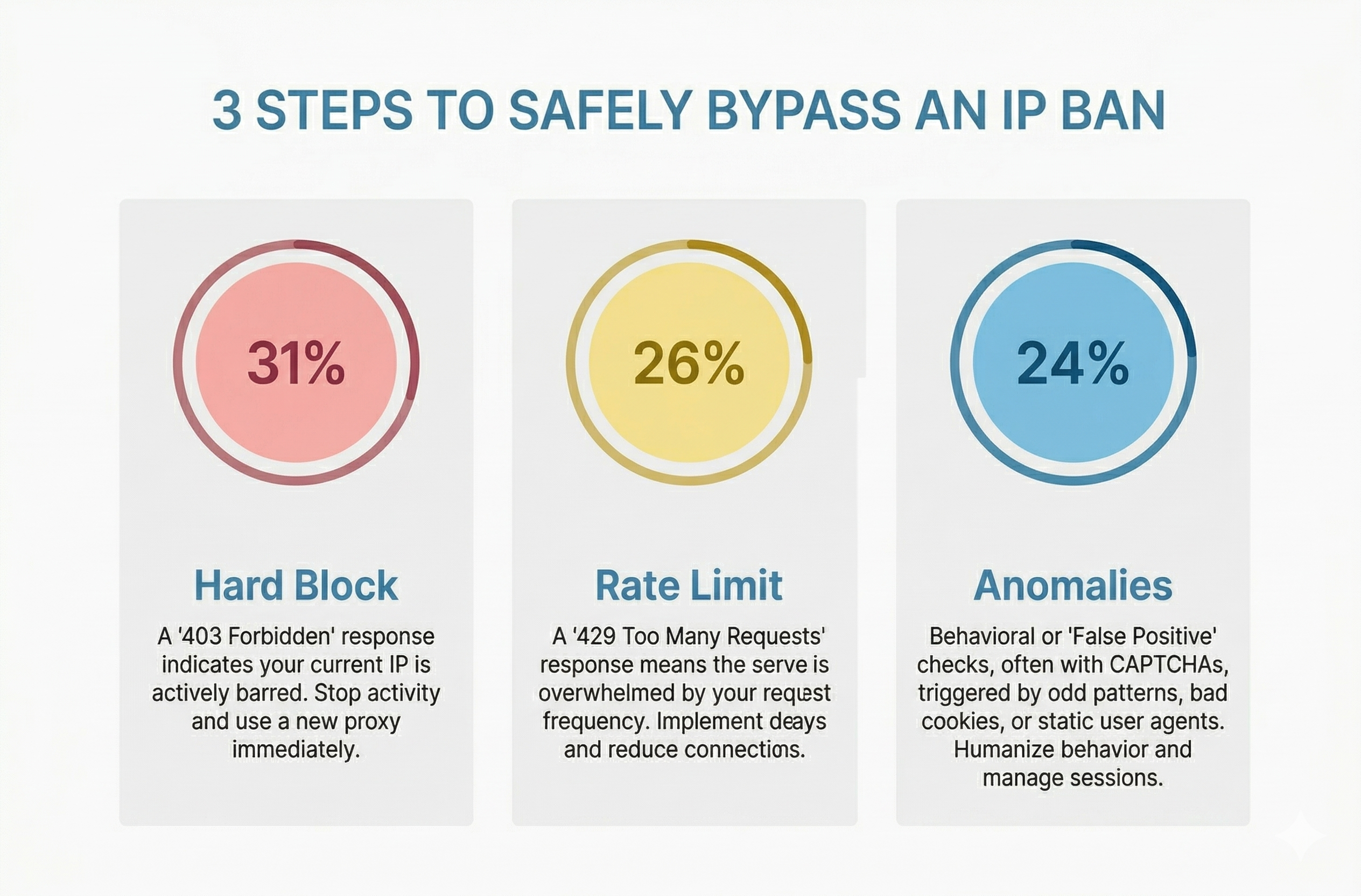
How to Bypass an IP Ban Safely by Diagnosing 403s, 429s, and False Positives
Diagnose 403s, 429s, and false positives quickly. Use this technical checklist to recover network access, reduce blocks, and scale data pipelines safely.
View Details
Open Source Security: Shannon AI Pen Testing Walkthrough
Does autonomous pentesting really work? Follow along as we point this open source AI at a vulnerable app to see if it can find, exploit, and validate real security flaws completely on its own.
View Details