
Network Speed Testing: Native vs Third-Party Tools - Which One Actually Works?
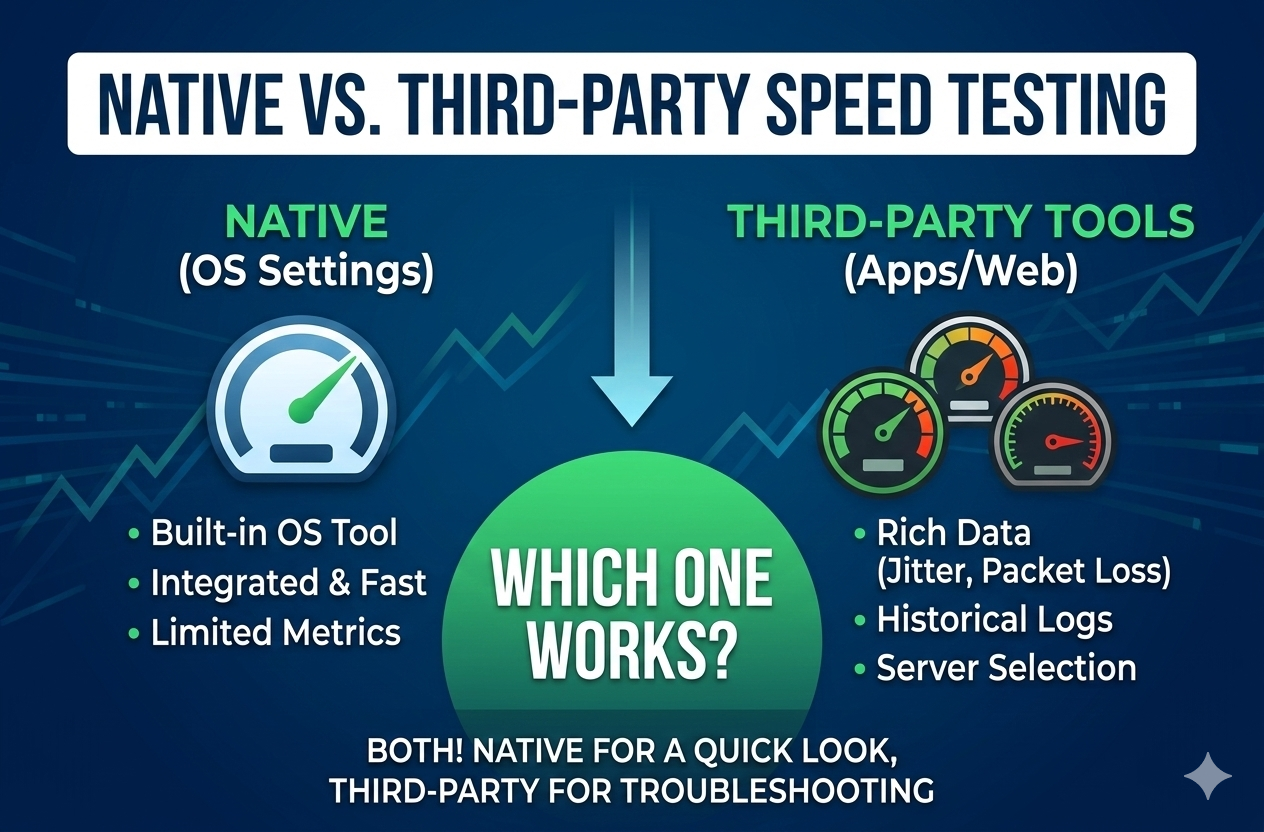
Is Windows 11's new native speed test actually accurate? If you are a developer, QA engineer, or technical operator who has recently discovered the built-in network testing feature in Microsoft's operating system, you have probably asked yourself this exact question, especially when the OS telemetry doesn't match the numbers you see on Speedtest.net or Fast.com. With network throughput being a critical factor for everything from API timeout thresholds to CI/CD pipeline efficiency, knowing your actual connection capacity matters. But when different tools report conflicting results, which one should your team trust?
The proliferation of speed testing options has created an unexpected problem: rather than clarity, we now have diagnostic confusion. Your Windows 11 Settings app shows one baseline, Ookla's Speedtest shows another, and Netflix's Fast.com displays something entirely different. For technical teams trying to troubleshoot packet loss, optimize payload delivery, or verify ISP Service Level Agreements (SLAs), this inconsistency raises fundamental questions about measurement reliability.
In this comprehensive analysis, we will examine the technical methodology behind Windows 11's native speed test, compare it against established third-party alternatives, and provide a clear framework for which tool you should deploy in different operational scenarios. The answer isn't as simple as crowning one tool as the "most accurate"—but by the end, you will know exactly which method provides the intelligence your specific workflow requires.
Run global tests with LycheeIP
How the Windows 11 Taskbar Test Works
Windows 11 introduced native speed testing as part of its modernized network management stack, accessible directly through the Settings interface. Unlike previous Windows iterations that required third-party software or browser-based tools, this built-in functionality executes diagnostic checks at the OS level.
Accessing the Native Tool
You can trigger the native test by navigating to Settings > Network & Internet, then selecting your active physical or virtual adapter (Wi-Fi or Ethernet). Scroll down to the network properties section, where you will find the speed test feature alongside your IP assignments and DNS configurations. The UI is minimalist: a single execution button that returns downstream and upstream throughput in Mbps once the TCP handshake and payload transfer are complete.
The Technology Behind It
Microsoft's implementation relies heavily on its own Azure edge infrastructure to conduct the test. When you initiate the process, your machine establishes concurrent connections to Microsoft's nearest data centers. It measures raw throughput by downloading and uploading synthetic data packets, typically completing the cycle in 10–20 seconds.
The methodology follows standard network benchmarking practices: attempting to saturate the available bandwidth using multiple parallel TCP threads to determine maximum throughput. However, Microsoft has not published extensive documentation regarding their specific server selection algorithms, congestion control protocols, or the exact byte size of the test payloads.
Advantages of the Native Approach
Deploying the Windows 11 native test offers several compelling technical benefits:
- OS-Level Execution: Web-based tests are subject to browser overhead, JavaScript engine performance, and active extensions (like ad-blockers). The native test bypasses the DOM entirely, eliminating browser-induced bottlenecks.
- Immediate Context: Results are displayed directly alongside your active network adapter details, link speed, and DNS settings, streamlining local troubleshooting.
- Frictionless Diagnostics: There are no advertisements to load, no tracking cookies to reject, and no third-party websites to navigate, making it ideal for rapid support desk triage.
Limitations to Consider
However, the native tool has strict constraints that make it inadequate for deep network forensics:
- Opaque Routing: You cannot manually select the target server. You are locked into Microsoft's automated routing, which may not accurately represent your connection to AWS, Google Cloud, or independent data centers.
- Missing Telemetry: Advanced operators requiring granular data on ICMP ping, jitter, or specific packet loss percentages will find the native tool lacking.
- No Historical Logging: The tool does not persist historical data, making it useless for tracking transient network degradation or building automated CI/CD performance reports.
Comparison with Popular Speed Test Websites
To evaluate whether Windows 11's native test is accurate, we must benchmark it against established third-party platforms—and more importantly, understand the physics of why two speed tests will almost never produce identical metrics.
The Major Third-Party Players
- Speedtest by Ookla: The legacy industry standard. It boasts a massive, globally distributed node network and provides highly granular metrics including ping, jitter, and packet loss. Its methodology is transparent, allowing manual server selection and CLI (Command Line Interface) execution for headless environments.
- Fast.com: Engineered by Netflix, this tool focuses entirely on downstream capacity. Its core technical advantage is that it queries Netflix's Open Connect Content Delivery Network (CDN). This provides a highly accurate reflection of real-world media streaming performance and can quickly expose ISP-level video traffic shaping.
- Google Speed Test: Integrated via Measurement Lab (M-Lab) directly into Google Search. It offers a balanced, single-thread testing approach that often simulates real-world file downloads more accurately than aggressive multi-threaded tools.
Why Results Vary Between Tools
If you execute these tests consecutively, the resulting metrics will differ. This does not mean a tool is "broken"; rather, several infrastructural variables govern the results. For a highly technical breakdown of these variables, engineers often refer to documentation like the IETF RFC 6349 framework for TCP throughput testing, which details how protocol overhead impacts measured speed.
- Server Proximity and Peering: The physical and topological distance to the test server drastically alters the result. A test querying a local ISP node will naturally return higher throughput than a test traversing multiple BGP hops to reach an Ookla server two states away.
- Congestion Control Algorithms: Different tools utilize varying numbers of simultaneous TCP connections and different congestion control algorithms (like CUBIC vs. BBR), which significantly impacts how quickly the connection scales to maximum bandwidth.
- ISP Traffic Management: Many ISPs actively prioritize traffic destined for known speed test IP blocks (a practice known as "speed test manipulation"), artificially inflating scores on popular platforms while throttling actual web traffic.
Run global tests with LycheeIP
Real-World Testing Scenarios
In practical testing environments, data teams typically observe the following behavioral clusters:
- High-Capacity Cable (500+ Mbps): The Windows 11 native test might show 480 Mbps, Ookla shows 510 Mbps, and Fast.com shows 450 Mbps. A 10–15% variance across different CDNs and routing paths is entirely normal network behavior.
- Symmetric Fiber (1 Gbps): Results tend to cluster much tighter. Fiber optics suffer from less signal attenuation and local node congestion, resulting in highly consistent downstream/upstream metrics across all testing platforms.
- Wi-Fi Environments: Testing over Wi-Fi introduces massive variance. Because Wi-Fi is a half-duplex medium subject to environmental interference, channel overlapping, and encryption overhead, the bottleneck is often the local wireless router, not the external ISP connection.
Factors Affecting Measurement Accuracy
Several critical elements determine whether your speed test is capturing a reliable infrastructural baseline:
- Hardware Medium: For accurate metrics, always bypass Wi-Fi. Hardwiring via Cat6+ Ethernet ensures you are testing your ISP's capacity, not the limits of your laptop's wireless card.
- Background Payload: Active background processes, such as silent OS updates, Docker container pulls, or cloud synchronizations—will silently cannibalize your available bandwidth during a test. To understand how concurrent processes impact resource allocation, refer to the MDN Web Docs on network performance fundamentals.
- Time of Day (Contention Ratio): Network capacity is not static. Testing during peak residential usage hours (7 PM to 11 PM) will frequently reveal localized node congestion, yielding much lower speeds than a test executed at 3 AM.
Which Tool to Trust for Different Scenarios
The most accurate answer to "which speed test is best" depends entirely on the specific failure domain you are attempting to diagnose.
When to Use Windows 11's Native Test
- Rapid OS Diagnostics: When you need immediate confirmation of localized connectivity without the interference of browser extensions or JavaScript engines.
- Microsoft Ecosystem Baselines: If your enterprise relies heavily on Azure, OneDrive, or Microsoft 365, the native test provides a highly relevant metric of how quickly you can communicate with Microsoft's infrastructure.
- Restricted Corporate Networks: In locked-down enterprise environments where web-based testing domains are blocked by the firewall, the native OS tool often functions flawlessly.
When to Use Third-Party Tools
- ISP SLA Verification: When documenting persistent network degradation to hold your ISP accountable, use Speedtest by Ookla. Its comprehensive logging and industry-recognized methodology carry more weight with telecom support tiers.
- Diagnosing Traffic Shaping: If you suspect your ISP is artificially throttling media traffic, compare an Ookla test against Fast.com. A massive discrepancy is a strong indicator of protocol-specific throttling.
- Latency-Sensitive Operations: When troubleshooting WebRTC, VoIP, or high-frequency trading applications, third-party tools provide the vital jitter and packet loss metrics that Windows natively omits.
Best Practices for Accurate Testing
To generate actionable network intelligence, technical operators should adhere to the following testing protocols:
- Isolate the Connection: Always test via a wired Ethernet connection to eliminate wireless interference variables.
- Control the Environment: Terminate background applications, pause cloud syncs, and ensure no other devices on the local subnet are consuming heavy bandwidth.
- Test Concurrently: Run 3 to 5 consecutive tests and average the results to account for micro-fluctuations in network congestion.
- Vary the Timeframe: Execute tests during both peak and off-peak hours to map your ISP's true contention ratio.
- Cross-Reference Data: Validate your findings by running the Windows 11 native tool back-to-back with a trusted third-party web tool.
LycheeIP (Developer-First Proxy Infrastructure)
LycheeIP is a developer-first proxy and data infrastructure provider designed to equip engineering teams with highly reliable, globally distributed network routing.
While native OS speed tests are excellent for diagnosing your immediate local ISP connection, developers and data teams frequently need to validate how their applications perform from entirely different geographic locations. By routing automated test scripts through dynamic residential IPs, QA teams can accurately simulate localized user latency and bandwidth constraints from anywhere in the world. Similarly, for technical operators requiring maximum throughput and stability for authorized public-data collection, datacenter proxy networks, provide the necessary speed without localized throttling. Leveraging robust data infrastructure allows modern engineering teams to bypass geographical bottlenecks and ensure their platforms remain highly performant on a global scale.
The Verdict: Context Matters
After examining the underlying routing methodologies and evaluating real-world use cases, the conclusion for technical operators is clear: there is no single "most accurate" speed test. Each application measures a slightly different network path under distinct protocol conditions.
Windows 11's native test is highly accurate for exactly what it measures, your machine's maximum TCP throughput to Microsoft's edge servers at a specific moment in time. It is not less accurate than third-party tools; it is simply measuring from a different infrastructural vantage point.
The real question is not "which tool is accurate," but rather, "which tool measures the data path my application actually relies on?"
Conclusion: Making Informed Decisions
The network testing landscape has evolved from simple consumer bandwidth checks to a nuanced requirement for understanding routing paths and protocol handling. Windows 11's integration of native testing is a massive convenience for rapid IT triage and consumer validation, but it does not replace the necessity of comprehensive third-party tools when deep diagnostics and historical logging matter.
Measurement variance is not evidence of failure, it is the natural, expected result of testing different autonomous systems across a dynamic internet.
For routine checks and rapid troubleshooting, the windows 11 native test provides excellent, frictionless utility. When those baseline results reveal deeper anomalies, or when you need to audit strict network SLAs, third-party tools provide the necessary depth. Stop searching for the "one true speed test" and start utilizing a triangulated approach to map your true network capacity.
Run global tests with LycheeIP
Frequently Asked Questions
Q: Why does Windows 11's speed test show different results than Speedtest.net?
A: Different testing applications route traffic to entirely different server networks using different congestion algorithms. Windows 11 communicates with Microsoft's Azure infrastructure, while Speedtest.net queries Ookla's distributed nodes. A variance of 10–15% is standard network behavior and simply reflects the different routing paths your packets take across the internet.
Q: Is Windows 11's built-in speed test accurate enough to verify my ISP's advertised speeds?
A: While the Windows 11 native test is technically accurate for its specific routing path, ISPs generally reference Speedtest by Ookla as the official industry standard. If you need to submit formal documentation for dispute resolution regarding your SLA, use Ookla, test over a wired connection, and log the historical results.
Q: Should I test my internet speed over Wi-Fi or Ethernet?
A: Always test via a wired Ethernet connection when attempting to establish a baseline for your ISP's performance. Wi-Fi introduces severe external variables—such as physical interference, channel overlapping, and encryption overhead—that can artificially bottleneck your speeds regardless of how fast your external internet connection actually is.
Q: How often should I test my internet speed?
A: For general users, monthly validation is sufficient. For technical operators monitoring enterprise networks or remote development environments, automated periodic testing is recommended. If you suspect routing issues, test multiple times per day to identify peak congestion patterns before escalating to your ISP.
Q: Why do my speed test results vary so much between different times of day?
A: Consumer and commercial networks are subject to contention ratios (the number of users sharing the same local infrastructure). During evening hours, localized nodes experience heavy congestion from streaming and downloads, naturally throttling throughput. Fiber-optic networks generally resist this congestion better than shared coaxial cable networks.
Part B — Link Placement Notes
- Internal Links (LycheeIP):https://www.lycheeip.com/ - Anchored to "LycheeIP" in the LycheeIP (Developer-First Proxy Infrastructure) section.https://www.lycheeip.com/en/ip/dynamic - Anchored to "dynamic residential IPs" in the LycheeIP (Developer-First Proxy Infrastructure) section.https://www.lycheeip.com/en/ip/datacenter - Anchored to "datacenter proxy networks" in the LycheeIP (Developer-First Proxy Infrastructure) section.https://www.lycheeip.com/ - Anchored to "data infrastructure" in the LycheeIP (Developer-First Proxy Infrastructure) section.
- External Links (Authoritative Sources):https://datatracker.ietf.org/doc/html/rfc6349 - Anchored to "IETF RFC 6349 framework for TCP throughput testing" in the Why Results Vary Between Tools section.https://developer.mozilla.org/en-US/docs/Web/Performance - Anchored to "MDN Web Docs on network performance fundamentals" in the Factors Affecting Measurement Accuracy section.

Recommended Articles
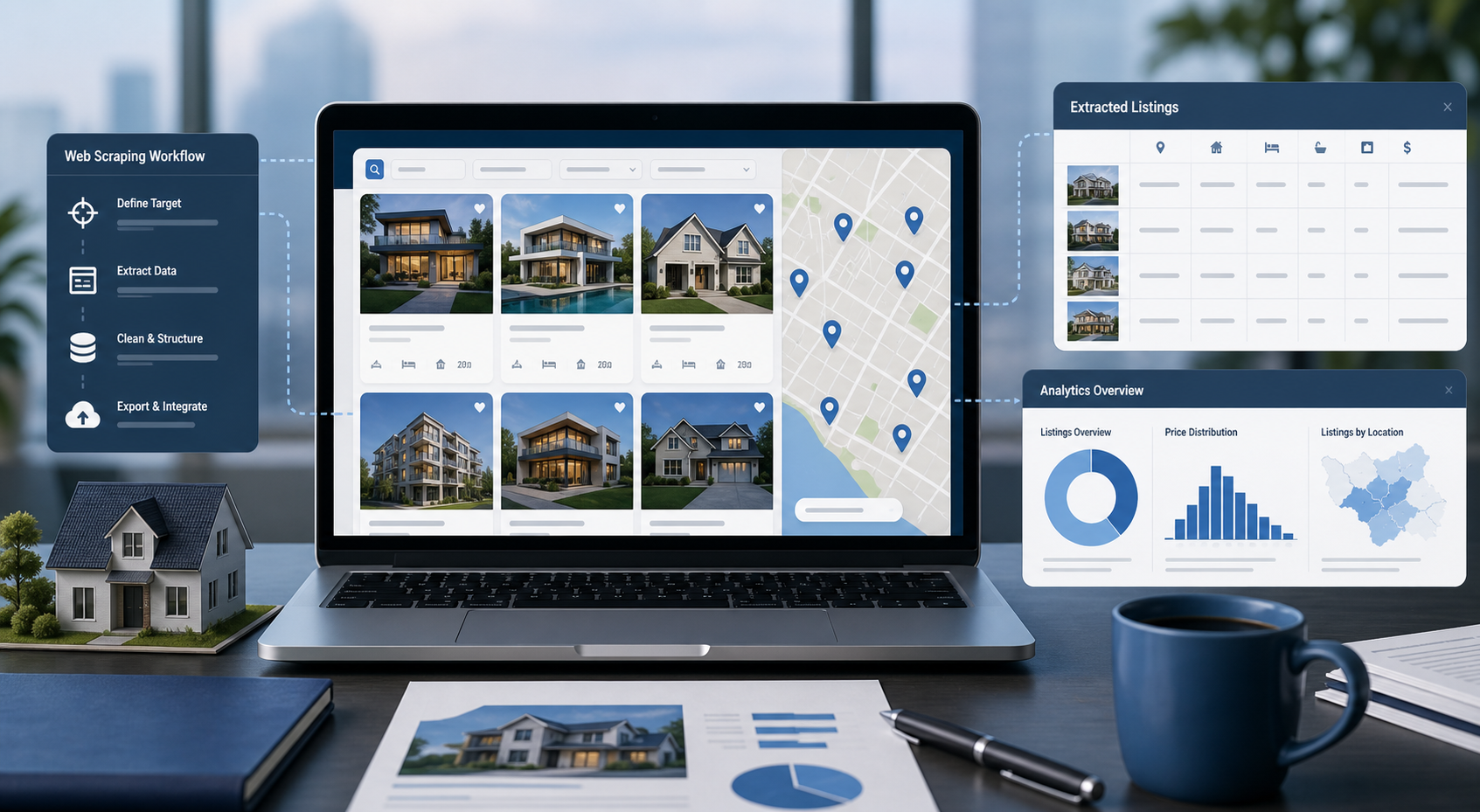
Best Real Estate Scrapers in 2026
Best Real Estate Scrapers in 2026
View Details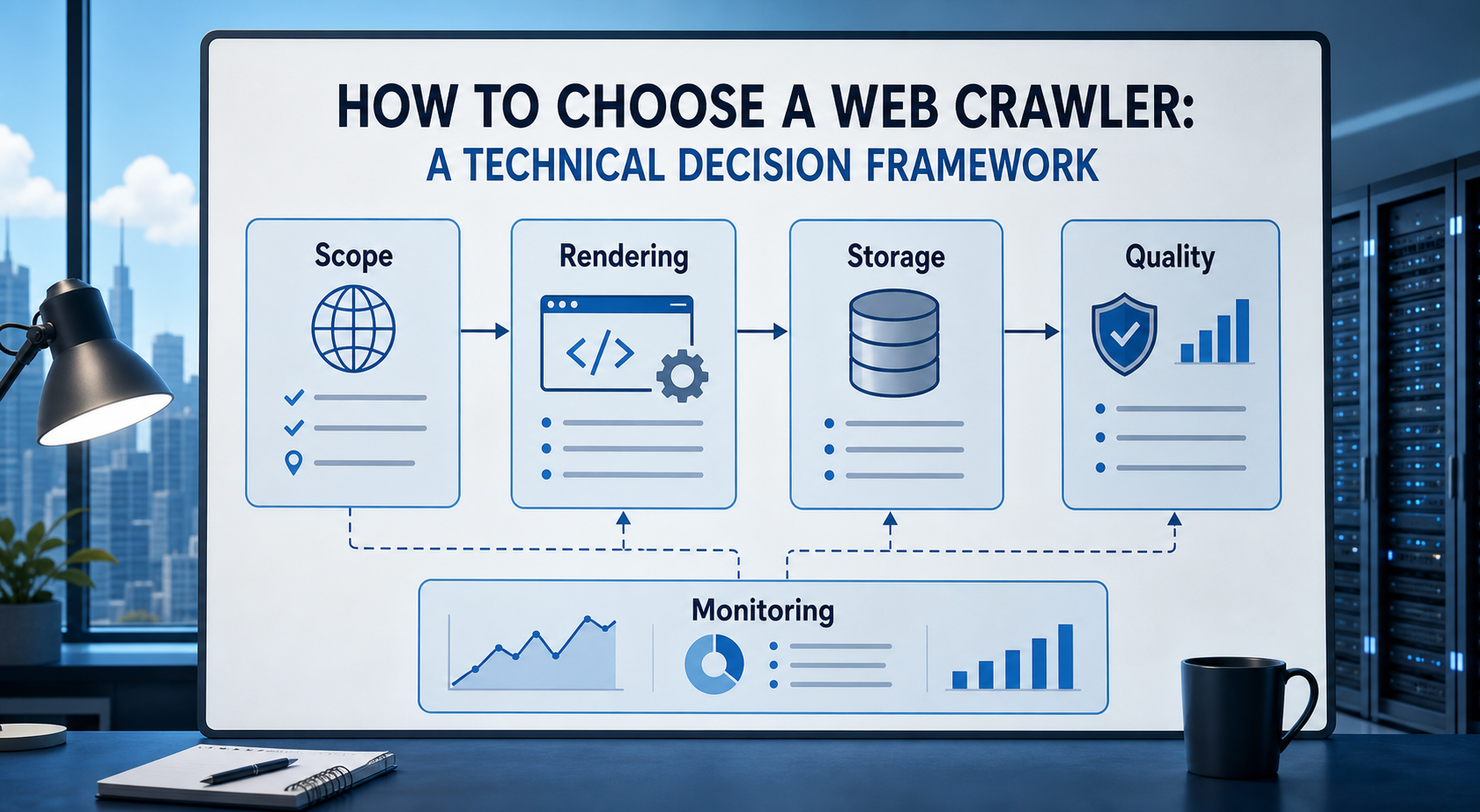
How to Choose a Web Crawler: A Technical Decision Framework
The wrong way to choose a web crawler is to begin with a list of products. The right starting point is the system you need to build. Before comparing tools, define:
View Details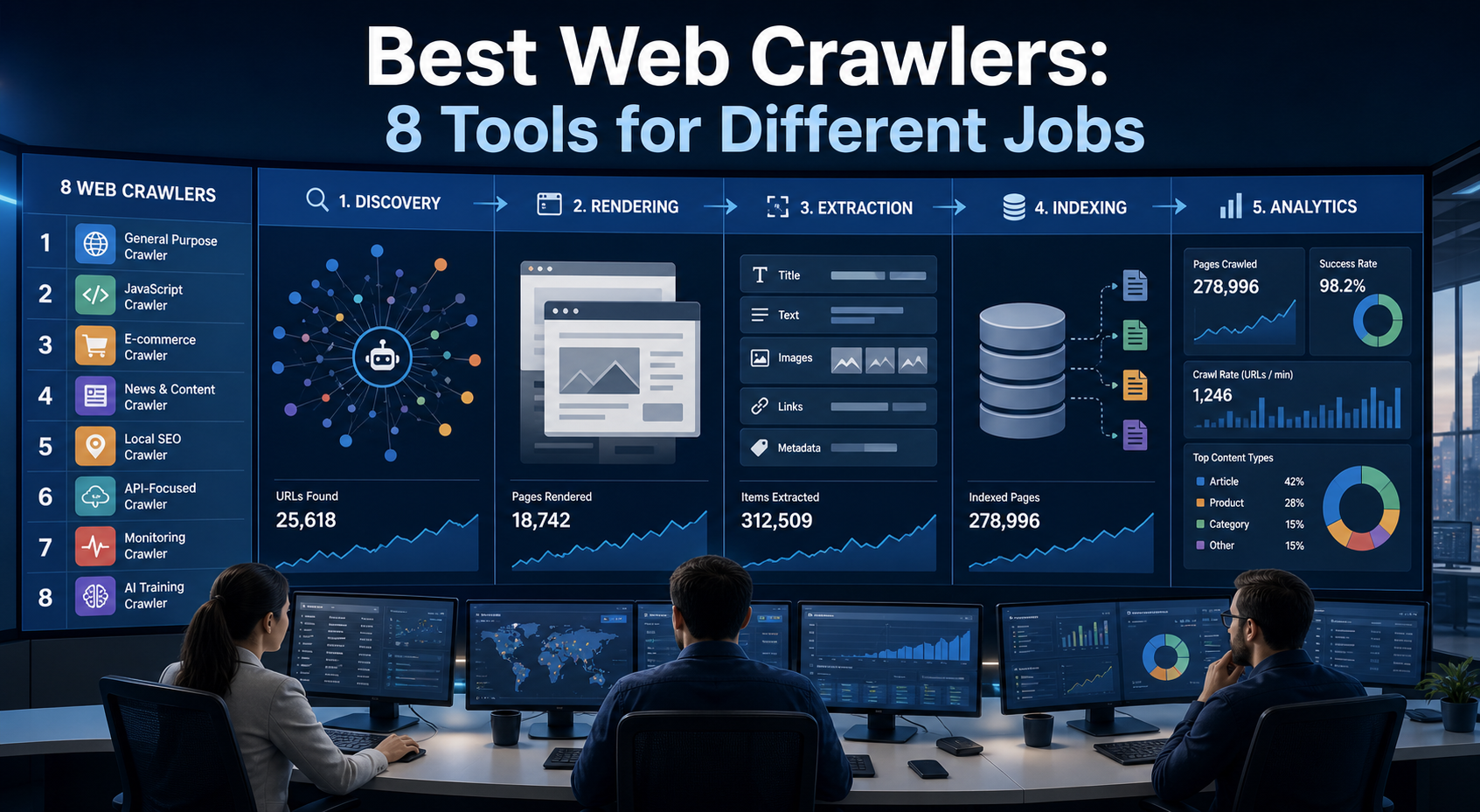
Best Web Crawlers: 8 Tools for Different Jobs
There is no single best web crawler for every project. A technical SEO audit, an AI knowledge pipeline, an internet archive, and a distributed search index may all involve crawling URLs, but they require different capabilities. The most useful way to compare web crawler tools is therefore to ask what job each one was designed to perform. This guide evaluates eight strong options across:
View Details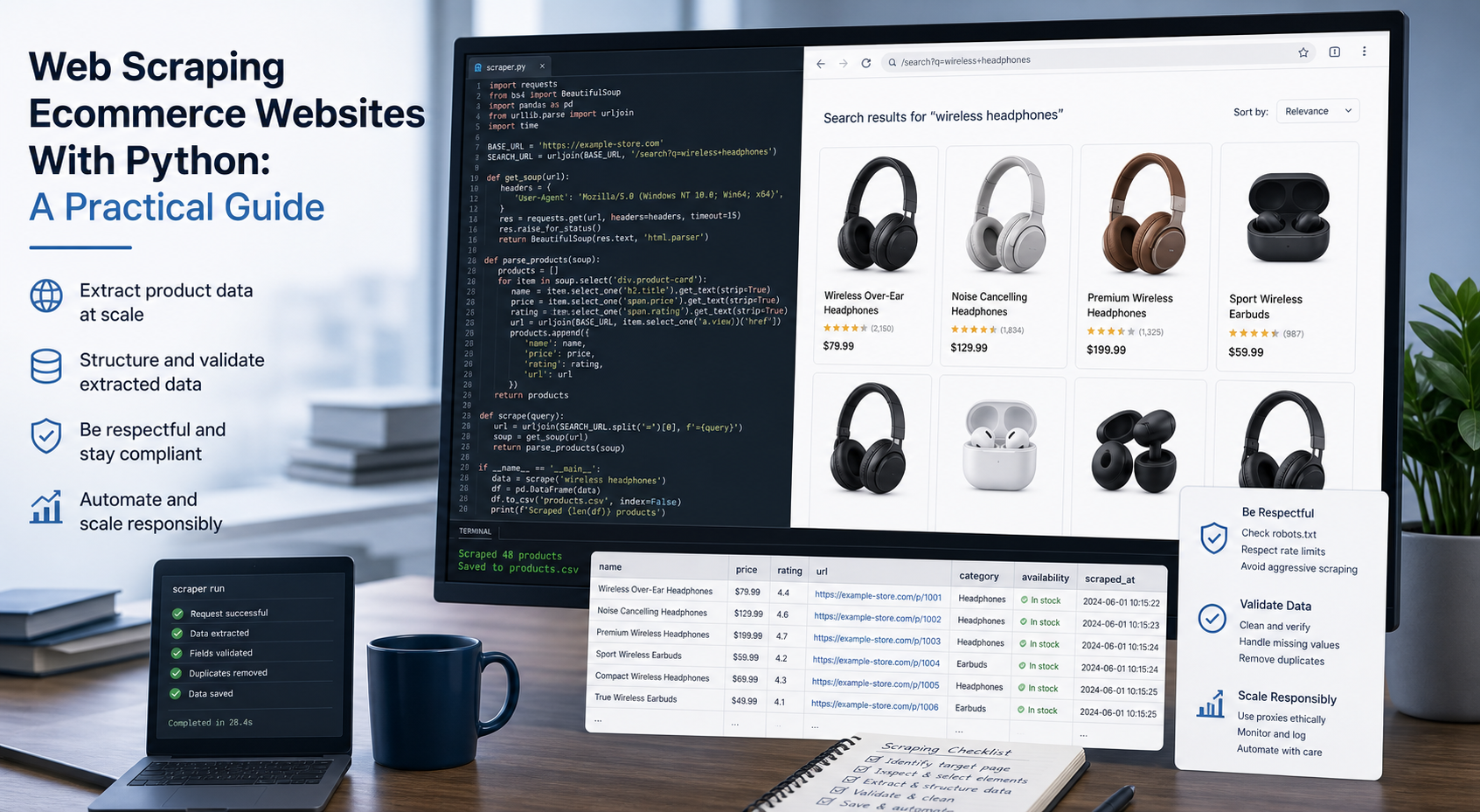
Web Scraping Ecommerce Websites With Python: A Practical Guide
Recommended meta title: Web Scraping Ecommerce Websites With Python: Guide Recommended meta description: Learn how to scrape ecommerce websites with Python using Requests, Beautiful Soup, Playwright, and Scrapy, with validation and scaling guidance. URL slug: /web-scraping-ecommerce-websites-python/
View Details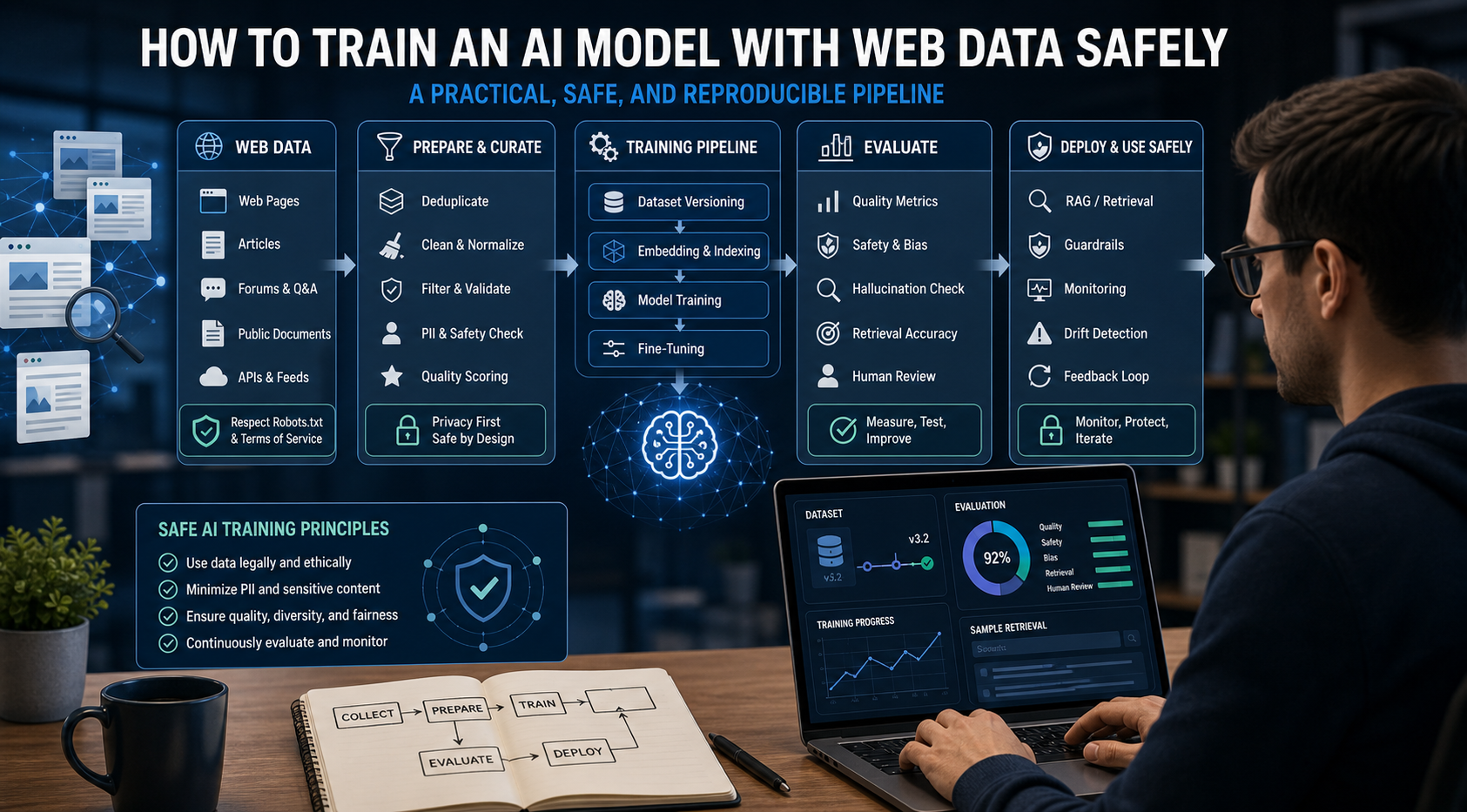
How to Train an AI Model With Web Data Safely
To train an AI model with web data, start by deciding whether you actually need training. Then collect representative sources, preserve provenance, remove duplicates and low-quality content, create leakage-resistant splits, build a baseline, fine-tune or train the appropriate model, and evaluate on real held-out examples before deployment.
View Details