
Network Speed Testing: Native vs Third-Party Tools
Network Speed Testing: Native vs Third-Party Tools
Is Windows 11's built-in network speed test actually accurate? This question has surfaced frequently among developers, system administrators, and technical operators since Microsoft quietly integrated a native network diagnostic feature directly into the OS interface. For years, the tech community has relied on third-party web tools like Speedtest.net, Fast.com, and Google's integrated test to measure throughput and latency. Now that Windows provides a native, OS-level solution, engineering and IT teams are evaluating which method offers the most reliable data for infrastructure monitoring and troubleshooting.
The stakes go beyond simple consumer metrics like video streaming. For data teams and developers, accurate network intelligence dictates everything from API timeout configurations and CI/CD pipeline efficiency to bulk data extraction limits and server-side connection health. Making infrastructural decisions requires unassailable data. But when different measurement protocols yield different throughput numbers, establishing a single source of truth becomes complex.
This guide breaks down the mechanics of Windows 11's native speed test, compares its network methodology against established third-party applications, and provides a framework for which tool technical teams should deploy in various scenarios.
Test globally with LycheeIP
ACT 1: How the Windows 11 Taskbar Test Works
x
The Windows 11 network speed test isn't front-and-center, but it is easily accessible for rapid diagnostics. By navigating to Settings > Network & Internet, users can view their active network connection (Wi-Fi or Ethernet). Selecting the active connection and scrolling down reveals localized network statistics, including a native "Test" button adjacent to the "Network speed" metric.
Initiating this test prompts Windows to measure downstream and upstream throughput in megabits per second (Mbps). The UI is strictly utilitarian, eschewing graphical dials and server maps for a rapid, binary readout. Within seconds, the OS returns an upload and download value. It does not currently expose granular metrics like ICMP ping, jitter, or packet loss in this specific UI.
The Technical Methodology
Under the hood, Windows 11 bypasses the browser entirely. The native tool relies on the Windows Network Diagnostics Framework, routing test packets directly to Microsoft's own edge infrastructure. This means it evaluates your connection specifically against Microsoft's Content Delivery Network (CDN) and enterprise routing paths.
By executing at the OS layer, this test removes the overhead of the browser environment. Web-based tests must contend with the browser's JavaScript engine, active extensions, and rendering stack—factors that can artificially throttle results on lower-end machines. For technical standards on how application layers impact perceived and actual network capacity, engineering teams often refer to documentation like the IETF RFC 9097 on IP capacity metrics, which outlines the complexities of standardized throughput measurement.
Advantages of the Native Approach
Deploying the OS-level test provides several distinct advantages for technical workflows:
- Browser Isolation: Operating outside the browser guarantees that DOM bloat, aggressive ad-blockers, or JavaScript execution bottlenecks do not taint the throughput readings.
- Rapid Execution: For helpdesk operators or system admins, acquiring a baseline requires only two clicks within the native UI, streamlining remote troubleshooting.
- Ecosystem Relevance: Because the test pings Microsoft infrastructure, it is highly indicative of how native enterprise applications (like OneDrive syncs, Azure CLI operations, or Microsoft 365 environments) will perform.
- Operational Privacy: Diagnostic data remains within the OS and Microsoft environment, avoiding the telemetry collection standard in ad-supported third-party web tools.
Limitations to Consider
Despite its efficiency, the native tool lacks the granularity required for deep network forensics:
- Static Routing: Testers cannot manually select target servers. The tool defaults to Microsoft's routing logic, which may not reflect connection paths to AWS, Google Cloud, or independent data centers.
- Absent Telemetry: The lack of latency (ping) and jitter metrics makes it inadequate for diagnosing real-time communication protocols (like WebRTC or VoIP) where stability matters more than raw bandwidth.
- No Auditable History: The UI does not log historical data, forcing admins to manually record baselines if they are tracking transient network degradation.
Test globally with LycheeIP
ACT 2: Comparison with Popular Speed Test Websites
To contextually evaluate the Windows 11 implementation, we must benchmark it against the dominant third-party measurement platforms. Ookla, Netflix, and Google each engineer their testing environments differently, prioritizing specific traffic types and routing protocols.
Ookla Speedtest.net: The Industry Standard
Ookla’s platform remains the legacy benchmark for ISP verification. It executes a comprehensive suite of tests measuring payload download, upload, ping, and jitter. Ookla's primary technical advantage is its massive global network of thousands of independent testing nodes.
By default, it automatically handshakes with the server featuring the lowest latency, but engineers can manually force connections to specific geographic nodes to test transcontinental routing. Furthermore, Ookla provides detailed IP and ISP identification, exportable CSV histories, and command-line interface (CLI) tools specifically designed for headless server environments.
Fast.com: Netflix's Streamlined Solution
Developed by Netflix, Fast.com operates with a singular focus: evaluating downstream capacity over video-optimized routes. The test initializes immediately upon DOM load, executing simultaneous TCP connections to Netflix's Open Connect CDN servers.
Because ISPs frequently use traffic shaping to throttle video streaming independently of general web traffic, Fast.com is an invaluable tool for detecting protocol-specific throttling. If Ookla shows 500 Mbps but Fast.com caps at 25 Mbps, it is a clear indicator of provider-level video bandwidth restriction.
Google Speed Test: The Quick Check
Integrated directly into Google's search engine results page (SERP), this tool is powered by Measurement Lab (M-Lab). It strikes a balance between Ookla's depth and Fast.com's simplicity.
Operating on a single-thread test model (unlike Ookla's frequent multi-threading), Google’s test often provides a more realistic simulation of a single file download. However, it lacks manual server selection and advanced export functions.
Side-by-Side Testing Results
When executing these tools sequentially in controlled environments, discrepancies are expected and mathematically normal:
- Downstream Variance: It is common to see a 5–15% delta across platforms. Windows 11 frequently aligns with this margin, though it may read slightly lower than heavily multi-threaded browser tests.
- Upstream Consistency: Upload metrics tend to experience less variance, frequently remaining within a 5–10% margin of error across all platforms.
- The "Why": These deltas occur because each platform utilizes different TCP congestion control algorithms, tests against distinct autonomous systems (ASNs), and runs payload transfers for varying durations.
Factors Affecting All Speed Tests
Regardless of the underlying protocol, systemic variables govern all network testing:
- Node Proximity: Physics dictates that latency increases with physical distance. Testing against a local ISP node will inherently yield higher throughput than querying a server across the country.
- Browser Resource Allocation: When using web-based tools, CPU spikes or background tab activity can interrupt the testing thread. To understand how web environments handle resource constraints during data fetching, developers should review the MDN Web Docs on Web Performance.
- Hardware Medium: Wi-Fi introduces half-duplex limitations, channel interference, and encryption overhead. Accurate infrastructural baselines must be captured via Cat6+ Ethernet connections.
Test globally with LycheeIP
ACT 3: Which Tool to Trust for Different Scenarios
In technical operations, there is no single "correct" tool. Engineers must match the diagnostic instrument to the specific failure domain they are investigating.
When to Use Windows 11's Native Speed Test
- OS-Level Diagnostics: When isolating whether a bottleneck exists in the browser or the local machine's network interface card (NIC).
- Microsoft Cloud Workflows: When validating throughput for Azure deployments, massive SharePoint migrations, or heavy OneDrive synchronizations.
- Rapid Support Triage: When IT support requires a quick, ad-free verification of a remote employee's basic connectivity.
When to Use Speedtest.net
- SLA Verification: When documenting ISP performance to enforce Service Level Agreements (SLAs).
- Latency-Sensitive Applications: When diagnosing high-jitter environments impacting WebSockets, financial trading APIs, or VoIP infrastructure.
- Headless Servers: Utilizing the Ookla CLI tool to automate network health checks on remote Linux or Windows servers.
When to Use Fast.com
- Detecting Traffic Shaping: When you suspect an ISP or internal firewall is selectively throttling media or specific CDN traffic.
- Mobile App QA: When testing how cellular networks handle sustained, heavy-payload TCP streams typical of media consumption.
When to Use Google Speed Test
- Single-Thread Validation: When you need to observe how the network handles a single, unfragmented connection rather than a synthesized multi-thread payload.
- General Rapid Checks: When developers are already working within the browser and need an immediate, frictionless sanity check.
Best Practices for Accurate Testing
To derive actionable intelligence from network testing, data teams should implement standardized procedures:
- Establish Wired Baselines: Always bypass wireless access points when logging infrastructural capacity.
- Control the Environment: Suspend background Docker containers, pause active cron jobs, and ensure CI runners are idle during manual testing.
- Test Concurrently: Run the native Windows test and a web-based test (like Ookla) within minutes of each other to rule out localized OS-level throttling.
- Automate and Log: For persistent monitoring, script CLI-based tests to run at regular intervals (e.g., via cron or Windows Task Scheduler) and output results to a centralized logging system.
LycheeIP (Developer-First Proxy Infrastructure)
LycheeIP is a developer-first proxy and data infrastructure provider designed to route technical workflows through robust, geographically diverse IP networks.
While native OS tools and web applications are excellent for measuring your direct, localized ISP connection, engineering teams frequently need to validate network performance, API responsiveness, and access conditions from global vantage points. Relying on a single localized connection is insufficient for comprehensive QA. By integrating dynamic residential IPs or provisioning stable datacenter proxy networks, development and QA teams can simulate varied client-side environments, conduct localized speed testing, and reliably gather public data without artificial geographic restrictions—ensuring applications perform predictably for end-users regardless of their physical location.
The Final Verdict
The Windows 11 native speed test is a highly accurate tool, provided operators understand its specific parameters: it reliably measures raw throughput between the host machine and Microsoft's edge infrastructure.
However, no single protocol tells the entire story of a network's health. For technical operators, best practice requires a composite approach. Use the Windows native tool for rapid, browser-agnostic baselines. Deploy Ookla CLI for automated SLA monitoring and latency diagnostics. Utilize Fast.com to audit traffic shaping. By correlating data from multiple measurement endpoints, teams can transition from guessing about network performance to architecting around verifiable facts.
Test globally with LycheeIP
Frequently Asked Questions
Q: Why do different speed test tools give me different results?
A: Different tools use distinct methodologies. Windows 11 connects directly to Microsoft's CDN, Fast.com queries Netflix servers, and Ookla defaults to the nearest independent node. Furthermore, differences in multi-threading, payload sizes, and TCP algorithms naturally produce variances of 5–15% across tests.
Q: Is Windows 11's native speed test less accurate than third-party tools?
A: It is not less accurate; it is simply more specialized. It provides an exact measurement of throughput to Microsoft infrastructure. It lacks the diagnostic breadth of third-party tools (missing latency and jitter metrics), but its browser-independent execution makes it highly reliable for raw bandwidth checks.
Q: Which speed test should I use to verify what my ISP advertises?
A: Ookla's Speedtest.net remains the industry standard for SLA enforcement and ISP verification. For accurate results, test over a wired Ethernet connection, manually select a localized server node, and run multiple tests during off-peak hours to establish a true baseline.
Q: Should I test my internet speed over Wi-Fi or Ethernet?
A: Always establish baseline infrastructure measurements over Ethernet. Wi-Fi introduces half-duplex signal restrictions, environmental interference, and protocol overhead that mask the actual capacity of your external ISP connection.
Q: How often should I run speed tests on my internet connection?
A: For enterprise environments, automated CLI tests should run periodically (e.g., hourly) to log uptime and latency trends. For manual troubleshooting, test consecutively during an incident, and compare those numbers against your documented, healthy baseline.

Recommended Articles
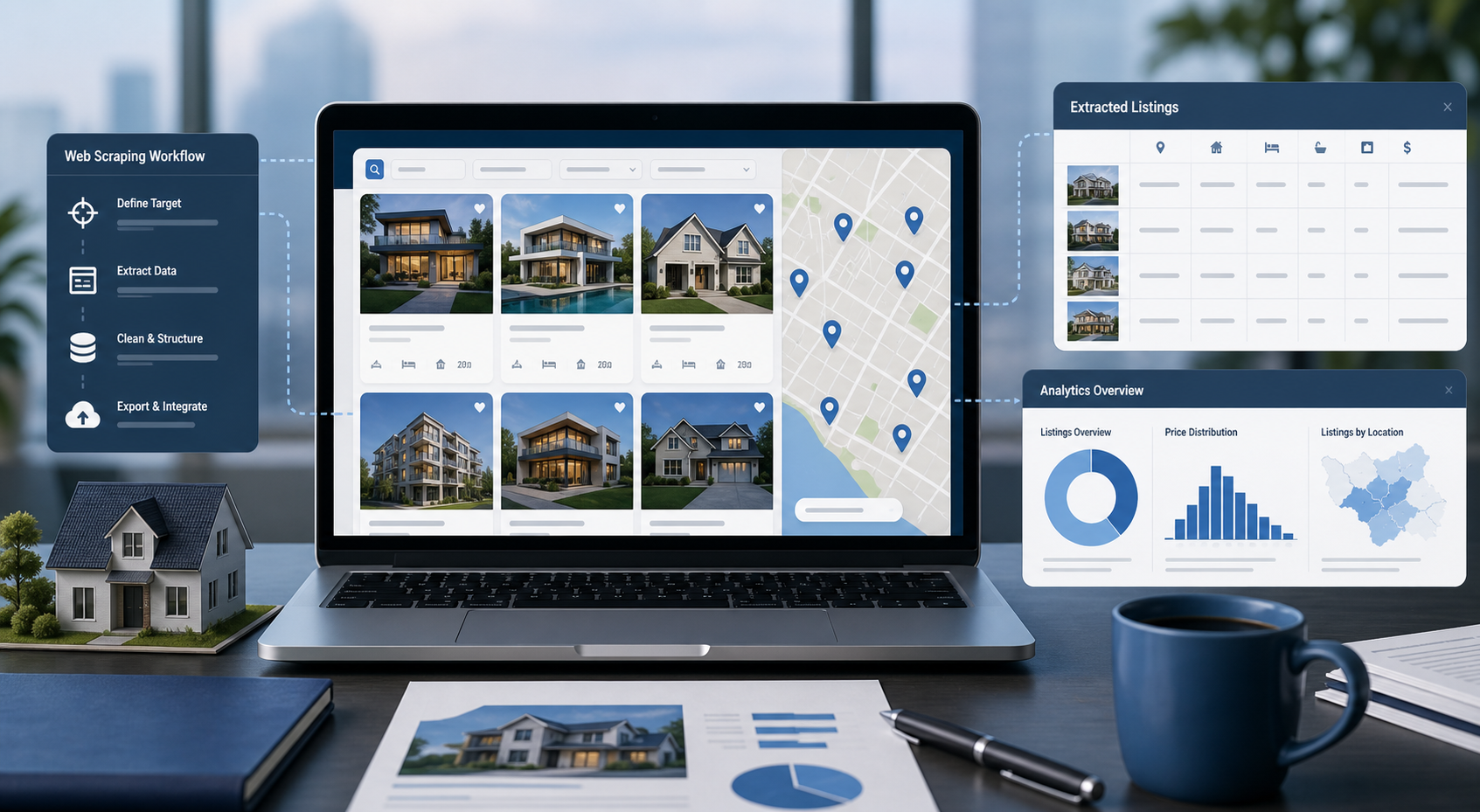
Best Real Estate Scrapers in 2026
Best Real Estate Scrapers in 2026
View Details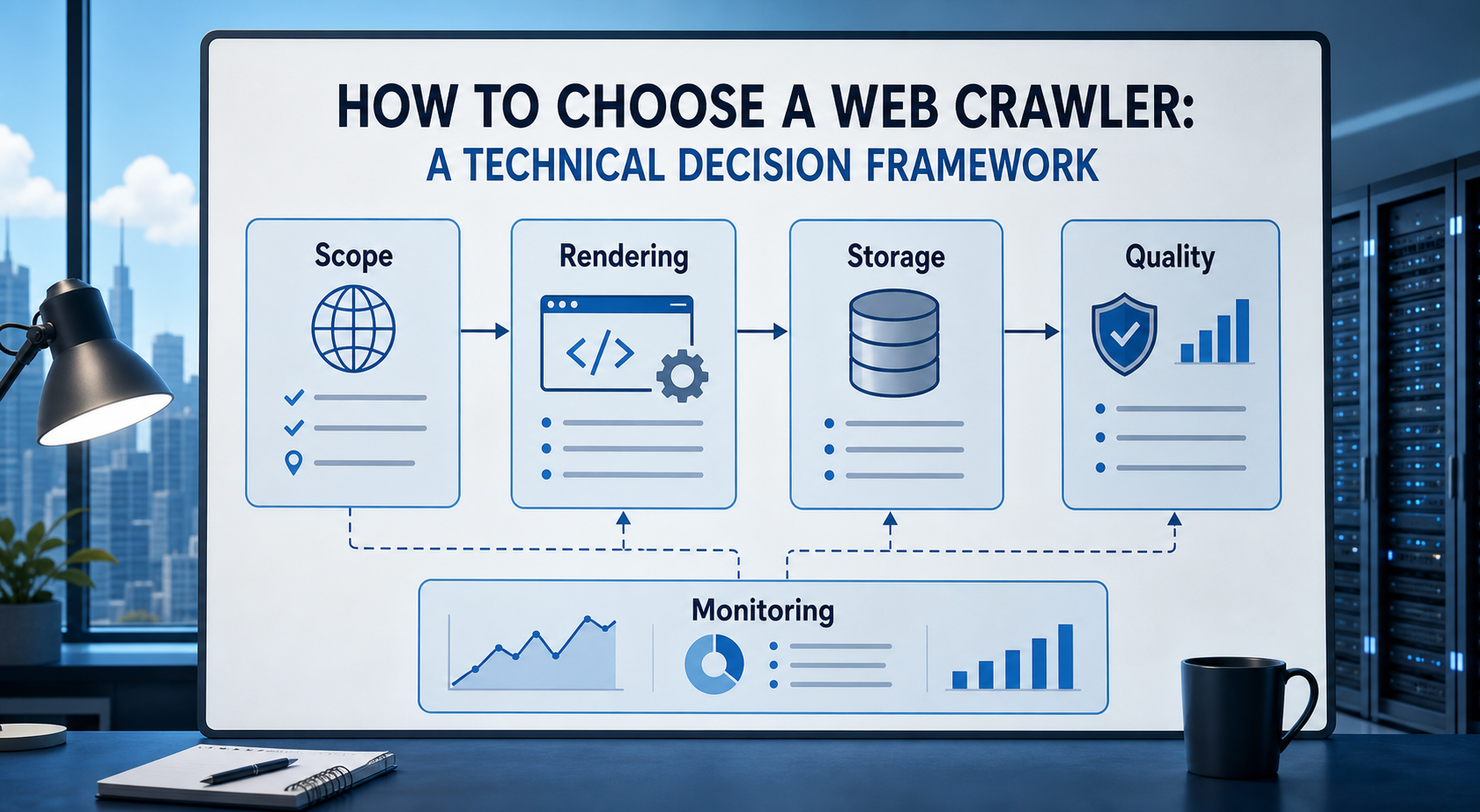
How to Choose a Web Crawler: A Technical Decision Framework
The wrong way to choose a web crawler is to begin with a list of products. The right starting point is the system you need to build. Before comparing tools, define:
View Details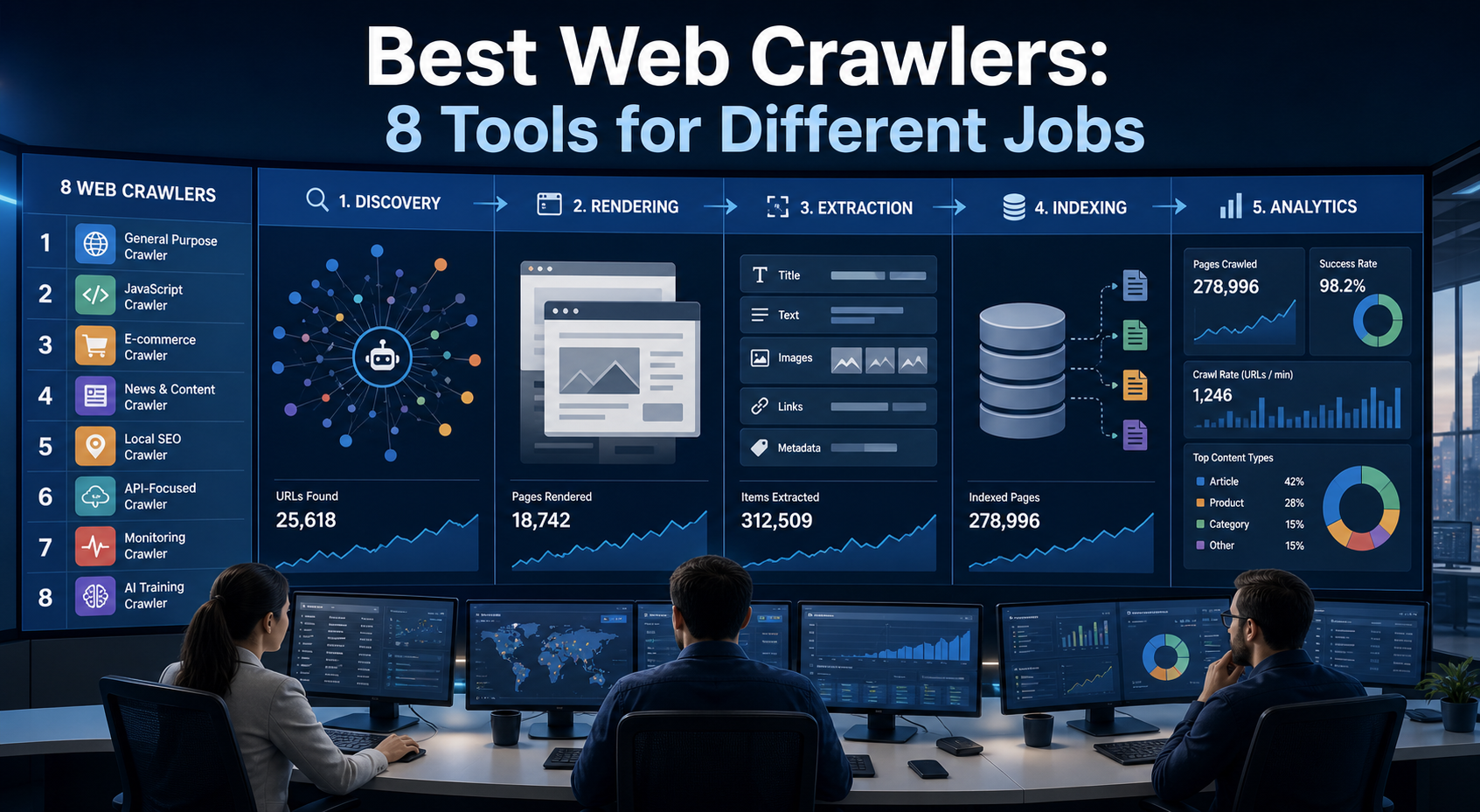
Best Web Crawlers: 8 Tools for Different Jobs
There is no single best web crawler for every project. A technical SEO audit, an AI knowledge pipeline, an internet archive, and a distributed search index may all involve crawling URLs, but they require different capabilities. The most useful way to compare web crawler tools is therefore to ask what job each one was designed to perform. This guide evaluates eight strong options across:
View Details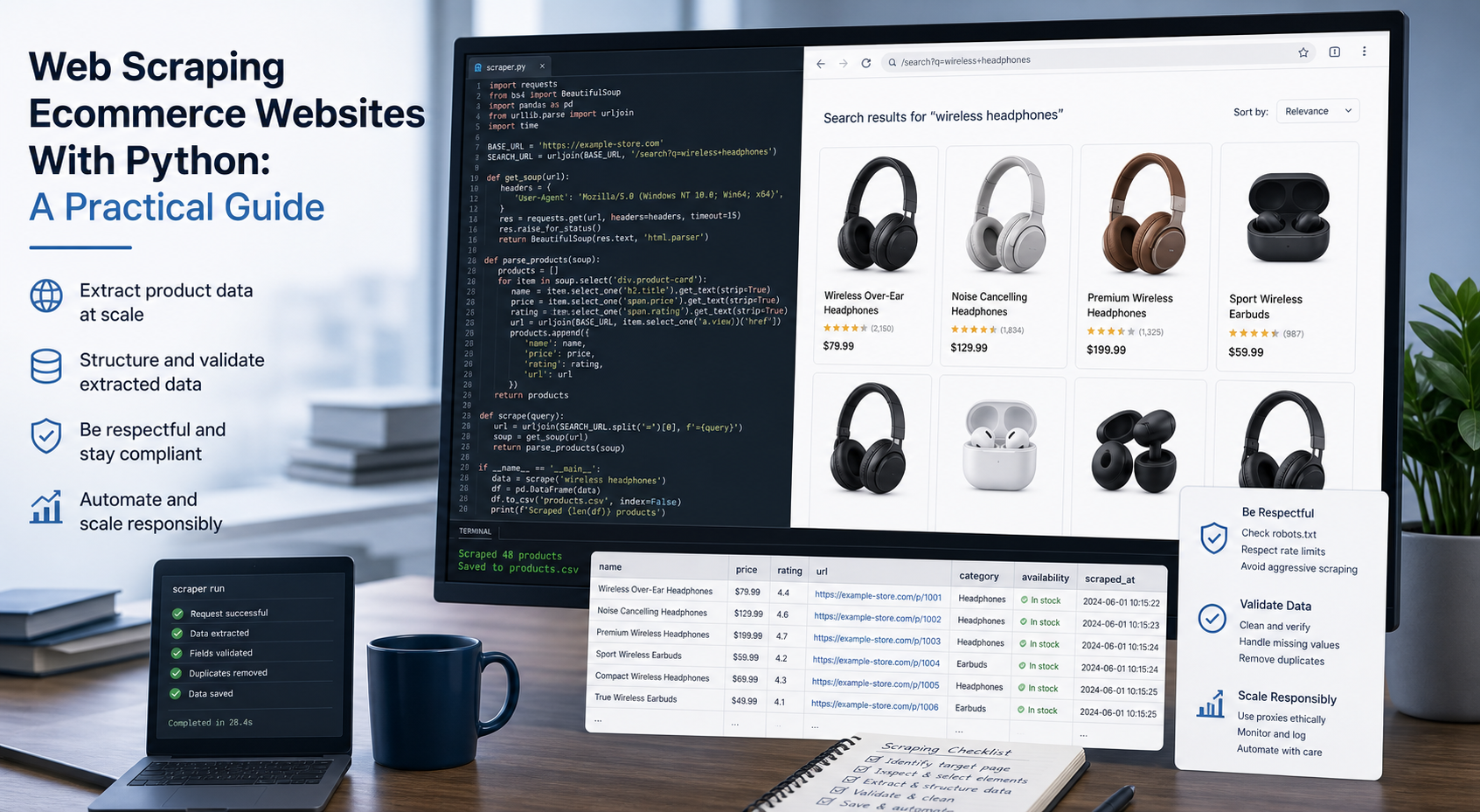
Web Scraping Ecommerce Websites With Python: A Practical Guide
Recommended meta title: Web Scraping Ecommerce Websites With Python: Guide Recommended meta description: Learn how to scrape ecommerce websites with Python using Requests, Beautiful Soup, Playwright, and Scrapy, with validation and scaling guidance. URL slug: /web-scraping-ecommerce-websites-python/
View Details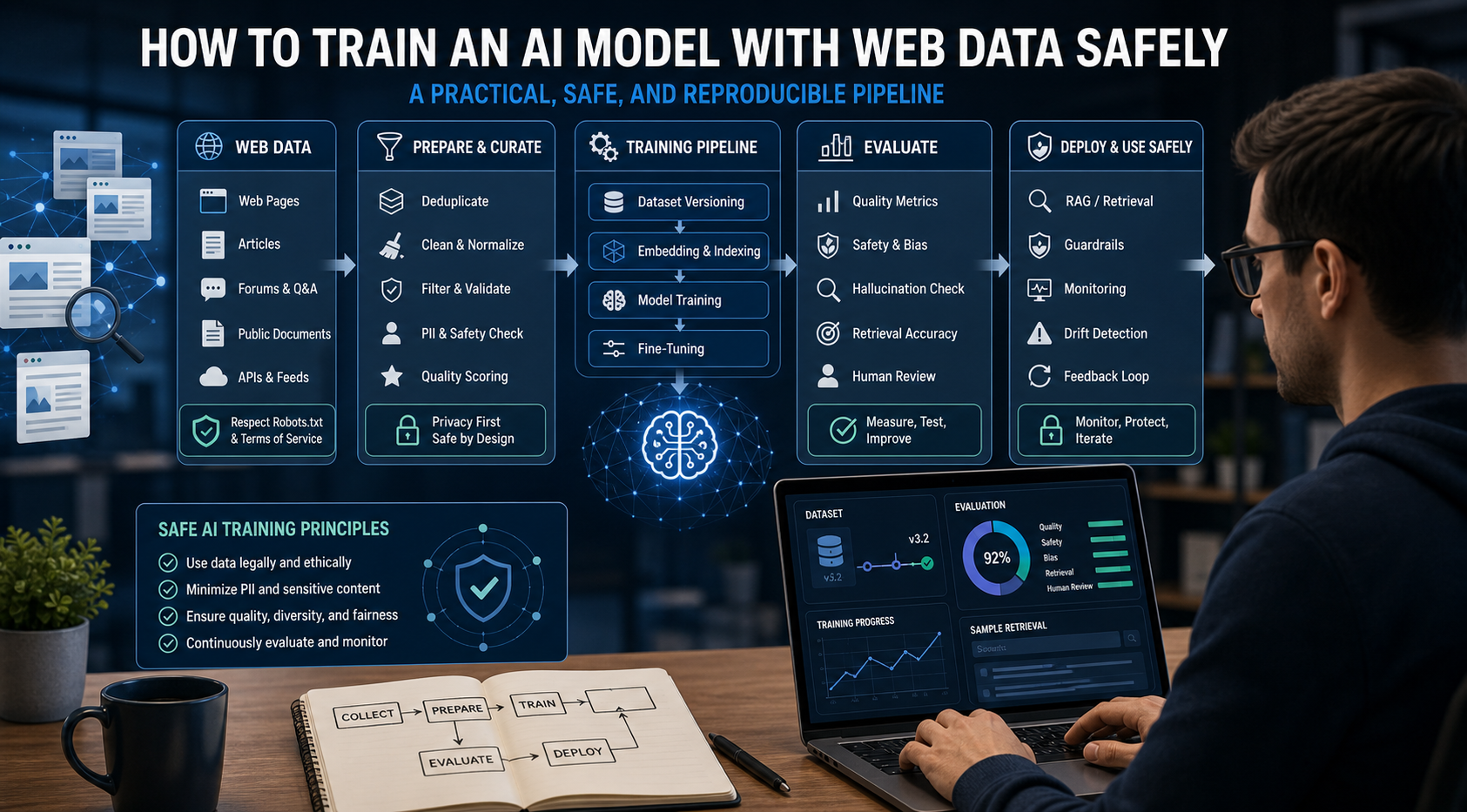
How to Train an AI Model With Web Data Safely
To train an AI model with web data, start by deciding whether you actually need training. Then collect representative sources, preserve provenance, remove duplicates and low-quality content, create leakage-resistant splits, build a baseline, fine-tune or train the appropriate model, and evaluate on real held-out examples before deployment.
View Details