
How to Configure LycheeIP Proxy IPs in the V2ray Mobile App
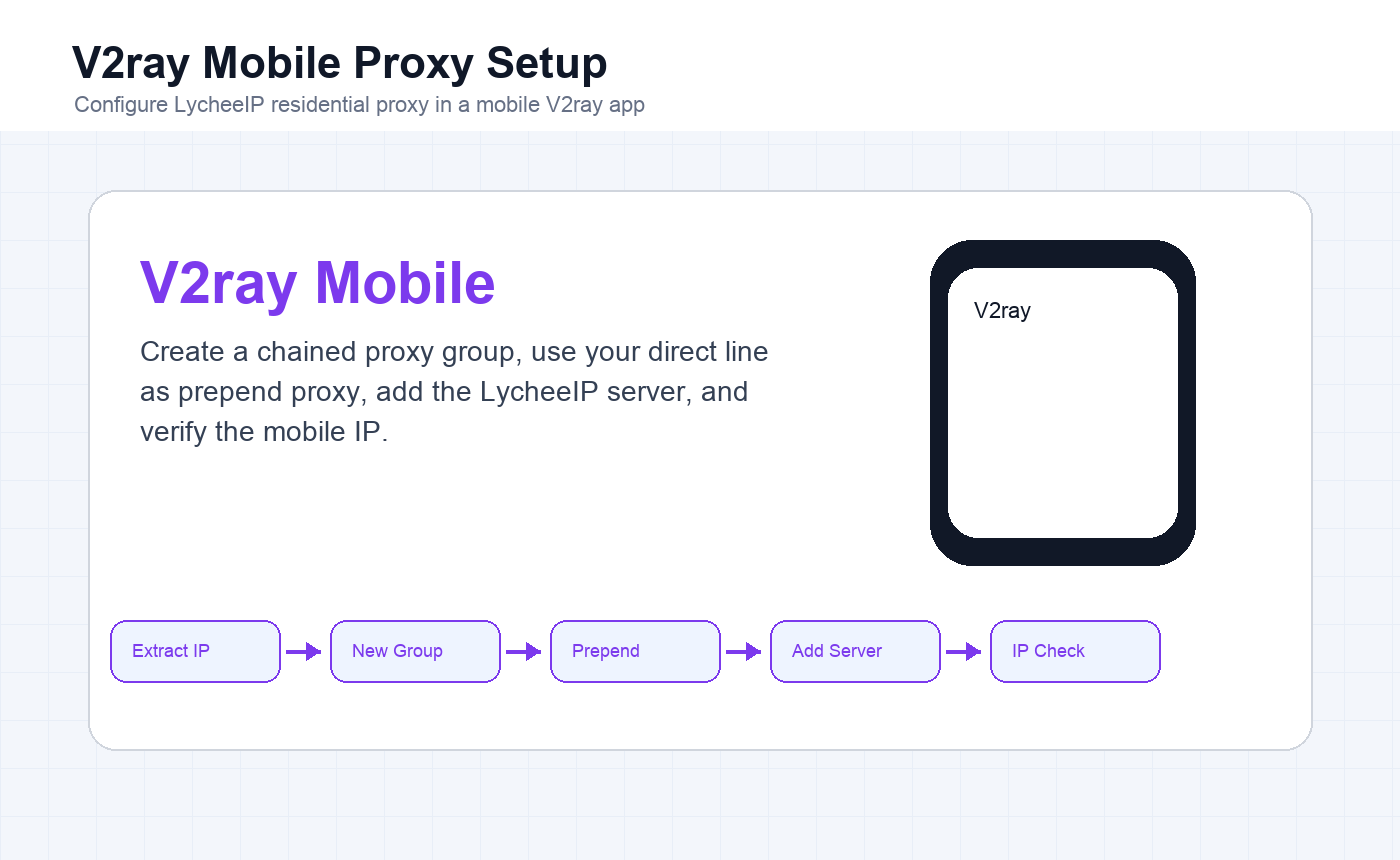
Configure LycheeIP residential proxy IPs in a V2ray mobile app by extracting the proxy details, creating a subscription group, setting the prepend proxy, manually adding the server, and verifying the phone IP.
Before adding the LycheeIP proxy, import your own usable direct overseas line into the V2ray mobile app. The tutorial demonstrates chained routing with that direct line as the prepend proxy.
Step 1: Extract the LycheeIP Proxy IP
Log in to LycheeIP, purchase the residential proxy product, and open the purchased line details. Copy the server address, port, username, password, and protocol from the details panel.
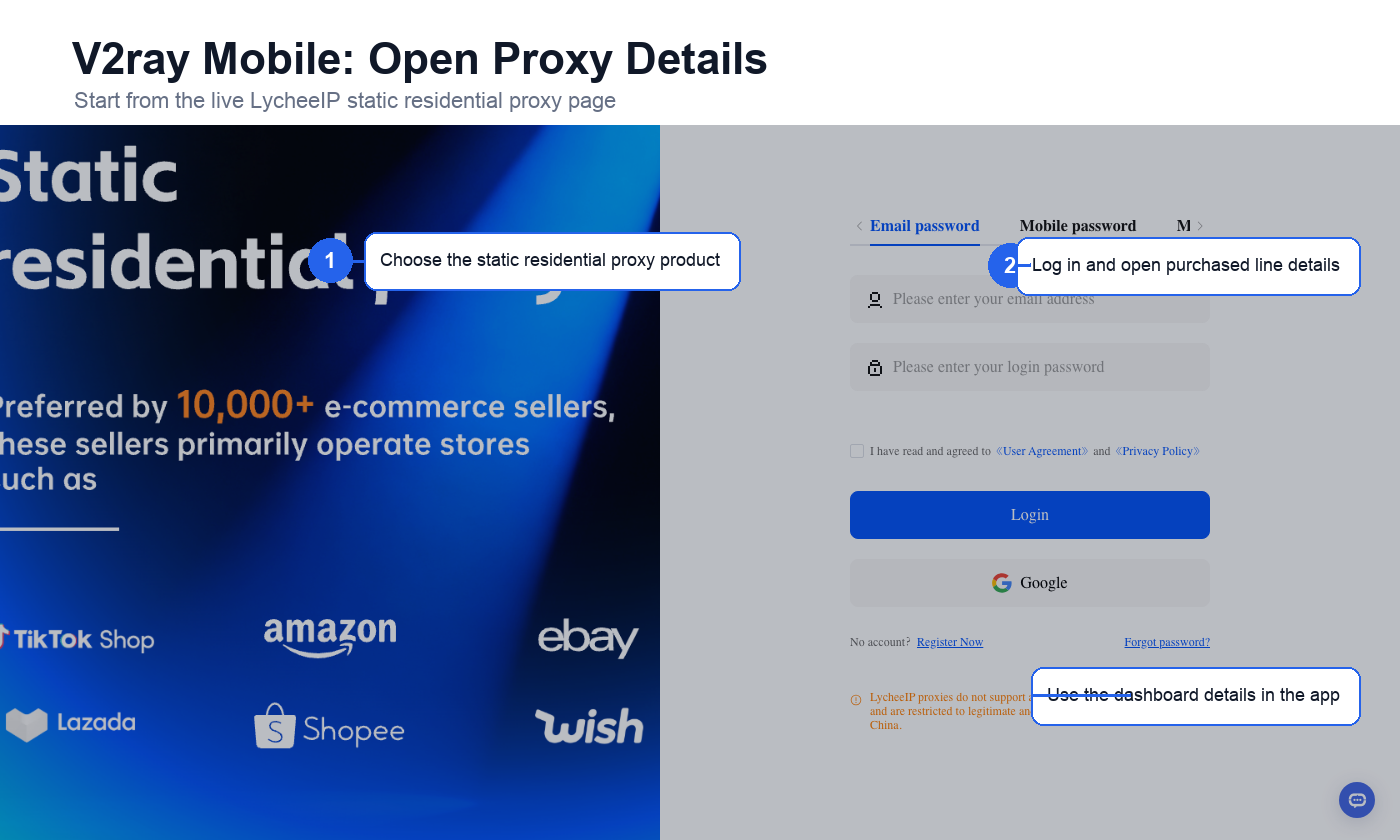
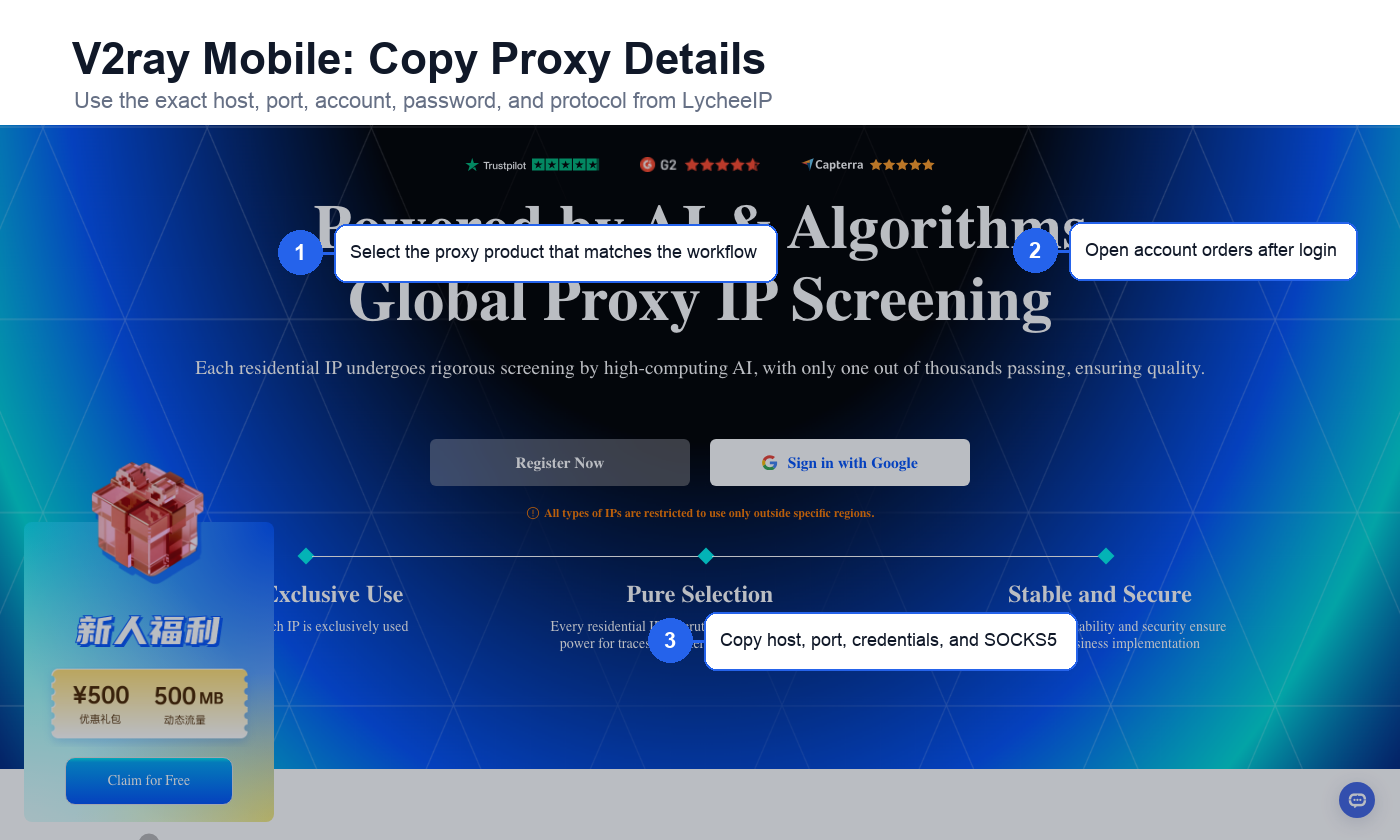
View LycheeIP Residential Proxies
Step 2: Create a Chained Proxy Group in V2ray Mobile
Open Subscription Group Settings
In the V2ray mobile app, tap the menu in the upper-left corner, open Subscription Group Settings, and tap the plus button to create a new group.
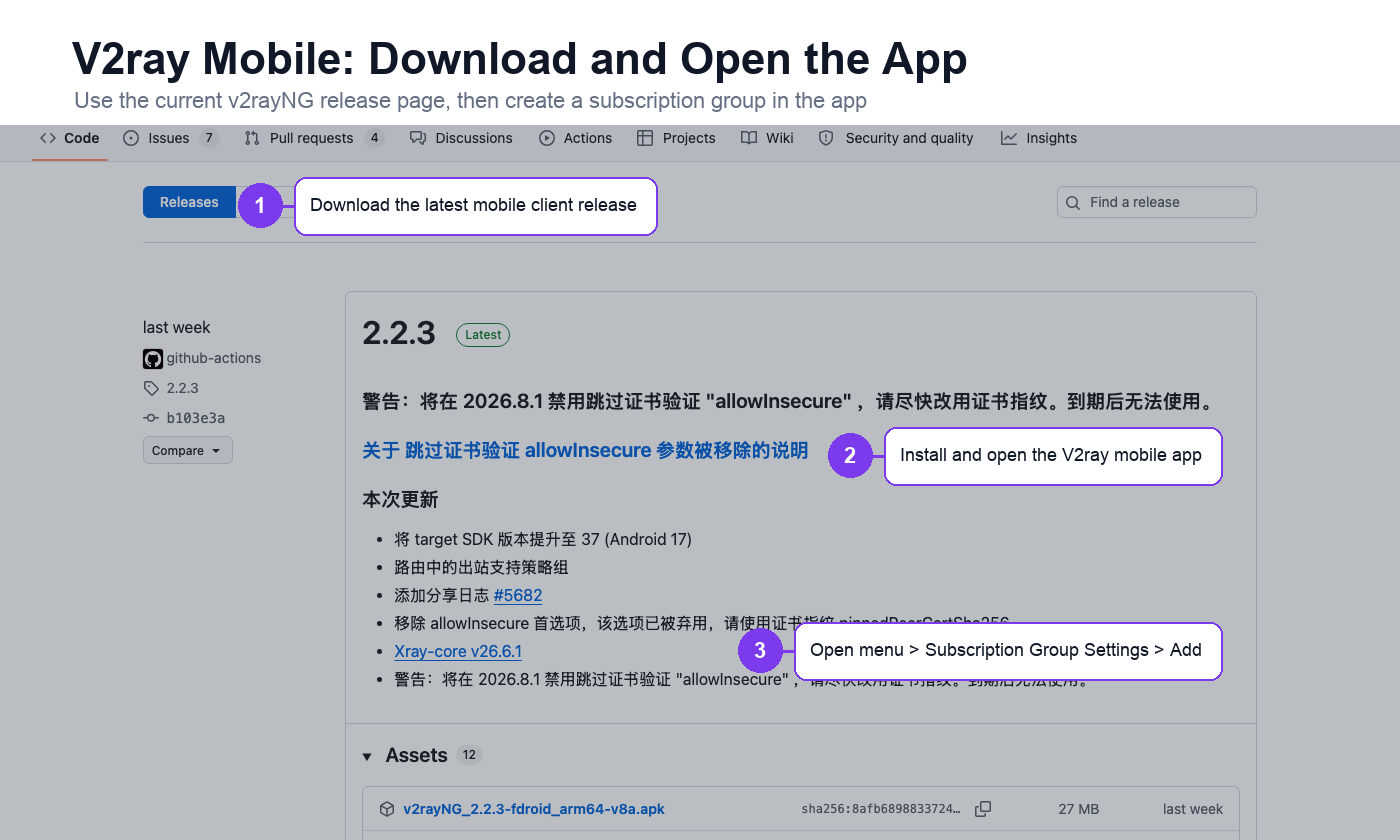
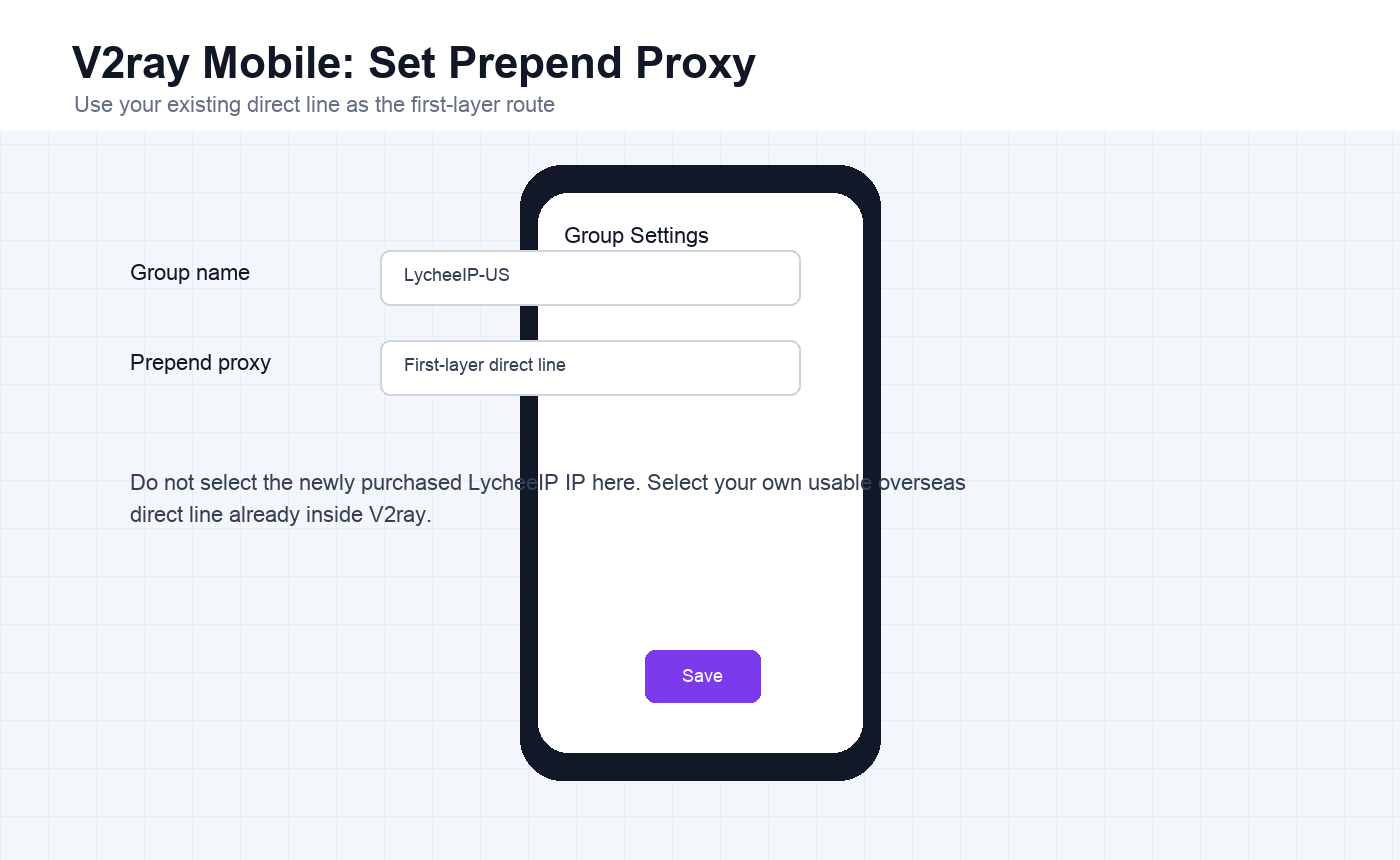
Set the Prepend Proxy
Add a custom remark or group name. Scroll to Prepend Proxy and enter the name of the first-layer direct line already imported into V2ray. Leave other settings at default unless your workflow requires a specific change, then tap the check mark to save.
Step 3: Add the LycheeIP Proxy Server
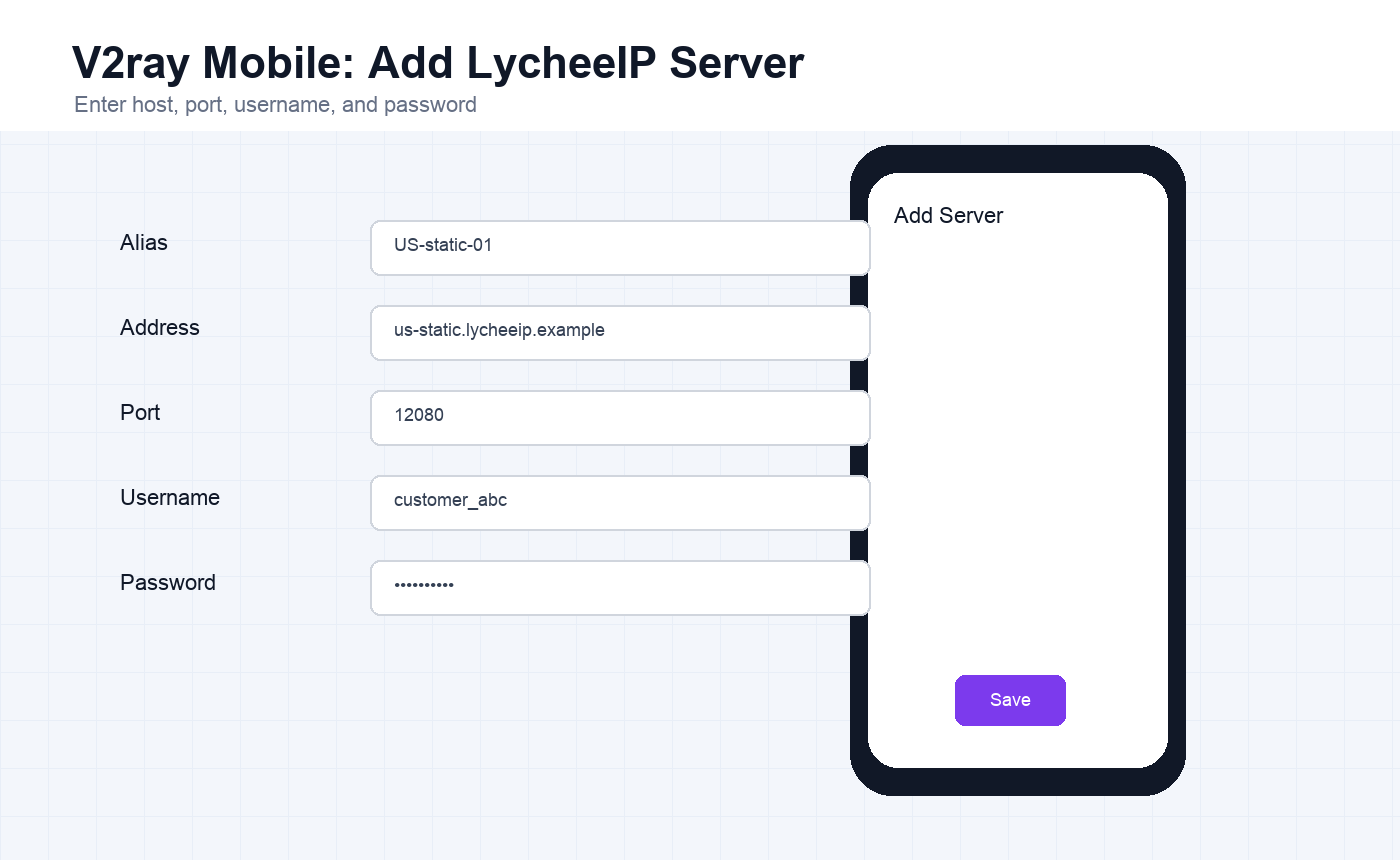
Return to the home screen, choose the new group, tap the plus button, and manually enter the LycheeIP server address, port, username, and password. Save the server when all fields match the LycheeIP dashboard.
Step 4: Verify the Current Mobile IP
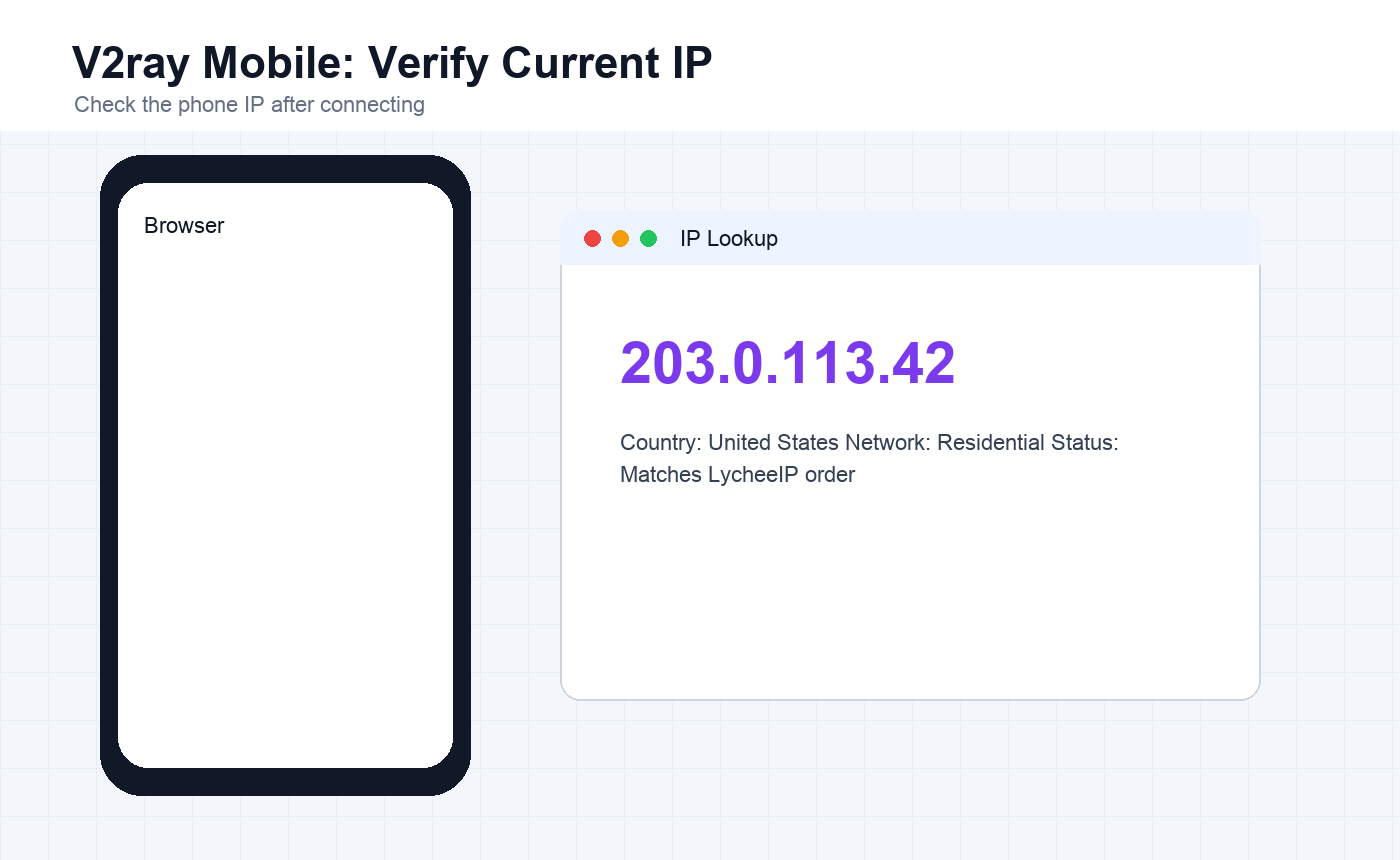
Connect through the configured group, then open a browser on the phone and visit ping0.cc, ip111.cn, or ipinfo.io. If the current IP matches the purchased LycheeIP IP, the mobile setup is complete.
Mobile Setup Checklist
- The direct overseas line is imported inside V2ray before the LycheeIP proxy is added.
- The prepend proxy name matches the first-layer direct line exactly.
- The LycheeIP server, port, username, and password are entered without extra spaces.
- The current IP lookup result matches the purchased proxy location.
- The target app or account region matches the proxy country, phone language, and timezone.
Frequently Asked Questions
Can I skip the prepend proxy?
This source workflow assumes chained routing, so the prepend proxy is important. Use the direct line already available inside V2ray as the prepend proxy.
Which protocol should I use?
Use the protocol shown in your LycheeIP order. The original mobile workflow uses authenticated proxy details entered manually into the app.
How do I know the setup worked?
Open an IP lookup site from the phone after connecting. If the displayed IP and location match the purchased LycheeIP proxy, the setup is working.
What if the app cannot connect?
Recheck the prepend proxy name, server address, port, username, password, and base overseas network path.
Related LycheeIP Articles
Related LycheeIP resources: residential proxies, anonymous proxy servers, mobile proxies, Apple proxy setup, V2rayN PC setup, MoreLogin proxy setup, Instagram proxy management, mobile and residential proxy use cases, private proxy guide, public versus private IP guide.

Recommended Articles
AI Search API for AI Agents: How to Ground LLMs With Live Search Data
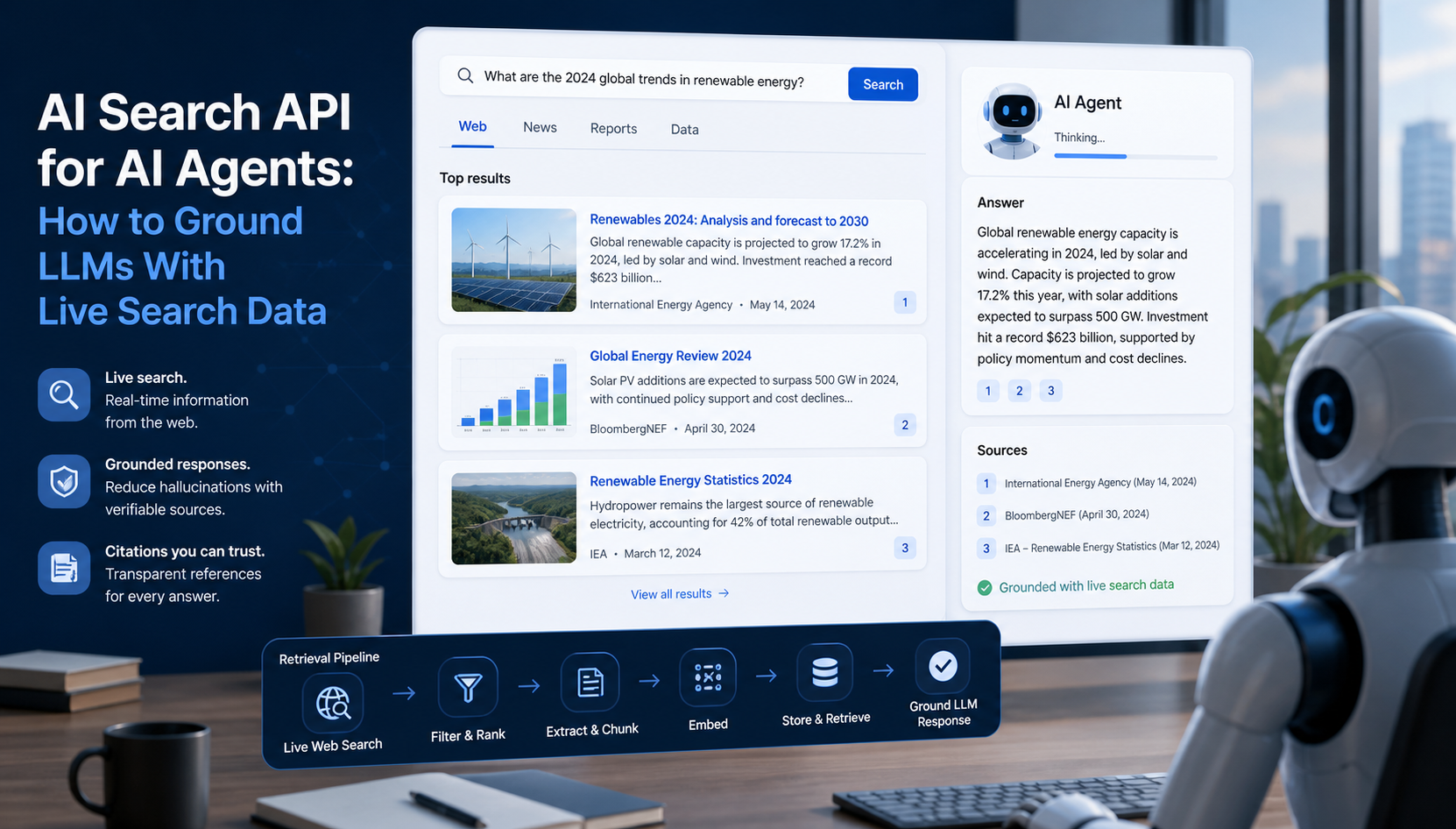
An AI search API gives an application or agent programmatic access to current search results. Its most useful role is discovery: the agent can find candidate sources, identify fresh information, and decide what to retrieve next instead of relying only on model memory.
View Details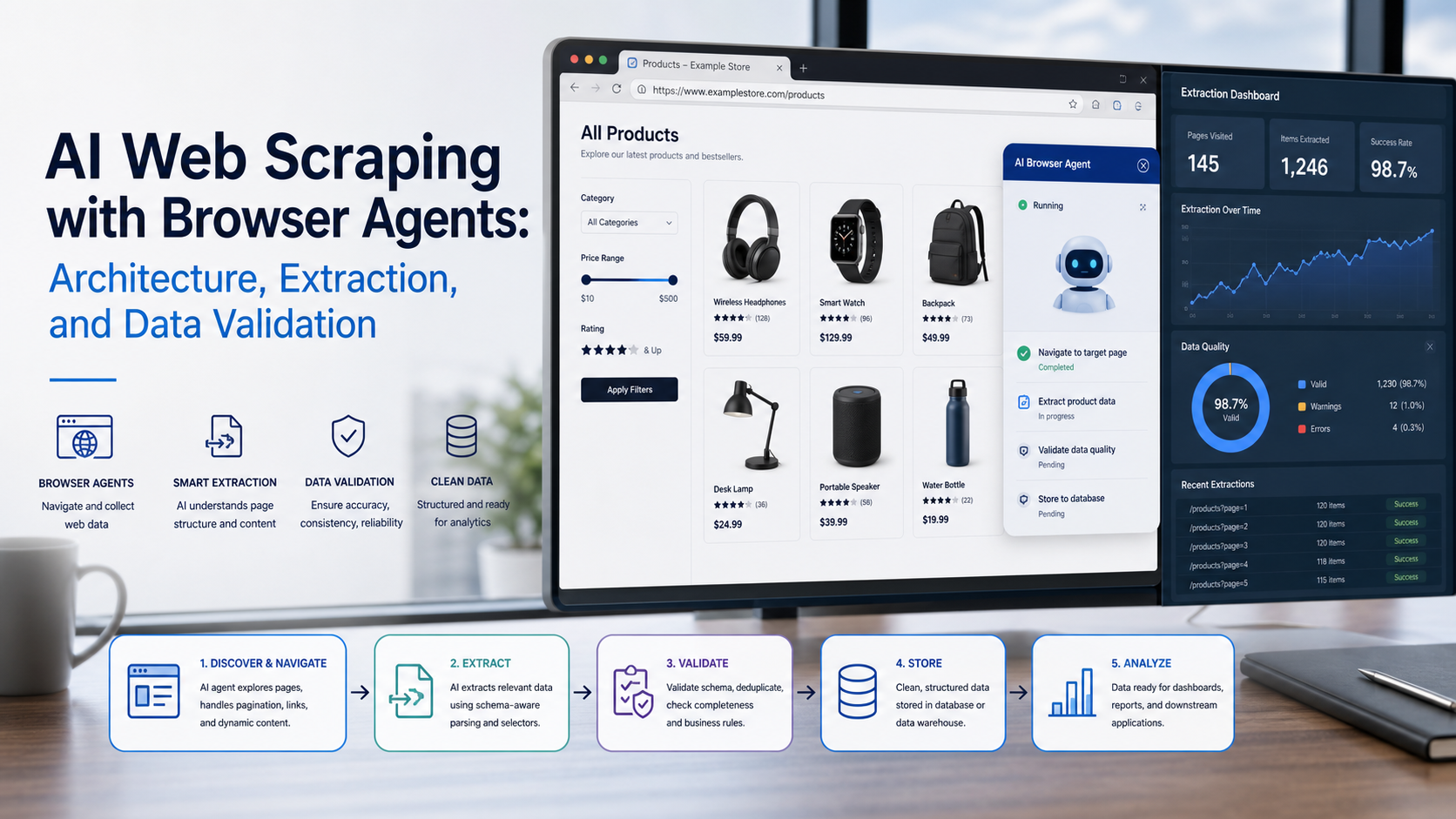
AI Web Scraping with Browser Agents: Architecture, Extraction, and Data Validation
AI web scraping uses AI to help discover, navigate, interpret, or extract information from websites. Browser agents are one implementation option when page interaction, rendering, or layout variation makes a simple scraper too brittle, but the agent should not become the entire data pipeline.
View Details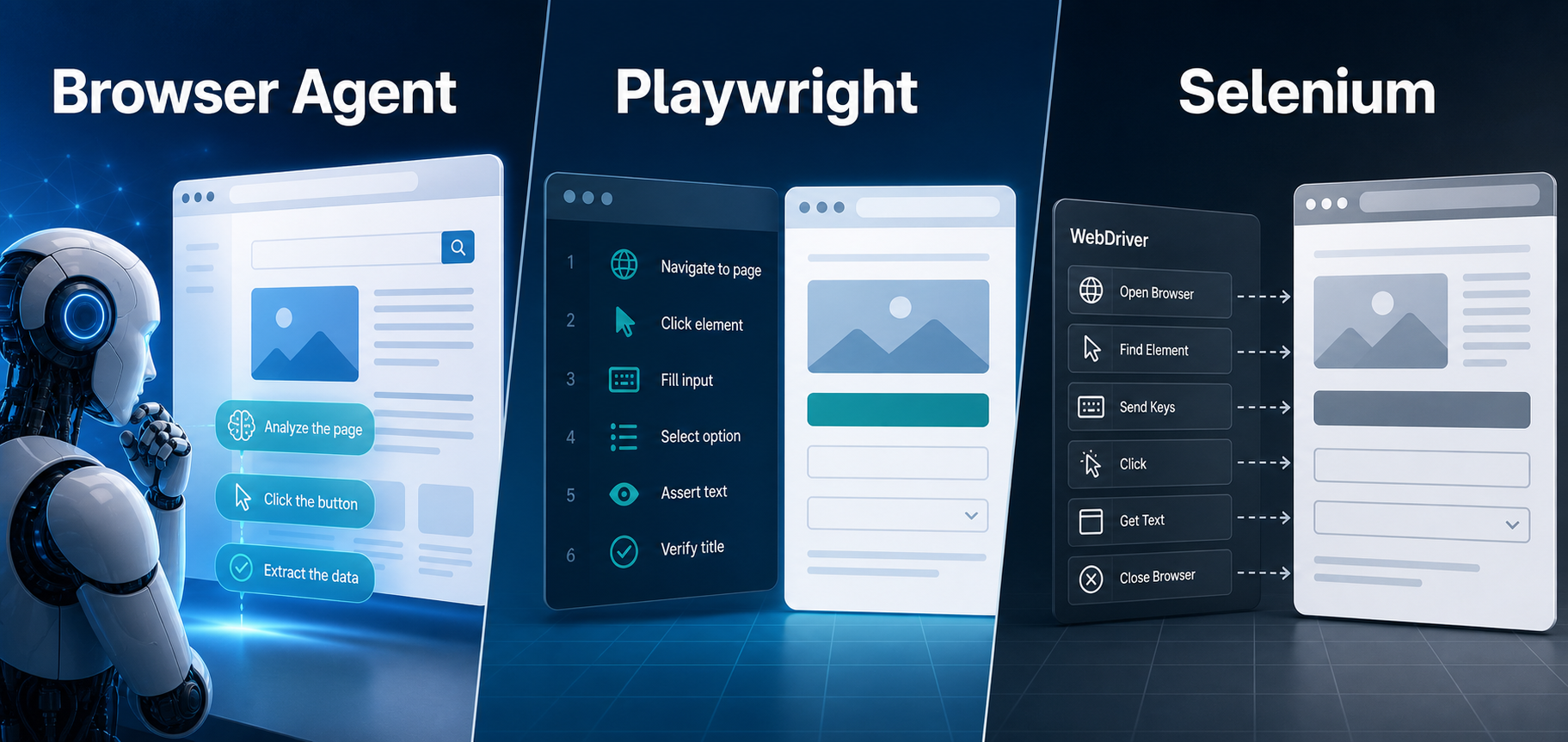
AI Browser Automation: Browser Agents vs Playwright vs Selenium
A browser agent interprets a goal and decides what browser action to take next. Playwright and Selenium can execute explicit, testable browser logic defined by developers. In 2026, however, Playwright also provides official MCP and agent-oriented workflows, so Playwright is no longer just the deterministic alternative to agentic automation. It can also serve as the browser-control layer inside an agent system.
View Details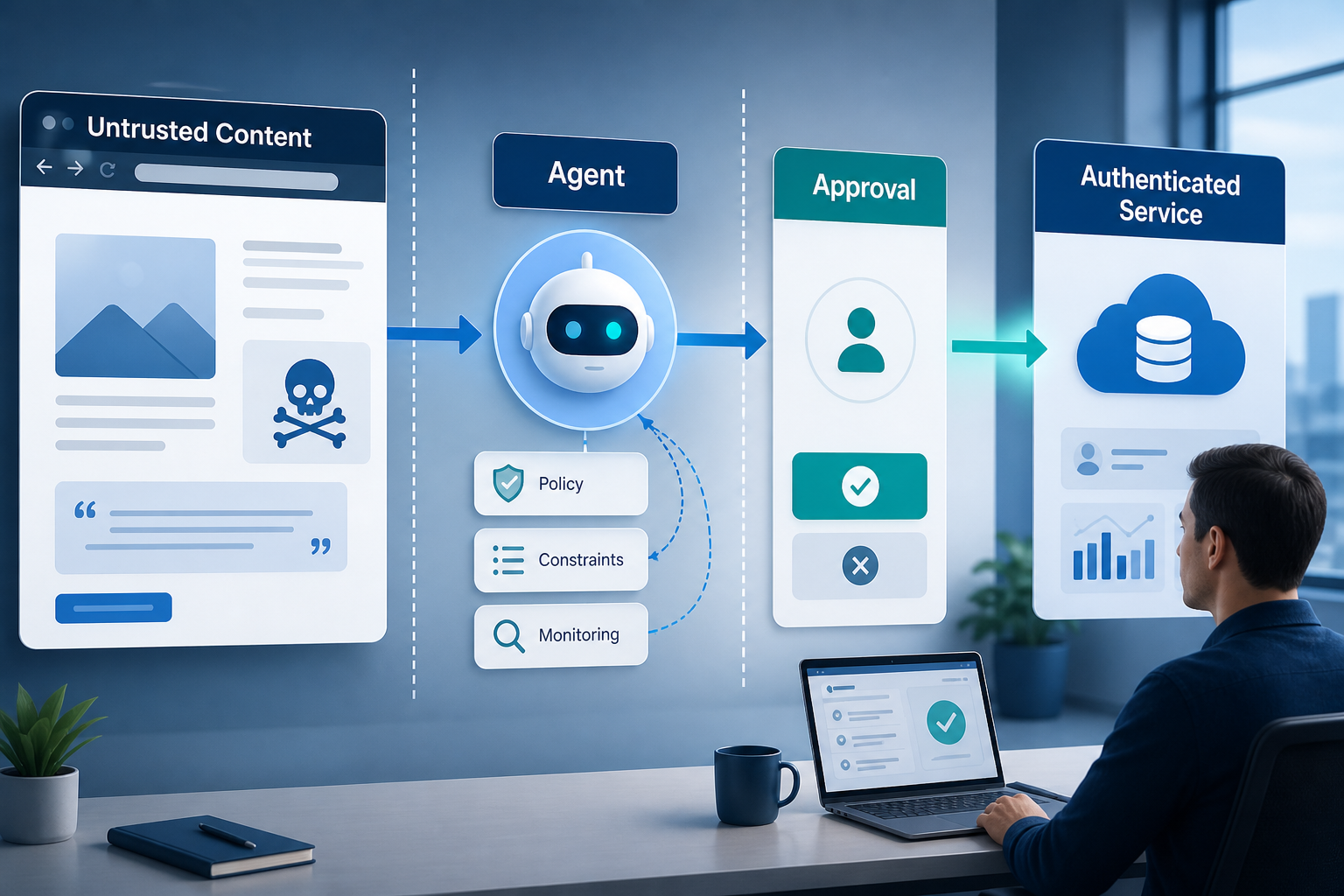
Agentic Browser Security: Prompt Injection, Permissions, and Safe Deployment
That combination creates risks that are different from ordinary browsing and traditional automation. The most important is indirect prompt injection, where hostile instructions hidden in web content attempt to redirect the agent away from the user's goal. Google describes indirect prompt injection as a primary new threat for agentic browsing and has introduced layered defenses that include origin constraints, independent action checks, threat detection, and user confirmation for sensitive actions. Google's Chrome security architecture is a useful reference for how browser-agent defenses are evolving.
View Details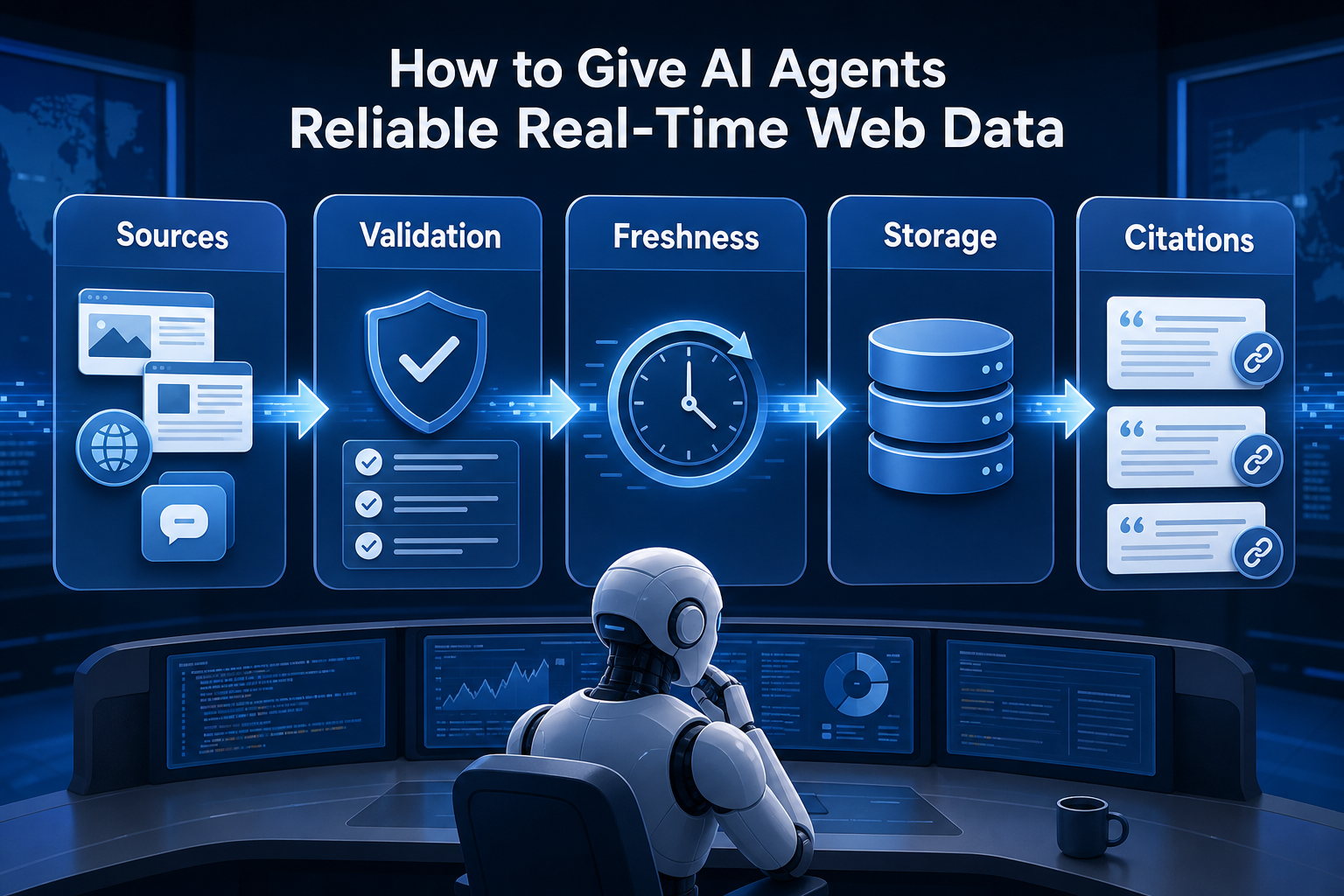
How to Give AI Agents Reliable Real-Time Web Data
A production-ready solution therefore needs more than a web scraper. It needs a web data layer that connects acquisition, validation, storage, retrieval, security, and observability. This guide explains how to design that layer.
View Details