
Shopify Markets pricing: how it works, how to set it, and how to model landed cost
Shopify Markets pricing: how it works, how to set it, and how to model landed cost
Shopify Markets pricing determines what shoppers see and pay in each country or region, based on your market settings, currency behavior, price adjustments, fixed market prices, and rounding. If you want fewer abandoned carts and fewer “why did the price change at checkout?” messages, you need a pricing method you can explain, model, and test.
What you’ll get in this guide:
- A transparent breakdown of how local prices are calculated.
- A decision matrix to choose between converted, adjusted, and fixed prices.
- A landed cost workflow to protect your margin from FX and duty surprises.
- A testing protocol to verify what international customers actually see.
Use LycheeIP to run accurate QA tests
What does Shopify Markets pricing mean?
Shopify Markets pricing refers to the rules that decide your storefront price by market, including the currency shown, how conversion happens, whether you add a markup or markdown, and whether you override automatic rates with fixed values.
Think of it as two distinct technical layers:
- Display layer: What price and currency a shopper sees in their country selector or localized experience (presentment currency).
- Capture layer: What currency the checkout actually processes and how conversion fees affect your net payout.
Your goal is consistency between these layers so the price on the product page matches the price at the final payment step, while maintaining enough margin to absorb cross-border costs.
How does Shopify Markets calculate a local price?
Shopify Markets calculates a local price by starting with your base product price, converting it using a live exchange rate (if enabled), applying conversion-related costs, and then applying rounding rules and any market-level adjustments you configured.
In practice, you will see three common patterns:
- Automatic conversion: Your base price converts into the shopper’s currency and updates automatically as FX rates fluctuate.
- Automatic conversion plus adjustment: You apply a percentage increase or decrease per market to account for shipping variance or local willingness-to-pay.
- Fixed market prices: You set an explicit price per market (e.g., 50 EUR) which overrides the daily exchange rate.
If you need to audit a specific price, check the market price breakdown inside your Shopify admin. Compare it against your base price, the current market currency setting, and your active rounding rules.
Which Shopify Markets pricing method should you use for each market?
You should choose your Shopify Markets pricing method based on your required level of control, the volatility of the target currency, and how tight your margins are after shipping and duties.
Use this matrix to select the right approach for your store:
Shopify Markets Pricing Decision Matrix
| If your situation is... | Recommended Method | Why it fits | Trade-offs |
| Testing demand in new, low-volume countries | Automatic conversion | Lowest setup effort; "set and forget." | FX swings can create odd price endings and erode margin. |
| Tight margins with variable regional shipping costs | Conversion + % Adjustment | Protects margin with a single rule (e.g., +10% for APAC). | Requires regular QA to ensure prices don't become uncompetitive. |
| Brand stability is key (you need $49, £39, €45) | Fixed market prices | Maximum control; psychological pricing works better. | high maintenance; you must manually update prices if costs spike. |
| Complex promotions run differently by region | Fixed prices (per region) | Clean regional merchandising and discounting. | High operational overhead to manage CSVs or API updates. |
A robust default for many US-based stores: use automatic conversion for long-tail markets, adjustments for priority markets with high shipping, and fixed prices for your top 1–3 markets where conversion rate optimization (CRO) matters most.
How do you set up Shopify Markets pricing step by step?
You set up Shopify Markets pricing by configuring Markets in your admin, choosing currency behavior, applying adjustments or fixed prices, and validating the storefront experience.
30-Minute Shopify Markets Pricing SOP:
- Define Markets: Create or review your markets (start with domestic primary plus 1–3 target international markets).
- Currency Settings: For each market, confirm the base currency and ensure "Show prices in local currency" is active.
- Select Method: Apply the decision matrix above.
- For Adjustments: Apply a conservative percentage first (e.g., +5% to cover FX volatility).
- For Fixed Prices: Upload a CSV for your top products or set them manually in the product page context.
- Rounding: Enable price rounding to avoid messy endings (e.g., turn €12.37 into €12.95).
- Selector: Add a country selector to your theme or enable a geolocation app so users can self-select.
- QA Pass: Check 3–5 products in each market for product page price, cart price, and checkout currency consistency.
Use LycheeIP to run accurate QA tests
How do you build Landed Cost Pricing for Shopify Markets pricing?
You build landed cost pricing by treating cross-border pricing as a data workflow, not just a toggle setting. "Landed cost" ensures the customer understands the all-in cost of buying, and you understand the all-in cost of fulfilling.
The Landed Cost Pricing Ladder:
- Step 1: Cost Truth. Confirm product cost, packaging, and average fulfillment cost per unit. Establish a hard margin floor.
- Step 2: Shipping Truth. Identify markets with materially different shipping costs. Decide if you bake this into the product price (using adjustments) or the shipping rate.
- Step 3: Duties Readiness. Decide between DDP (Duties Delivered Paid - collected at checkout) or DDU (customer pays on arrival). Note: DDP improves conversion but requires accurate HS codes.
- Step 4: Price Selection. Apply your adjustment or fixed price based on the total cost stack calculated in steps 1–3.
- Step 5: Guardrails. Set price bands. For example, "If FX drops by 10%, price automatically increases via adjustment."
What fees can change your effective Shopify Markets pricing and margin?
Fees can change your effective Shopify Markets pricing because your displayed price is gross revenue, not your net payout. You must model deductions for processing, FX conversion, and duty calculations.
Fee buckets to model:
- Currency Conversion Fee: Applies when you capture payment in a currency different from your payout currency. (Often ~1.5% - 2% depending on your plan; verify in your specific terms).
- Payment Processing: International cards often carry higher processing fees than domestic cards.
- Duty/Tax Calculation Fees: If you use Shopify’s duty calculation services, there may be a transaction fee applied to the order value.
- Managed Markets (if applicable): If you use Shopify’s merchant of record service, fees are bundled differently (often higher per transaction but inclusive of more services).
Practical Metric: Track your "Effective Take Rate" by market: (Net Payout / Gross Order Value) and review it monthly.
Why does Shopify show different prices by country?
Shopify shows different prices by country because of the interaction between exchange rates, rounding rules, market adjustments, and tax inclusion settings.
Common reasons for price divergence:
- Tax settings: In regions like the EU, prices often include VAT (gross pricing), whereas US prices exclude tax.
- Rounding: 100 USD might convert to 92.40 EUR, but rounding rules force it to 94.95 EUR.
- Adjustments: You may have a global +10% adjustment active for that market.
- Fixed Overrides: A fixed price set months ago will remain static even if the exchange rate changes significantly.
Use LycheeIP to run accurate QA tests
How do you fix checkout currency mismatch?
You fix checkout currency mismatch by ensuring the checkout captures the same currency logic used on the storefront, and by removing conflicting third-party currency tools.
Root-Cause Checklist:
- Capture vs. Display: Confirm your payment gateway supports multi-currency capture. If it only supports display, the checkout will revert to your store's base currency.
- App Conflict: If you use a third-party currency converter app, it may simply be "painting" new prices on the theme without passing that logic to the checkout.
- Selector Persistence: Ensure your country selector passes the context parameter correctly through to the cart and checkout URL.
- Caching: Test in a clean browser session (incognito) to ensure you aren't seeing cached domestic prices.
How do localized domains or subfolders affect Shopify Markets pricing and SEO?
Localized domains and subfolders affect Shopify Markets pricing and SEO because URL structure dictates how search engines index your pages and how you track performance.
- Subfolders (e.g., site.com/de): Generally the best balance of SEO authority and localization. Shopify Markets handles the hreflang tags automatically, signaling to Google that "this price is for Germany."
- ccTLDs (e.g., site.de): Strongest local signal but requires more DNS management.
- Shared Domain (site.com with dynamic currency): Risky for SEO. Googlebot primarily crawls from the US (mostly) and may rarely see or index your localized prices.
How do you test Shopify Markets pricing across countries from the USA?
You test Shopify Markets pricing by combining storefront switching (selectors) with controlled location-based QA to verify the experience as a real user would see it.
Recommended Test Stack:
- Country Selector: Use the site's native selector to force the market context.
- QA Spreadsheet: specific expected prices for 3 "edge case" SKUs.
- Clean Browser Profile: Use a fresh profile or incognito window to avoid cookie conflicts.
Agency-grade verification (How LycheeIP fits)
If you are managing multiple high-volume client stores or troubleshooting reported errors, simple VPNs or browser toggles are often detected or cached incorrectly.
For precise validation, developers and QA teams use LycheeIP residential proxies to simulate traffic from specific regions.
- Real-world simulation: Access the storefront using IPs from over 200 regions (Dynamic Residential) to see exactly what local ISPs serve.
- Session stability: Verify the entire funnel, from landing page to checkout, without the IP rotating mid-session (using sticky sessions where applicable).
- Clean data: LycheeIP's resources are ethically sourced with a 6-month cooling period, ensuring your QA traffic isn't flagged as bot activity by Shopify's fraud filters.
- Speed: Low latency ensures you can test checkout loads realistically.
Use LycheeIP to run accurate QA tests
When should you avoid market-specific pricing and use a separate store instead?
You should avoid market-specific pricing in a single store and use separate expansion stores when regional differences evolve from "pricing tweaks" to "business model changes."
Consider separate stores when:
- You require a different legal entity or bank account for payout in that region.
- Product availability differs by more than 30-40% (different catalogs).
- You need entirely different ERP or inventory connections for a specific warehouse.
- Marketing requires a distinct site structure or radically different theme/content.
What are the most common Shopify Markets pricing problems and fixes?
Most pricing issues stem from conflicting apps or misunderstood rounding rules.
Shopify Markets Pricing Troubleshooting Table
| Symptom | Likely Root Cause | Fix |
| Price reverts at checkout | Display conversion differs from capture capability. | Align payment gateway settings; remove display-only apps. |
| Weird endings (e.g., €12.37) | FX conversion is active without rounding. | Enable "Price Rounding" in Market settings. |
| Price higher than expected | Adjustment + Rounding compounding. | Check if you have both a % adjustment AND a high rounding rule active. |
| Duty estimates missing | Missing HS Codes or Country of Origin. | Audit product data; fill in missing classification fields. |
| Market switch won't stick | Selector configuration or cookie conflict. | Test with LycheeIP or clean cache to rule out local browser cookies. |
| SEO pages not indexing | Single URL serving dynamic content. | Enable subfolders (site.com/fr) to give Google a distinct URL to index. |
What assumptions and limitations should you keep in mind?
International pricing involves variables outside your control. Always operate with these assumptions:
- FX is fluid: Automatic prices will change. If you need static prices, you must use Fixed mode.
- Duties are estimates: The price displayed for duties/taxes is an estimation. Customs authorities make the final call.
- Fees vary: Your "Shopify Payments" rate in the US is likely different from your rate for cross-border transactions.
- Testing is mandatory: Never assume a setting works until you have verified it with a localized test.
Which visuals should you add to explain Shopify Markets pricing?
To make this guide actionable for your team, consider adding:
- Decision Matrix Graphic: A visual version of the table above for quick reference.
- Landed Cost Workflow: A step-by-step diagram showing cost inputs leading to final price.
- Troubleshooting Snapshot: A screenshot of the "Market Settings" page highlighting where to find Rounding and Adjustments.
Use LycheeIP to run accurate QA tests
Frequently Asked Questions:
1. How much does Shopify Markets cost?
Shopify Markets itself is generally included in most plans, but costs accrue via transaction fees, currency conversion fees (typically 1.5% - 2%), and duty calculation fees. Always verify your specific plan's fee structure in the admin.
2. Can I set different product prices for different countries?
Yes. You can use market adjustments to raise/lower prices by a percentage, or use "Fixed Prices" to set a specific amount (e.g., 50 EUR) for individual products in specific countries.
3. Why does Shopify show different prices by country than I expected?
This is usually due to the exchange rate used at that moment, your rounding settings (which smooth out the converted number), or a hidden market adjustment percentage you may have forgotten to disable.
4. How do I fix currency mismatch at checkout?
Ensure your payment gateway supports multi-currency capture, not just display. Also, disable third-party currency converter apps that might conflict with Shopify's native Markets logic.
5. Does Shopify Markets affect SEO?
Yes. If you use subfolders (e.g., /en-ca, /de-de), Shopify generates unique URLs for each market. This allows search engines to index your localized pricing and content, improving your visibility in those regions.
6. How do I verify my prices are correct in Japan or Germany?
Use the "Preview" button in the Shopify admin for a basic check. For a rigorous check of the customer experience (redirects, load times, localized content), use a residential proxy service like LycheeIP to simulate a real user connection from that country.

Recommended Articles
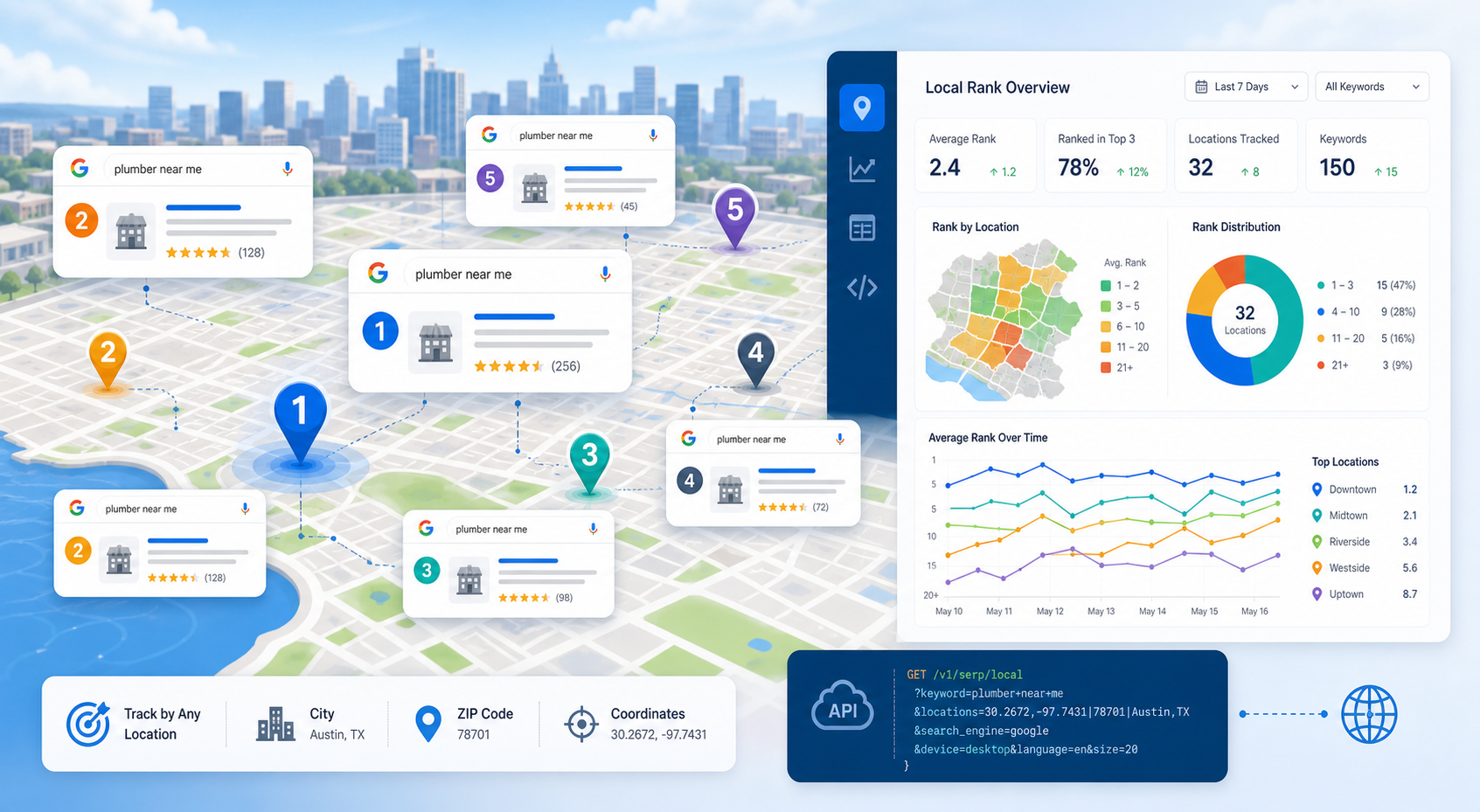
SERP Tracking API: How to Track Local Google Rankings by Location
A SERP tracking API collects search-result positions on a repeatable schedule so SEO teams can measure visibility over time. For local SEO, the useful question is not simply “What rank are we?” It is “What rank are we from this location, on this device, for this result type, at this time?”
View Details
Octo Browser for SEO & Affiliate Marketing: The Multi-Account Solution Marketers Trust
Stop losing your hard earned revenue to sudden account suspensions. Discover how to completely isolate your outreach profiles and scale your campaigns without ever triggering a security flag.
View Details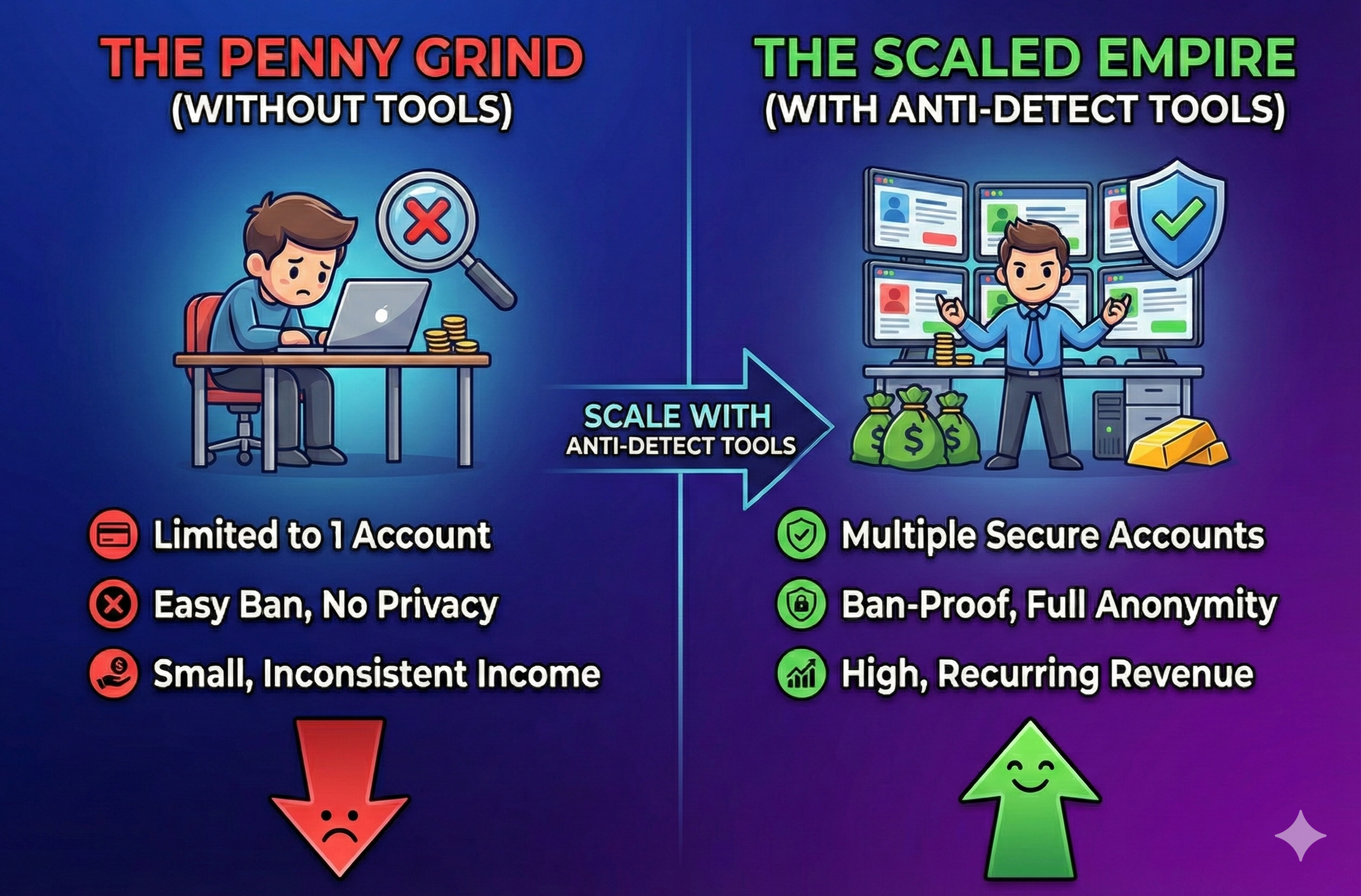
Stop Earning Pennies: Scale with Anti-Detect Tools
Stop letting the fear of account bans limit your business growth. Discover how modern antidetect browsers and clean proxies keep your digital identities isolated so your team can scale securely.
View Details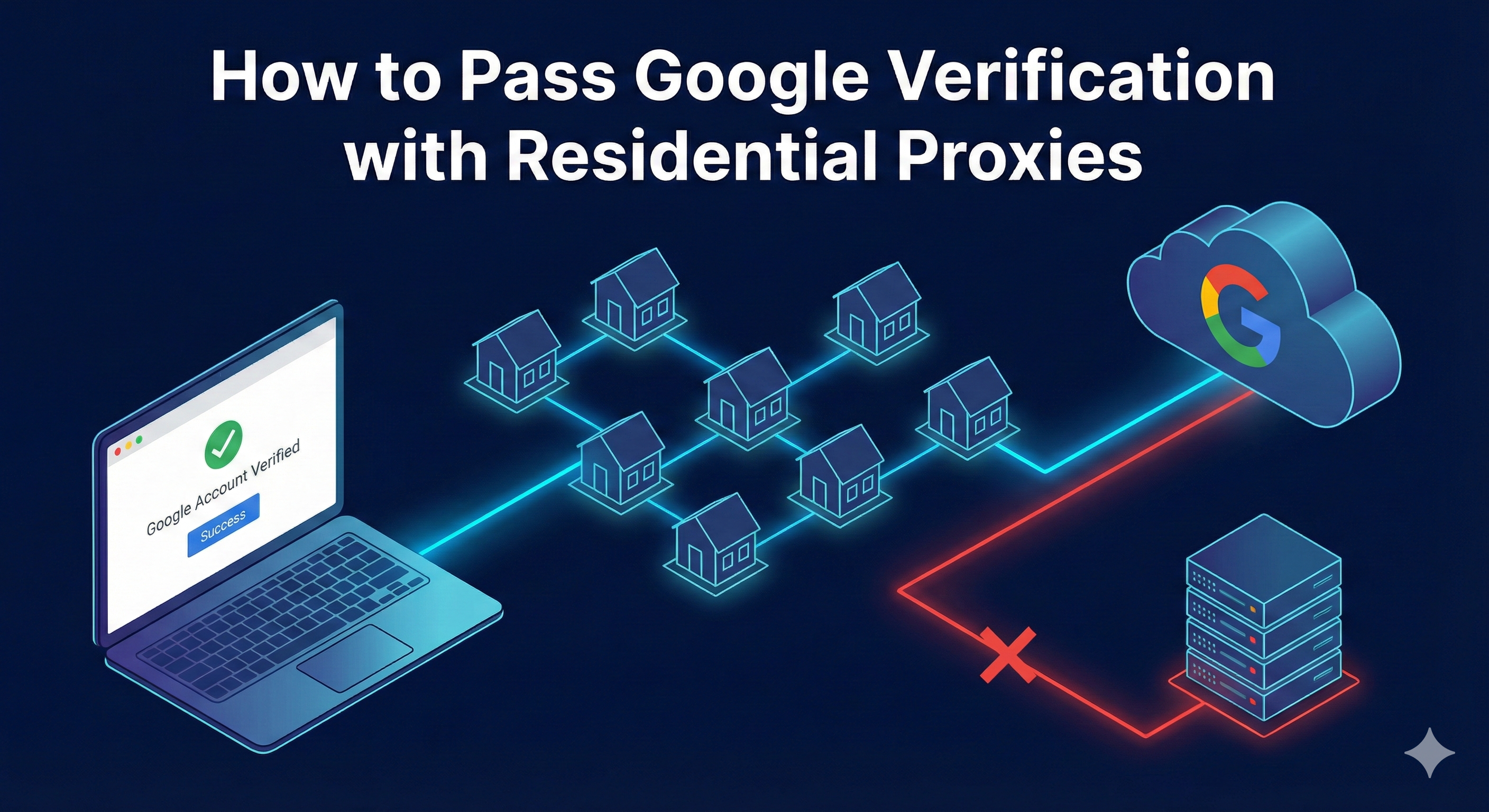
Google Account Verification Issues: Safe Troubleshooting Guide
If Google asks for verification, use the on-screen challenge or official account-recovery process from a familiar device and stable network. Do not try to bypass verification with purchased accounts, disposable phone numbers, anti-detect tools, or repeated proxy rotation. Those tactics can increase risk signals, violate policy, and make recovery harder.
View Details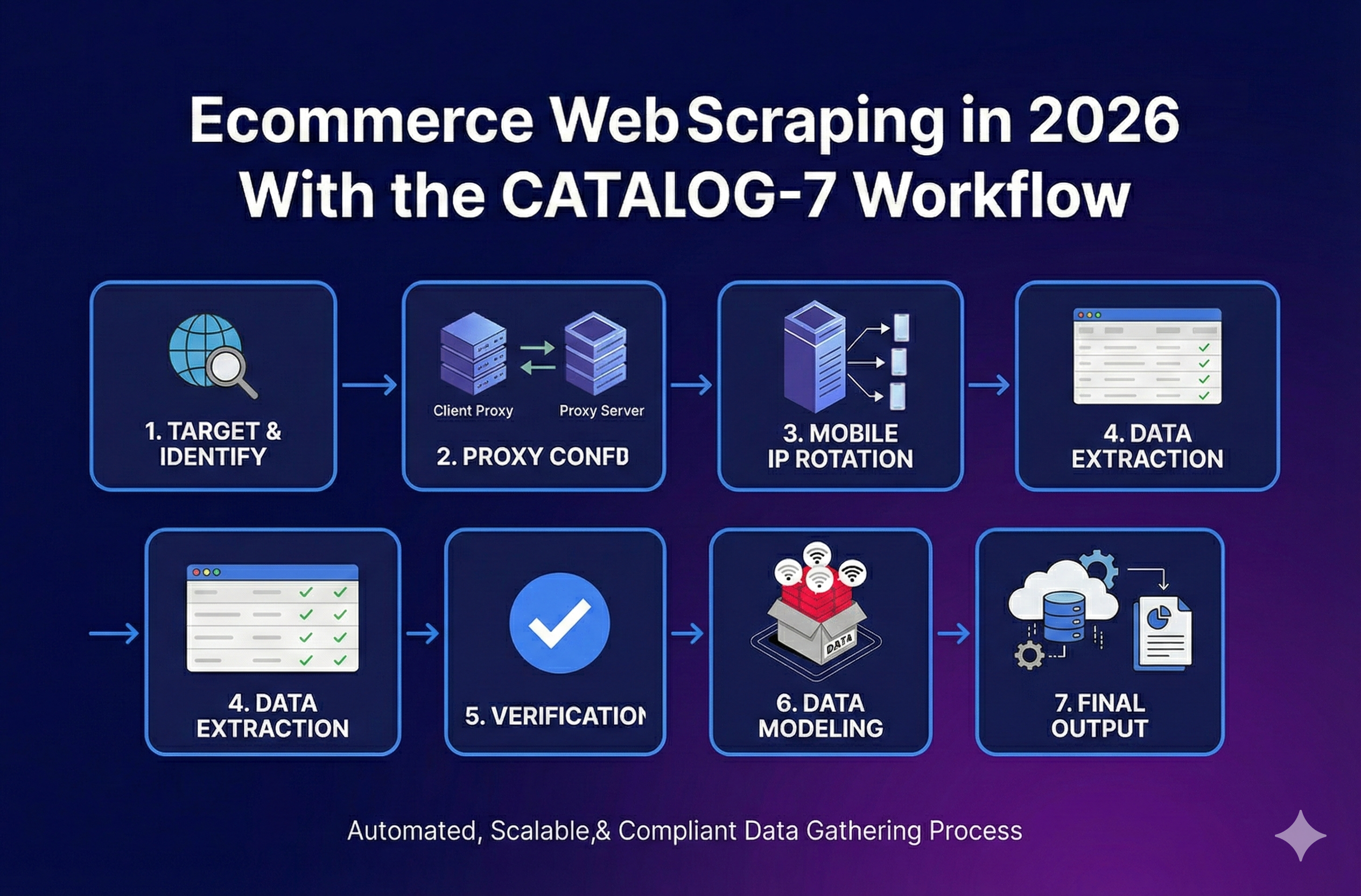
Ecommerce Web Scraping in 2026 With the CATALOG-7 Workflow
Stop broken feeds. Get a reliable ecommerce web scraping workflow, a Python stack picker, and a troubleshooting guide to handle variants and blocks.
View Details