How to Configure LycheeIP Proxy IP in NekoBox on Android
Configure LycheeIP proxy IPs in NekoBox on Android by preparing the device environment, aligning language, region, timezone, and IP, adding the SOCKS proxy, selecting it as the landing proxy, and checking IP quality before operating TikTok or other overseas accounts.
All LycheeIP proxy products need to be used from an overseas network environment. This Android workflow assumes the first-layer overseas network environment is already prepared before adding the LycheeIP proxy in NekoBox or AnXray.
Step 1: Check Phone Hardware and Software Issues
1. Phone Hardware Environment Issues
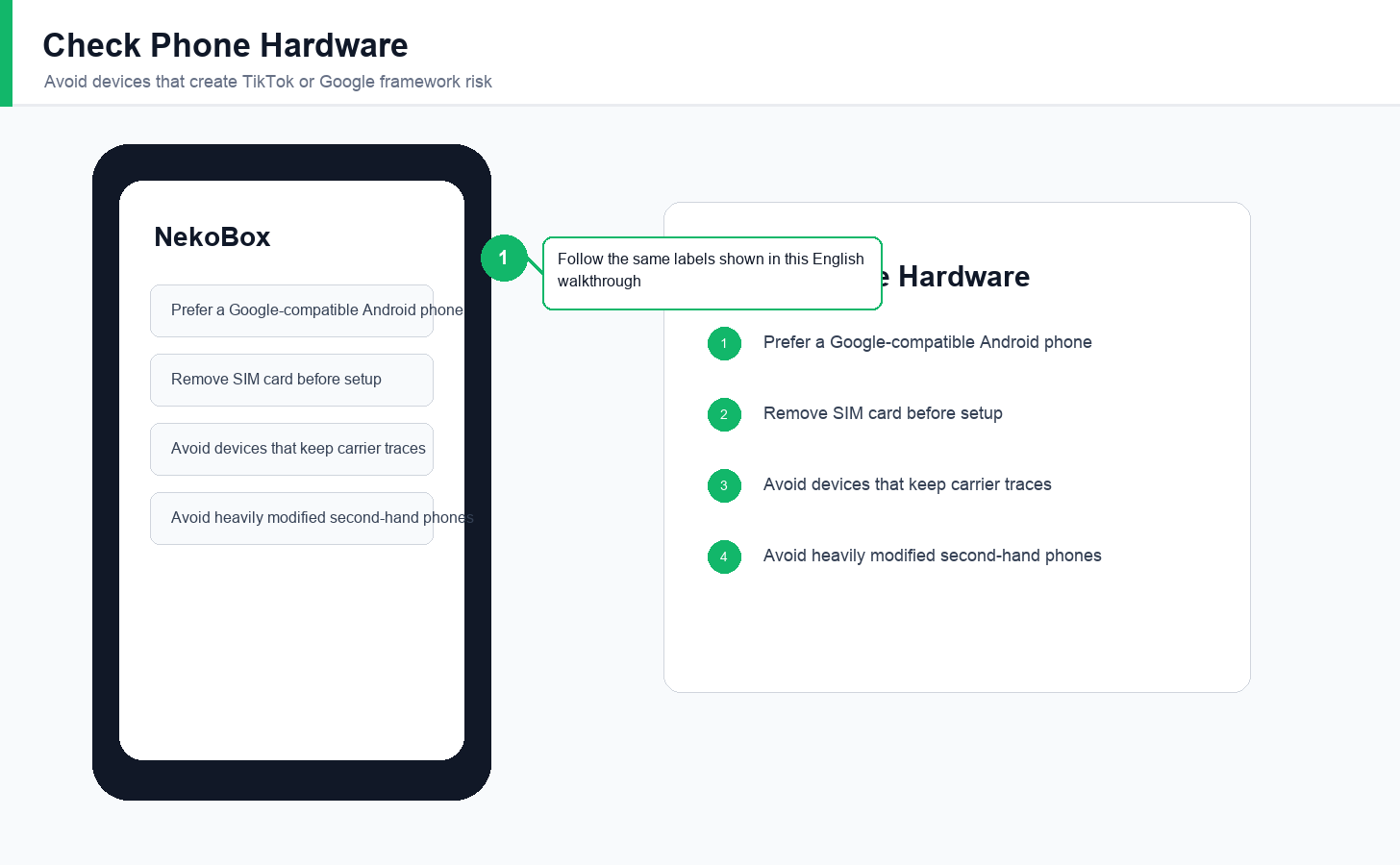
- Phone model selection: avoid domestic Android phones when Google framework compatibility is weak, because unusual framework issues can affect TikTok playback and account performance.
- SIM card: remove the SIM card before setup. If the phone still exposes carrier information after removing the SIM, consider using another phone.
- Carrier traces: some contract phones can retain operator signals that cannot be fully removed even after flashing.
- Second-hand modified phones: avoid unusually cheap modified devices because replaced hardware can be recognized as suspicious.
2. Software and Network Environment Issues
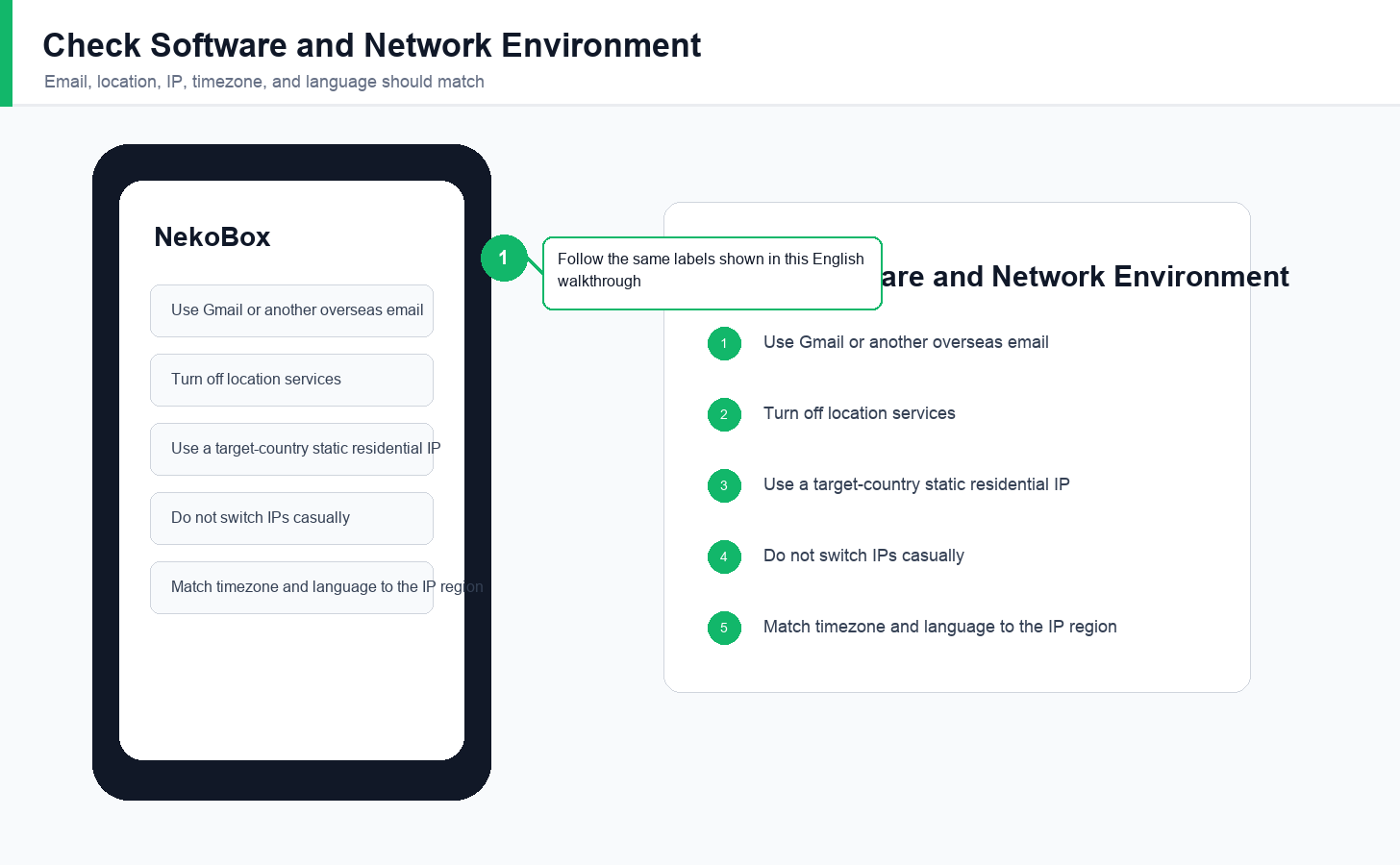
- Email: avoid registering TikTok with restricted local email providers. Gmail or another overseas mailbox is usually safer.
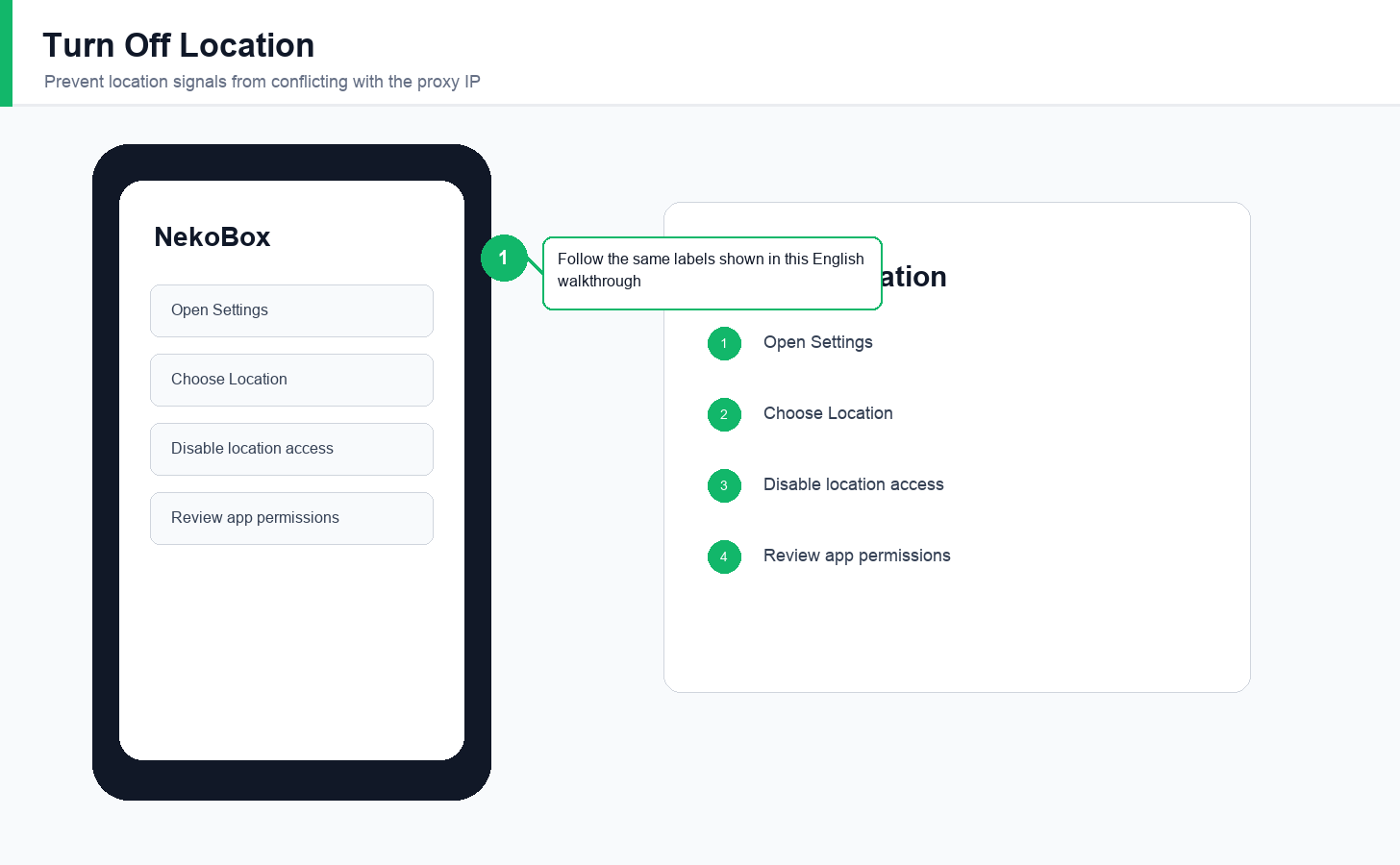
- Location: turn off location access so GPS signals do not conflict with the proxy IP.
- IP address: overseas IP positioning is a basic requirement for TikTok. Choose the target country according to your market; for example, use a UK IP for UK TikTok operations.
- IP stability: after choosing an IP, avoid changing it casually. Frequent switching can label the account as unstable.
- System timezone and language: match timezone and language to the proxy region. For the United States, choose the correct city timezone rather than only the country.
You can open ipinfo.io to check the browser-visible IP environment. The result is useful for network diagnosis, although it does not perfectly represent every TikTok in-app signal.
Step 2: System Settings
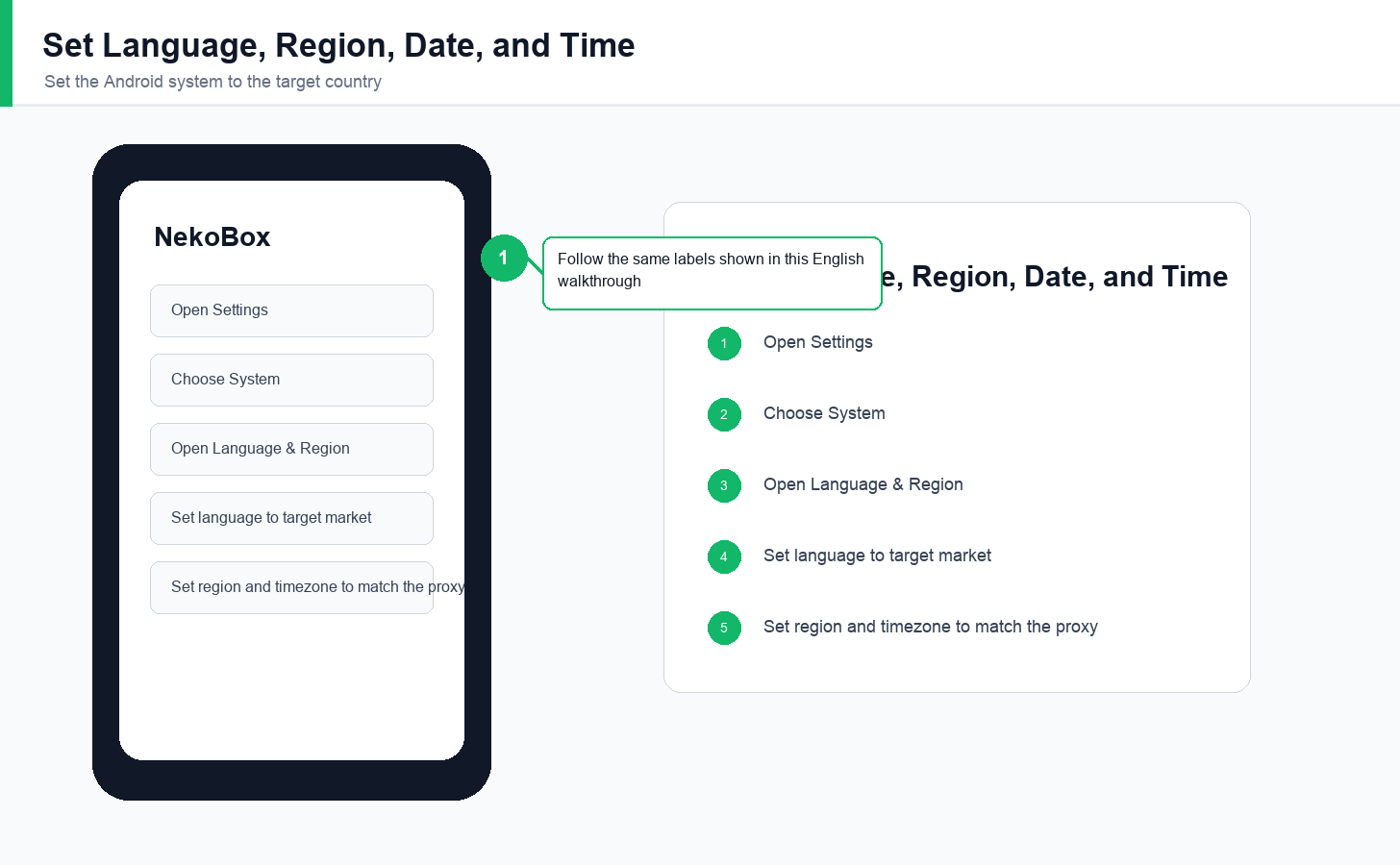
1. Change Language and Region to the Target Country
Open Android Settings, find the system or general settings area, and set date, time, language, and region to the target country. Avoid Simplified Chinese for overseas account environments unless it matches the account market.
2. Turn Off Phone Location
Find Location in Android Settings and turn it off. This reduces the chance that an app sees GPS or system location signals that conflict with the proxy IP address.
Step 3: Network Configuration
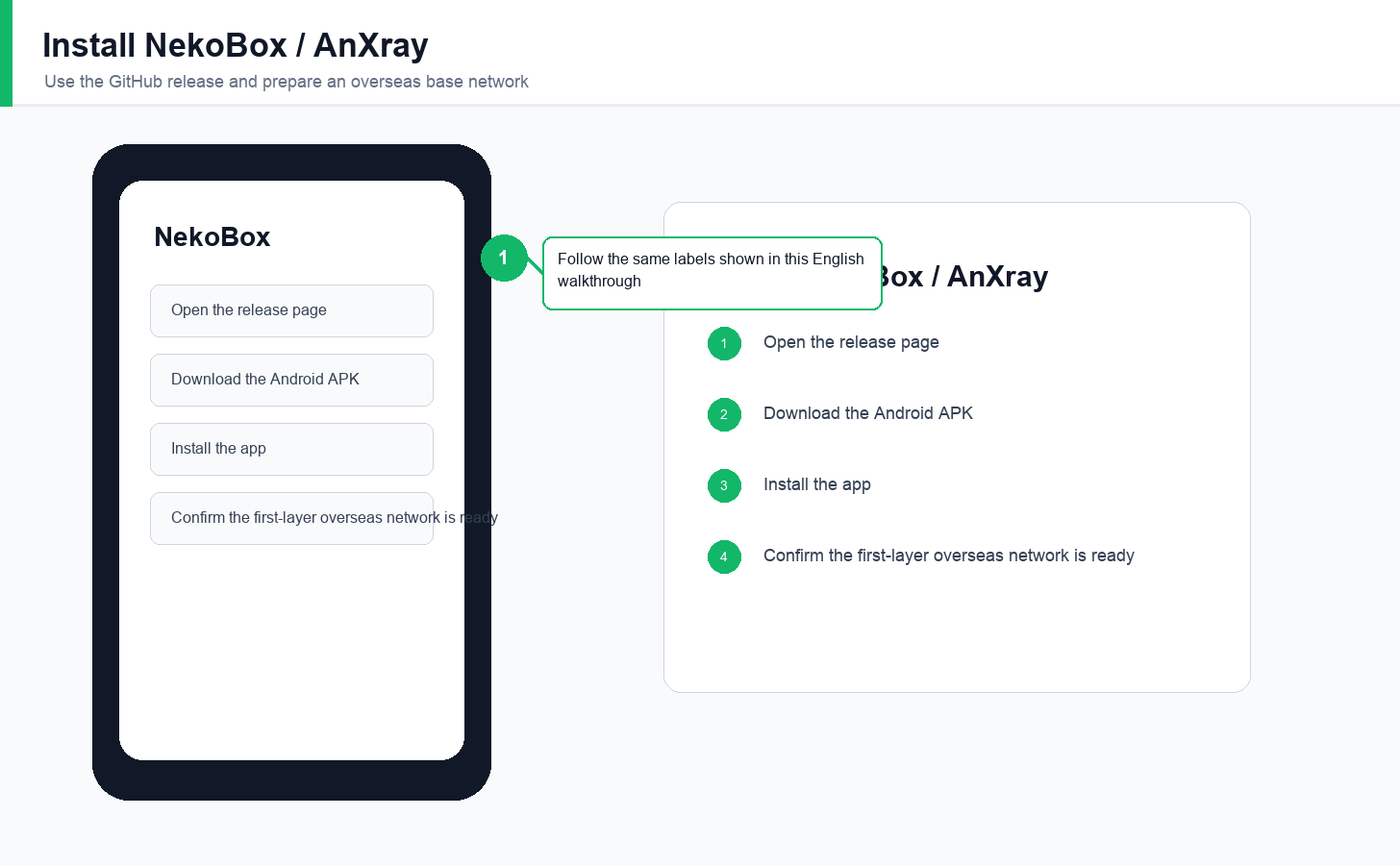
Download the Android proxy app from the official release page used by the source workflow: AnXray releases on GitHub. Install the app only after the first-layer overseas network is ready.
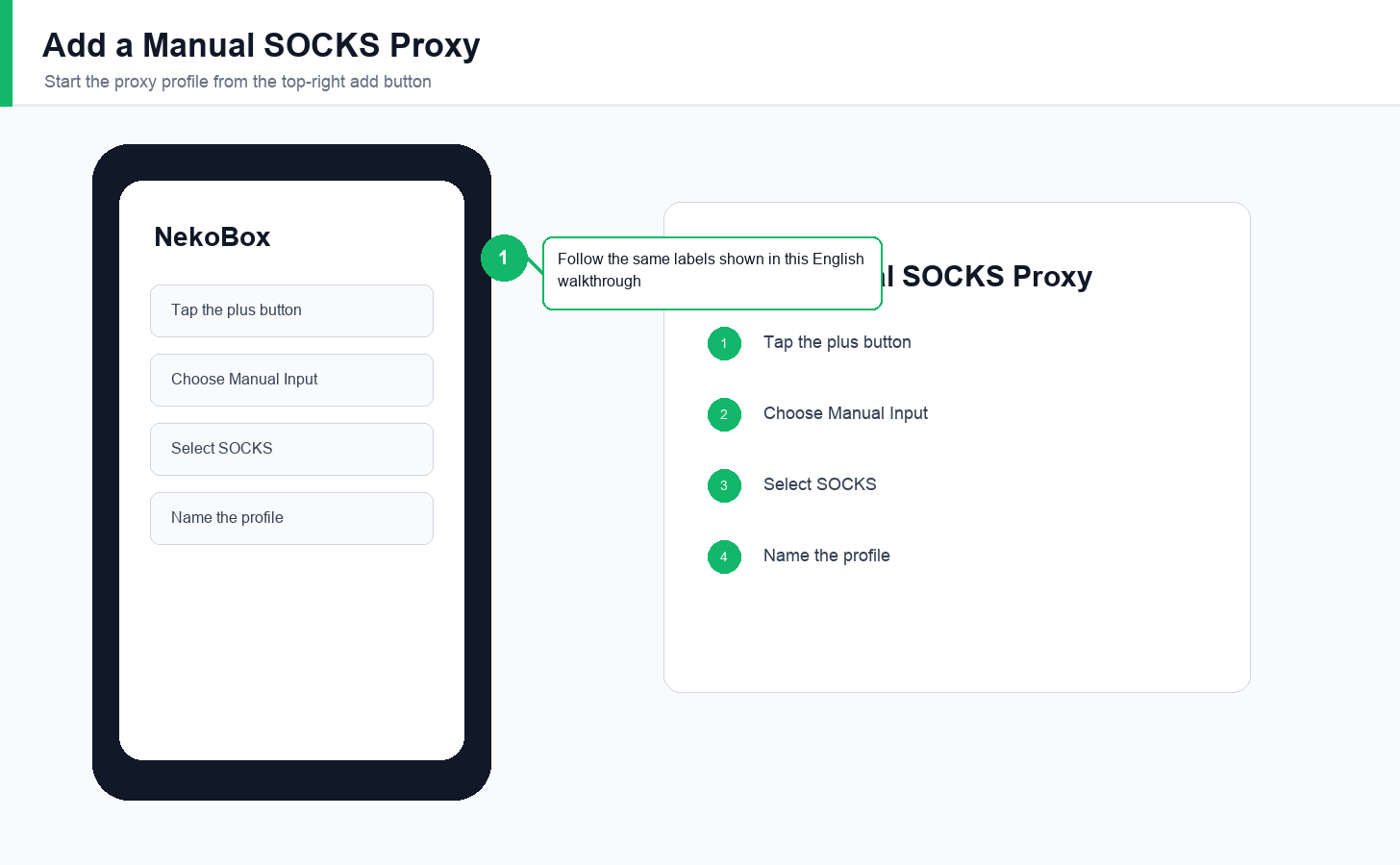
- Tap the plus button in the upper-right corner.
- Tap Manual Input.
- Choose SOCKS.
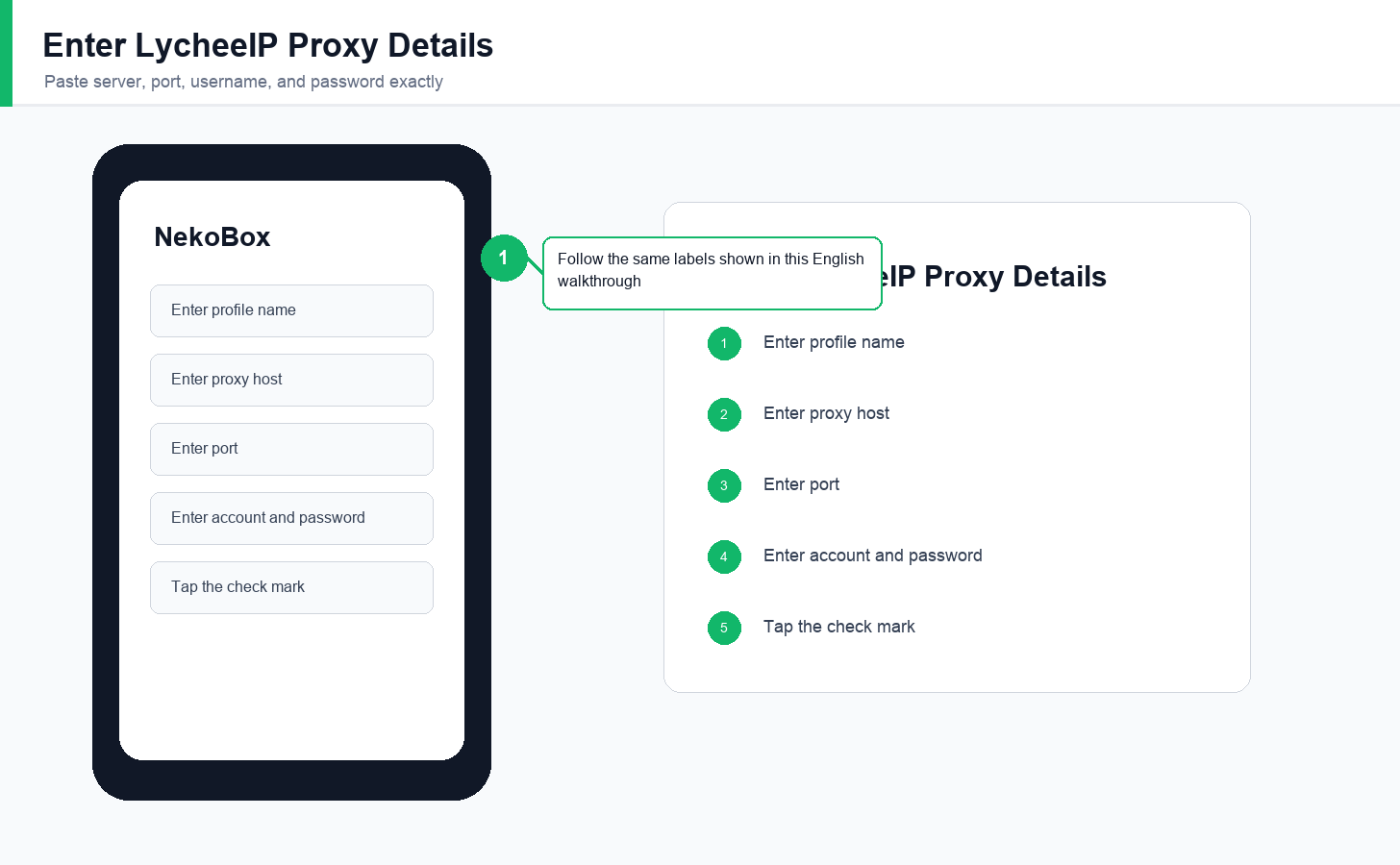
- Change the profile name, enter the LycheeIP proxy host, port, account, and password, then tap the check mark.
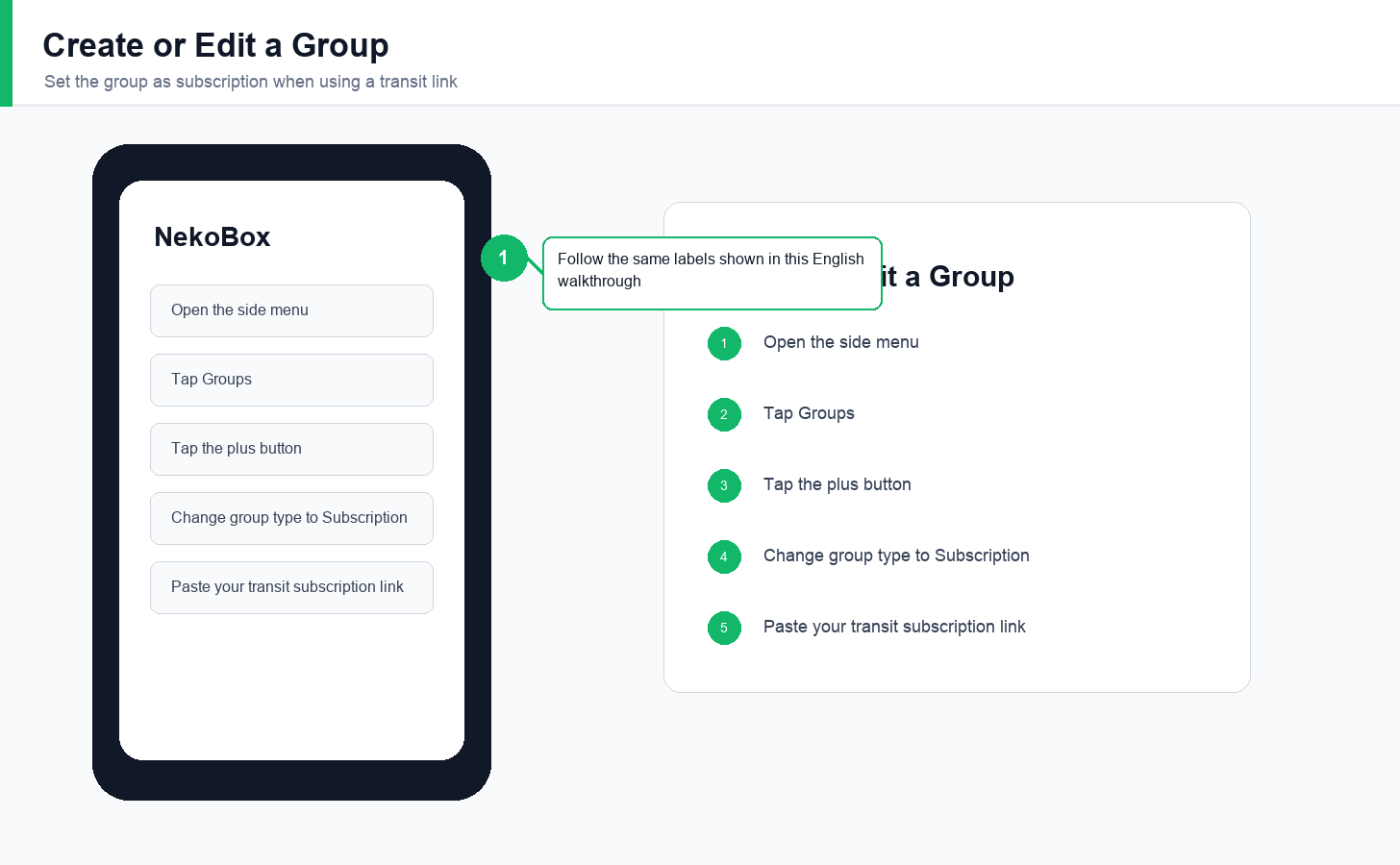
- Tap the menu icon in the upper-left corner.
- Tap Groups.
- Tap the plus button.
- Change the group name, set the group type to Subscription, paste your transit network subscription link, and tap the check mark.
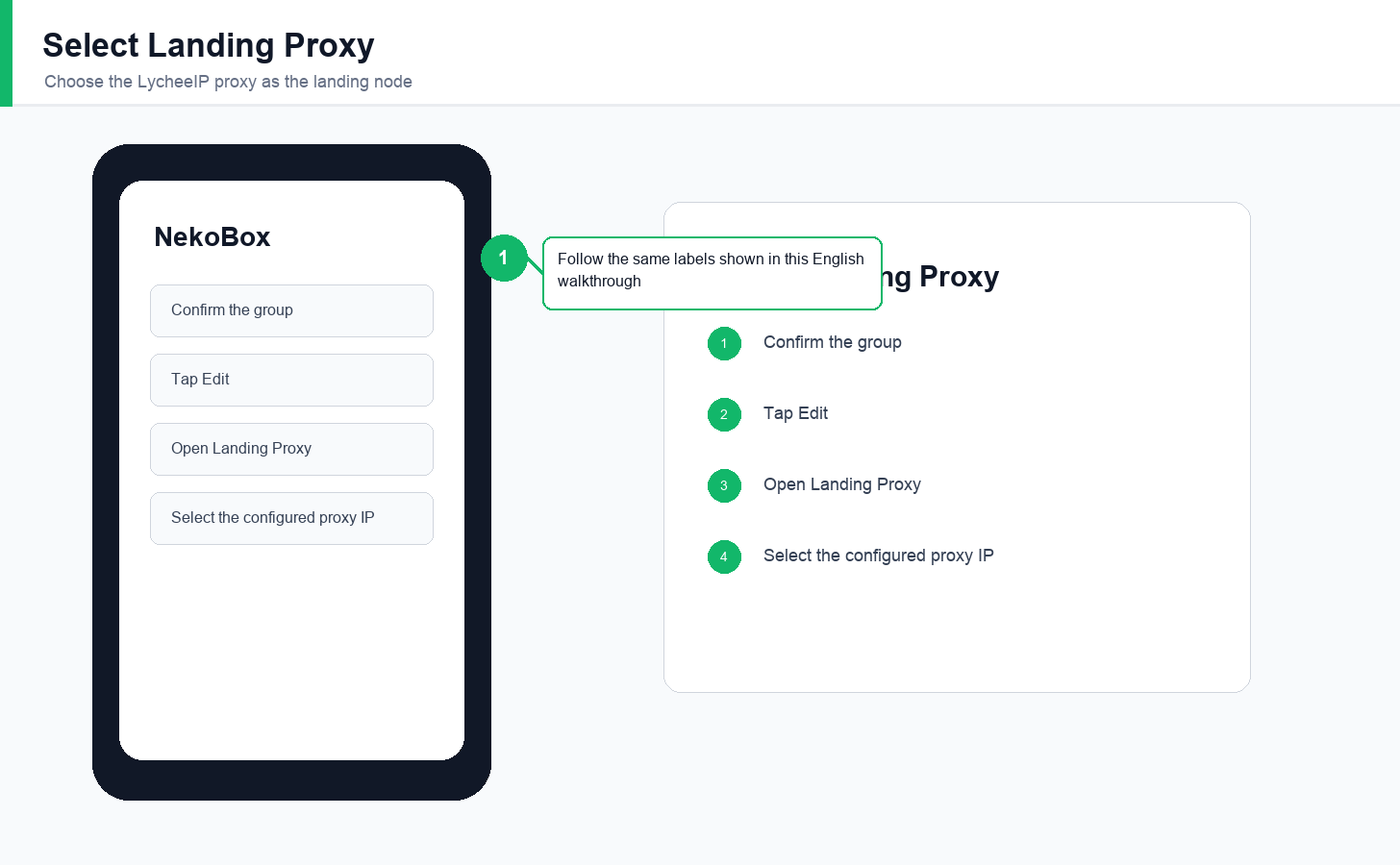
- Tap Confirm when prompted.
- Tap Edit.
- Tap Landing Proxy.
- Choose the proxy IP you just configured.
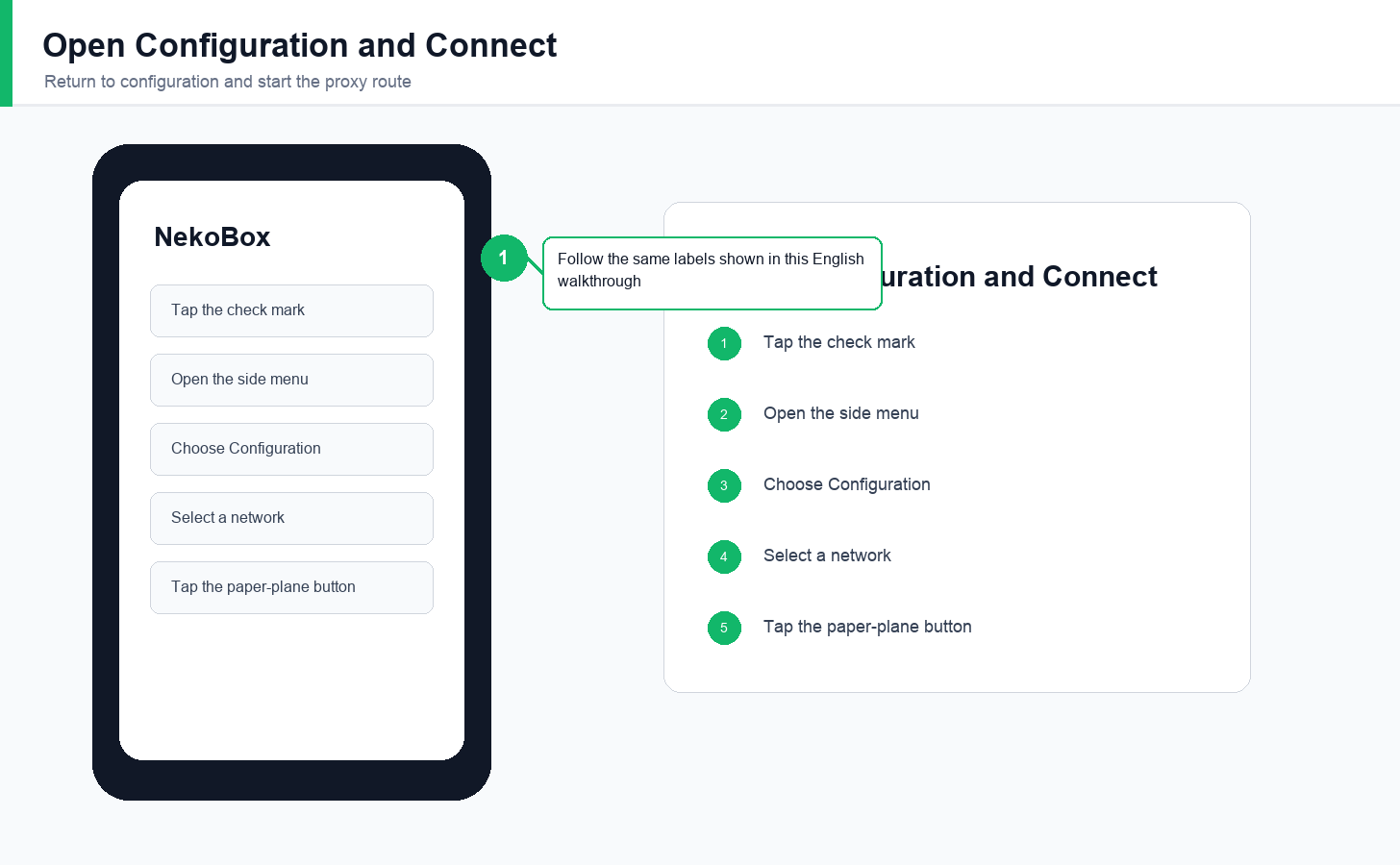
- Tap the check mark in the upper-right corner.
- Tap the menu icon again.
- Tap Configuration.
- Choose a network and tap the paper-plane connection button.
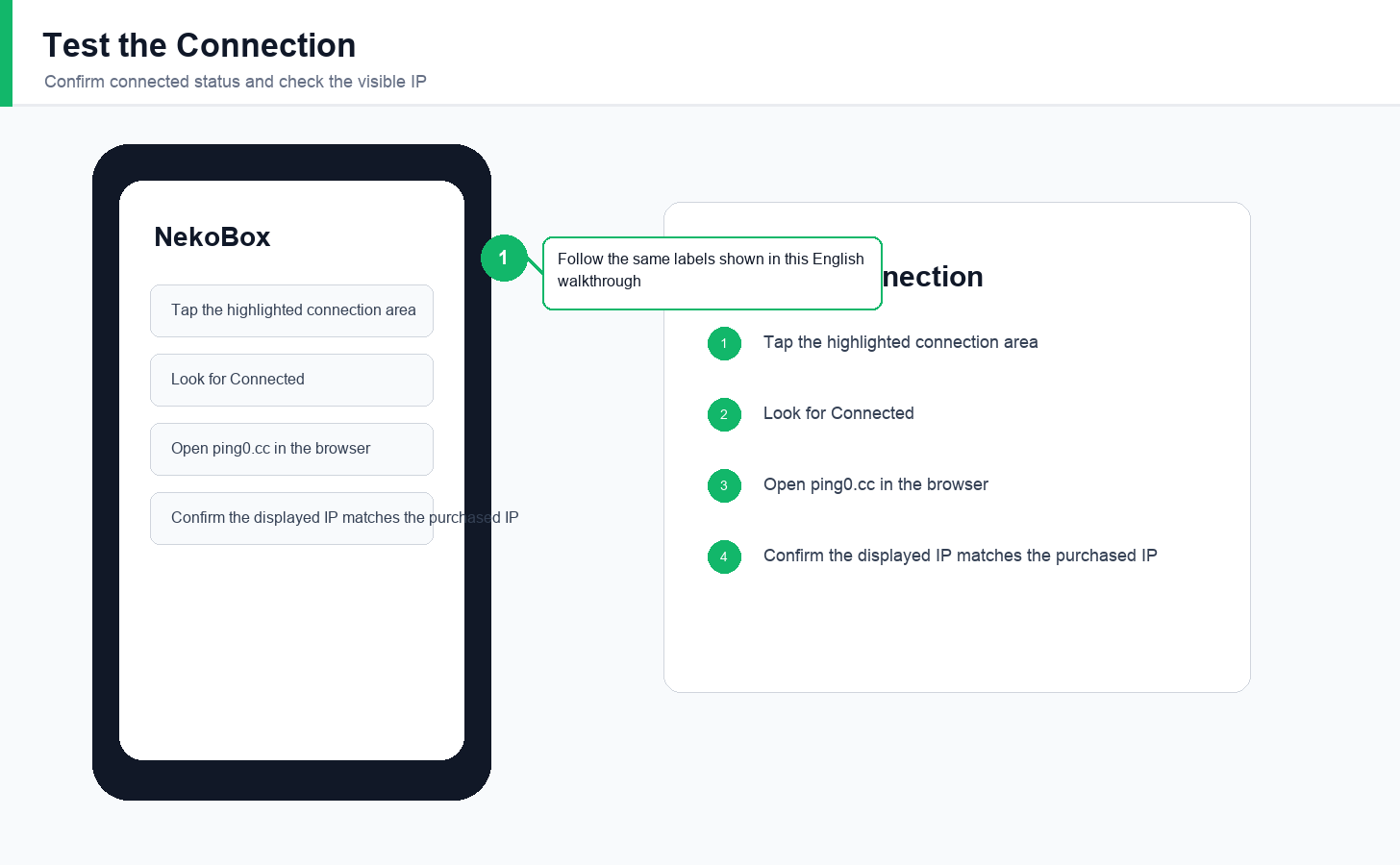
Tap the highlighted connection area and check whether the app shows Connected. If it does not connect, select another network and test again. Then open Ping0.cc in the browser and confirm whether the displayed IP is the purchased LycheeIP IP.
Step 4: Check IP Quality
1. Enter the IP Detection Website
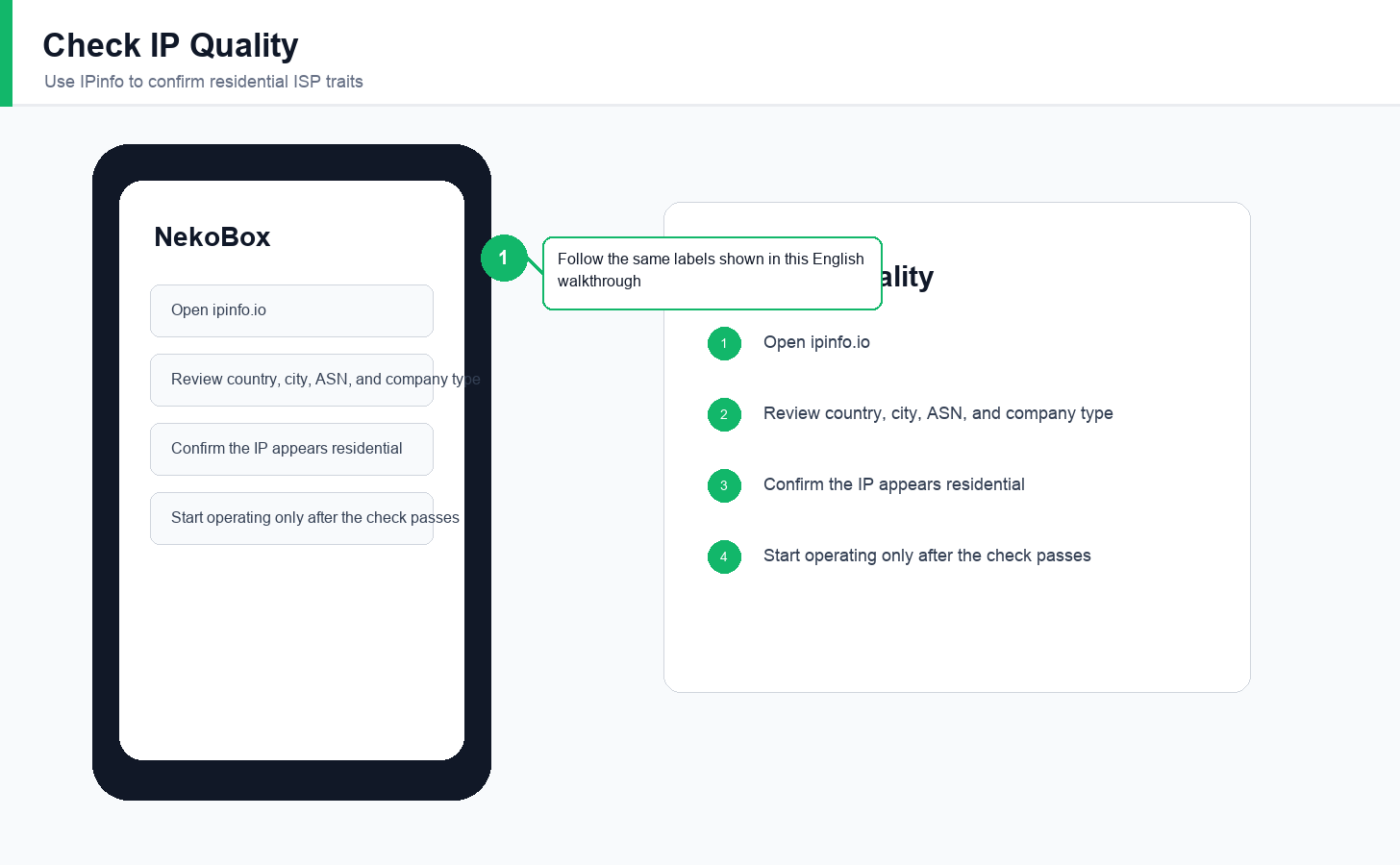
Open ipinfo.io in the browser or fingerprint browser environment.
2. Check Whether It Is a Residential IP
After the page loads, review the visible IP, country, ASN, organization, and company type. A good result should show residential ISP traits rather than obvious hosting or data-center traits. If the IP quality check passes, you can begin operating the TikTok account or other overseas account workflow.
Need desktop or iOS setup instead? Read the LycheeIP guides for V2rayN PC configuration and Apple device proxy setup.
Explore LycheeIP Residential Proxies
Frequently Asked Questions
Can I use any Android phone for TikTok proxy setup?
Not always. A Google-compatible phone with clean hardware signals is safer. Avoid modified phones, phones with retained carrier traces, or devices with unreliable Google framework support.
Why should timezone, language, region, and IP match?
Consistent signals make the account environment cleaner. If the proxy points to one country while the phone settings point elsewhere, the account may look unstable.
What should I do if NekoBox does not connect?
Check the host, port, username, password, SOCKS protocol selection, first-layer overseas network, and whether the proxy line has expired or rotated.
Related LycheeIP Articles
Related LycheeIP articles: Instagram proxy management, mobile and residential proxy use cases, residential proxies, anonymous proxy servers, mobile proxies, public versus private IP addresses, Apple proxy setup, V2rayN PC proxy setup, MoreLogin proxy setup, HubStudio proxy setup.